The Advanced Performance Review Snapshot report in MProfit lets you analyze your portfolio’s performance using a wide range of customizable options. Follow this guide to learn how to access and personalize this powerful report.
Step 1: Navigate to the Reports section.
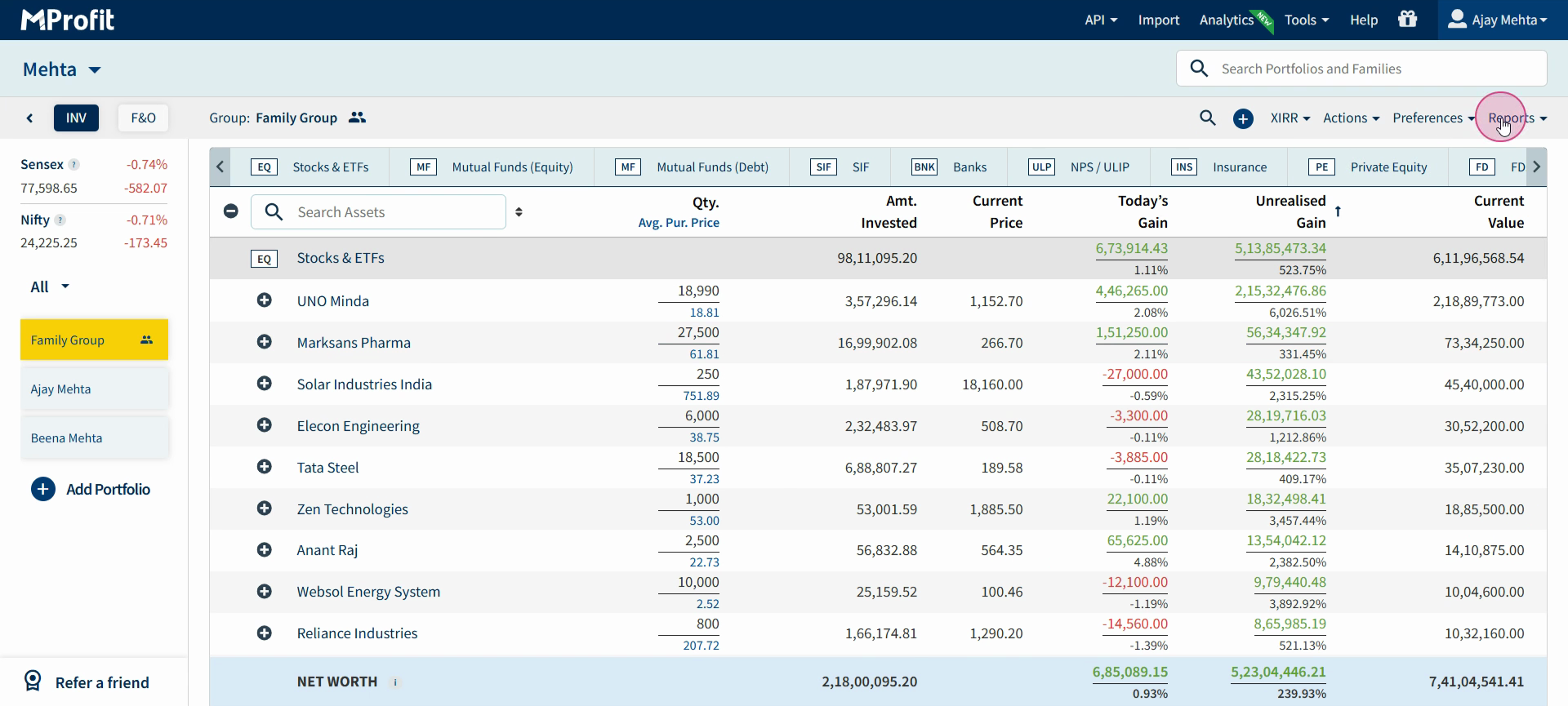
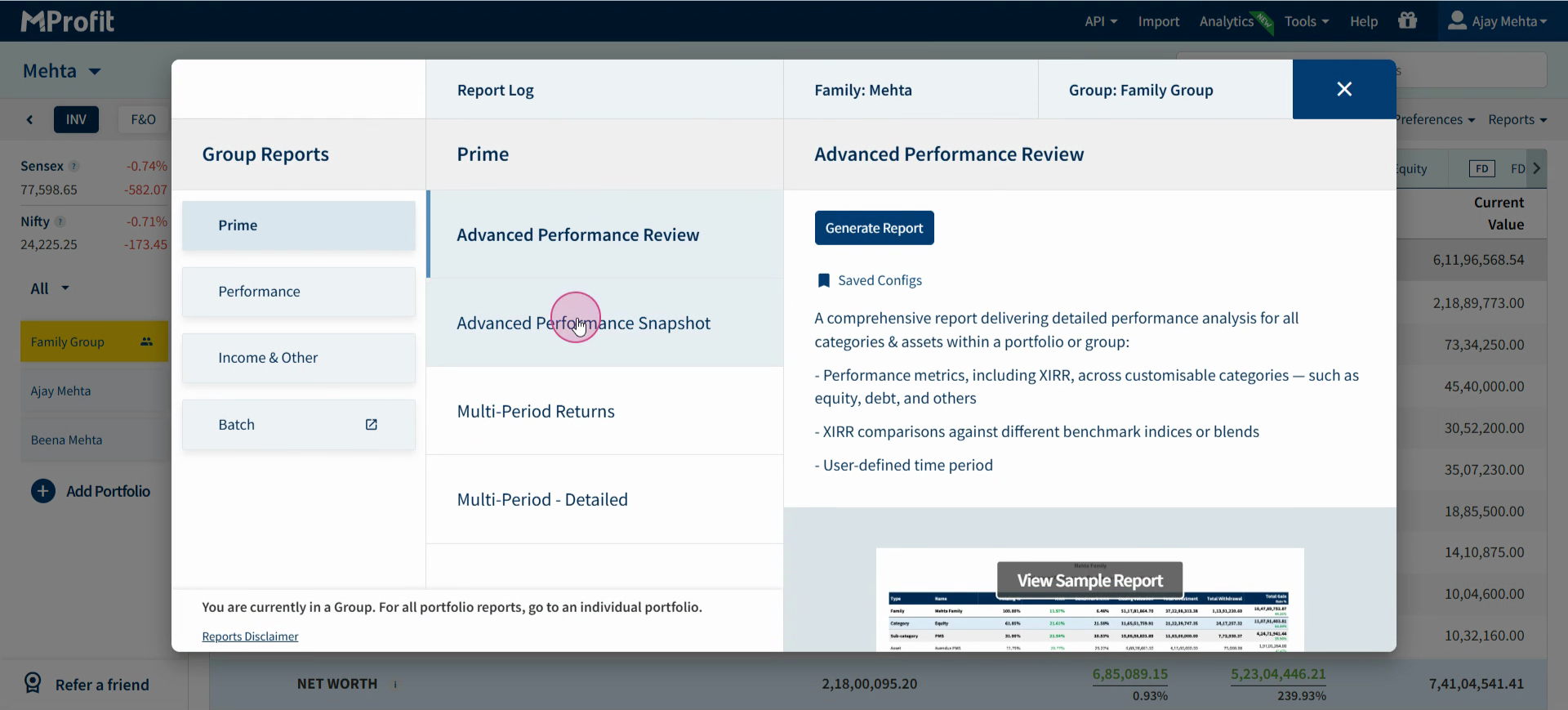
Step 2: Under the Prime category, select Advanced Performance Snapshot.
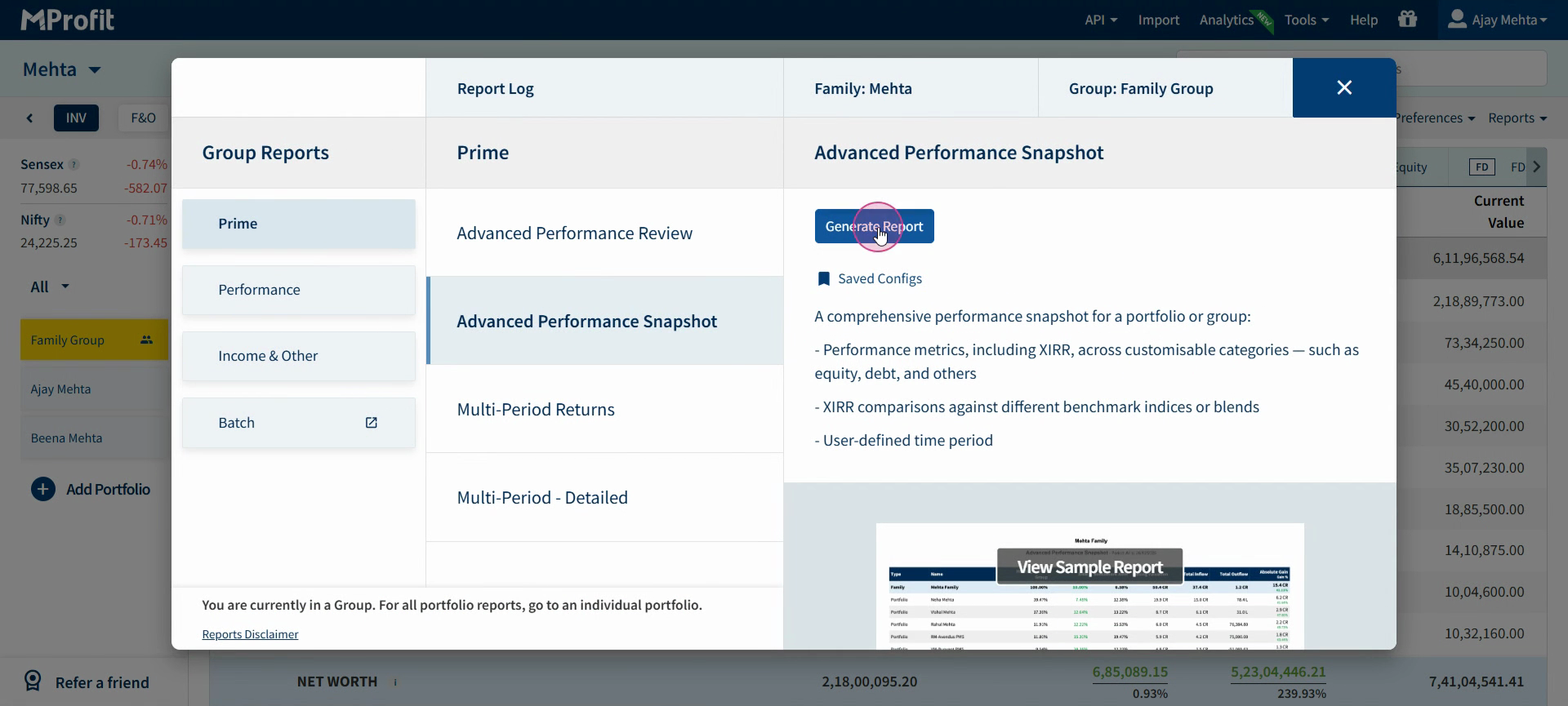
Step 3: Click Generate Report to launch the customization form.
Step 4: Set the reporting Period. Choose options like Current Financial Year, Month, or a specific Quarter.
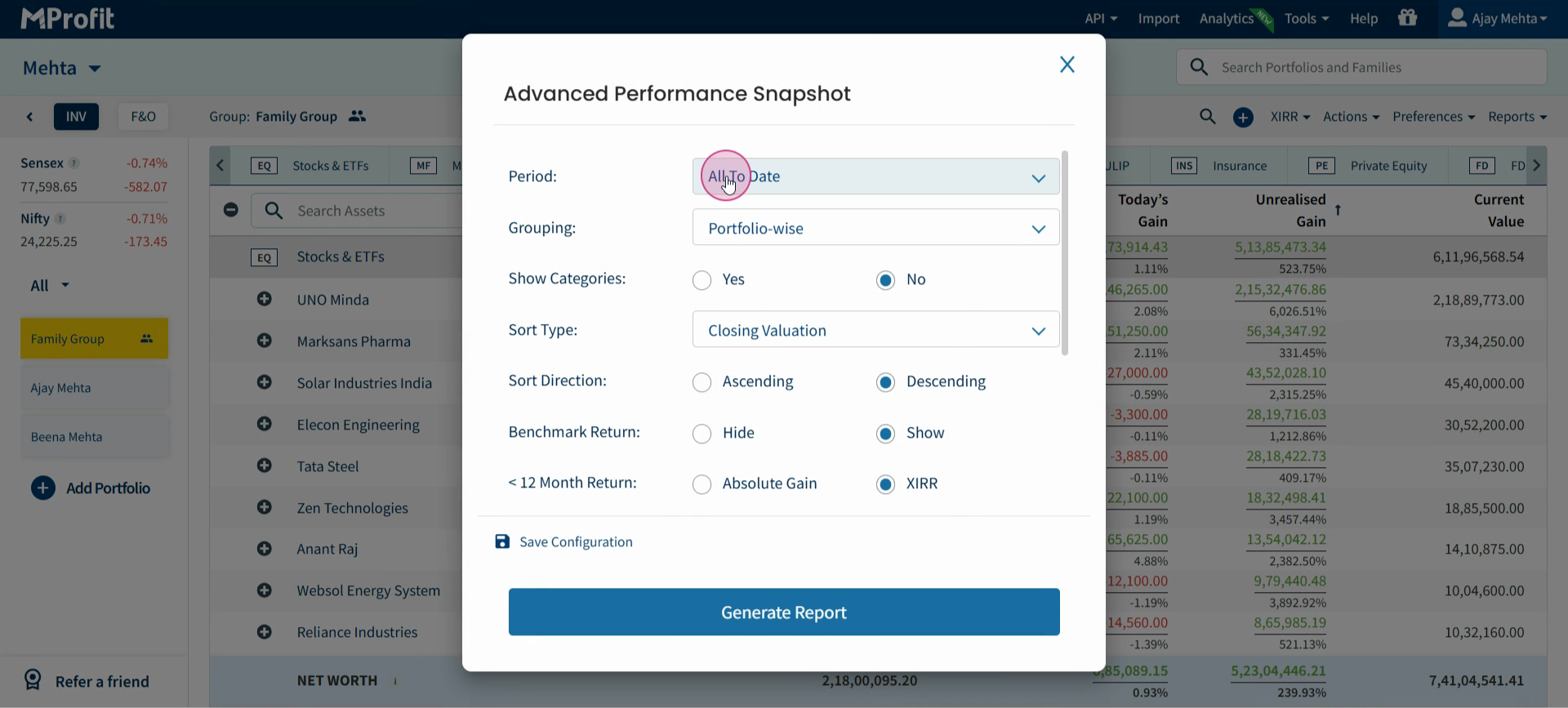
Step 5: Choose how you want to Group your report: by Category, Portfolio, Entity, or Adviser. Pick the one that best fits how you want to break down your data.
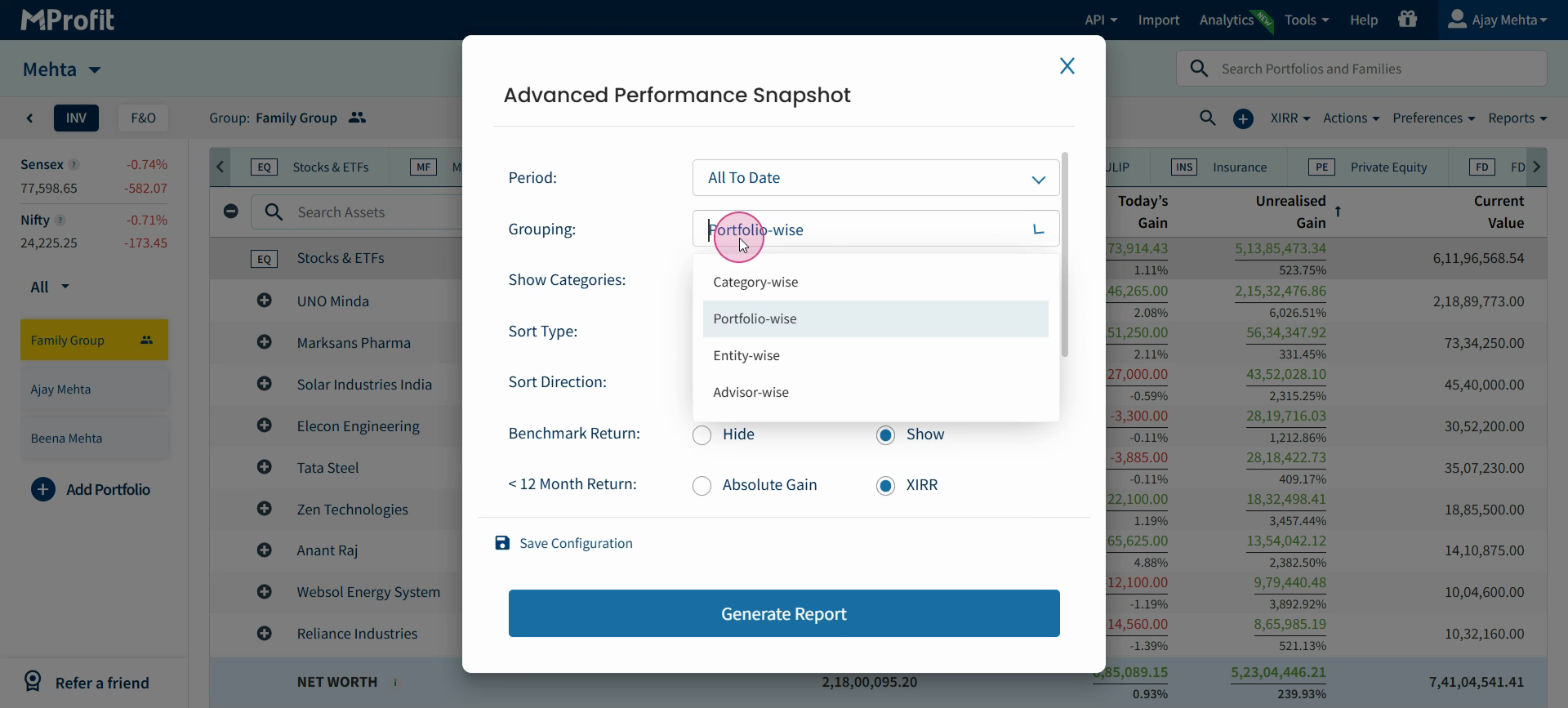
Step 6: Decide whether to Show Categories. Selecting Yes gives you the option to show subcategories, like more specific divisions within your asset classes.
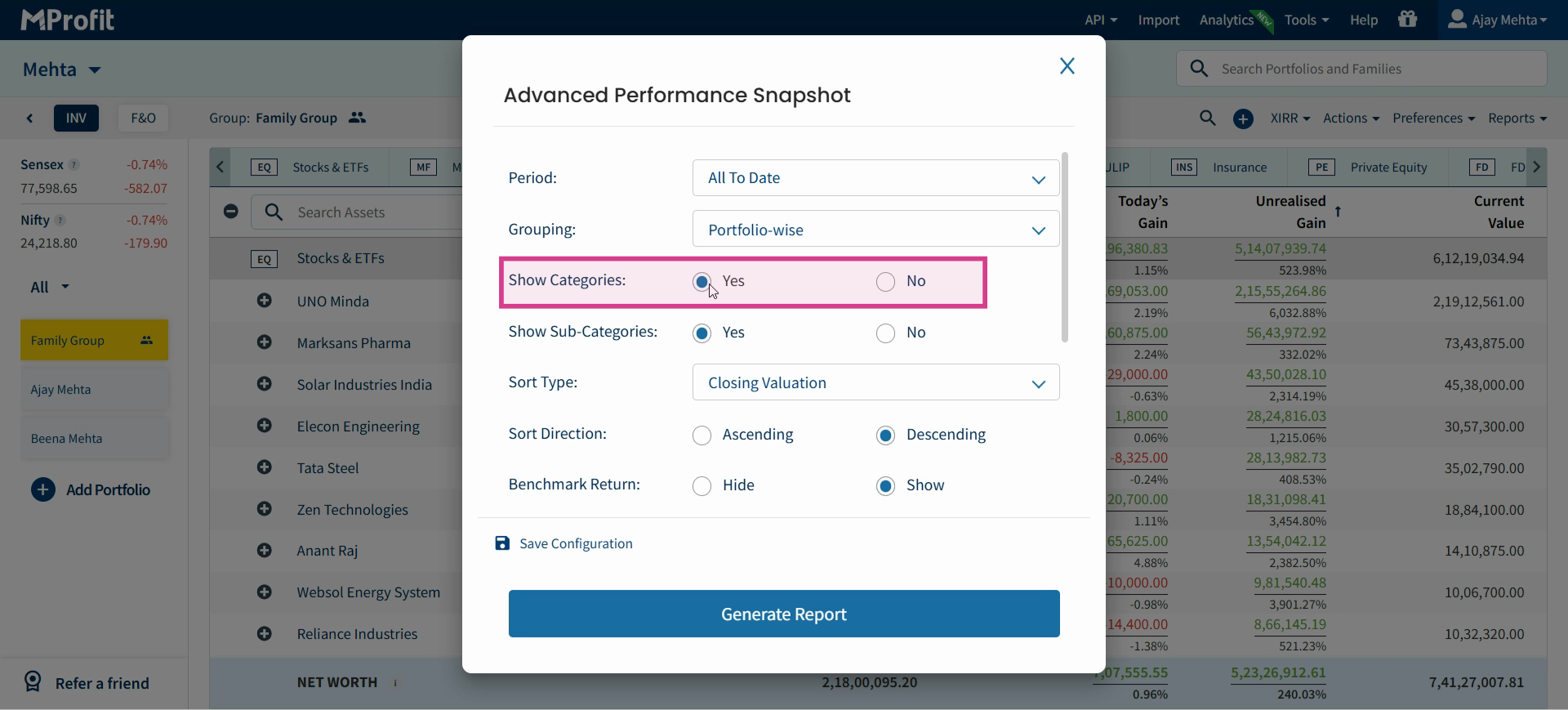
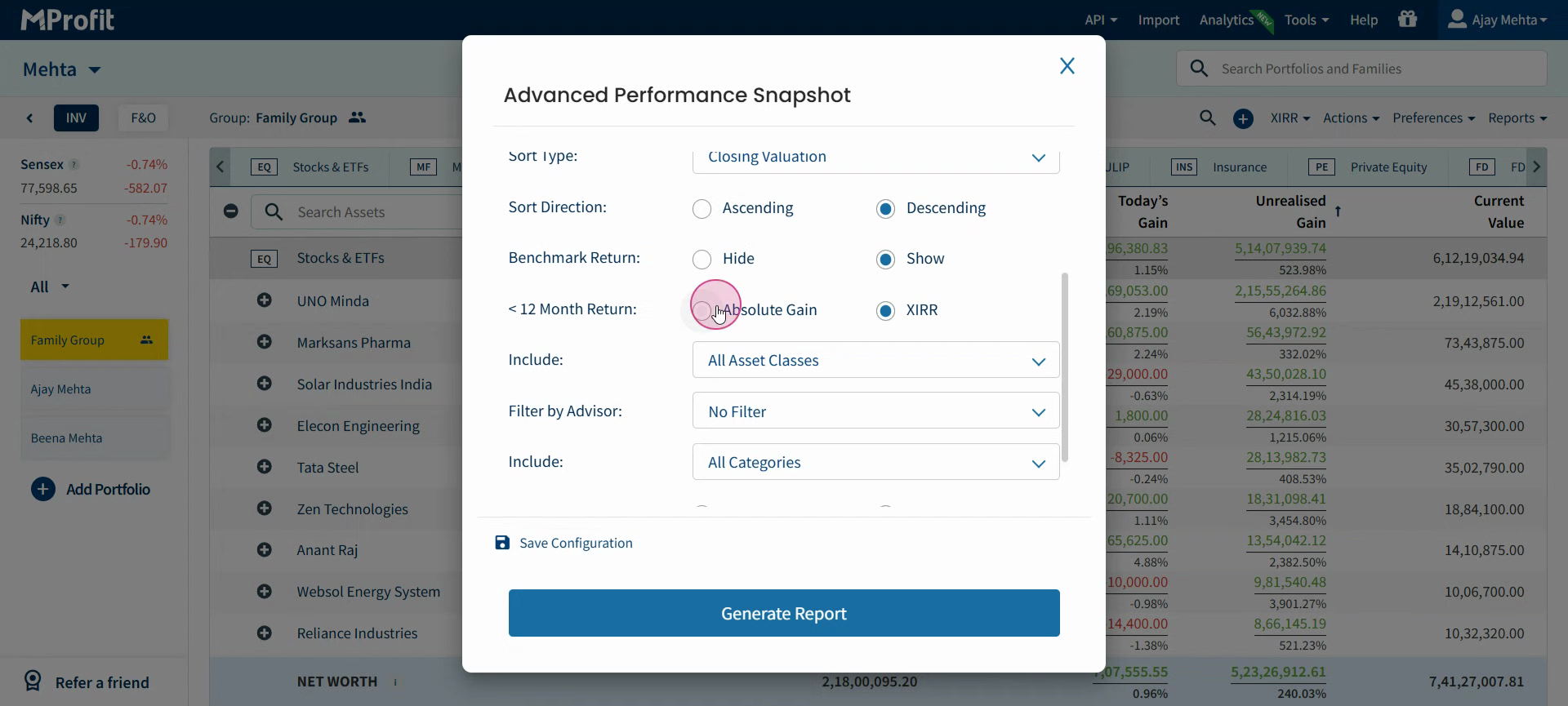
Step 7: Adjust the Sort Type. Sort your report by factors such as Closing Valuation, XIRR, Total Gain, or Gain Percentage. Choose ascending or descending order as needed.
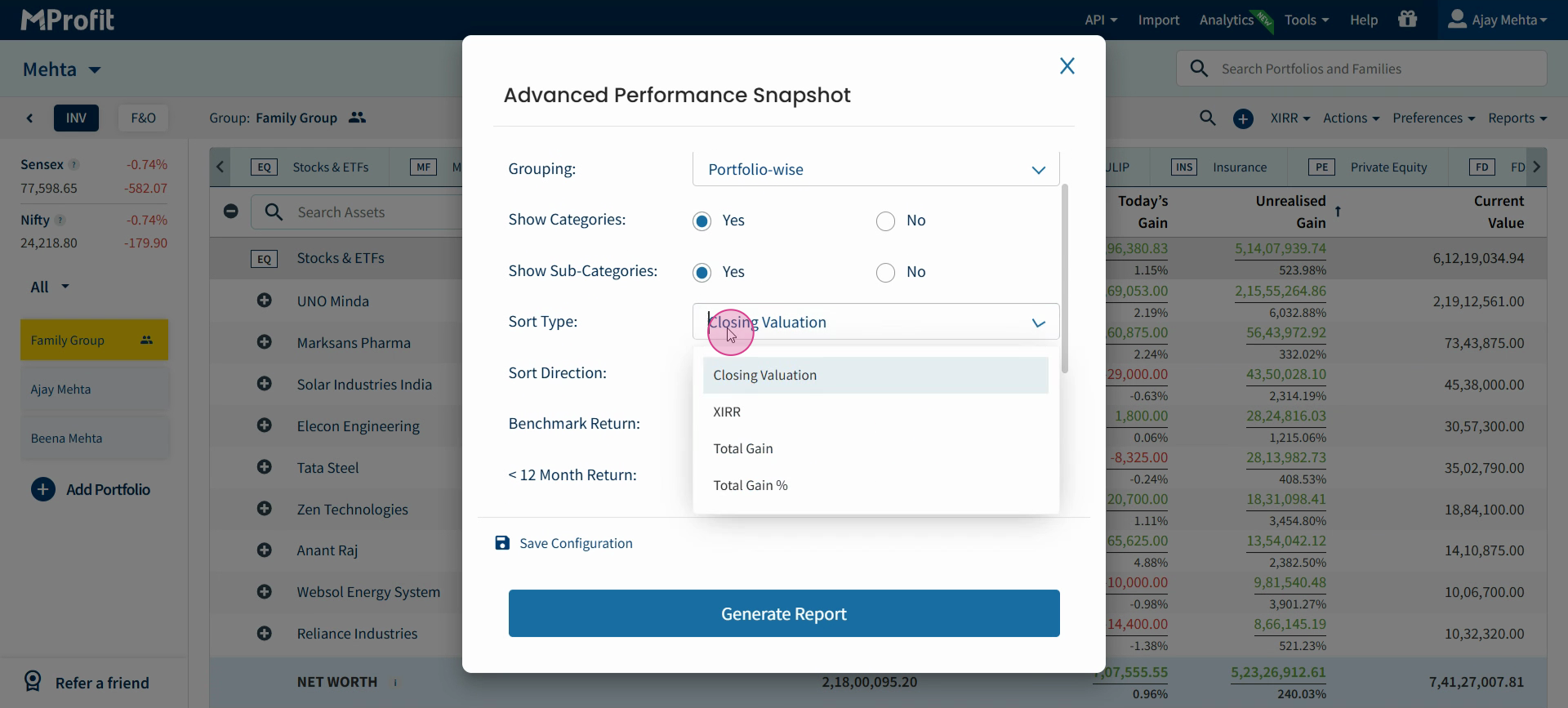
Step 8: Toggle the Benchmark Return display. Choose to show or hide benchmark returns for your asset classes.
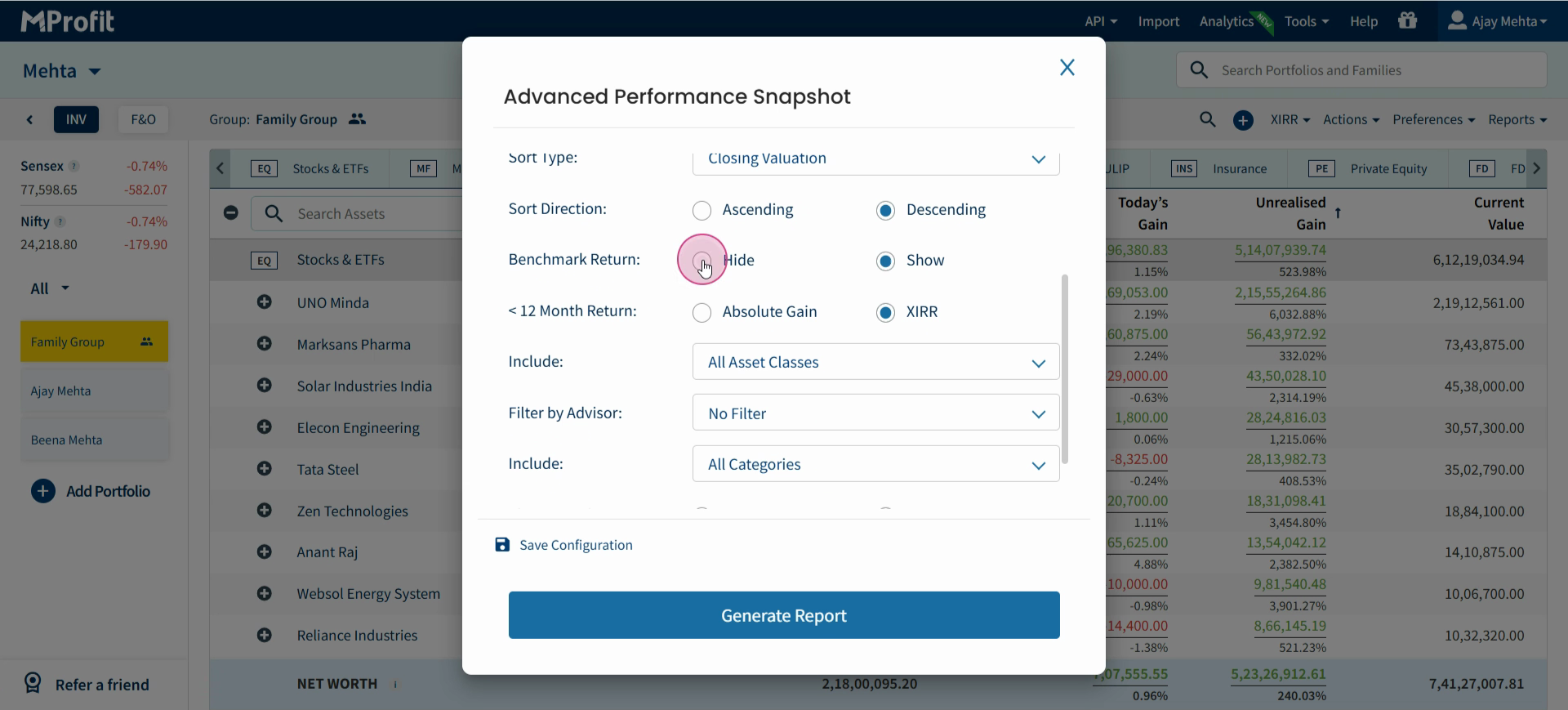
Step 9: For Returns Below 12 Months, decide if you want them to show as Absolute Gain or based on XIRR (internal rate of return).
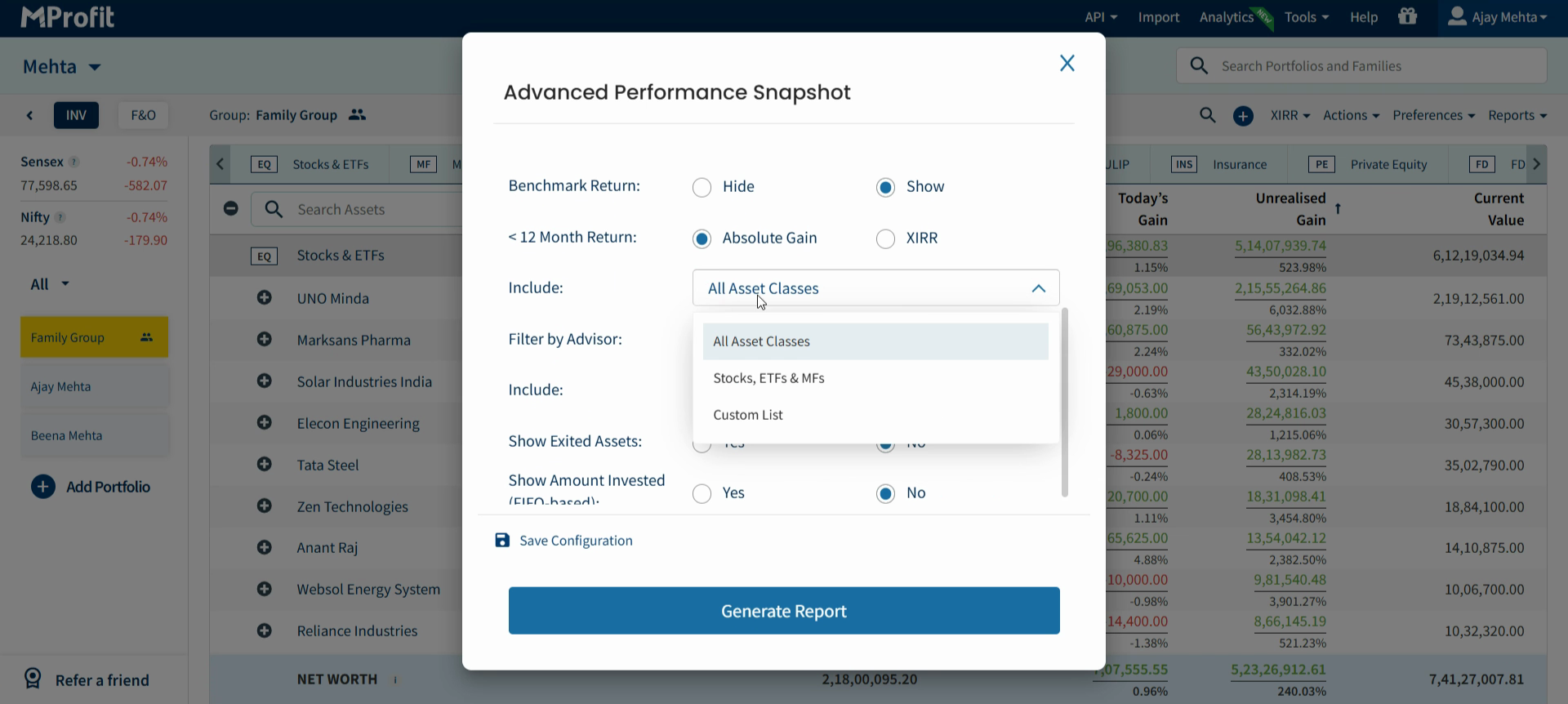
Step 10: Select which Asset Classes to include—either all, only stocks/ETFs/mutual funds, or create a custom list.
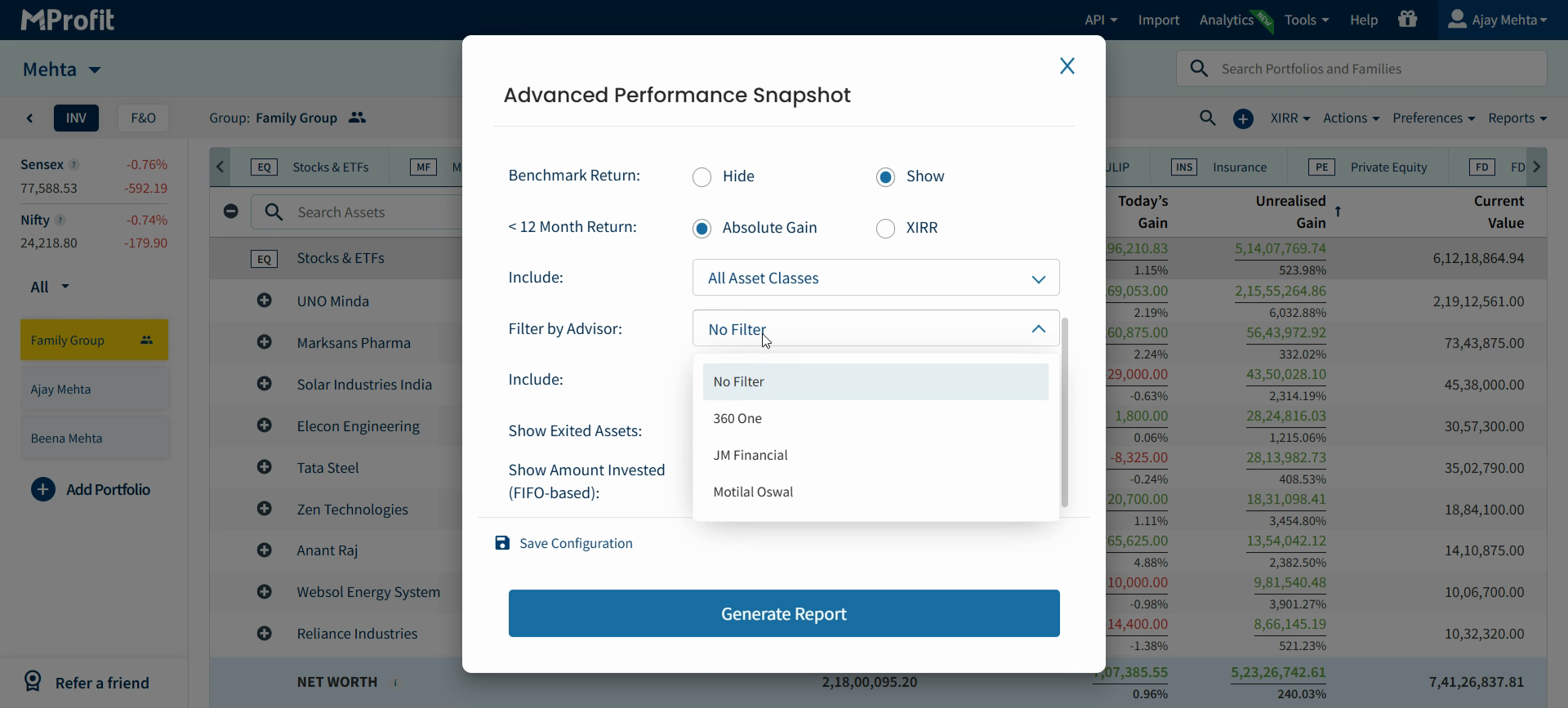
Step 11: Apply adviser filters to view returns by a specific adviser, or keep no filter for a combined view.
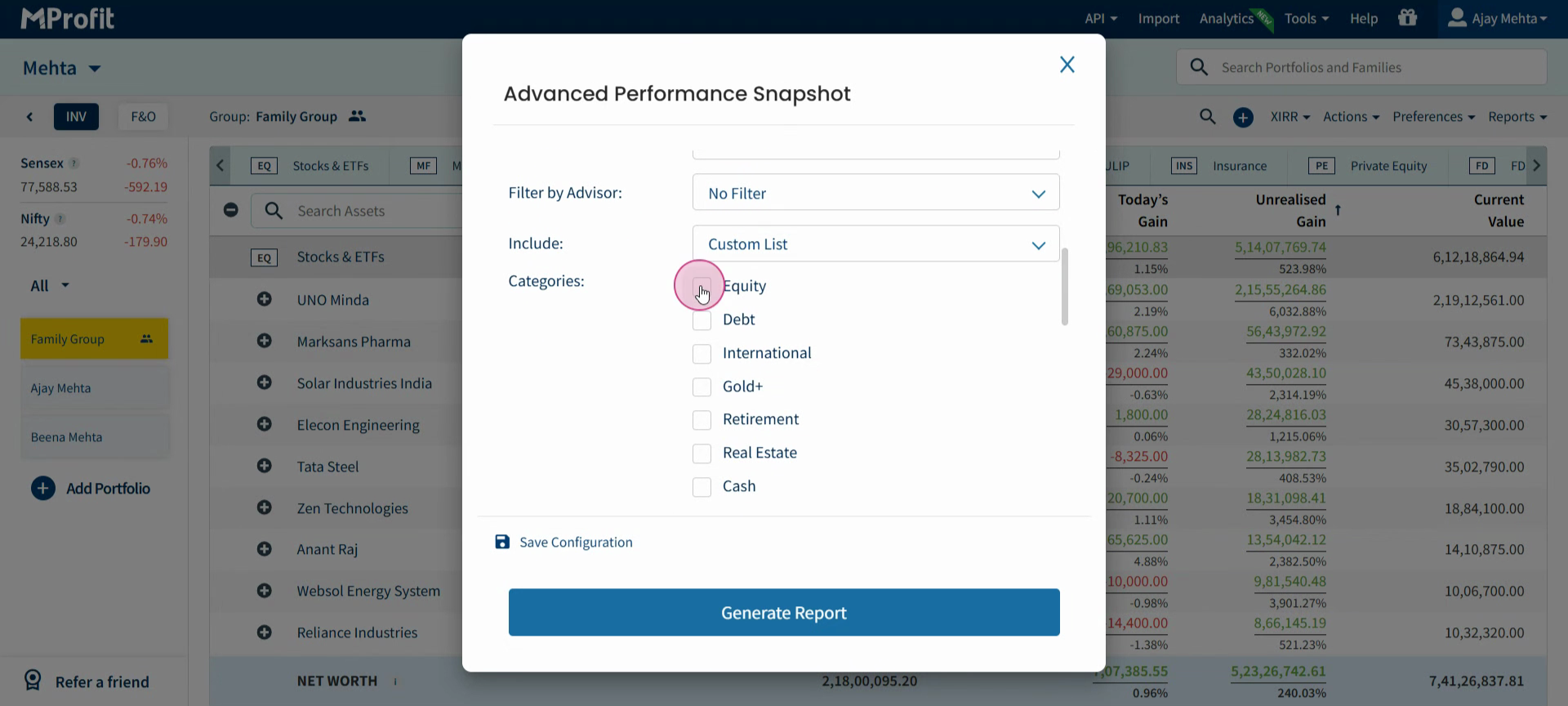
Step 12: Choose which Categories to include, like Equity, Debt, Real Estate, or ETFs. Select all or customize the list.
Step 13: Decide if you want to Show Exited Assets (investments you’ve exited) or only your current holdings.
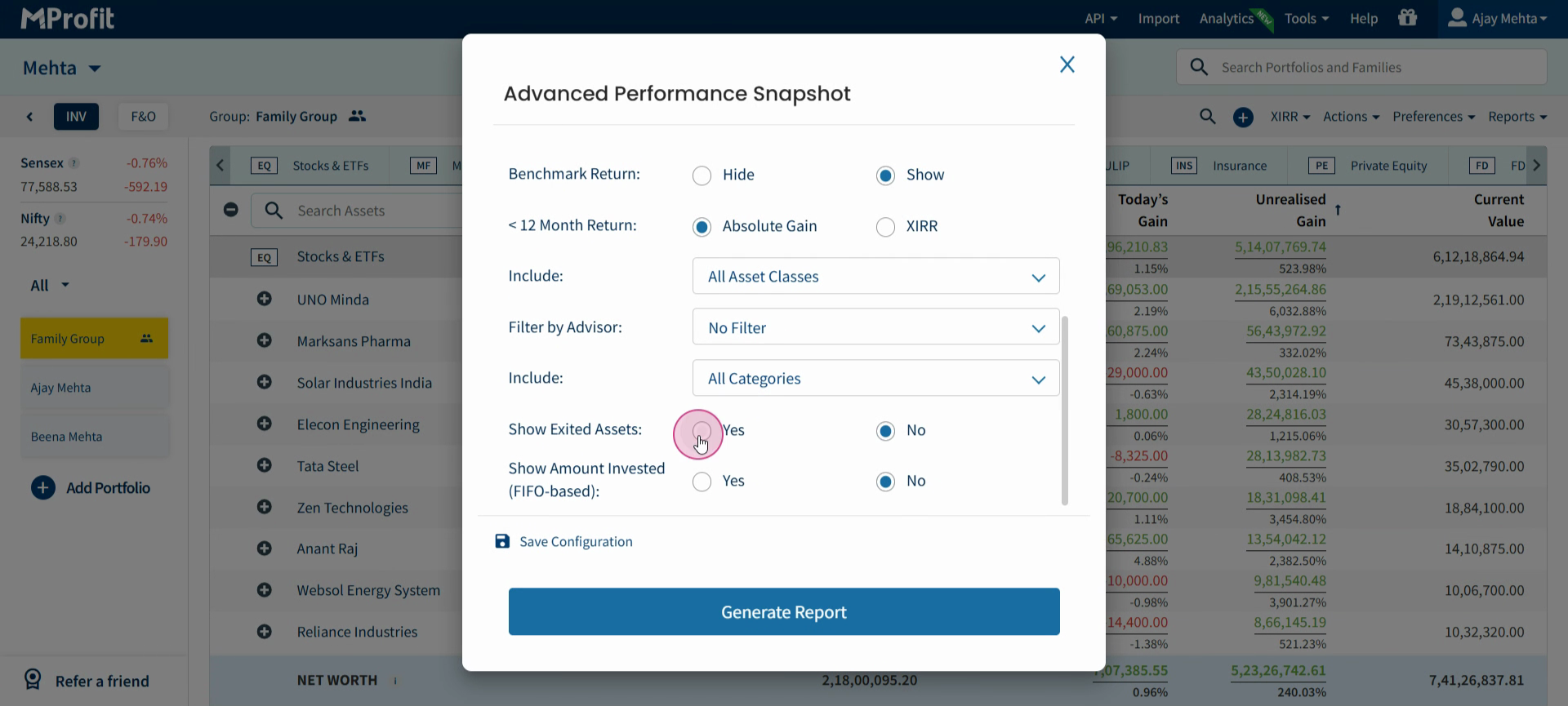
Step 14: Choose if the Amount Invested should be calculated based on the FIFO (First-In, First-Out) method.
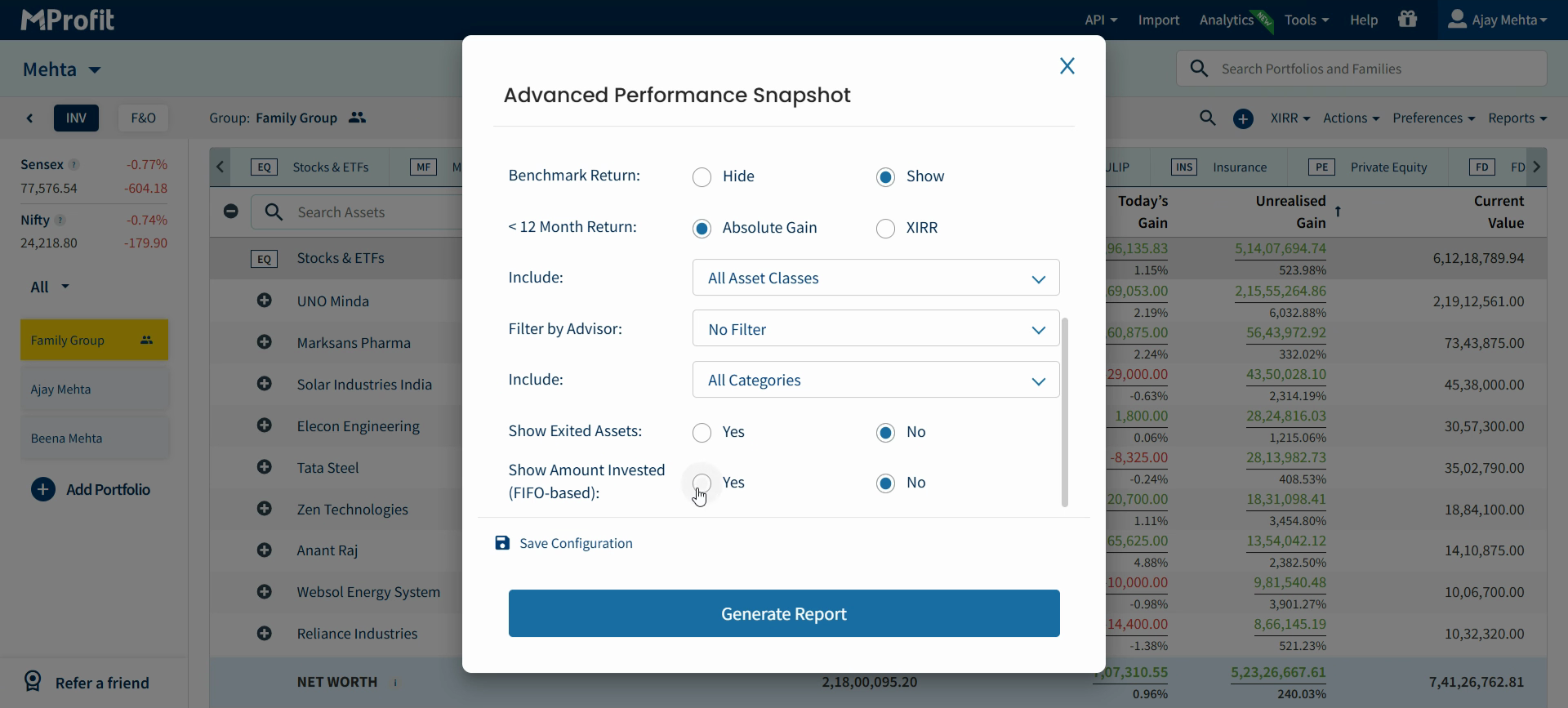
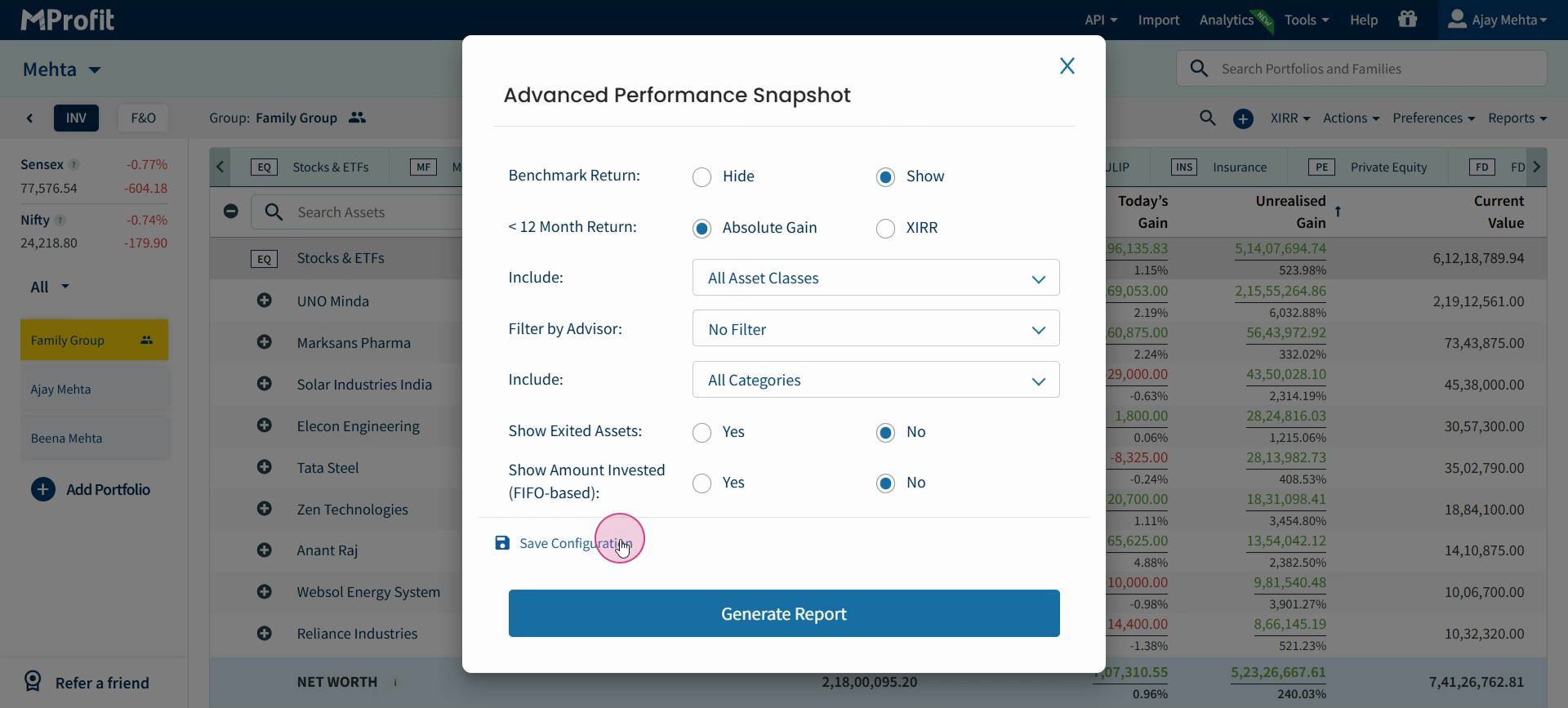
Step 15: Once everything is set, save your configuration by giving it a name. This saves time for future reports.
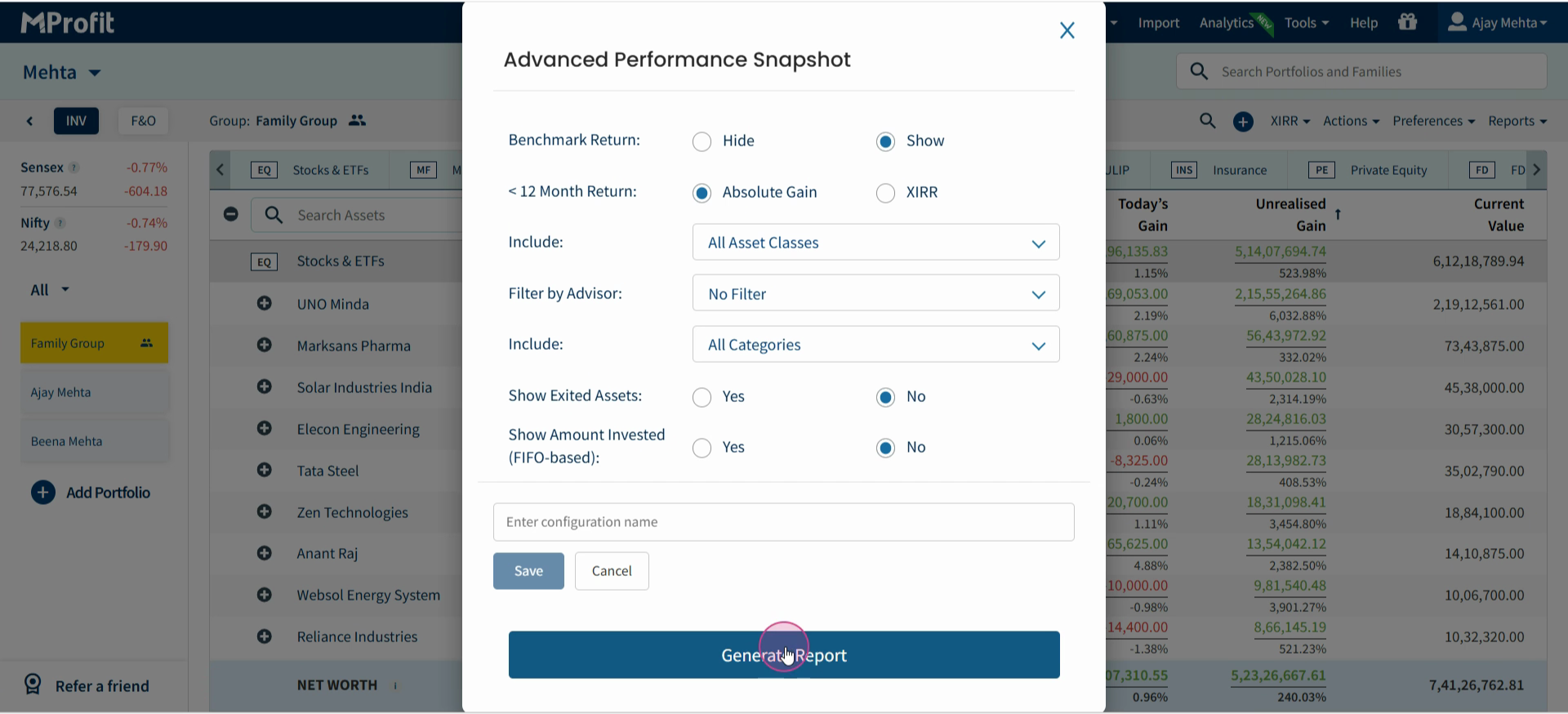
Step 16: Click Generate Report and wait for your personalized snapshot to be generated.
The Advanced Performance Review Snapshot report provides detailed, flexible insights into your portfolio’s performance. Experiment with the customization options so your reports always highlight the information you need most.
Was this article helpful?
That’s Great!
Thank you for your feedback
Sorry! We couldn't be helpful
Thank you for your feedback
Feedback sent
We appreciate your effort and will try to fix the article