Use Advisor Tagging in Prime Reports to get a clear picture of your investments’ performance, organized by each advisor. This feature lets you monitor XIRR and other vital statistics, then drill down into specific categories and assets for even more detail.
Step 1: Open the Family Group or Portfolio where you want to use Advisor Tagging.
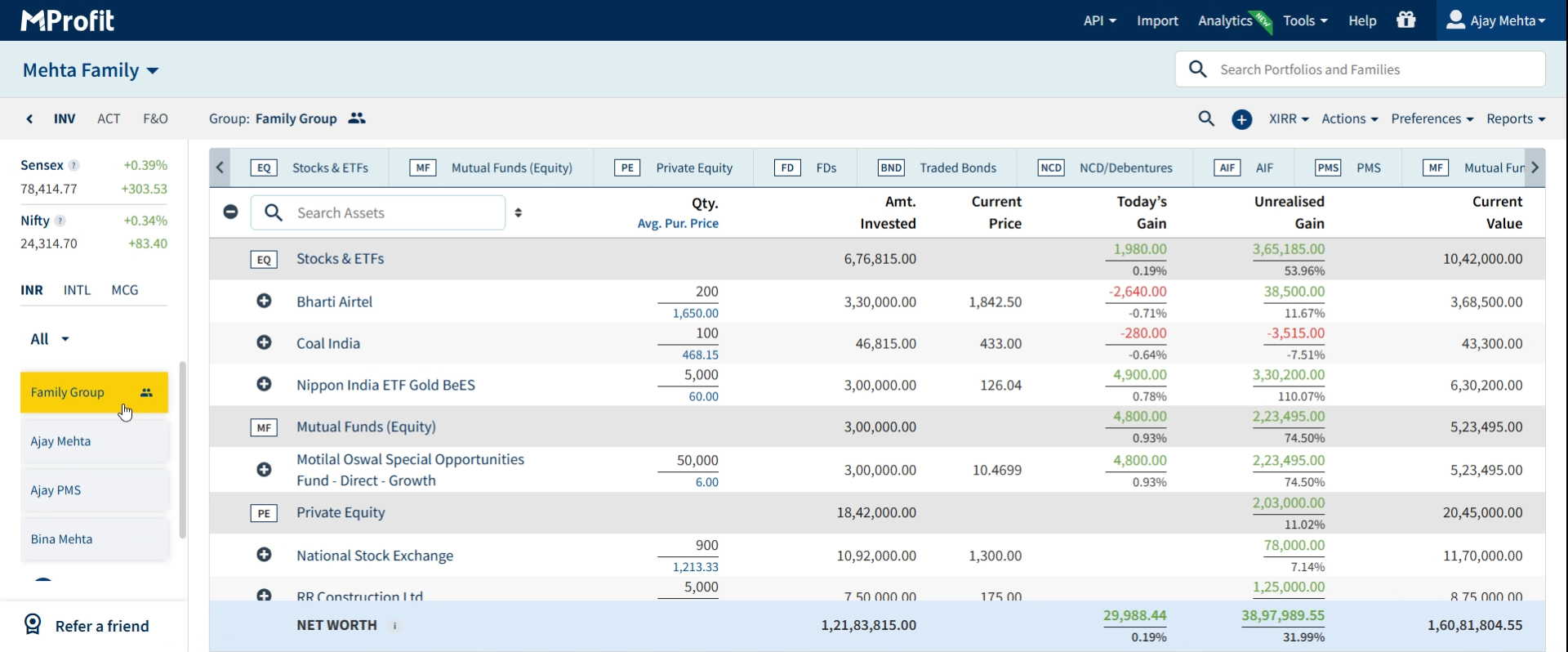
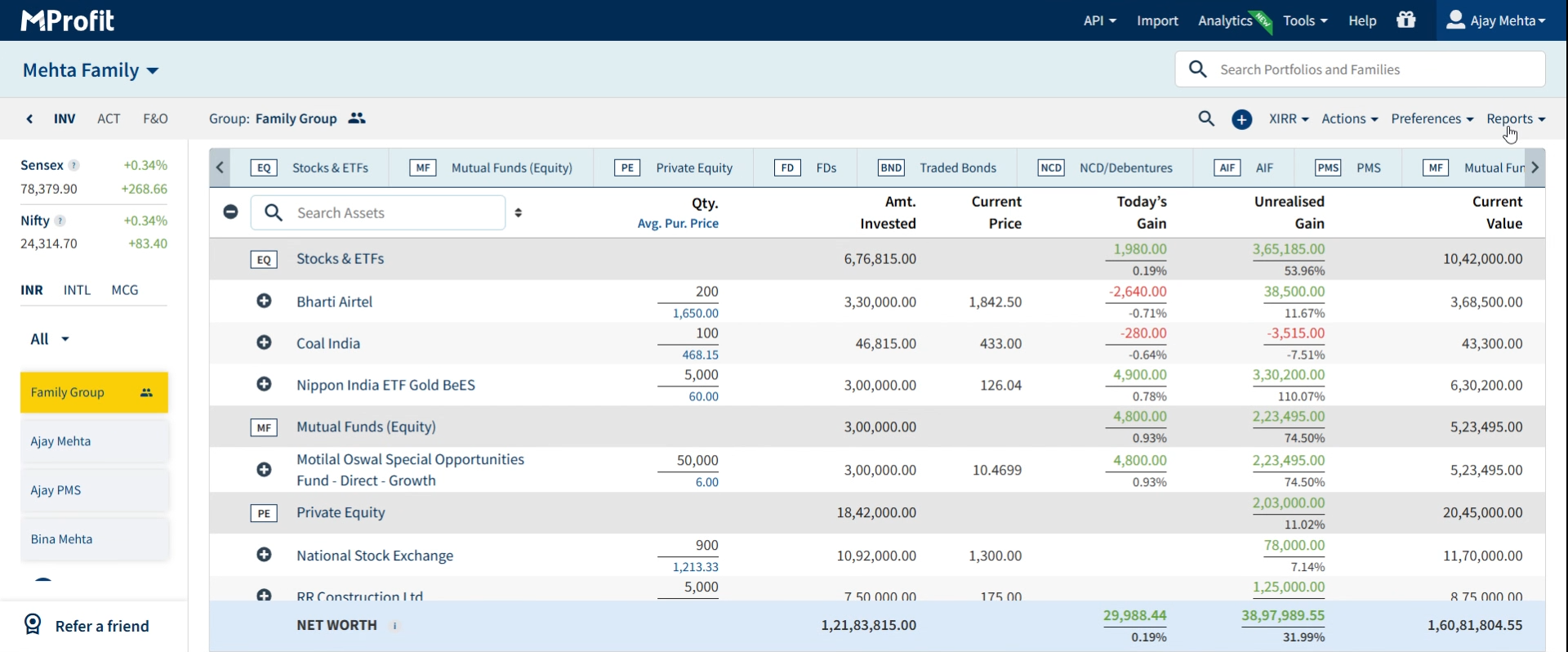
Step 2: In Classic view, go to the Reports section and click Reports.
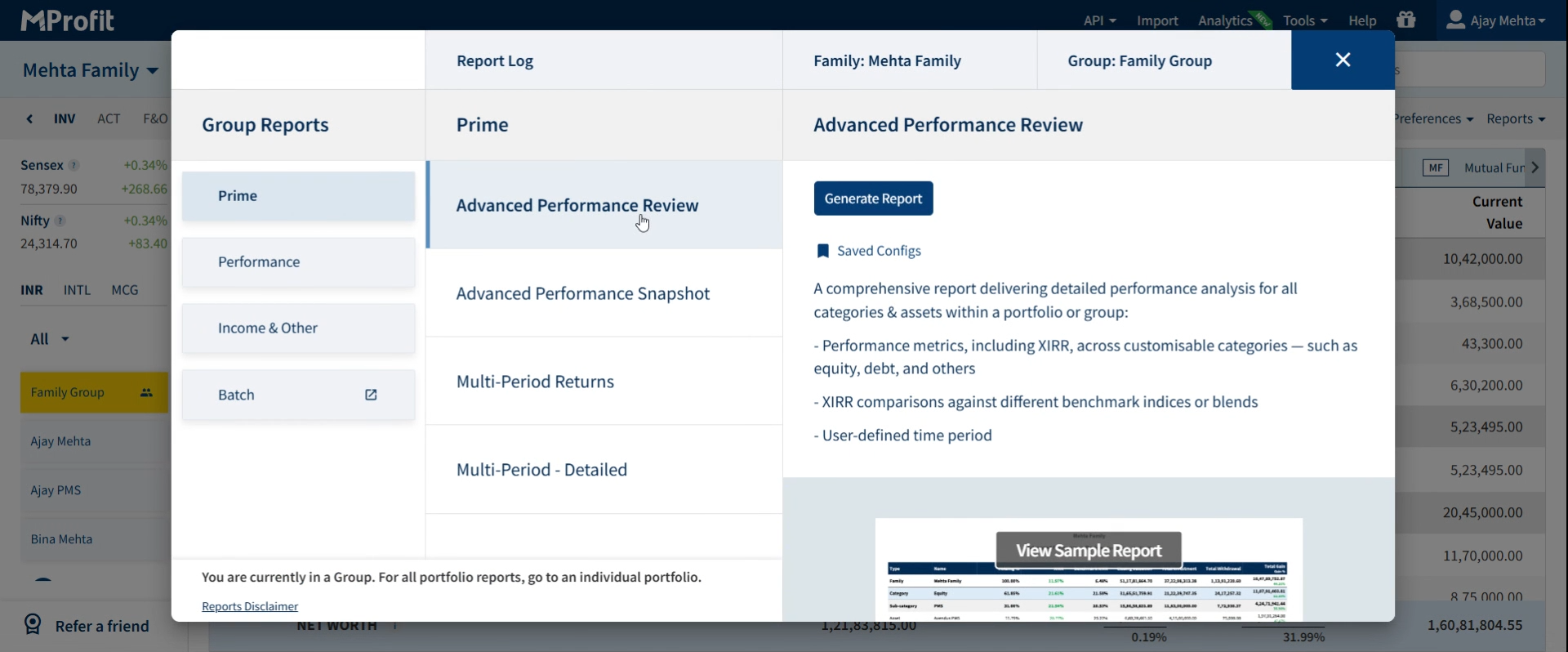
Step 3: Click Advanced Performance Review.
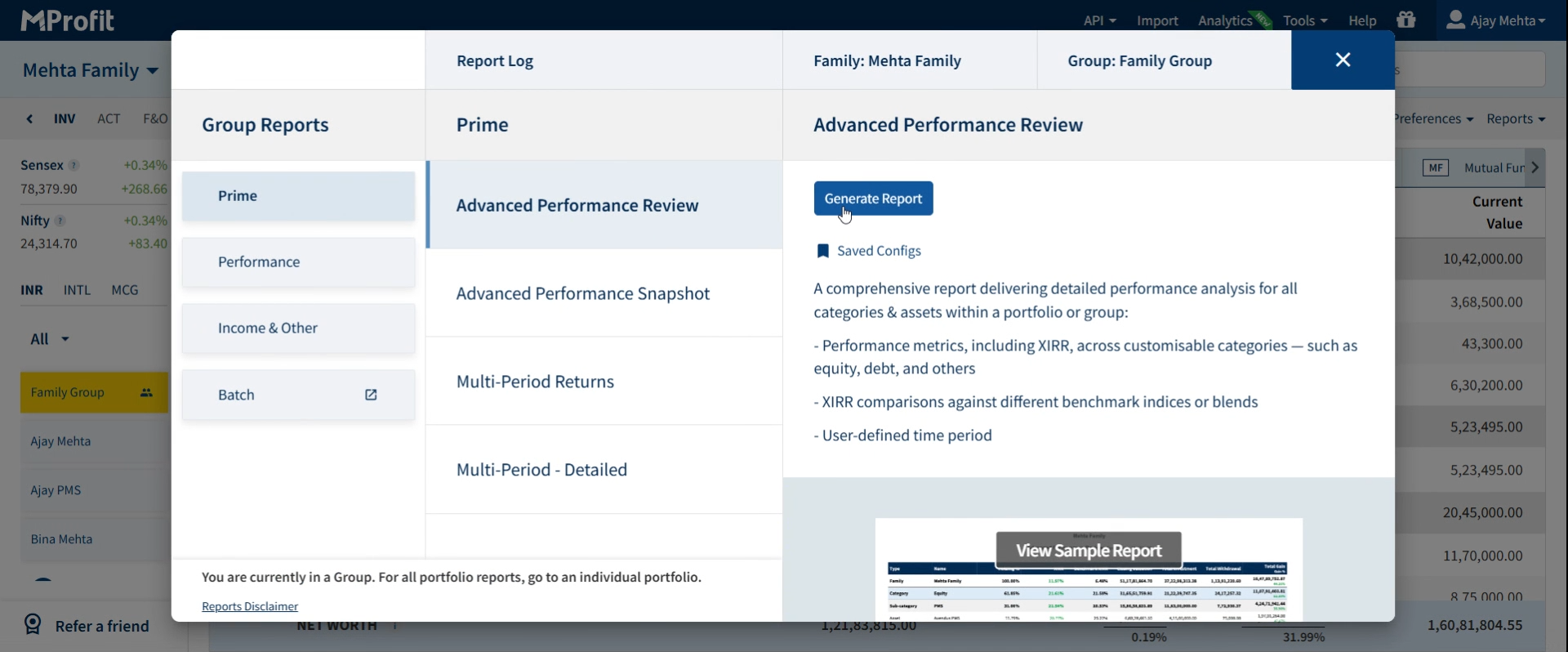
Step 4: Click Generate Report.
Step 5: In the Grouping section, click the drop-down menu.
Step 6: Choose Advisor-wise to see your data grouped by advisor.
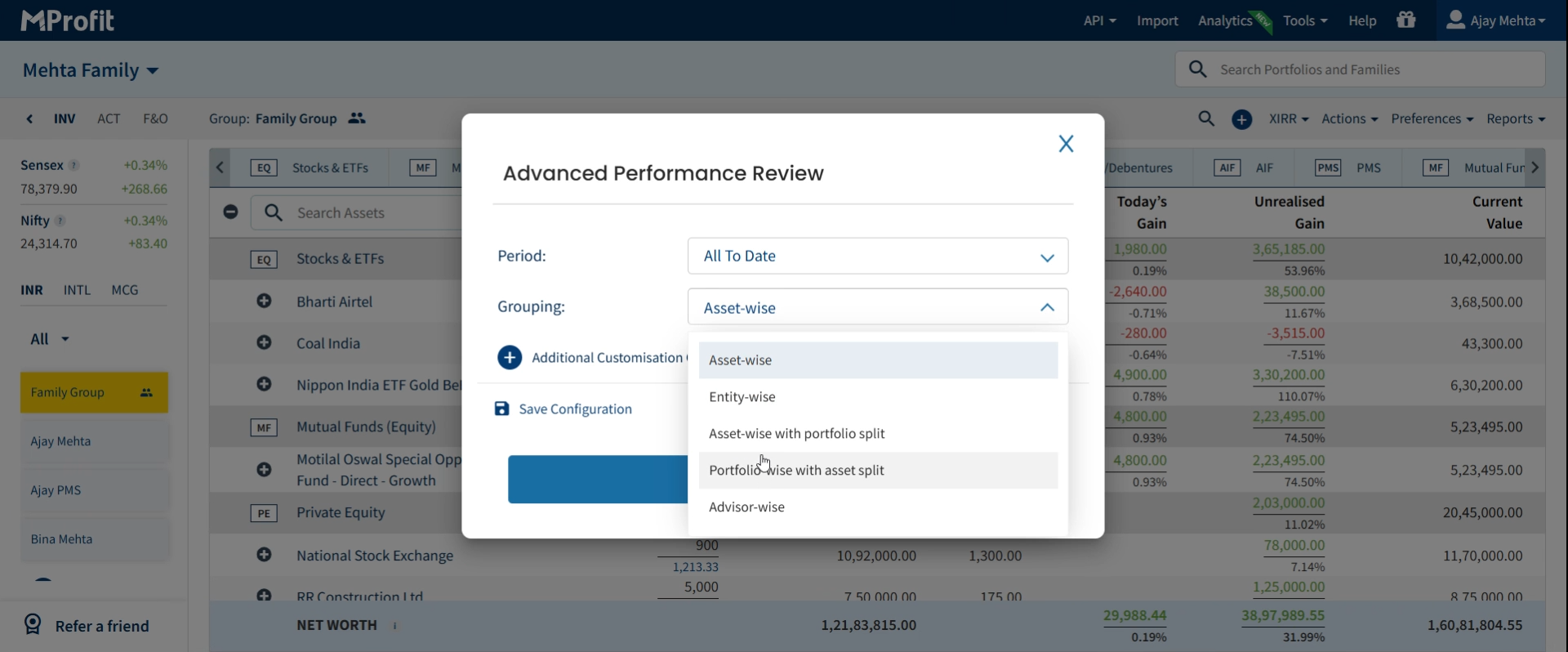
Step 7: Click Additional Customizations to further tailor your report.
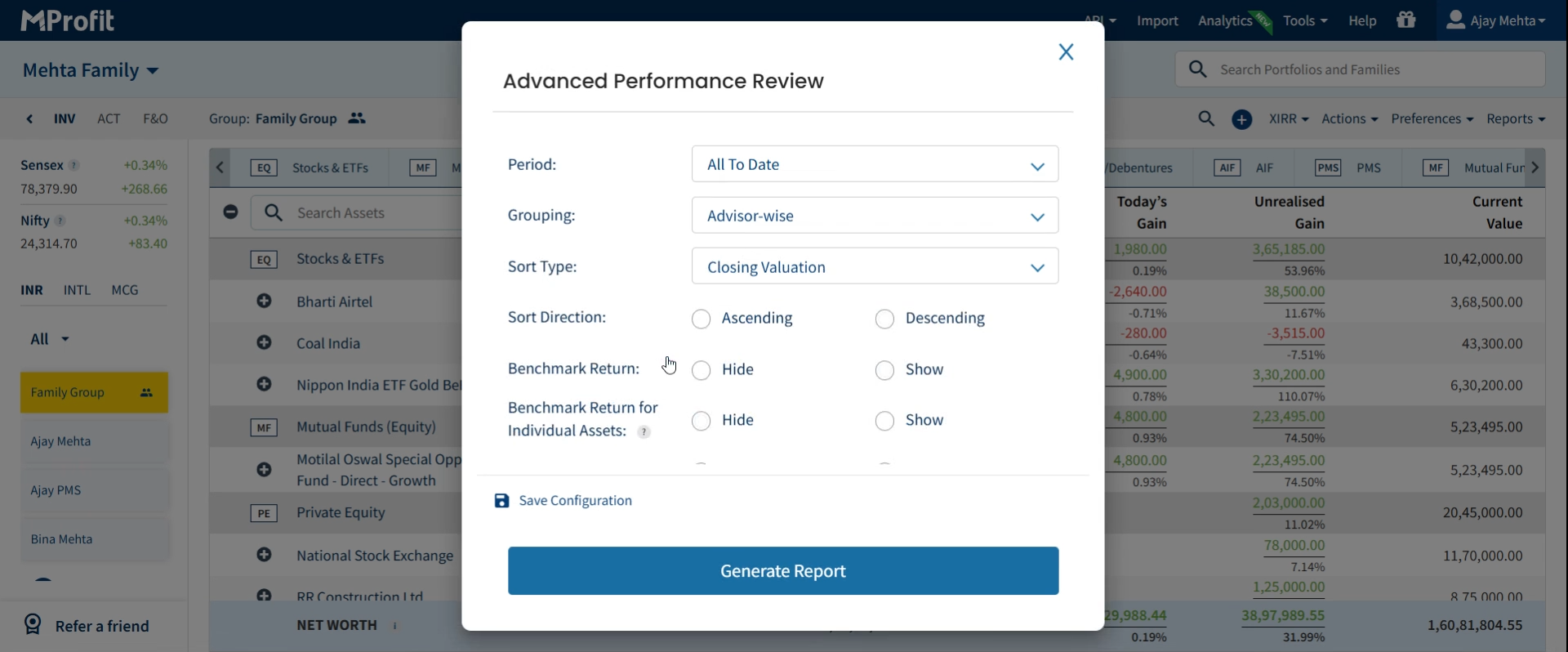
Step 8: Filter the Report by Date Range. Use the date picker at the top to select a specific period or custom date range that focuses your analysis. This lets you review performance over exactly the timeframe you care about.
Step 9: Filter by Portfolio or Assets. In the filter section, select one or more portfolios or assets to include. This refines your report to only show data relevant to those selections.
Step 10: Adjust Columns Displayed in the Report. Click the column settings (gear icon) to add or remove data columns—show only what matters to you, such as Market Value, Absolute Gain, or Inflows/Outflows.
Step 11: Group Data by Categories. Beyond advisor grouping, you can further structure your view by asset class, category, or subcategory using the Grouping drop-down. Pick Portfolio-wise or Asset-wise to break down results by those dimensions.
Step 12: Adjust Display Settings. Set display preferences—such as viewing data in a table or summary format—for easier comparisons across advisors.
Step 13: After selecting your customizations, click Generate Report.
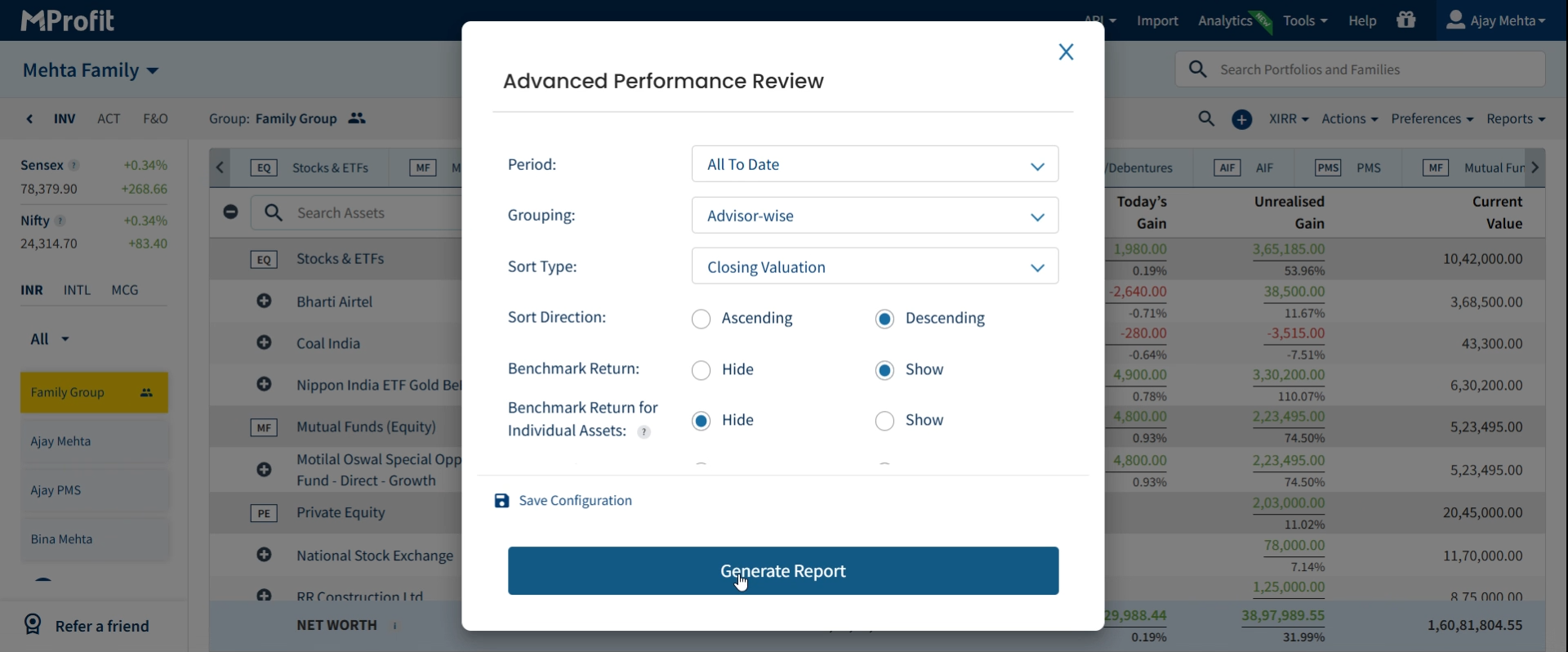
Step 14: Review the advisor-level breakdown. See how the data now displays performance for each advisor and lets you expand into subcategories and individual assets.
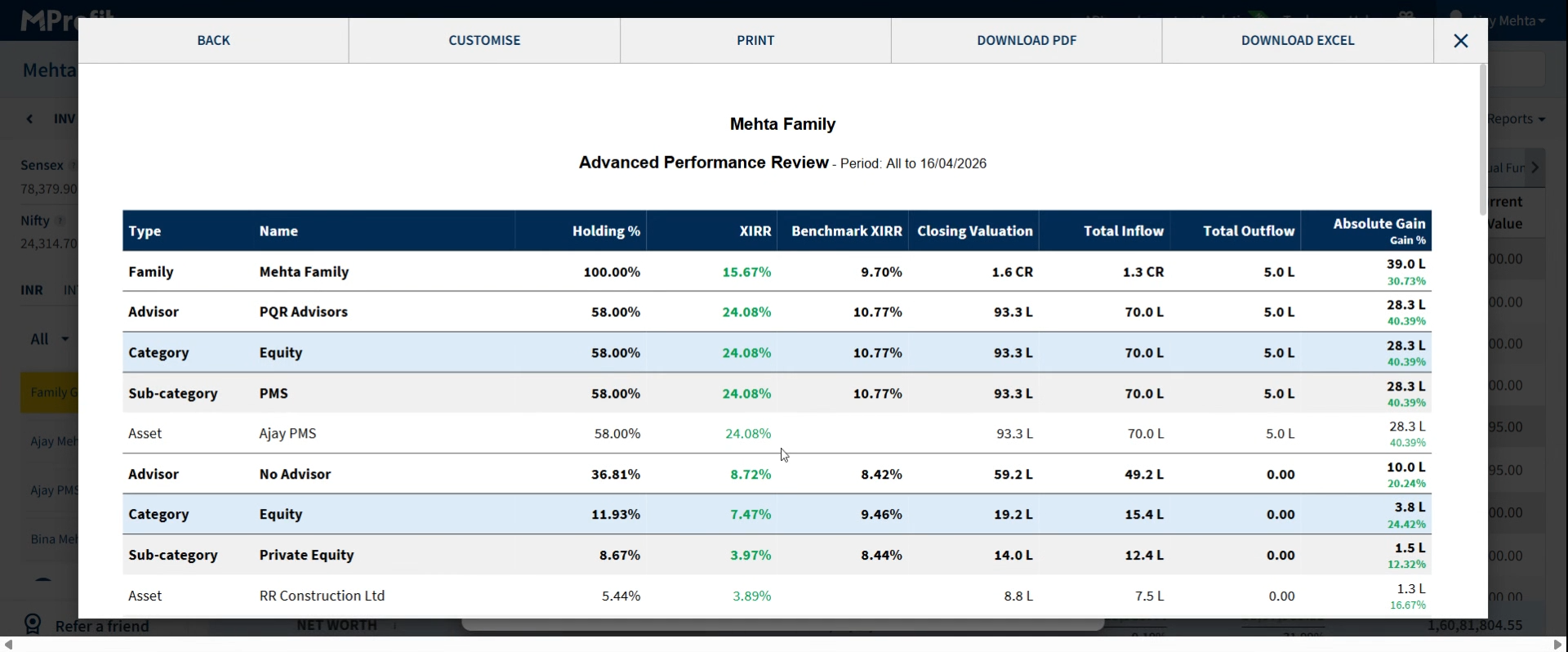
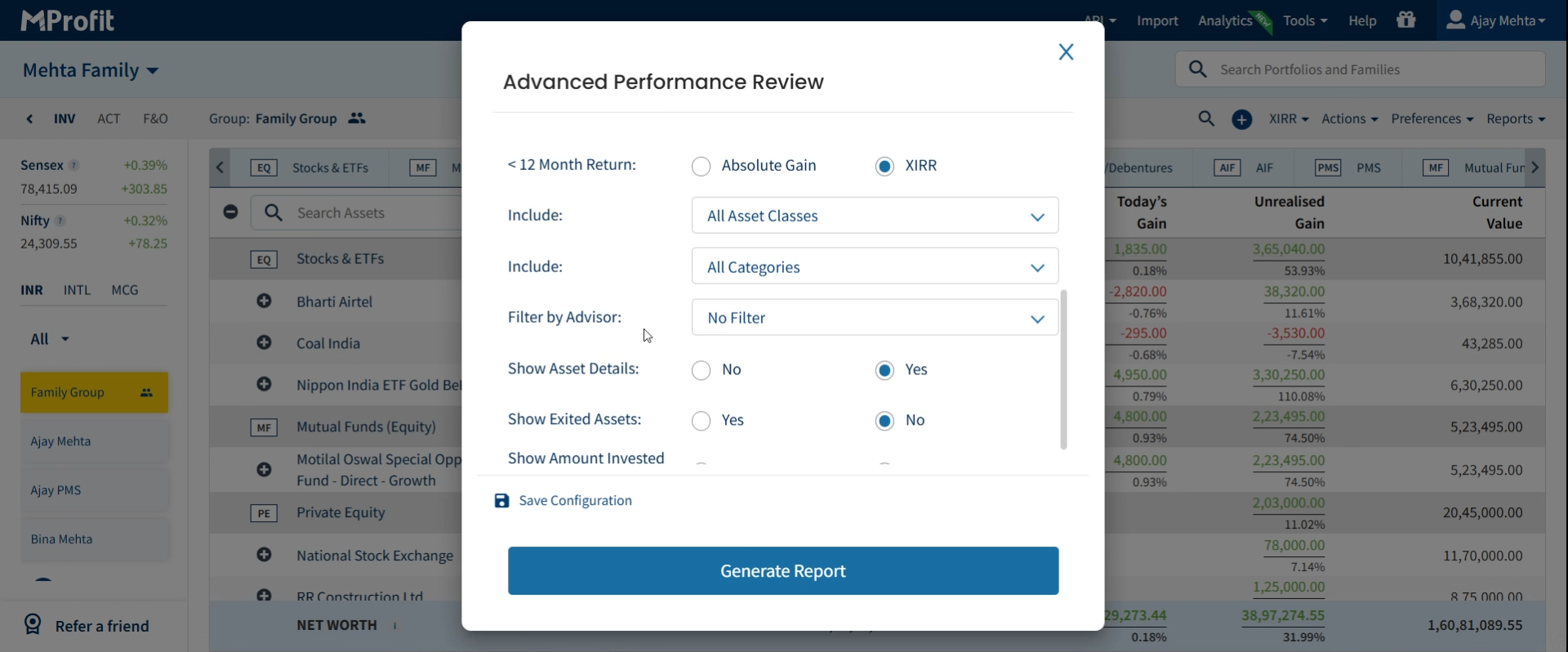
Step 15: For even more precision, use the Filter by Advisor option to display results for specific advisors only.
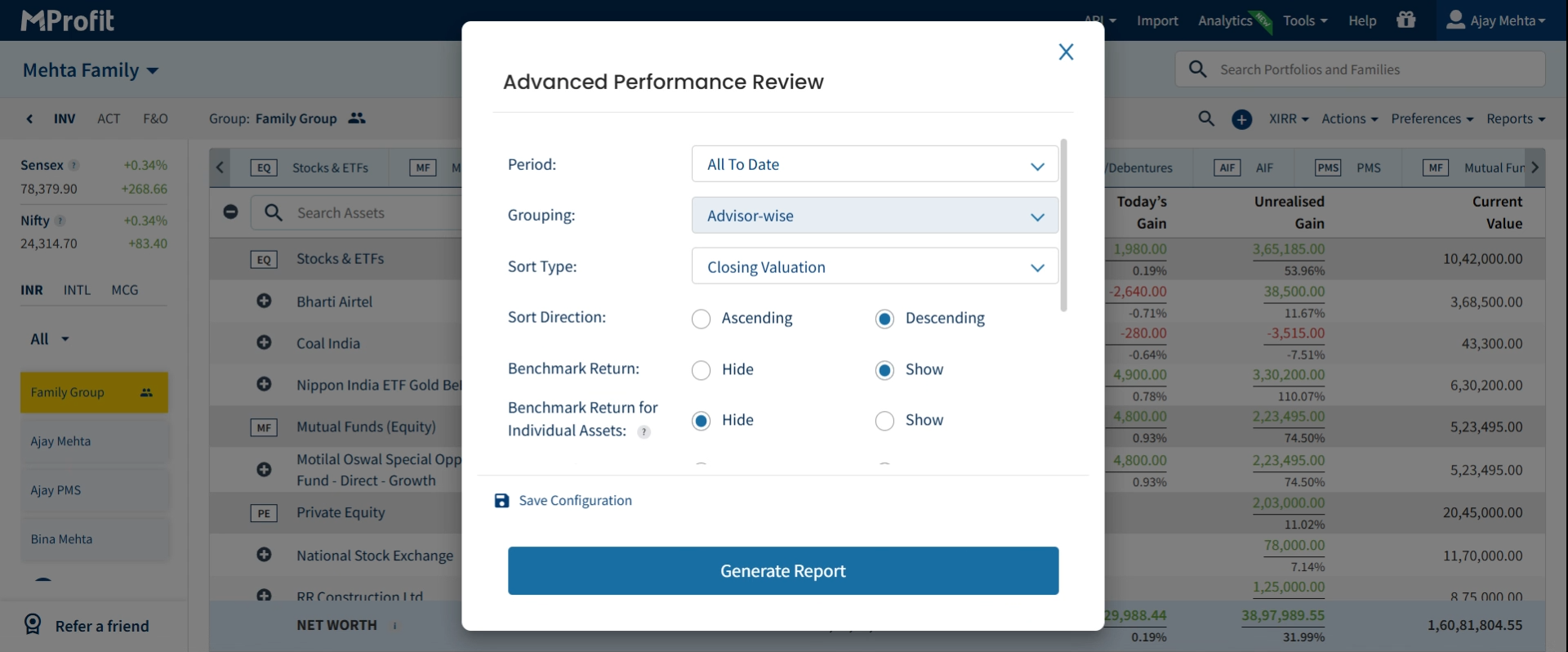
Step 16: Scroll down to the Filter by Advisor field, choose any advisors you want to focus on, and generate the report again.
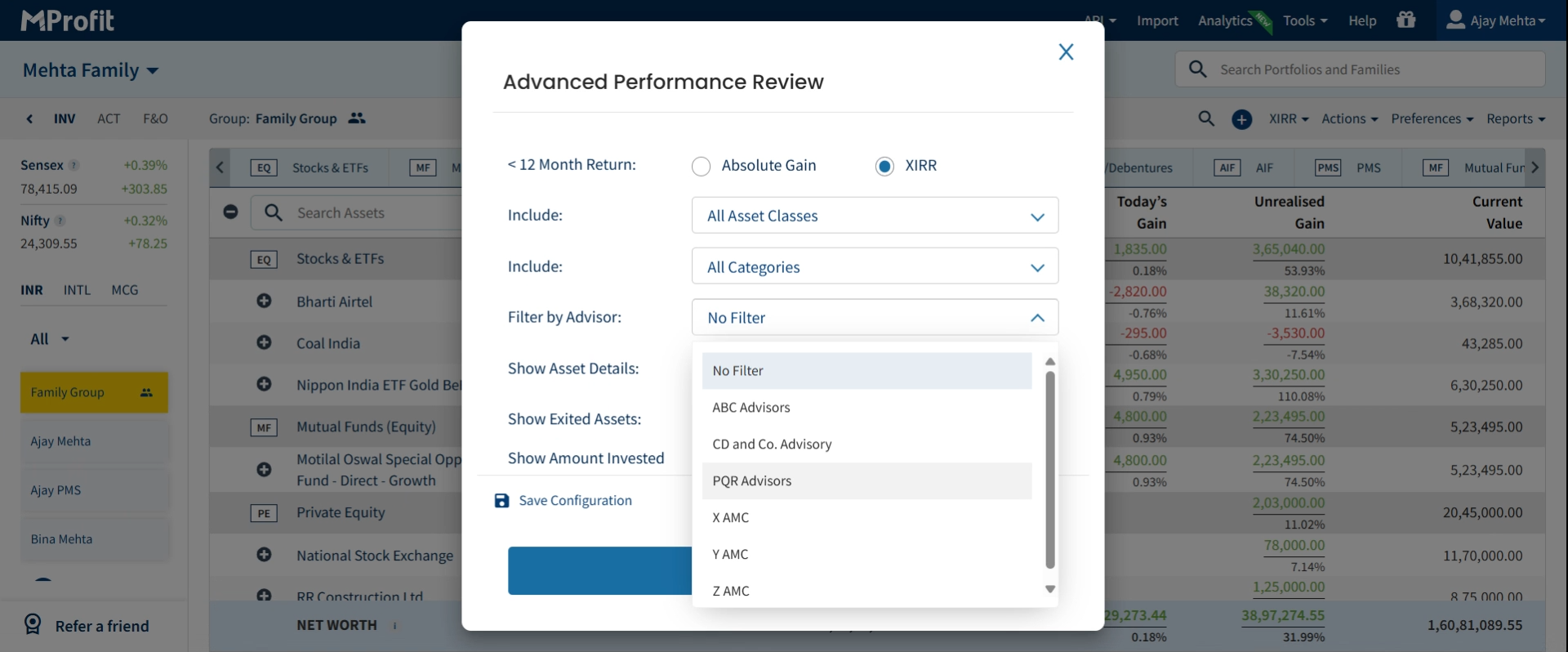
Step 17: Analyze the filtered report. Only the selected advisor’s data appears, with details like categories and asset splits clear and easy to compare.
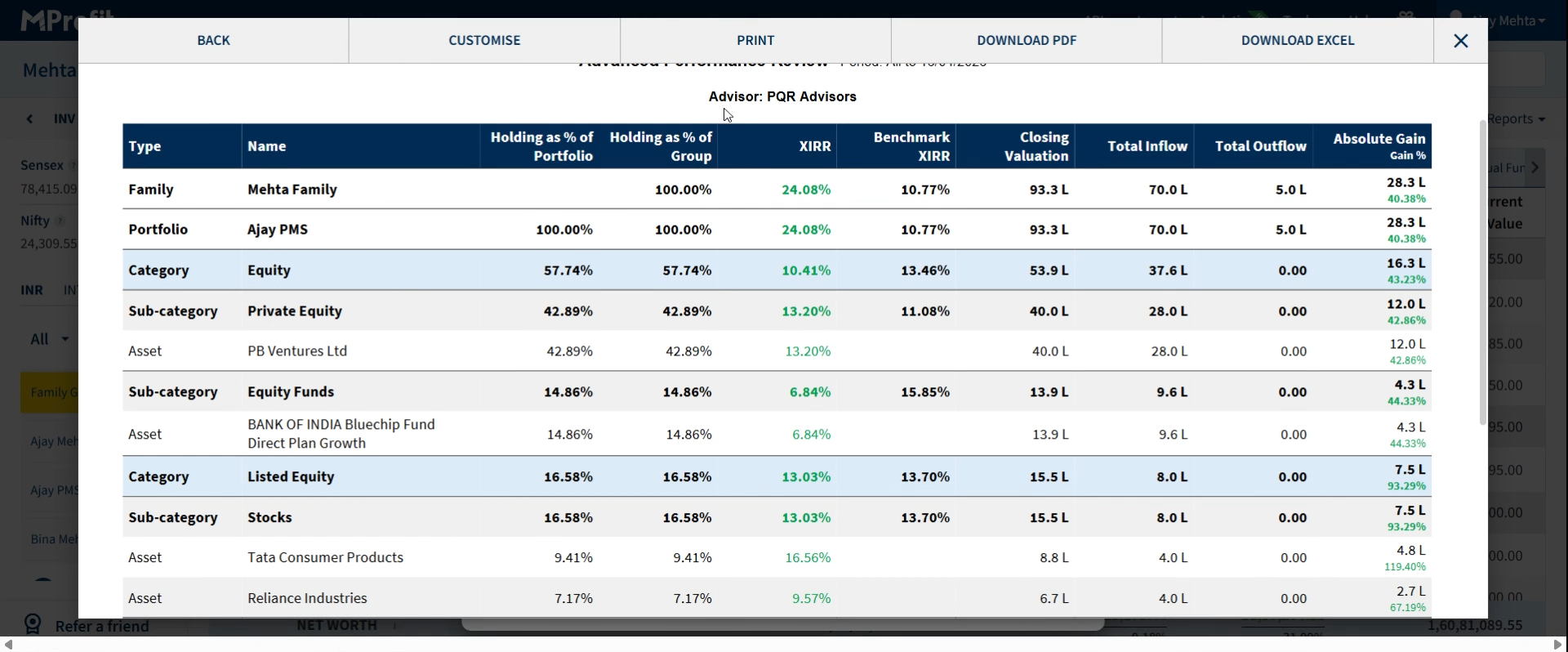
Advisor Tagging also works in the Advanced Performance Snapshot Report:
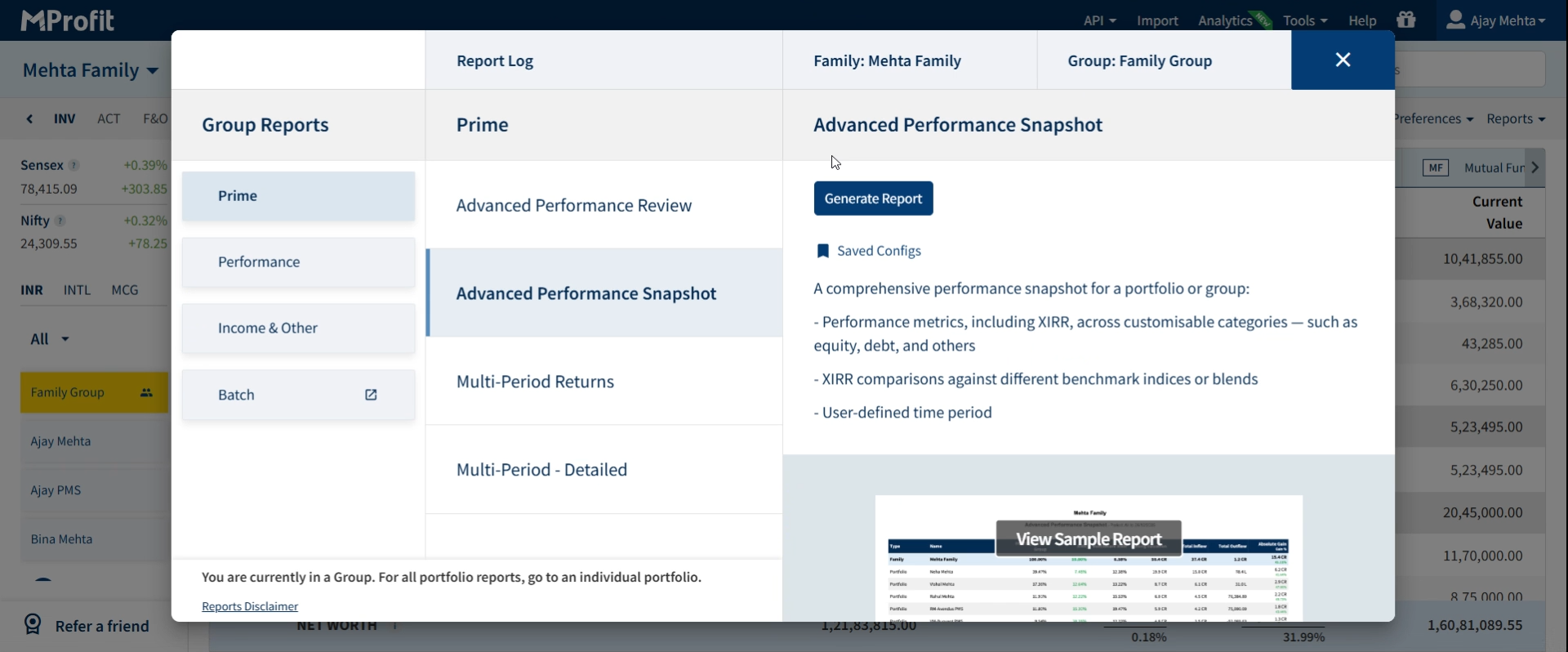
Step 1: Select Advanced Performance Snapshot Report from the Reports menu.
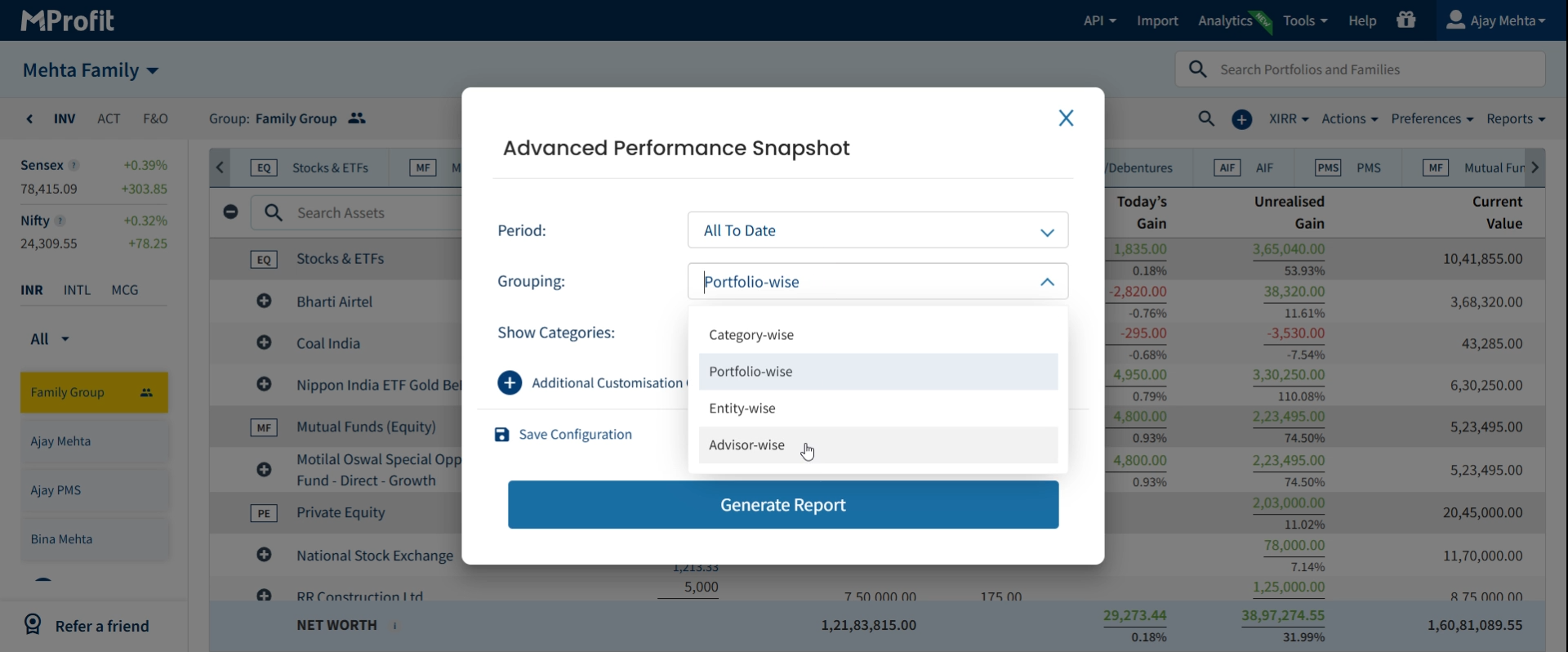
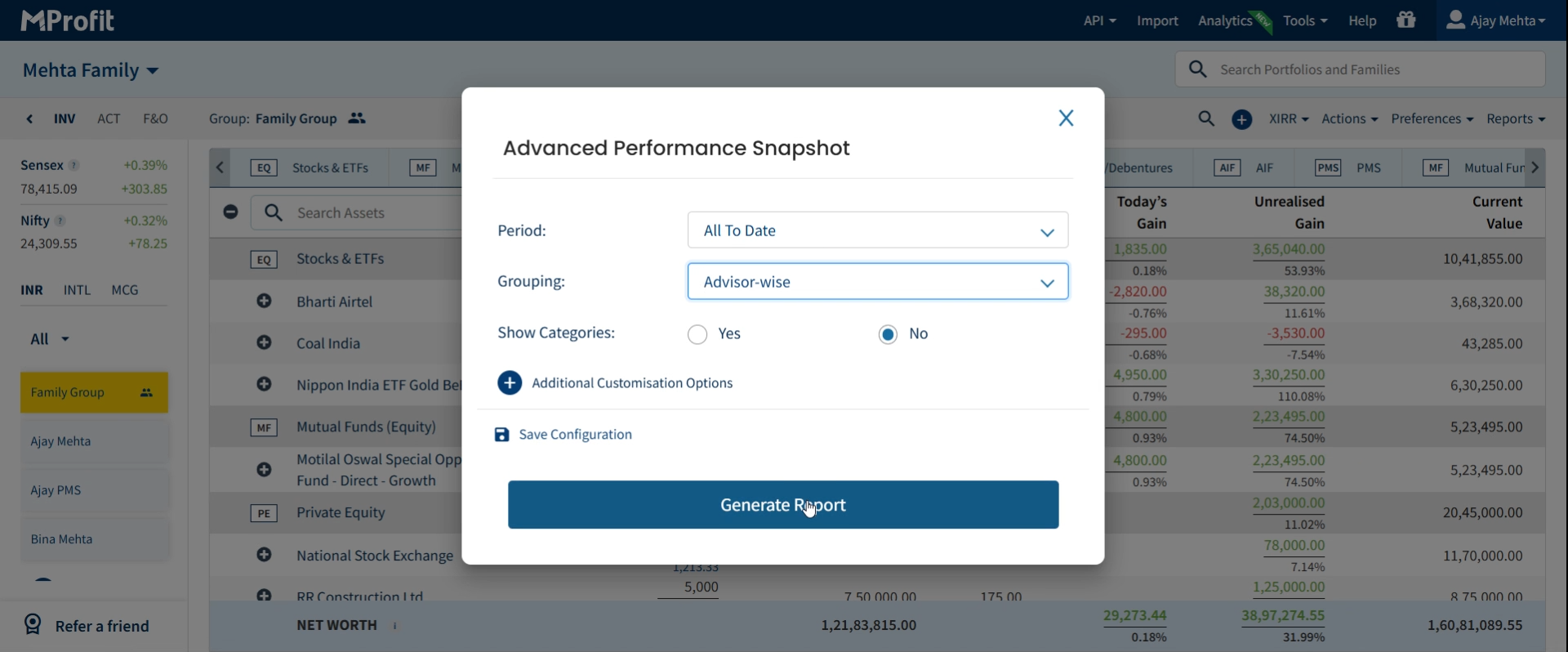
Pick Advisor-wise grouping to review summary stats—returns, XIRR, inflows/outflows—by advisor.
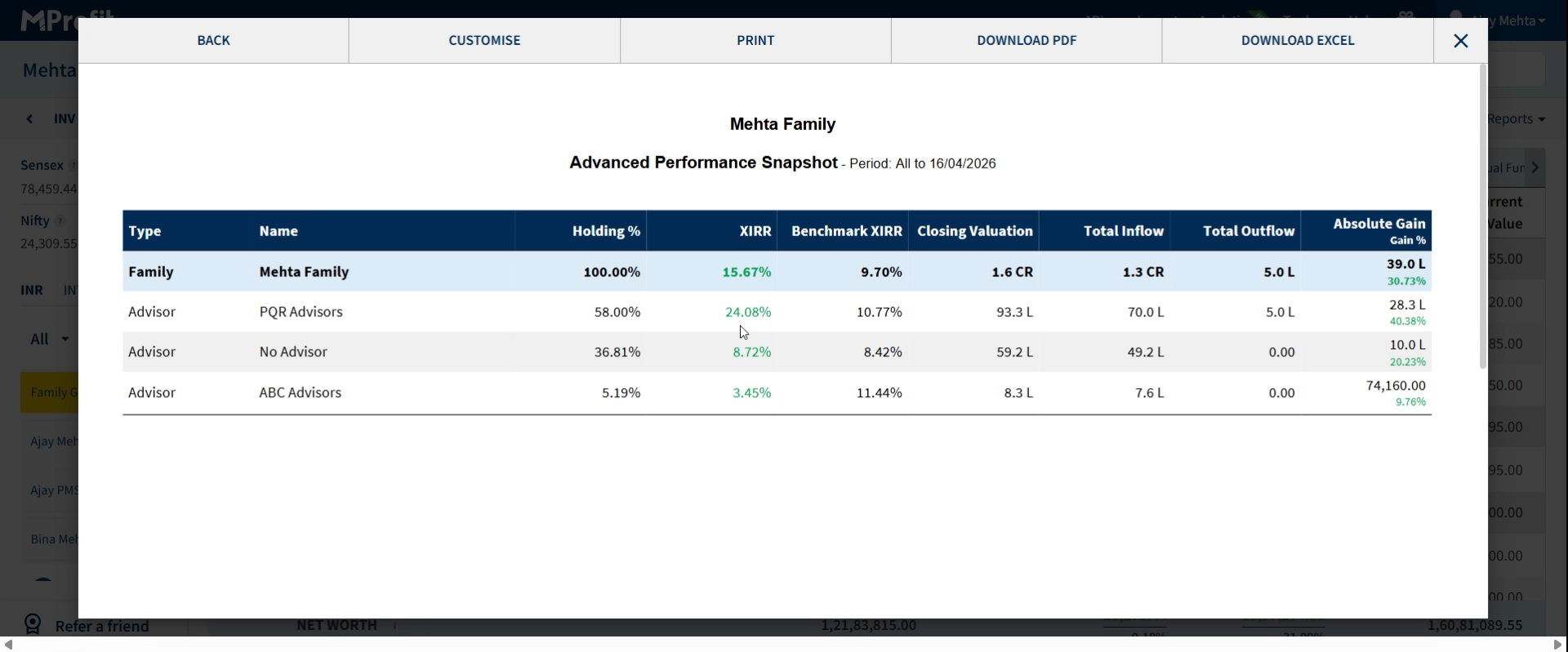
Step 3: See details for each advisor, like closing value, absolute gain, or benchmarks compared directly.
Note: Use the Filter by Advisor option for specific advisor results.
Viewing Advisor-Level Reports for a Single Portfolio
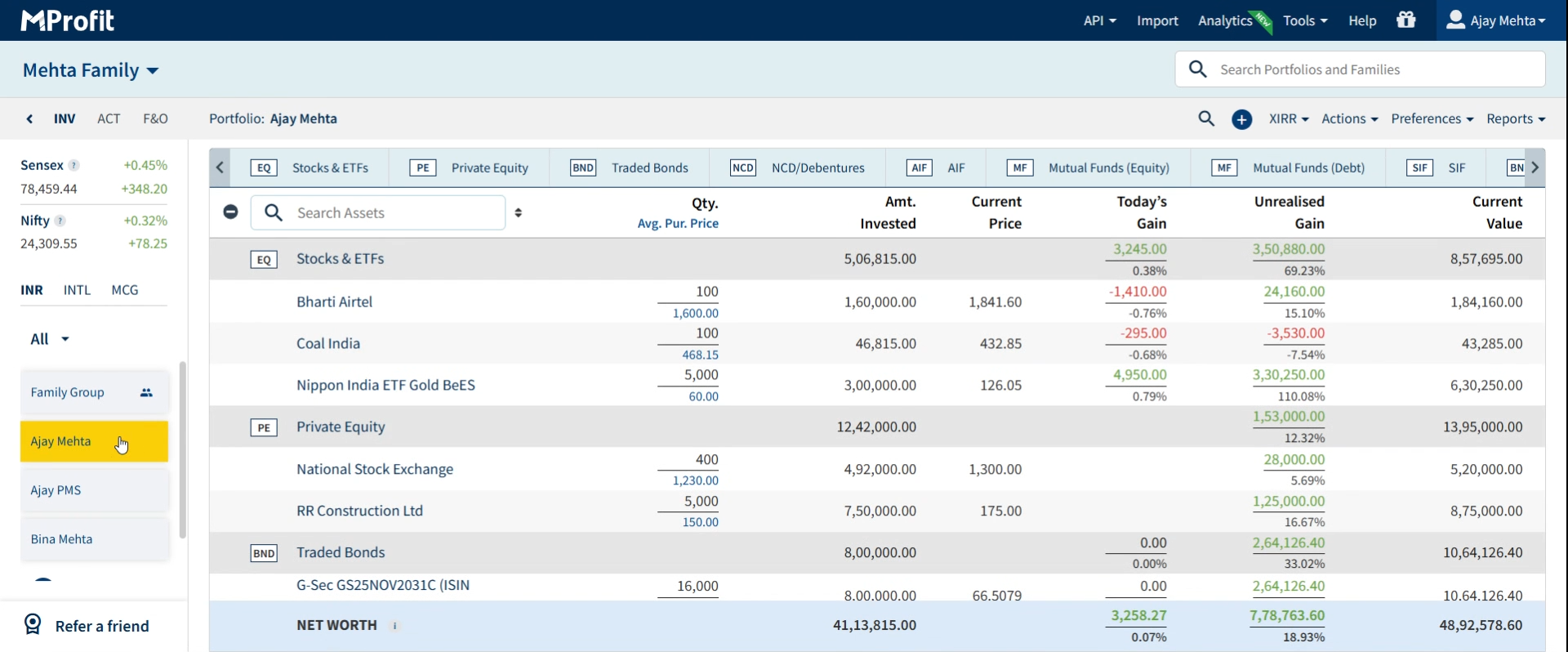
Step 1: Open the relevant Portfolio.
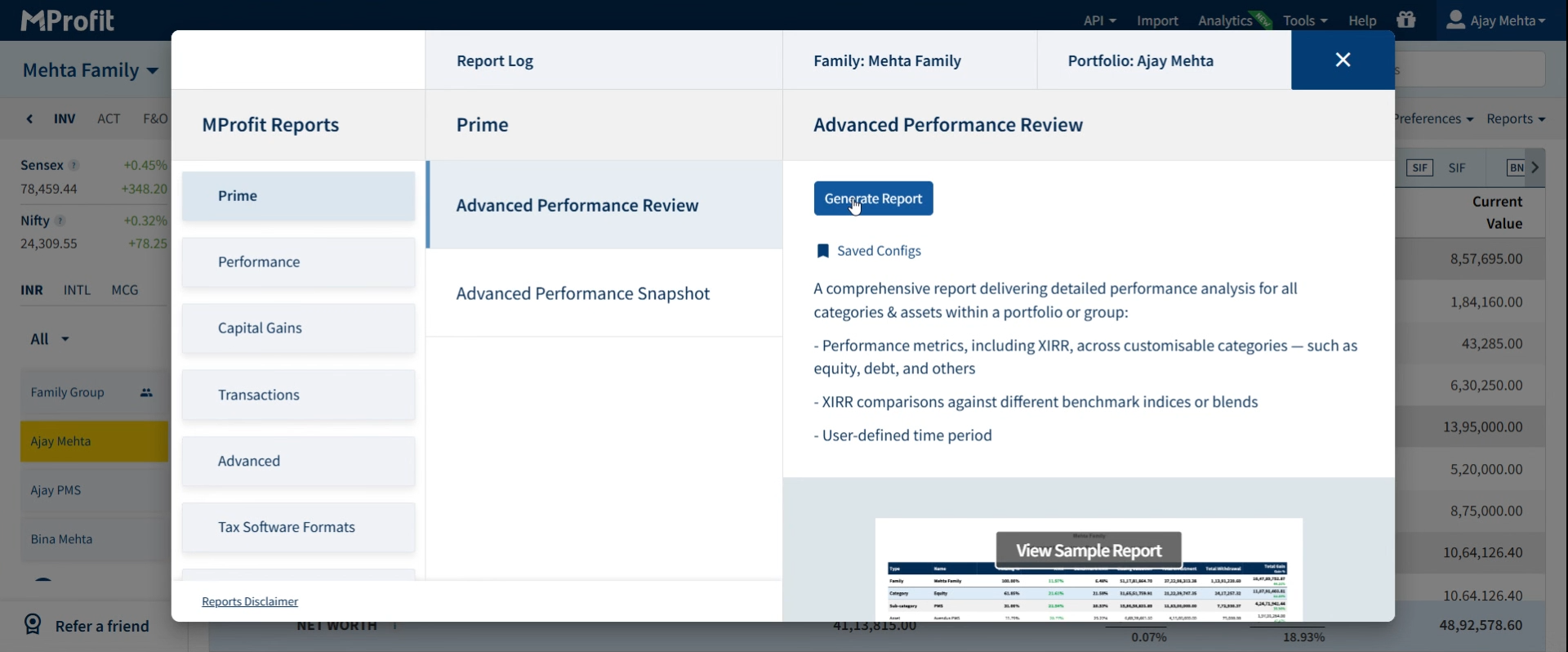
Step 2: Go to Reports, then select Advanced Performance Review Report and click Generate Report.
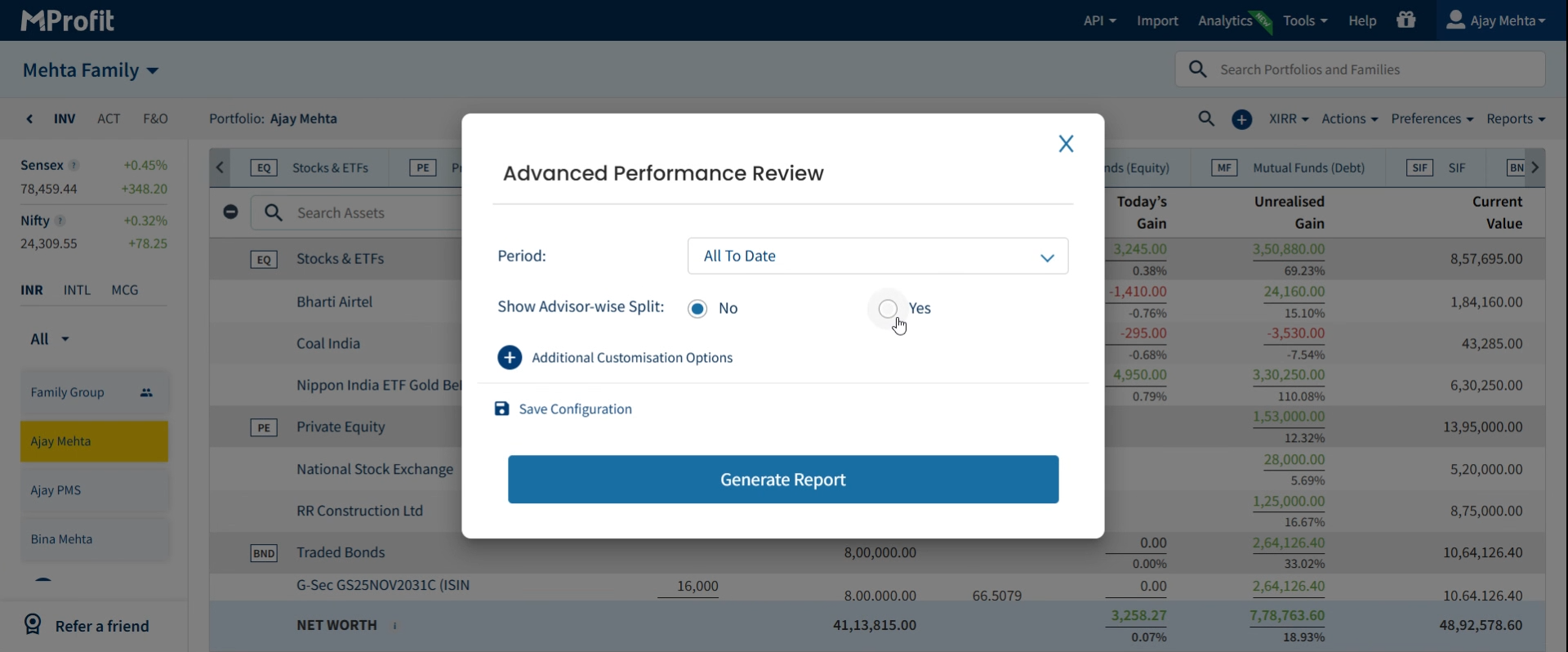
Step 3: In the Show Advisor wise Split, set the option to Yes to break down the portfolio by advisor.
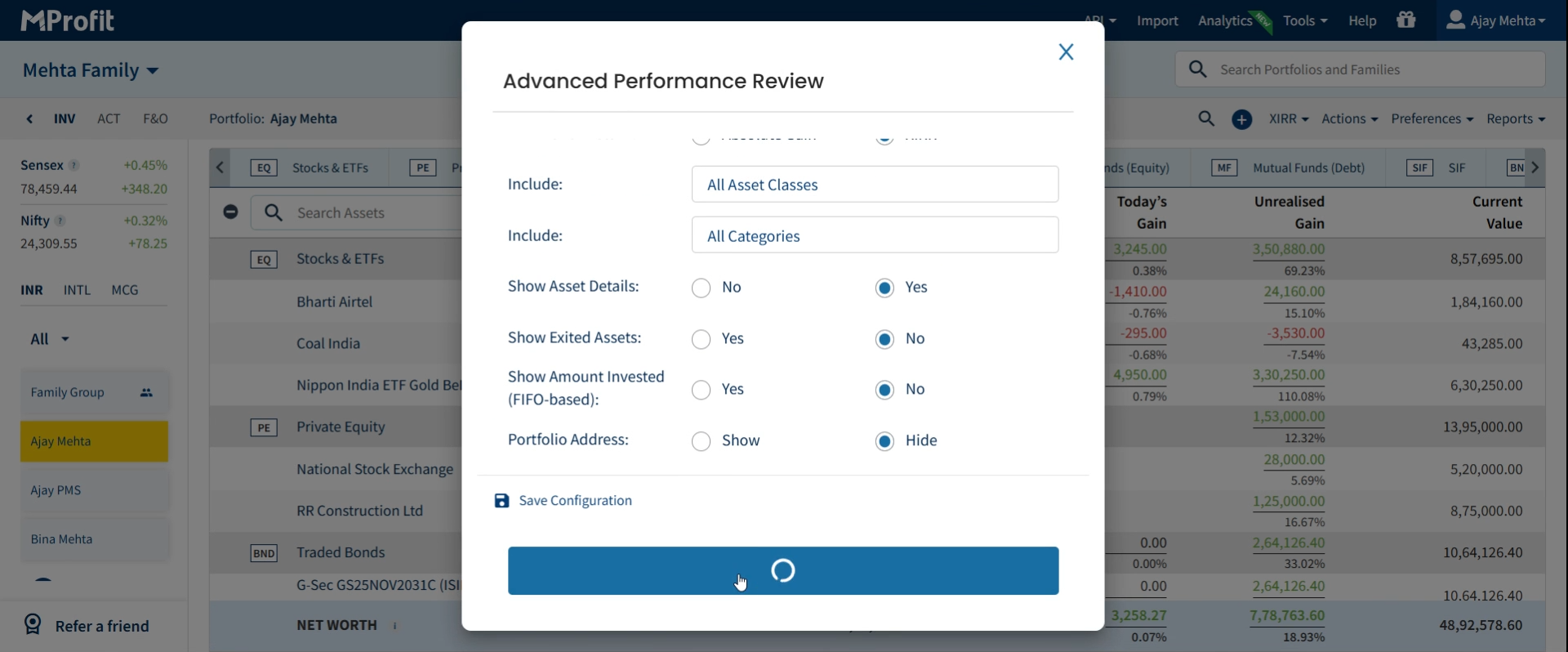
Step 4: Pick any customizations you want—date range, asset filters, column adjustments—and click Generate Report.
Step 5: Review advisor-level breakdowns within the single portfolio context.
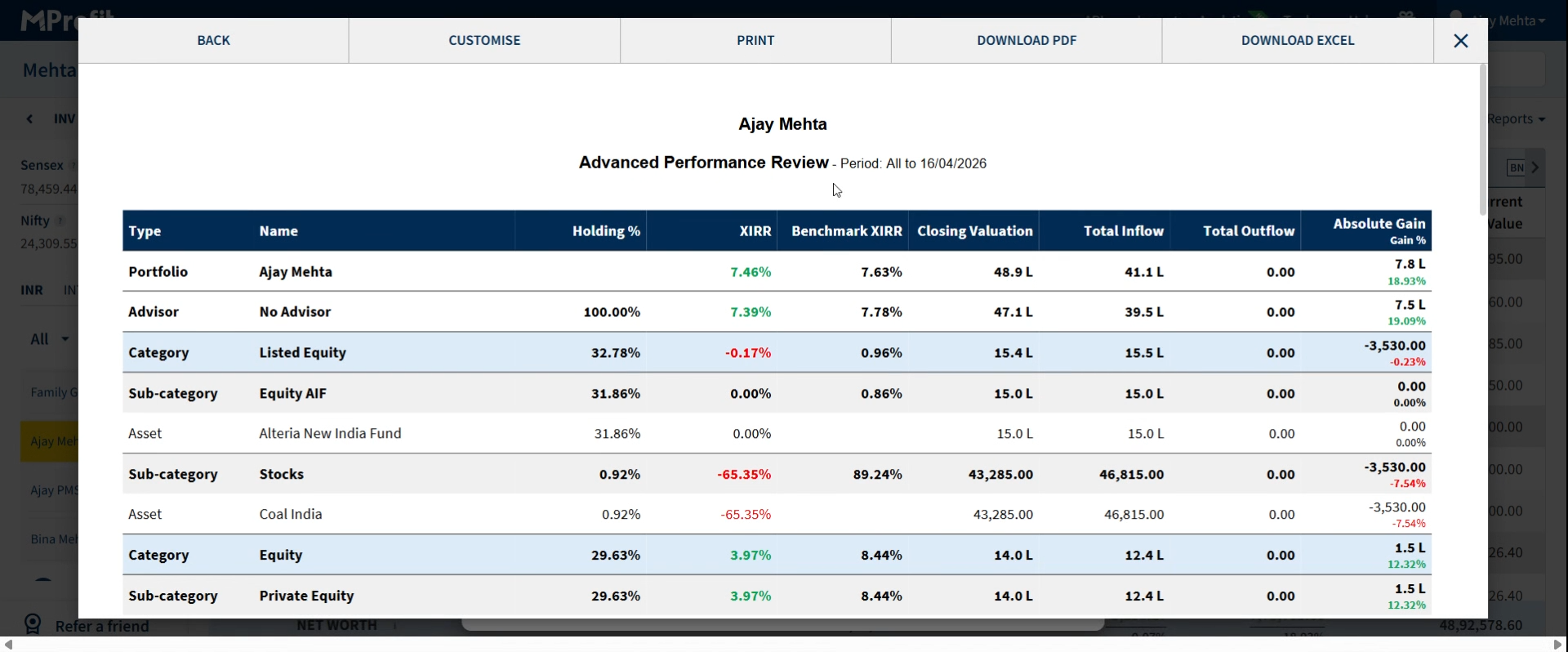
Step 6: For targeted insights, set the Show Split with Advisor to No and apply a specific advisor filter before generating your report.
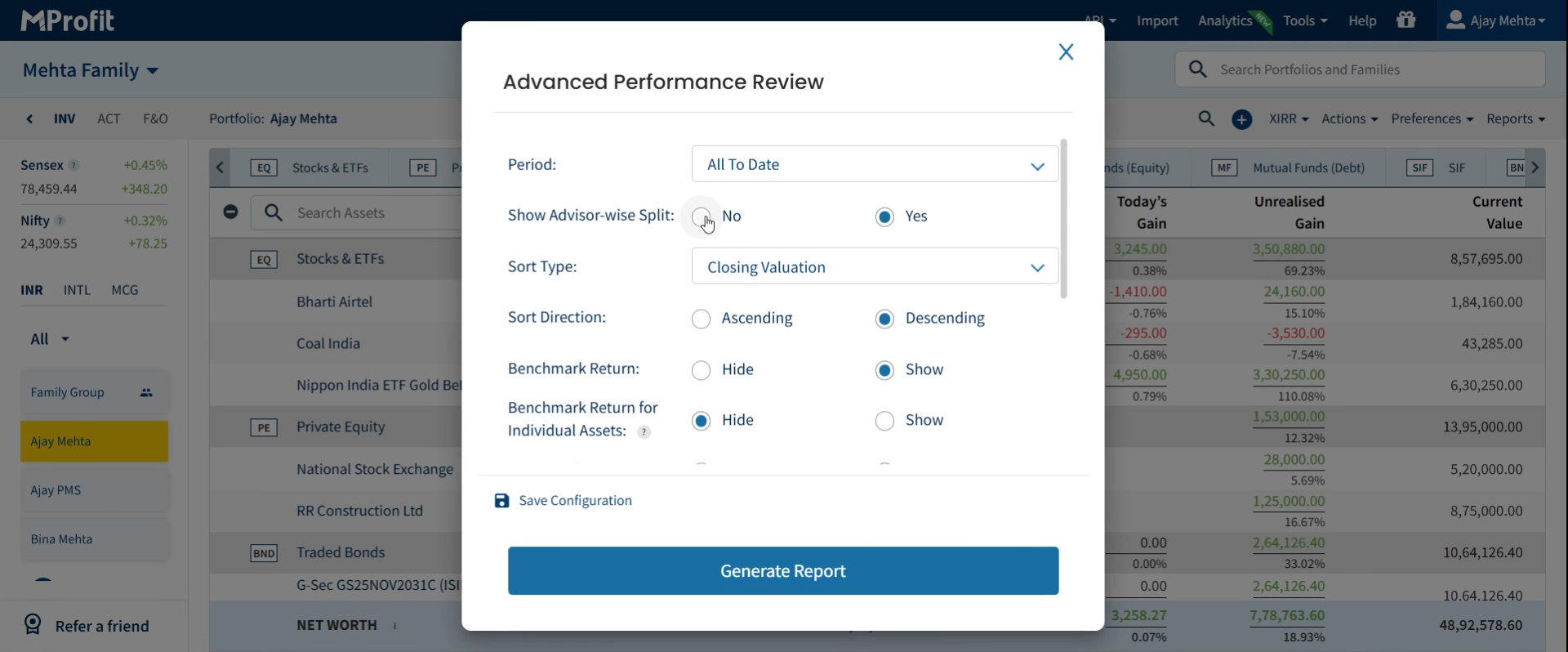
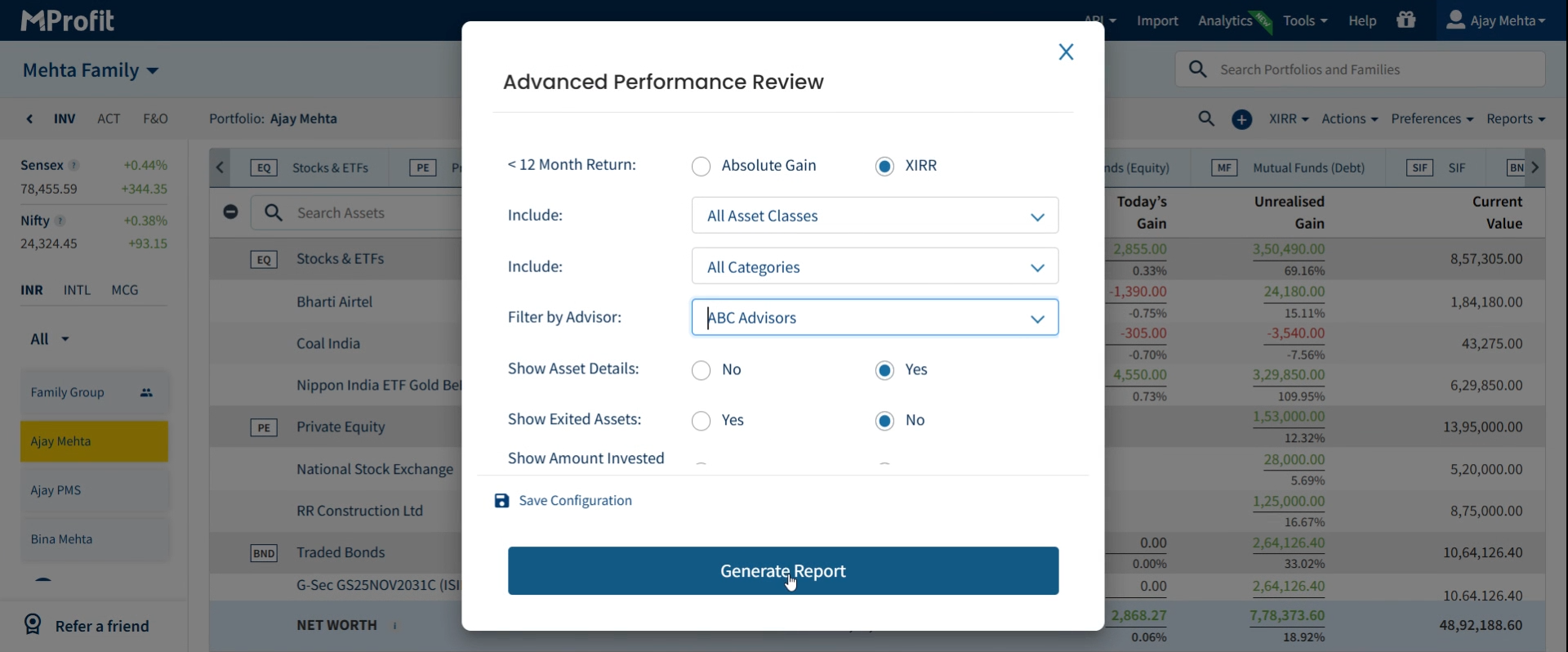
Step 7: Find all key details for the selected advisors, including returns and comparisons to benchmarks.
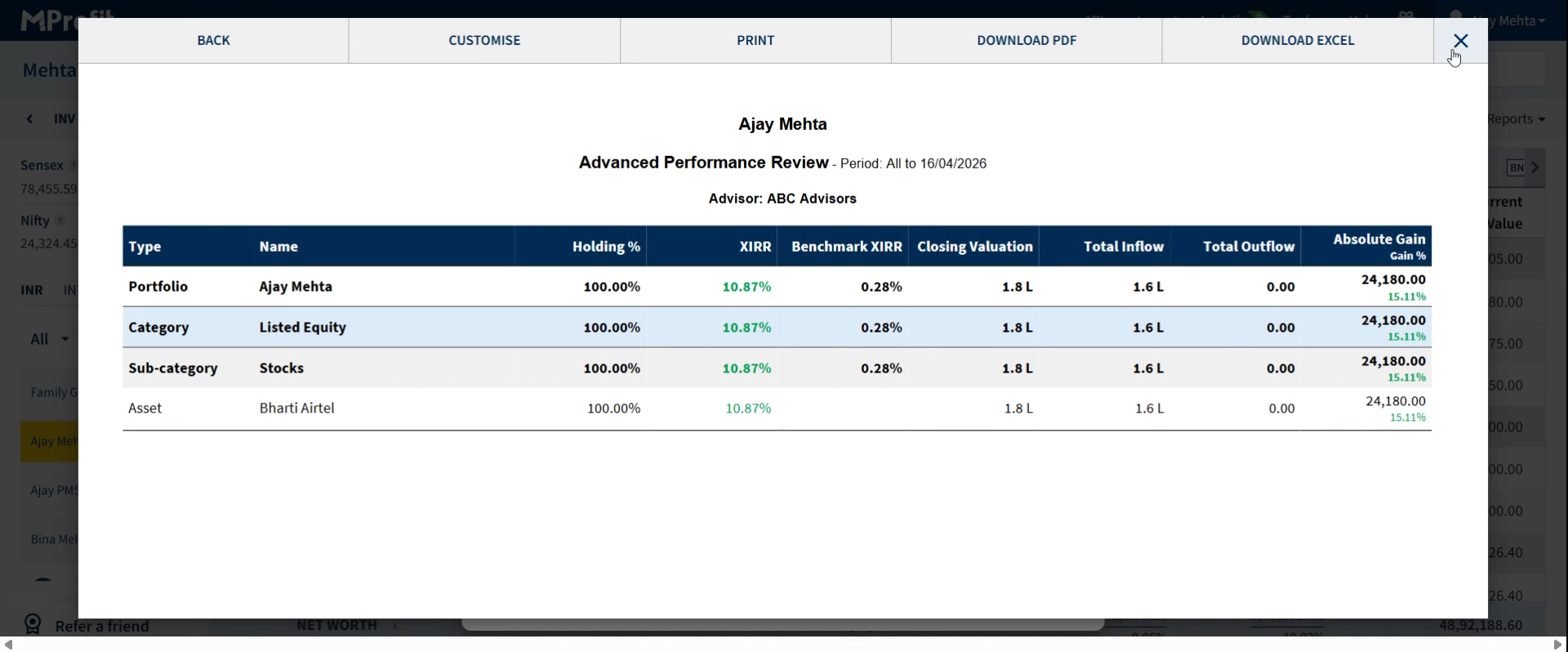
Note: The same filter and split options apply to the Advanced Performance Snapshot Report as well for single portfolios.
With Advisor Tagging and these customization features, you’ll quickly gain focused, meaningful insights—whether you want an at-a-glance summary or a deep analysis by advisor, portfolio, asset class, or specific instrument. Try out different views and filters to tailor Prime Reports to your exact needs.
Was this article helpful?
That’s Great!
Thank you for your feedback
Sorry! We couldn't be helpful
Thank you for your feedback
Feedback sent
We appreciate your effort and will try to fix the article