Advisor tagging in MProfit makes it easy to assign specific assets or portfolios to advisors, track performance, and review holdings on an Advisor basis. Here’s a step-by-step guide to get started.
Step 1: Go to the Analytics tab.
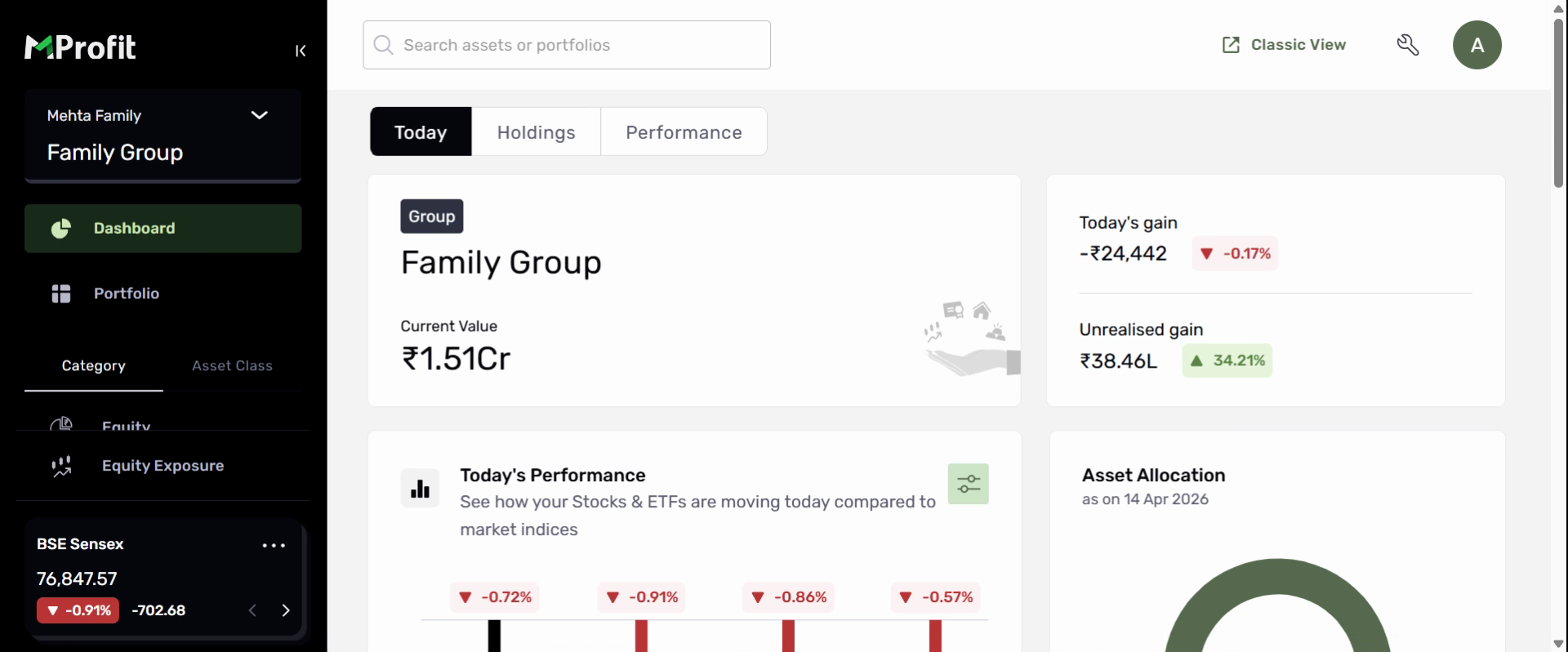
Step 2: Choose the Family Group or portfolio where you want to tag an advisor.
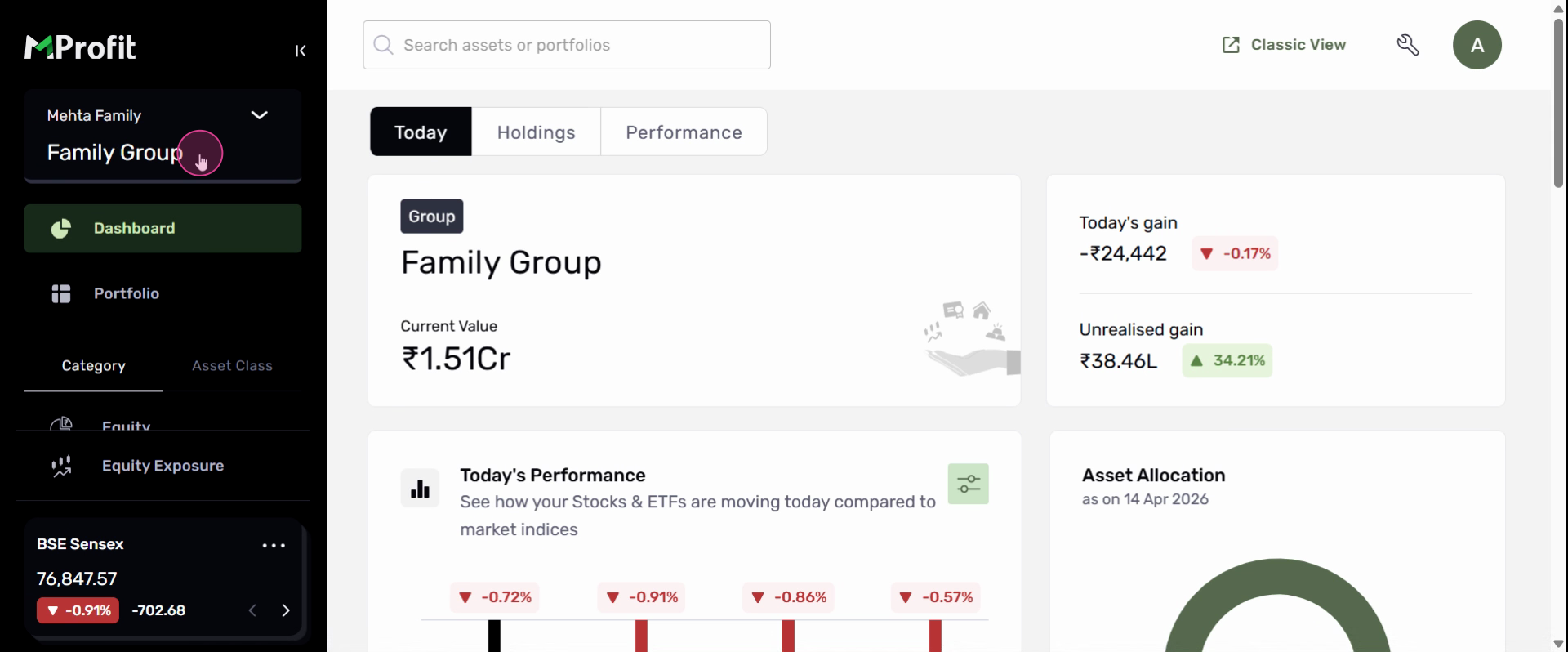
Step 3: Click Portfolio.
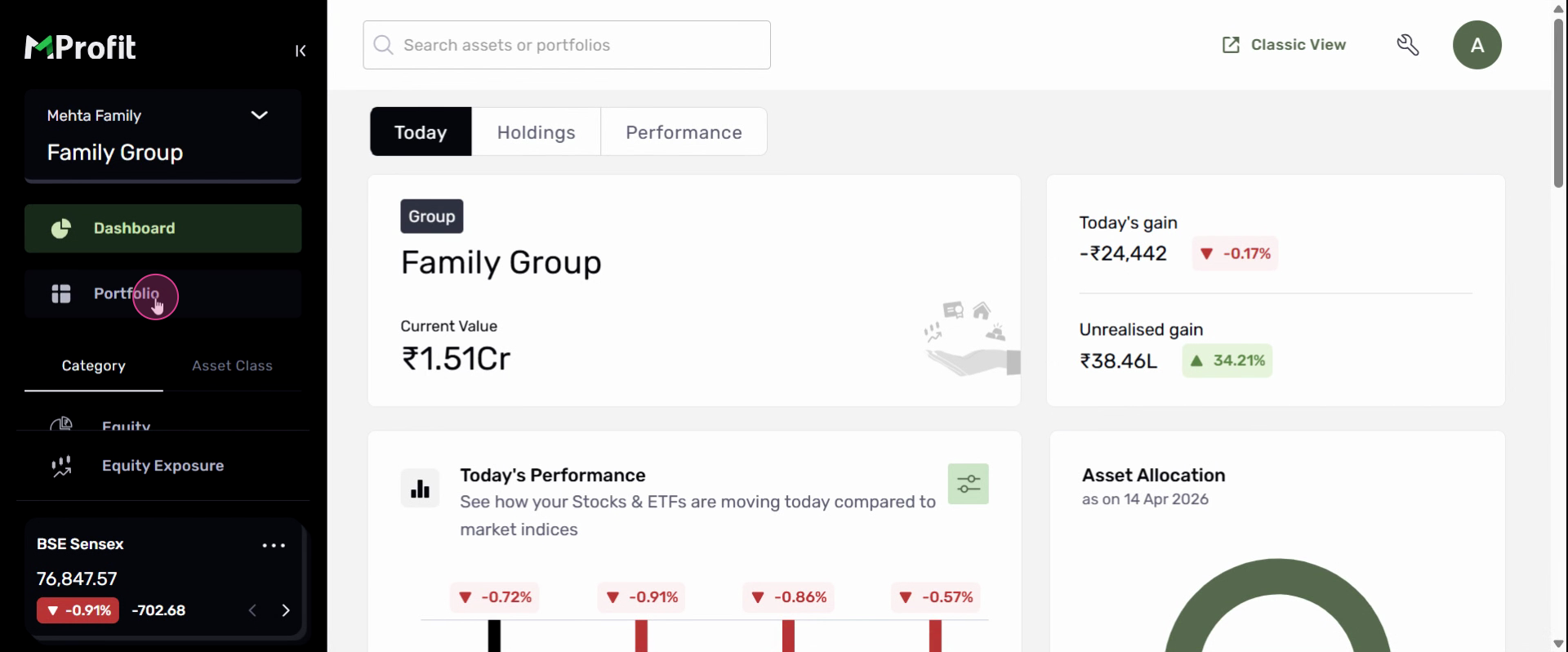
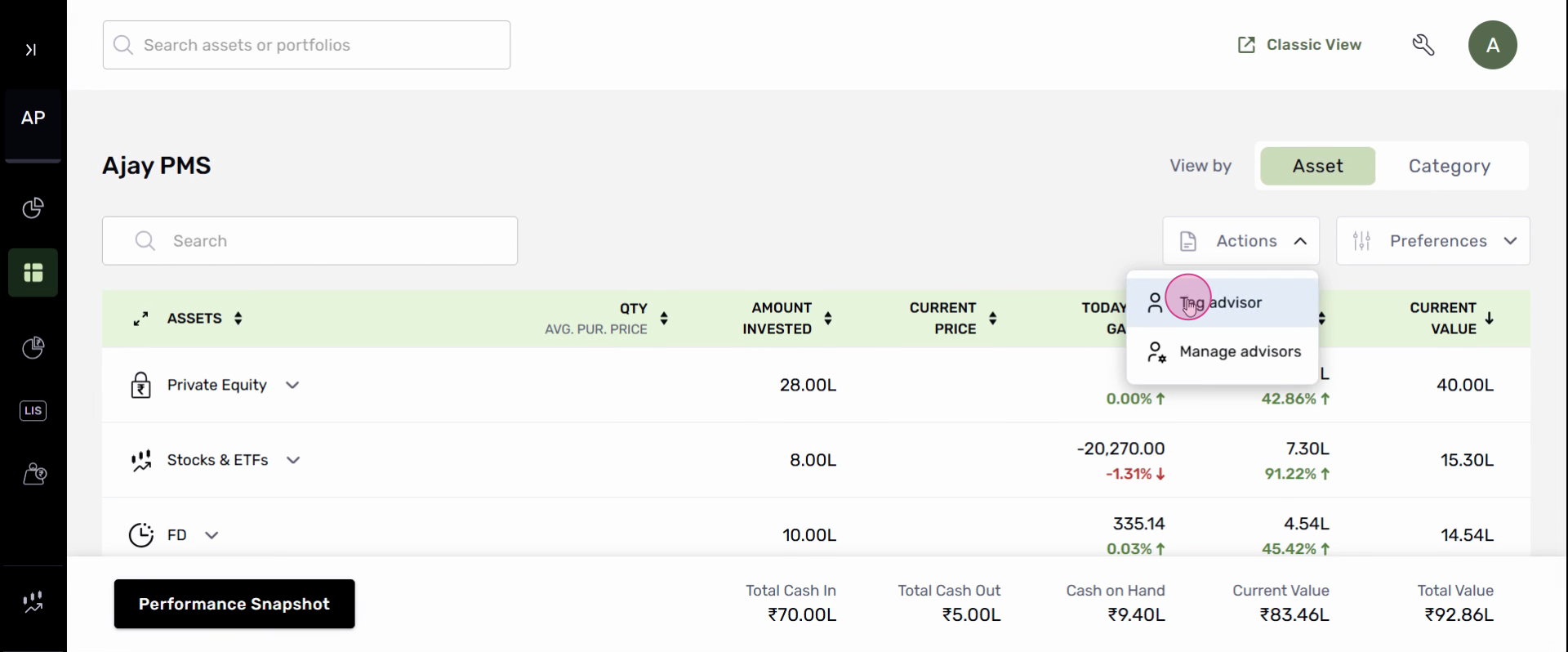
Step 4: Find the Actions dropdown and select Tag Advisor.
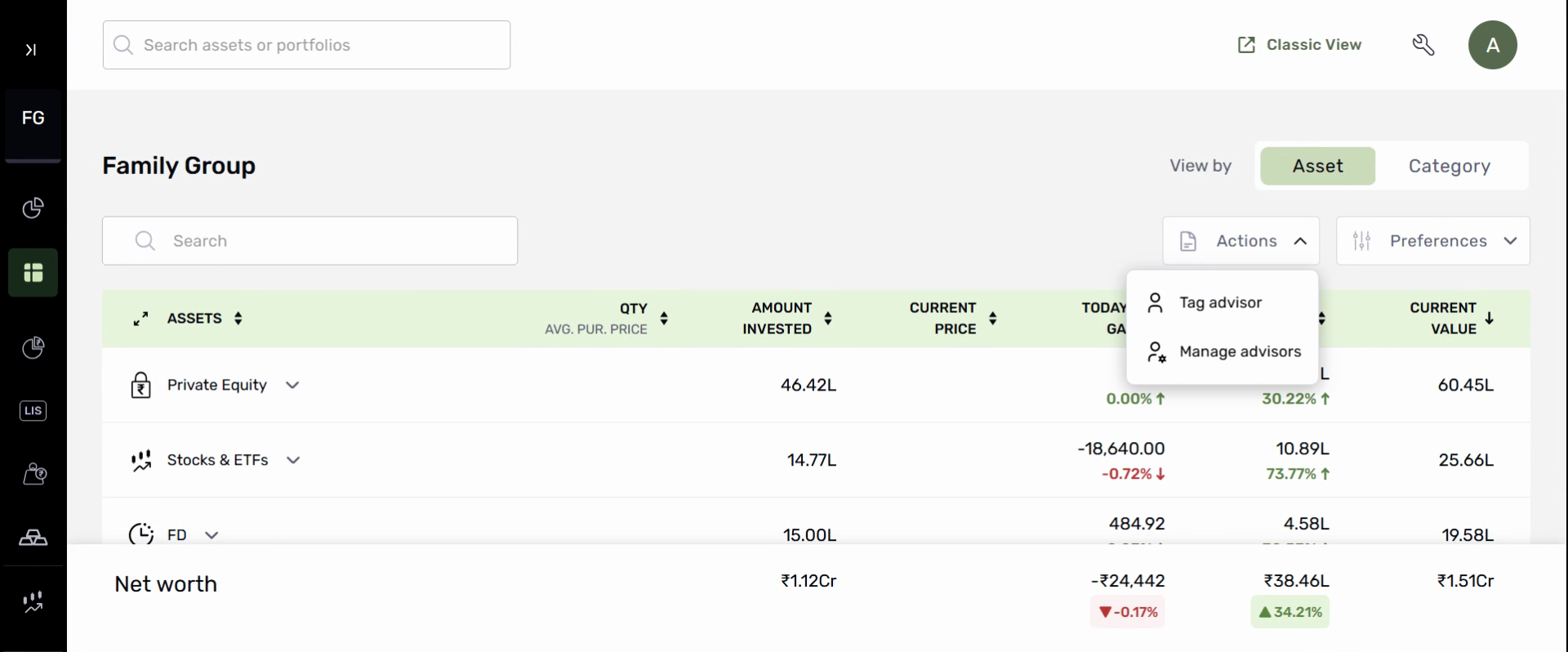
Step 5: Click the dropdown and choose Add Advisor.
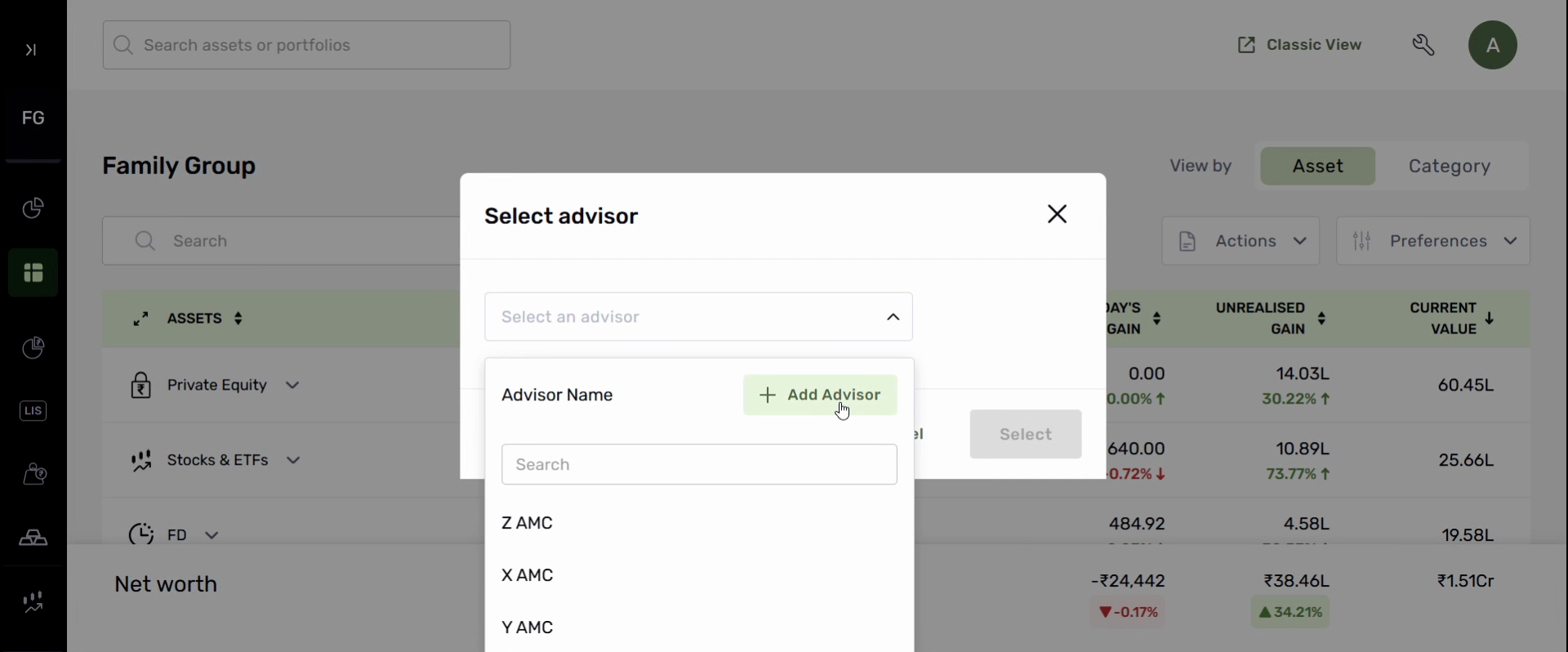
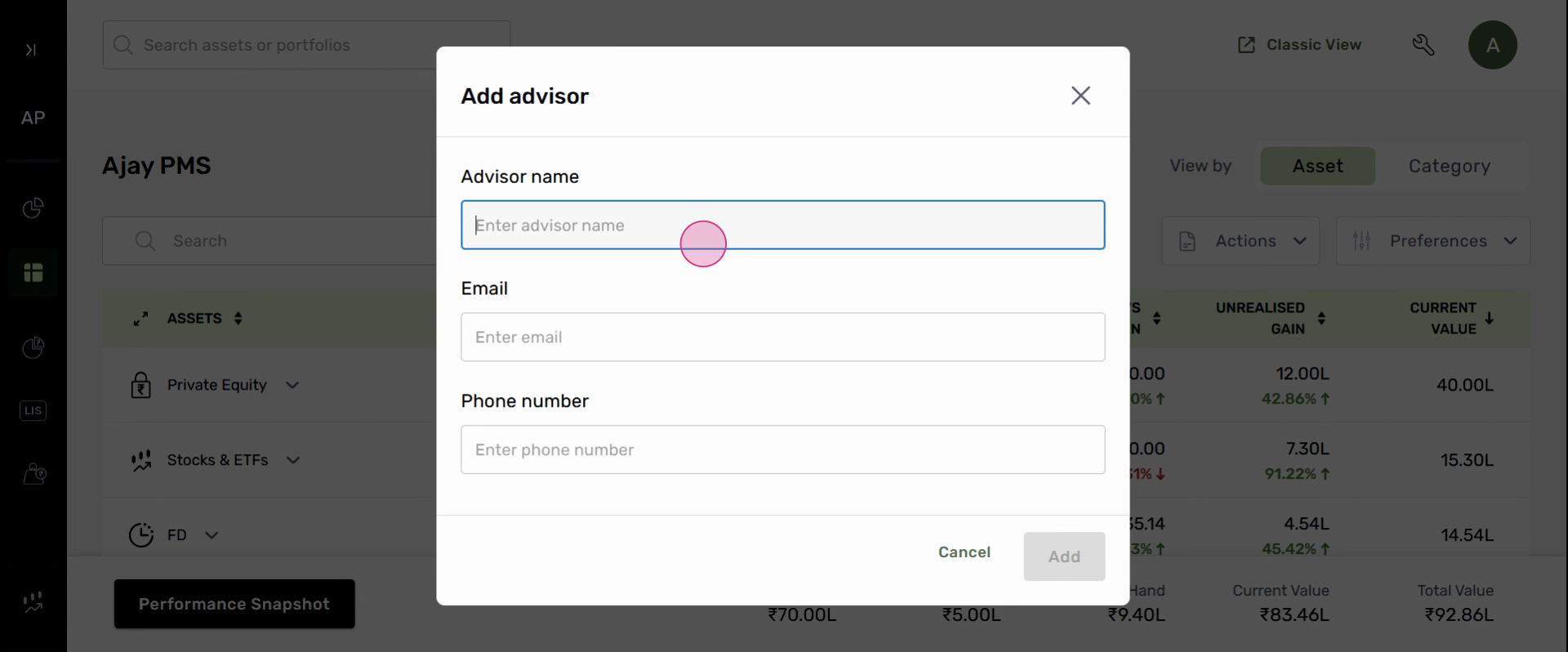
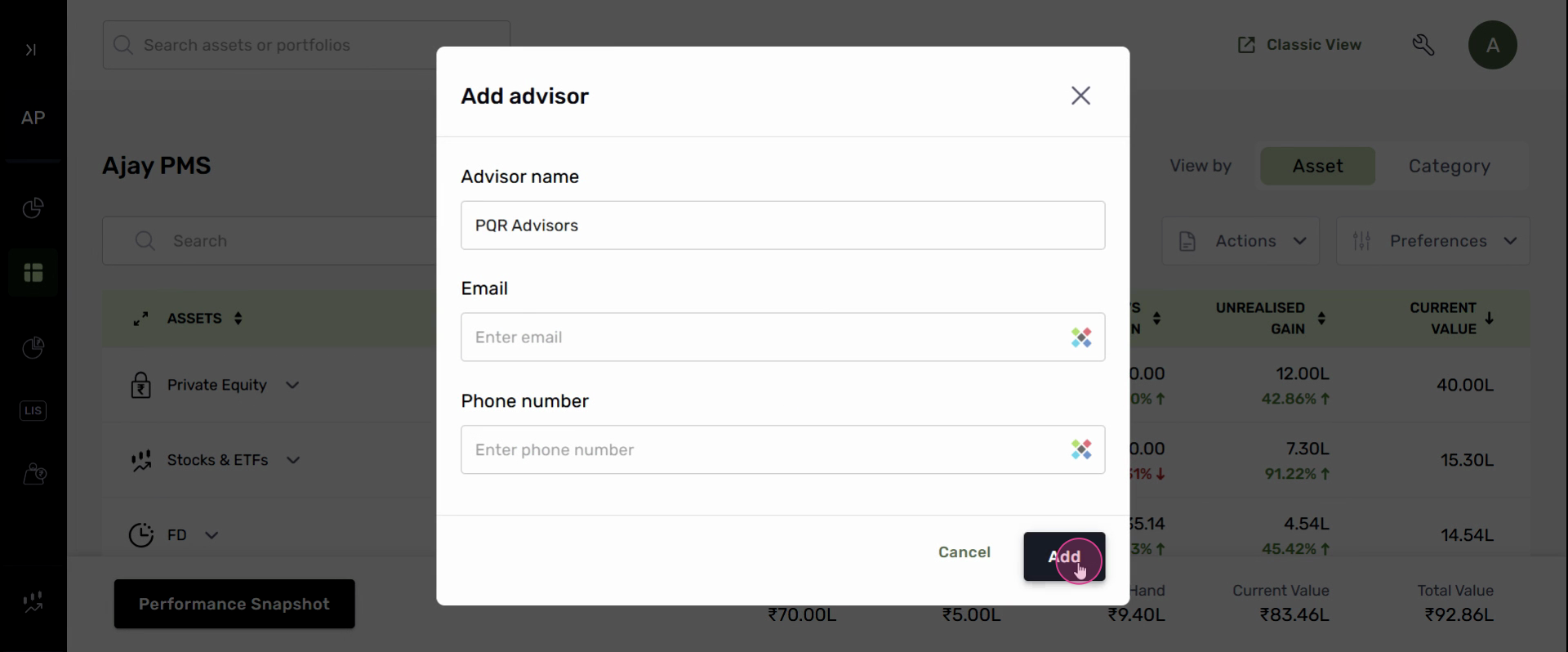
Step 6: Enter the advisor’s name, email, and phone number. Click Add to save.
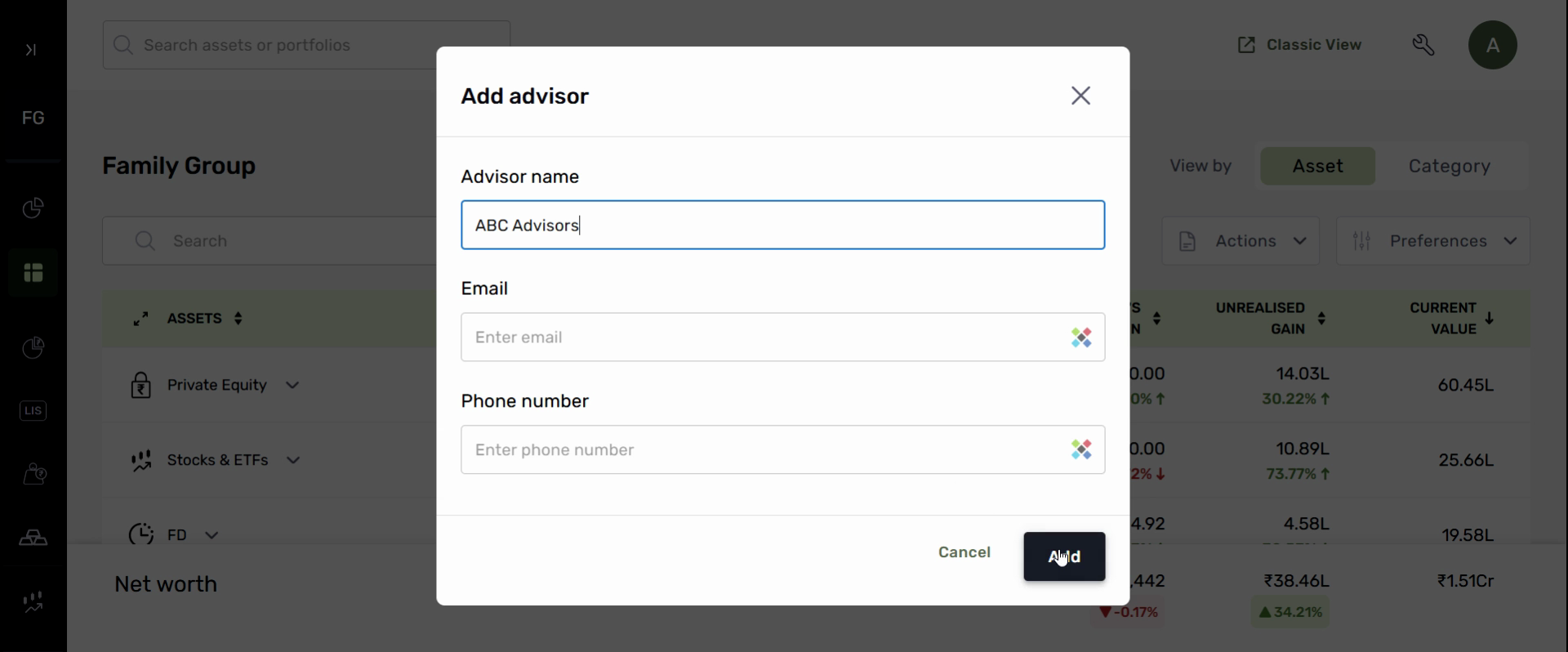
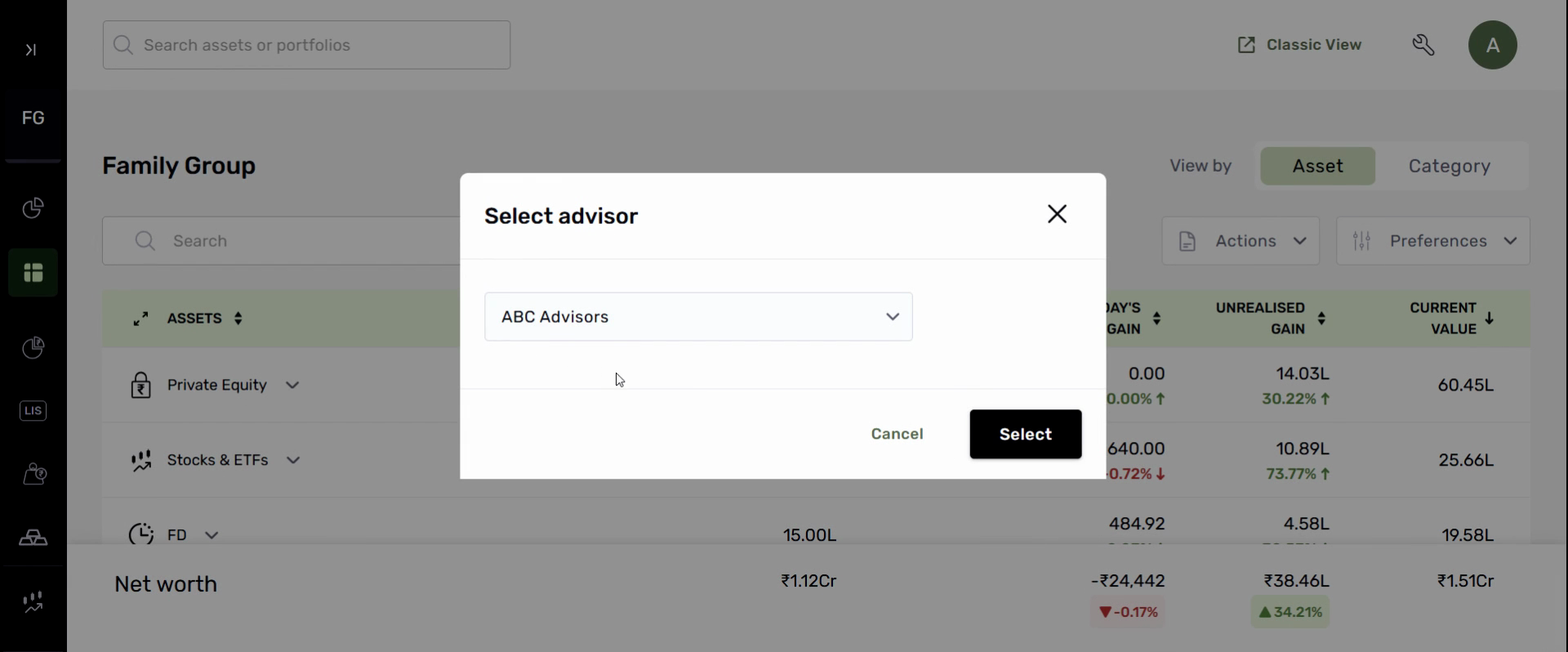
Step 7: The new advisor will appear in the dropdown. Select the advisor.
Step 8: Review the list of assets and portfolios. Check the boxes for assets you want to tag to the advisor.
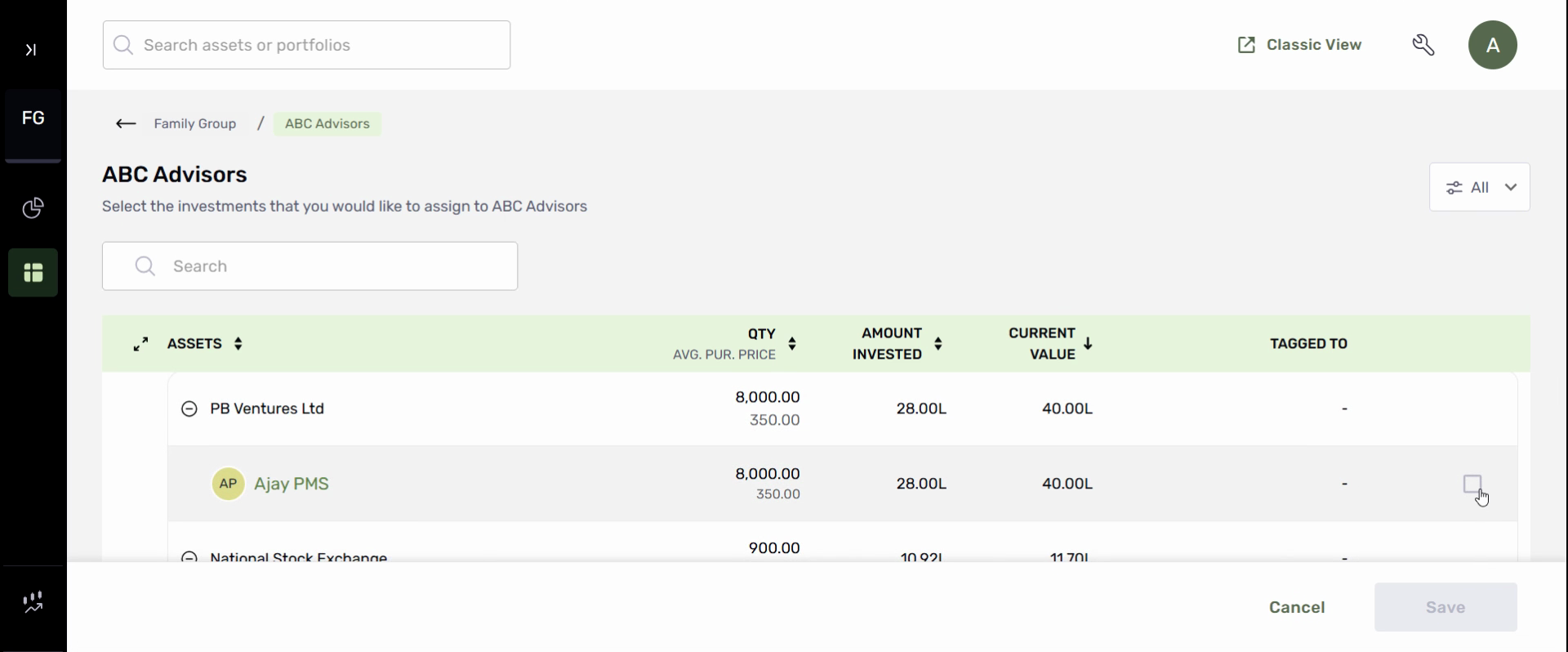
Step 9: Click Save to finish tagging selected assets to the advisor.
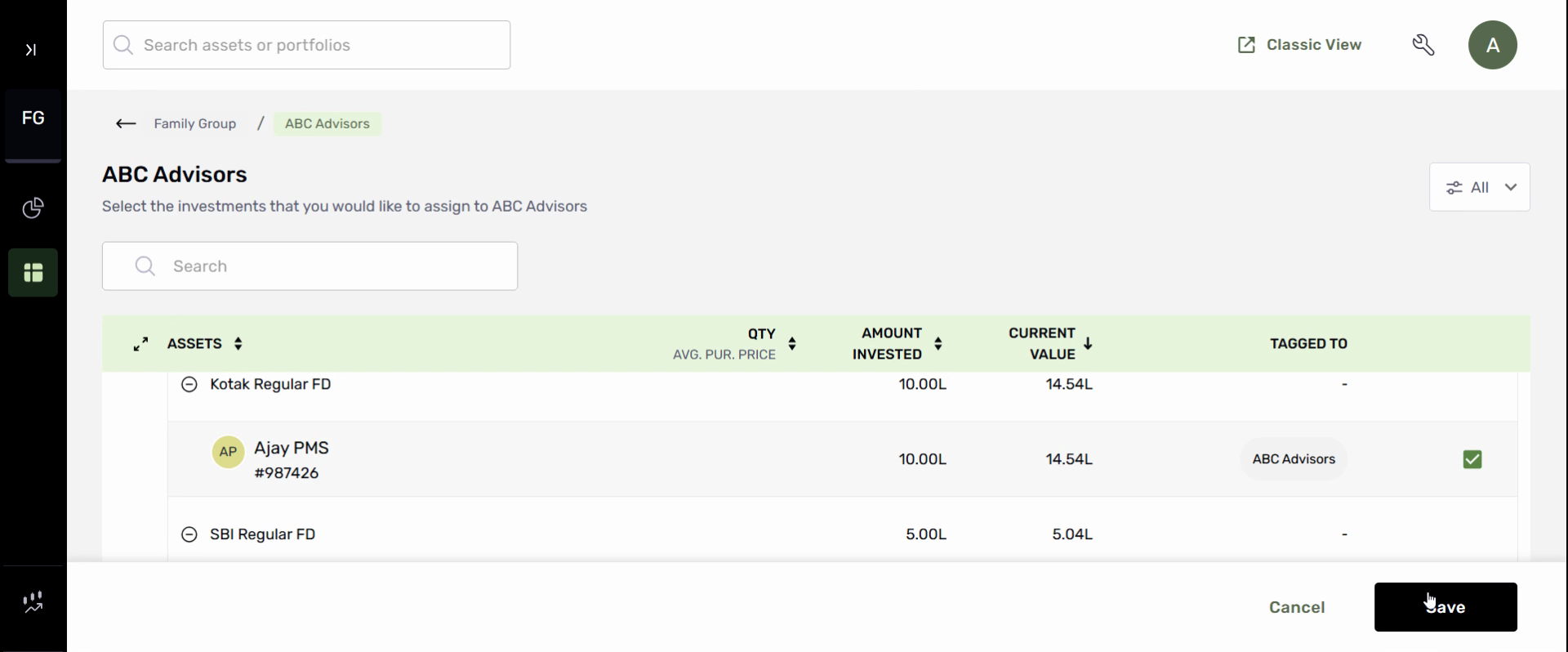
Now, the assets are successfully linked to the chosen advisor.
Tag an Entire Portfolio to an Advisor
Step 1: In the left navigation, select the relevant Family Group, then pick the portfolio you want to tag.
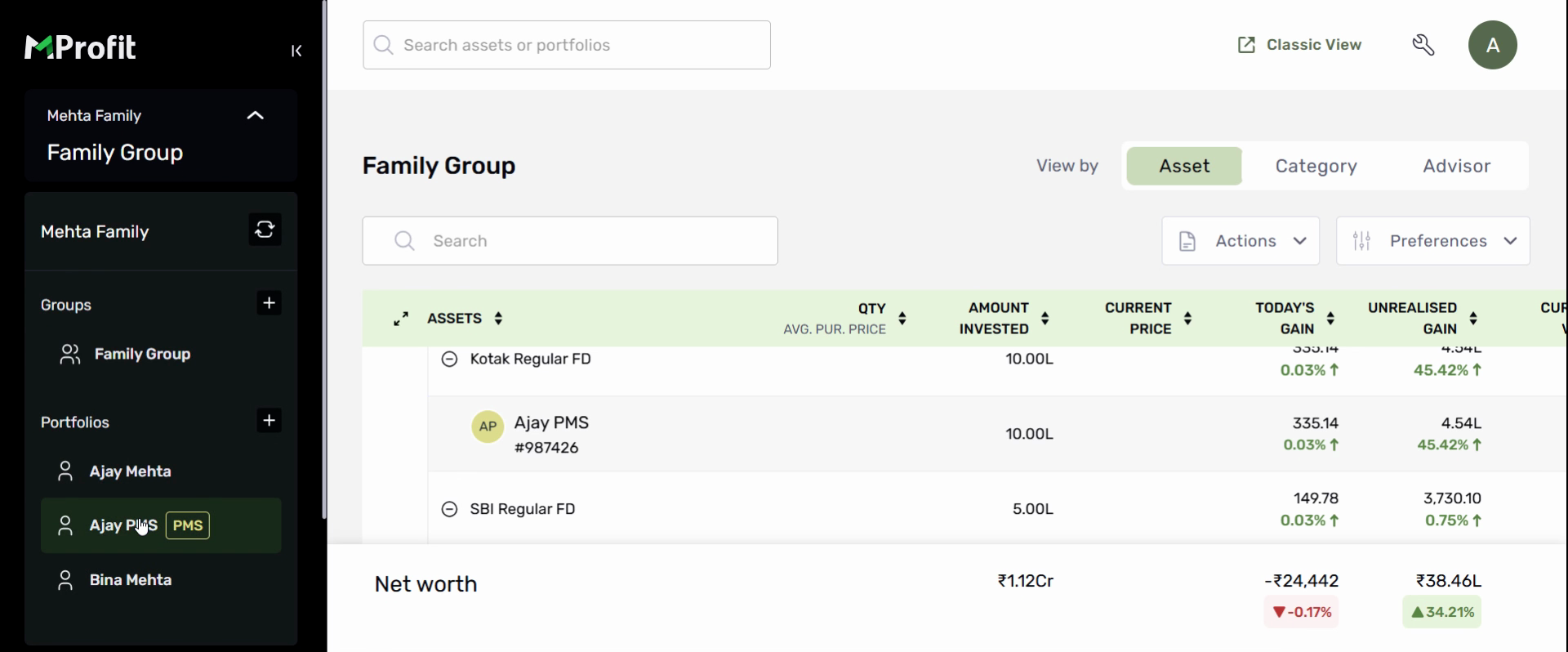
Step 2: Enter the Portfolio section, click Actions, and select Tag Advisor.
Step 3: Use the dropdown to Add Advisor if needed, enter details, and hit Add.
Step 4: Select the advisor from the dropdown and proceed.
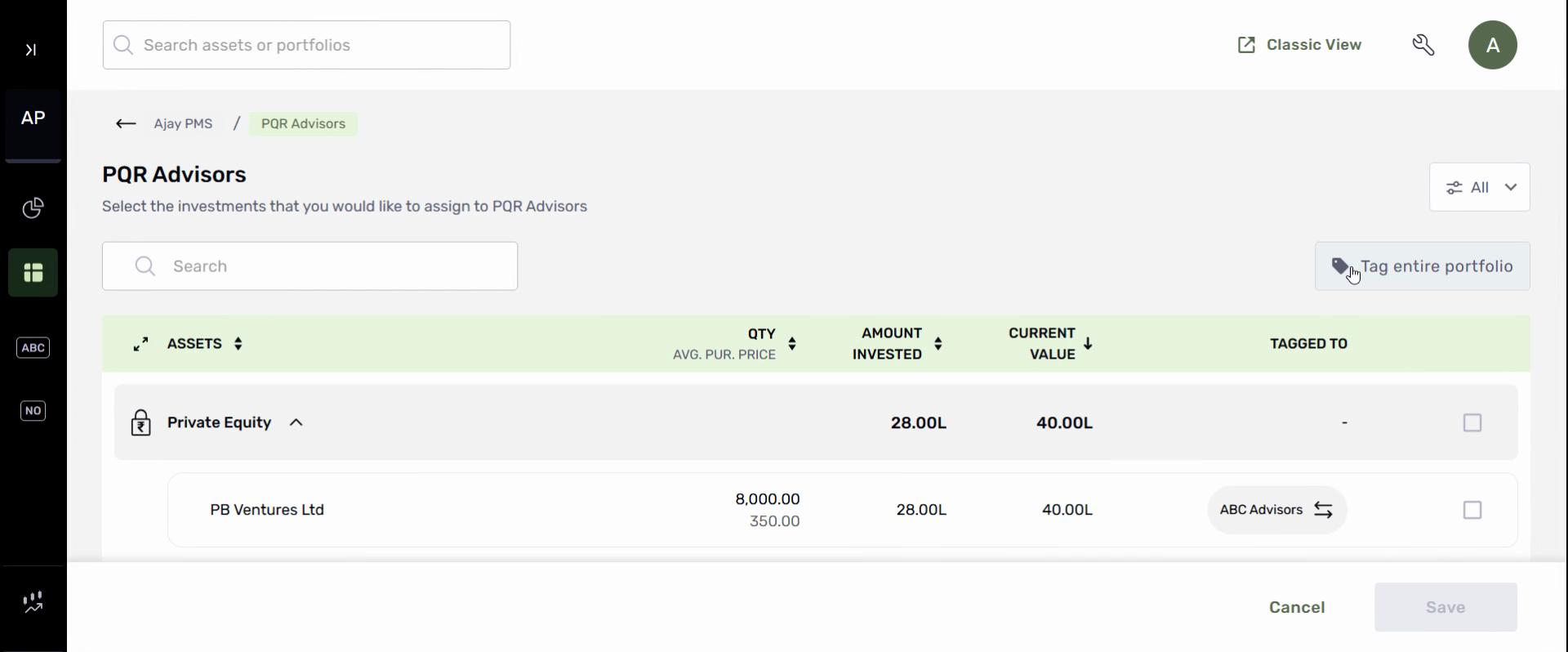
Step 5: Use the Tag Entire Portfolio option.
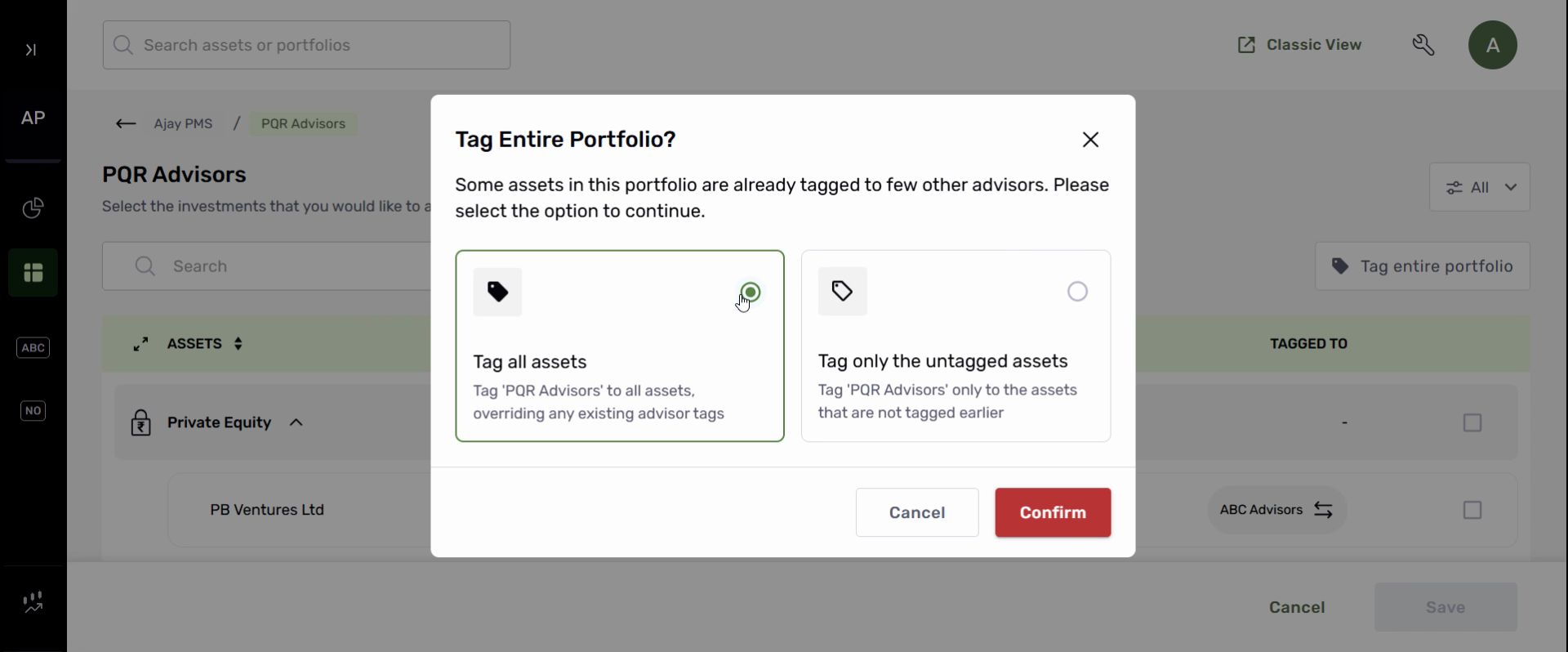
Step 6: Choose to tag either all assets or only untagged assets. Click Confirm, then Save.
Your whole portfolio is now tagged to the selected advisor.
Review and Analyze Advisor-Based Holdings and Performance
Step 1: Head to the Dashboard in your Family Group or a particular portfolio.
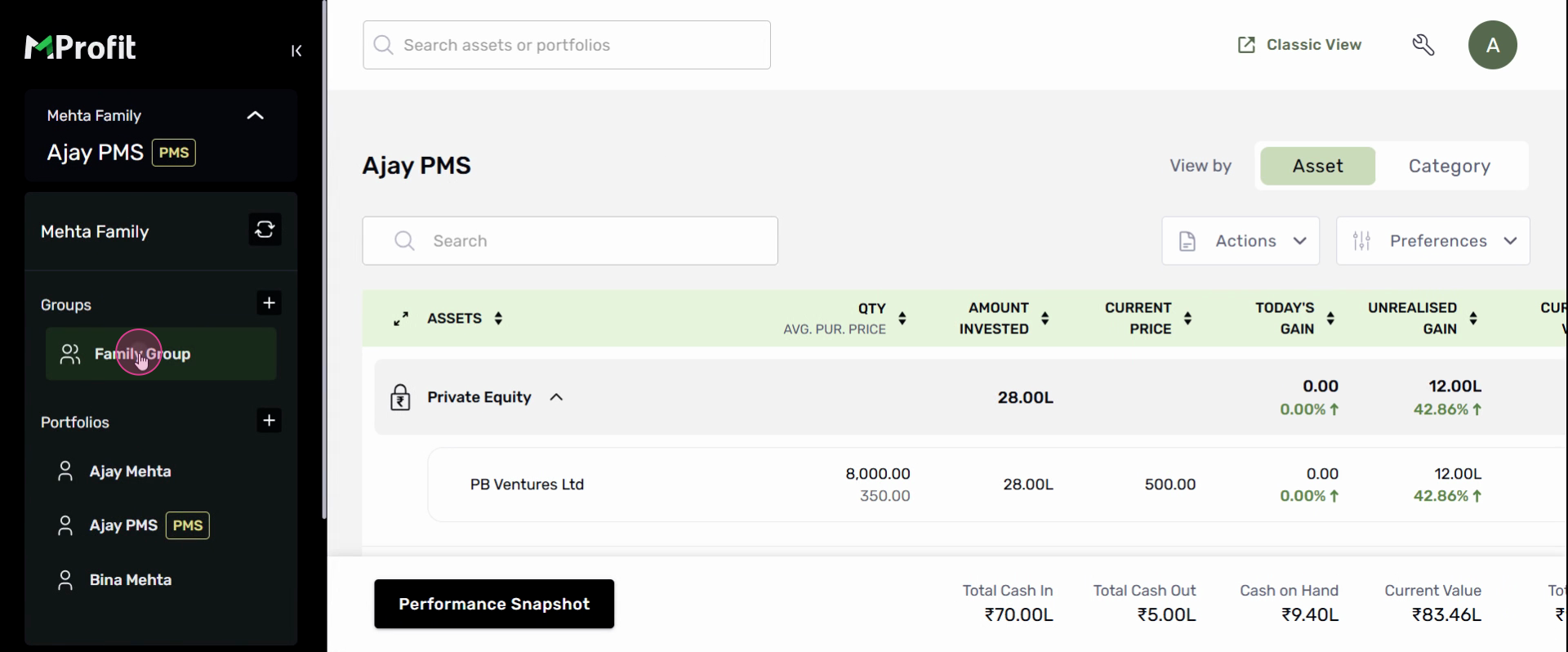
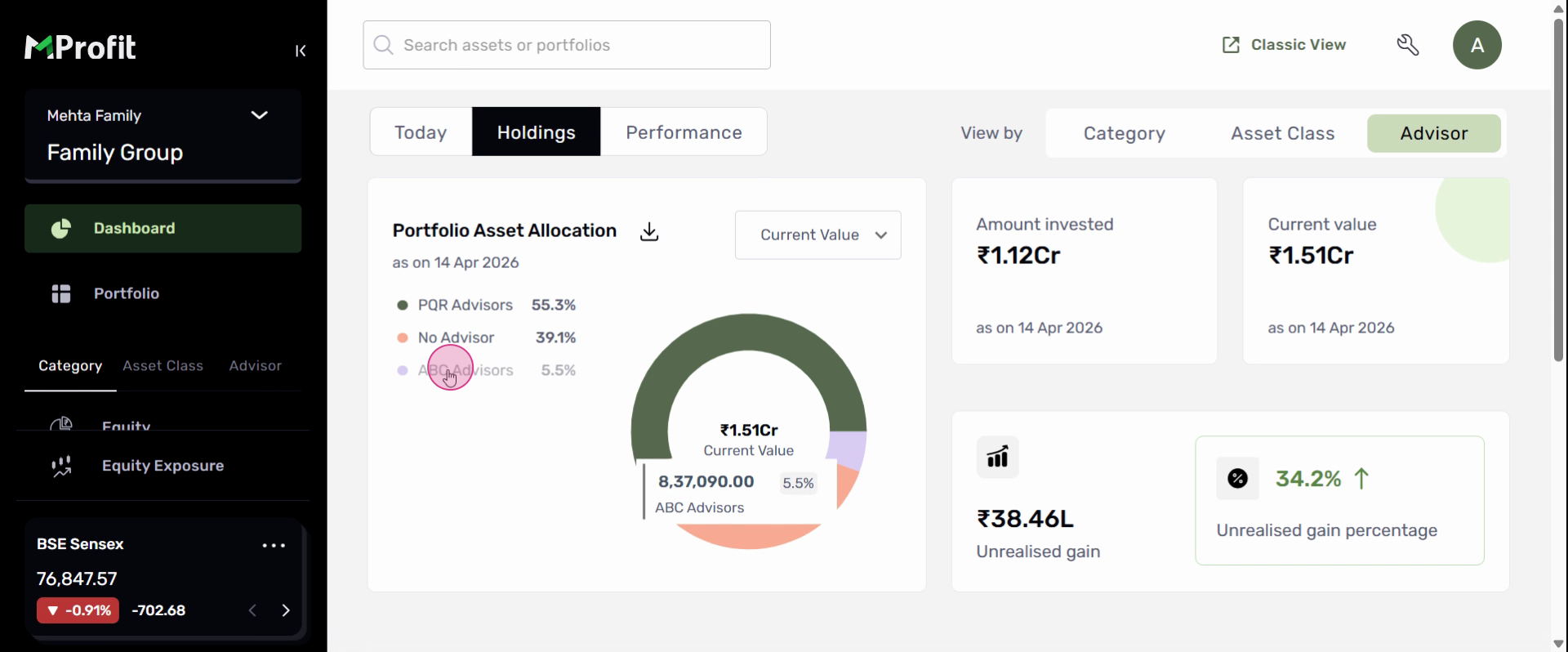
Step 2: Click on Holdings. Here, you’ll see holdings grouped by Category, Asset Class, and Advisor.
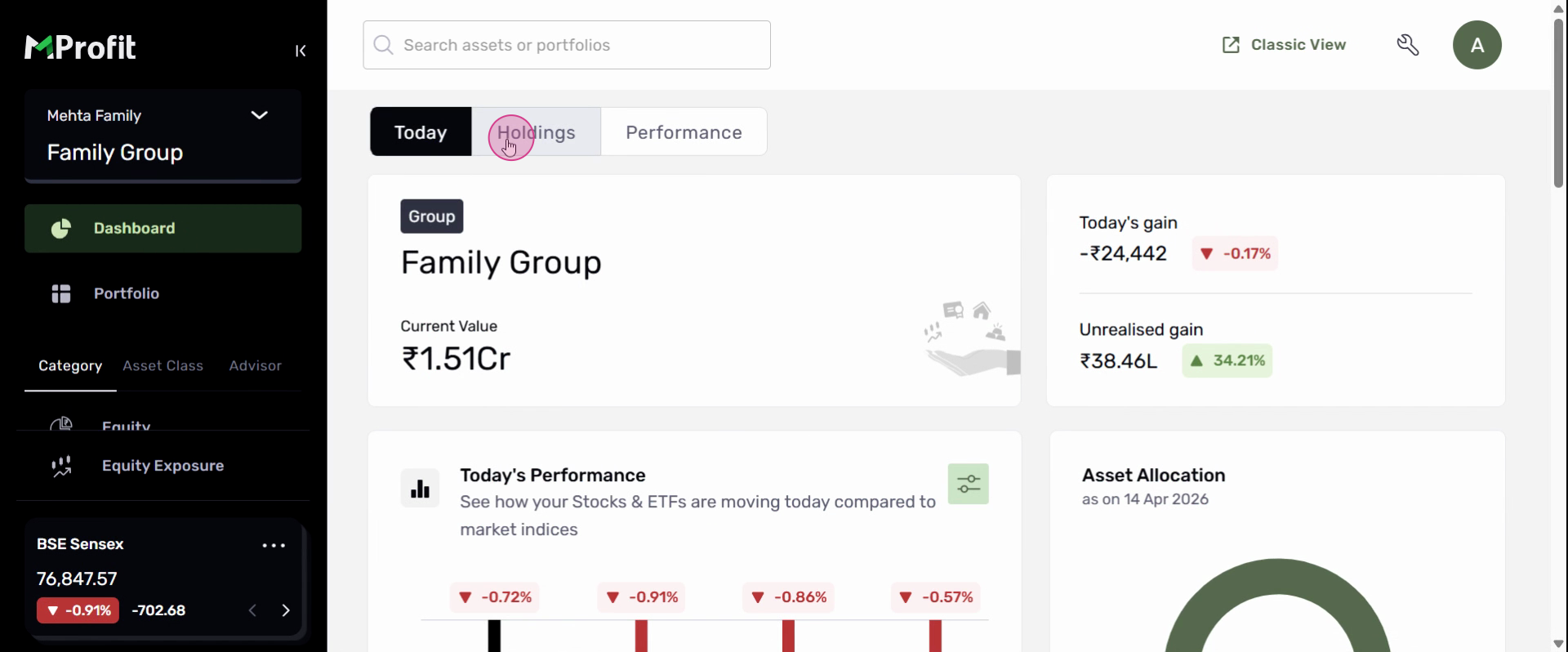
Step 3: Assets without an advisor show up under “No Advisor.” Drill down to see holdings tagged to specific advisors.
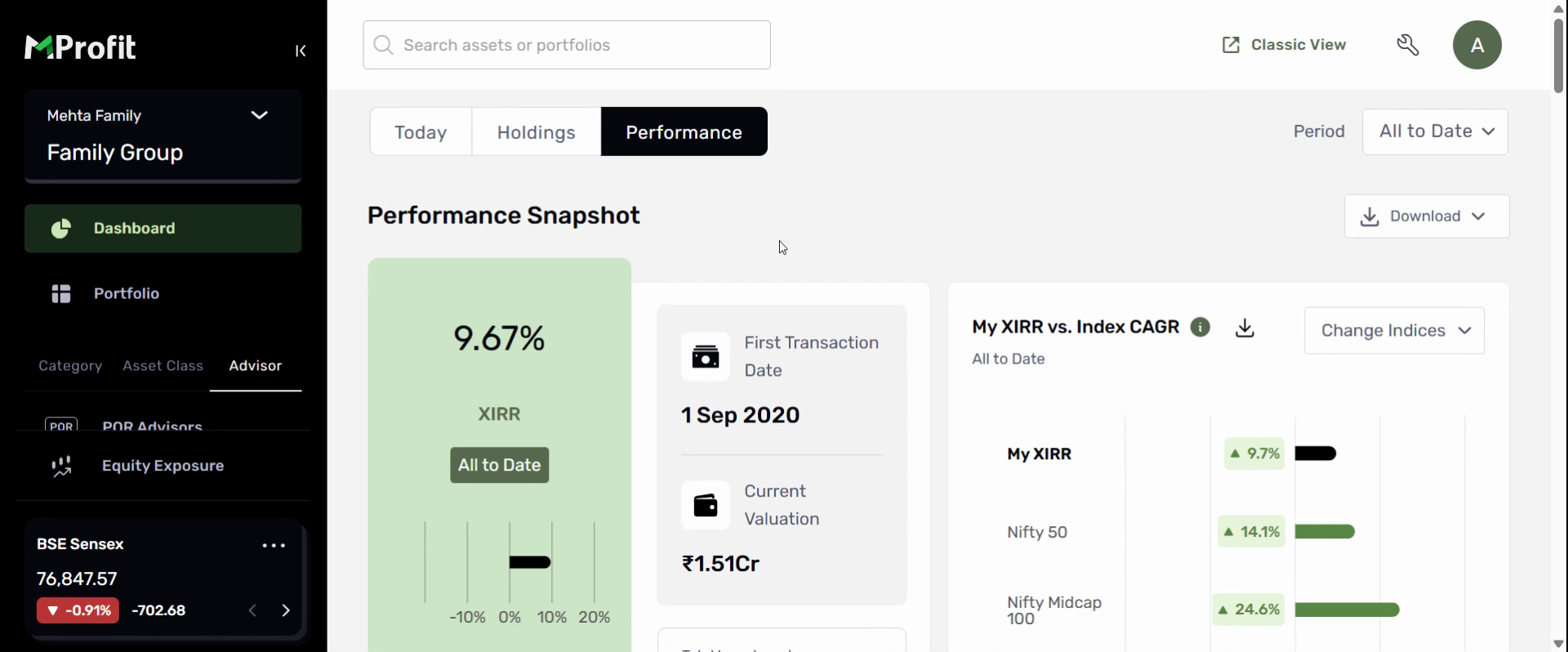
Step 4: To view performance by advisor, go to the Performance tab.
Step 5: Scroll to the performance-by-advisor table and click View Table.
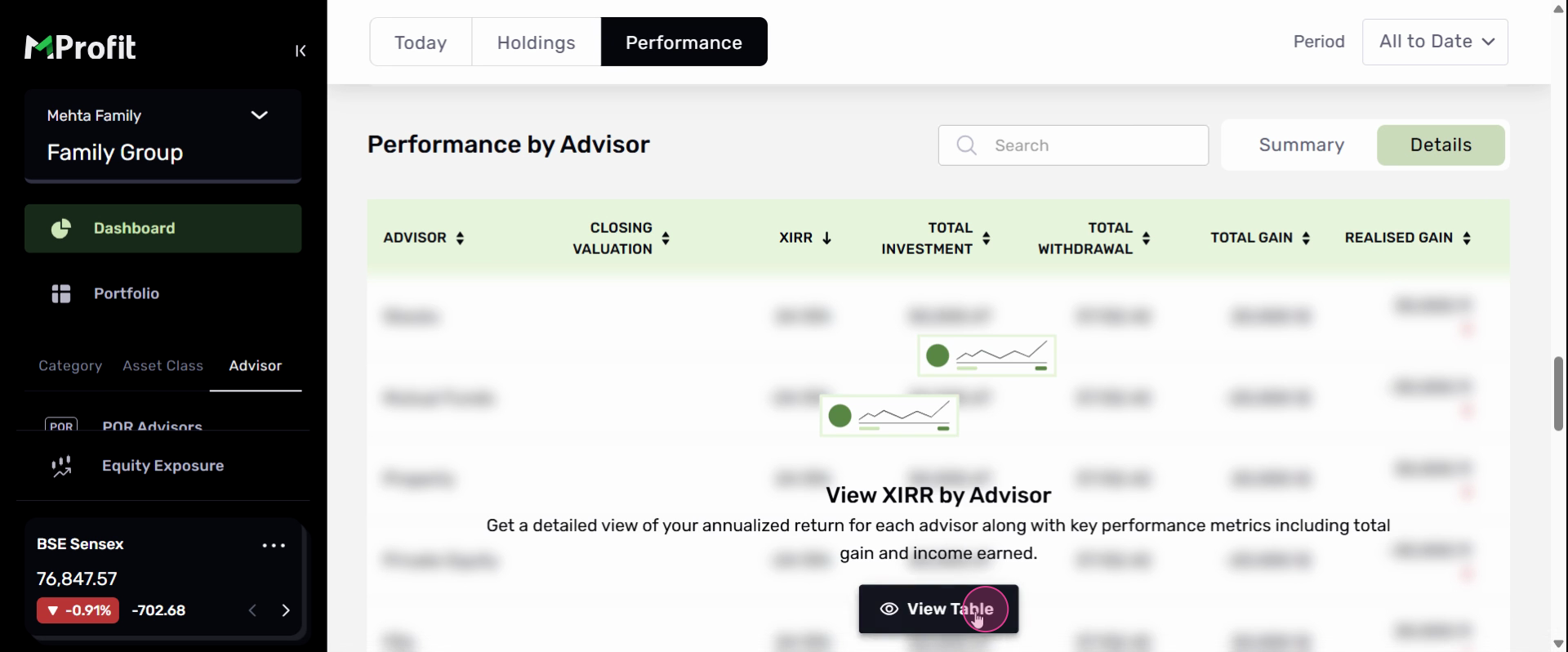
Step 6: Use the new Advisor tab in the left navigation to quickly filter holdings and performance for any specific advisor, group, or portfolio.
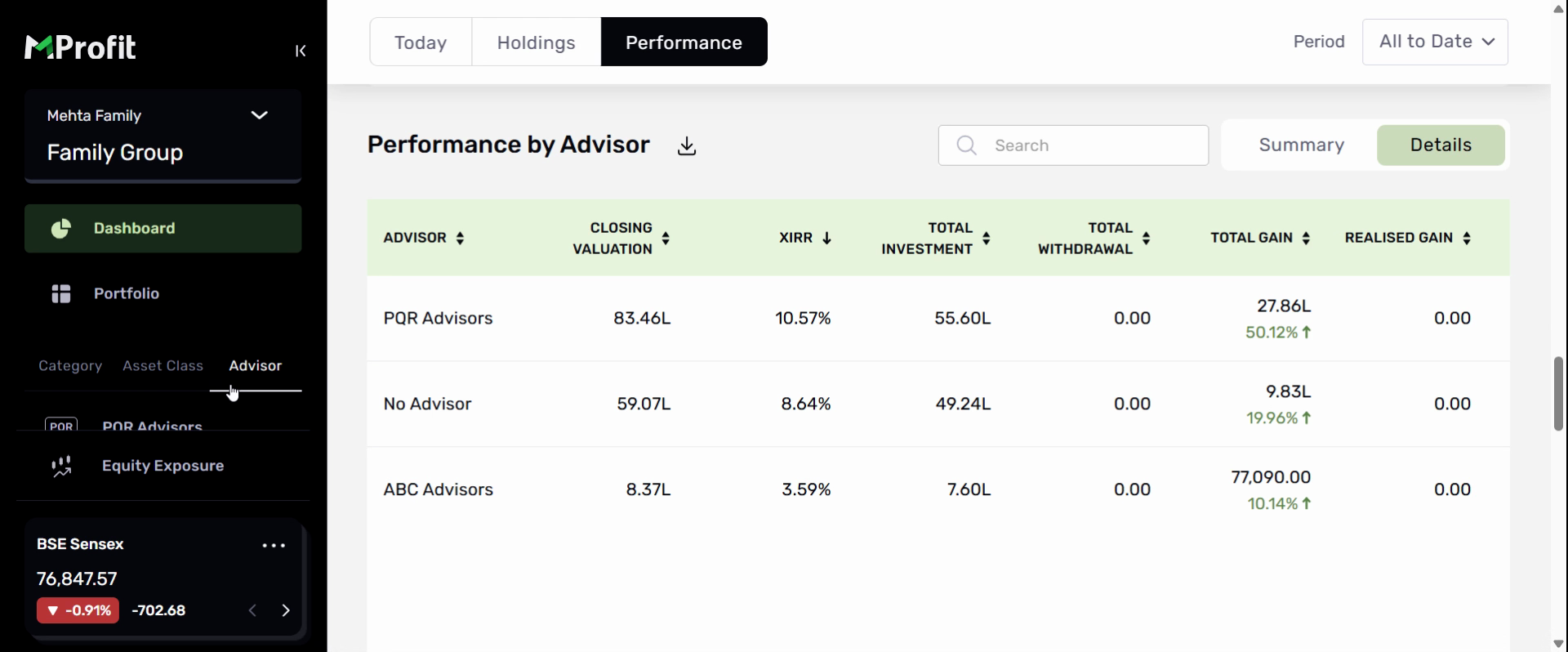
Here, you can review individual holdings, view advisor-specific performance, and analyze asset allocation at a glance.
Advisor tagging in MProfit helps you stay organized, provides detailed performance insights, and simplifies advisor-driven analysis. Use these tools to make your portfolio management even smarter!
Was this article helpful?
That’s Great!
Thank you for your feedback
Sorry! We couldn't be helpful
Thank you for your feedback
Feedback sent
We appreciate your effort and will try to fix the article