Understanding advisor performance over time is crucial for making informed investment decisions.
With the Advisor tagging feature in MProfit’s Multi Period Returns reports, you can easily track and compare returns generated by different advisors across multiple timeframes. Here’s how to get the most out of this powerful feature.
Step 1: Navigate to your desired family group in MProfit.
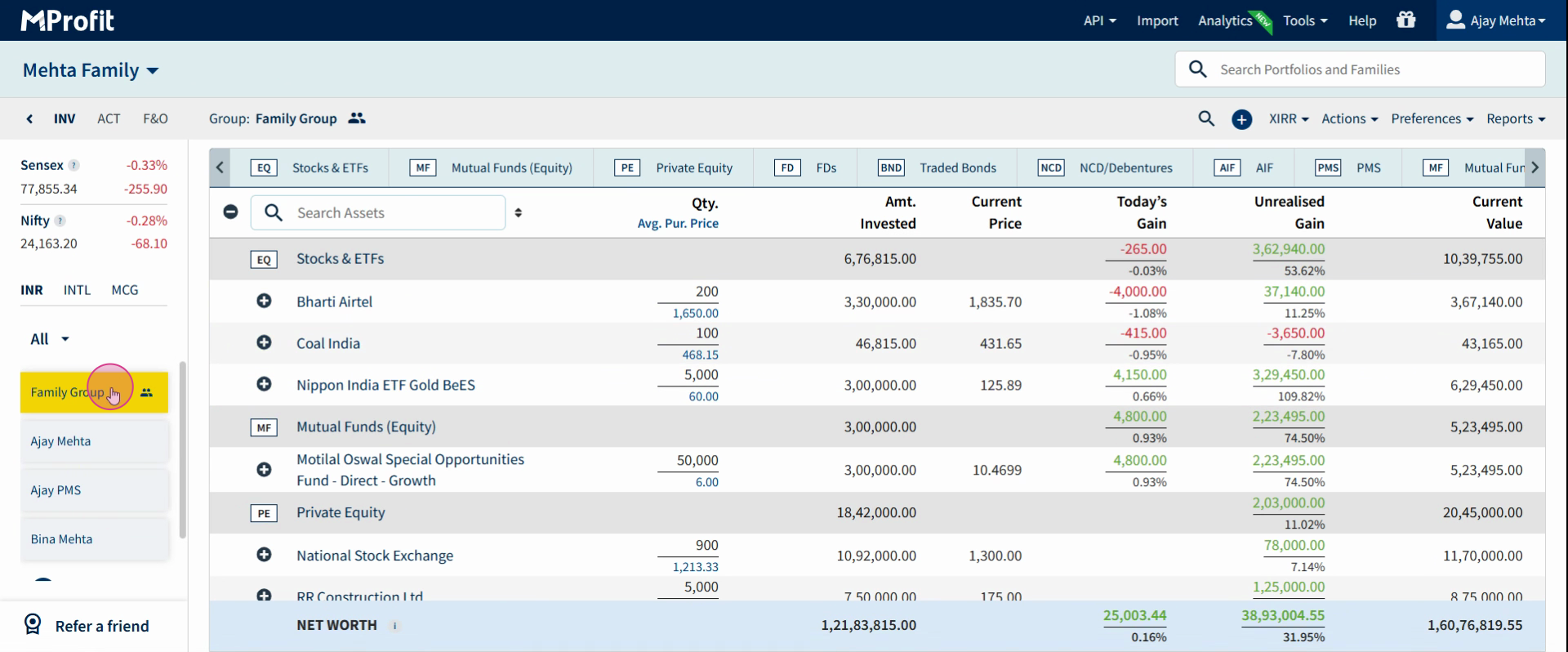
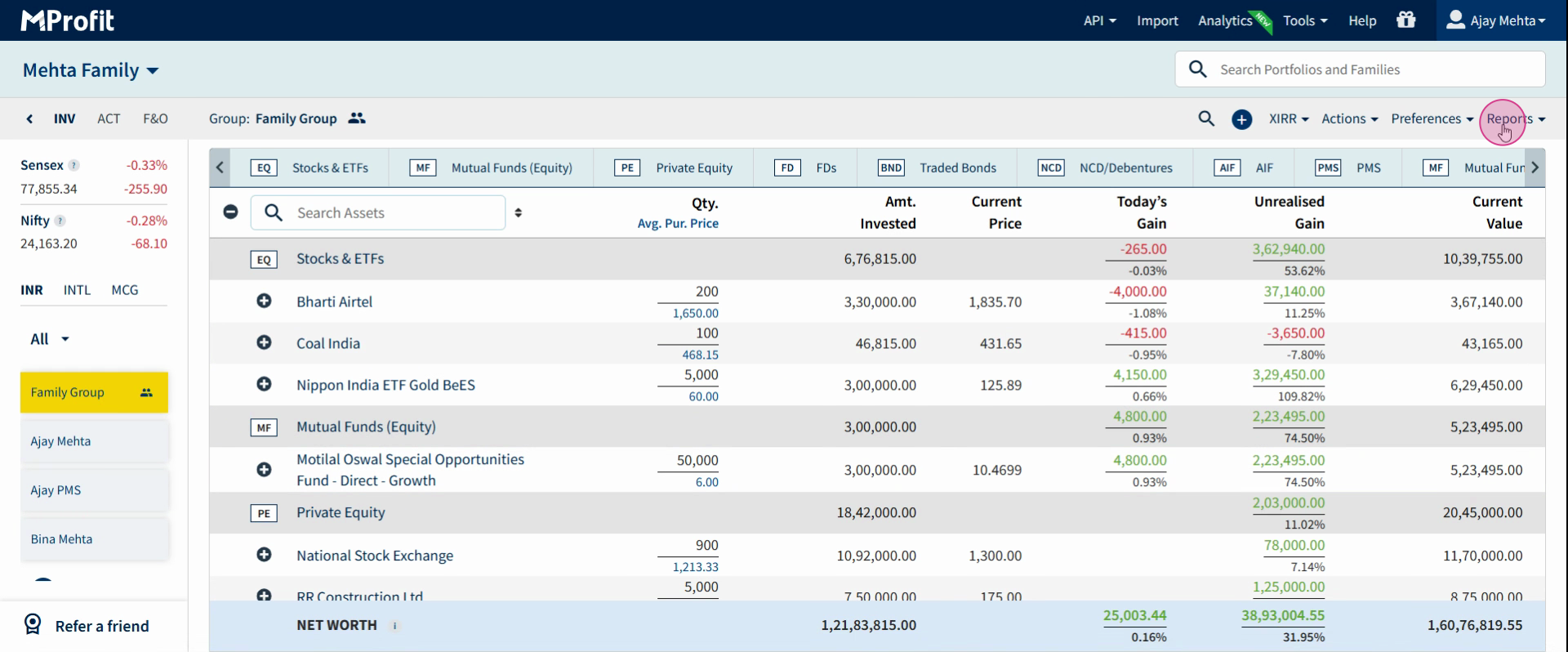
Step 2: Head to the Report section and click Reports.
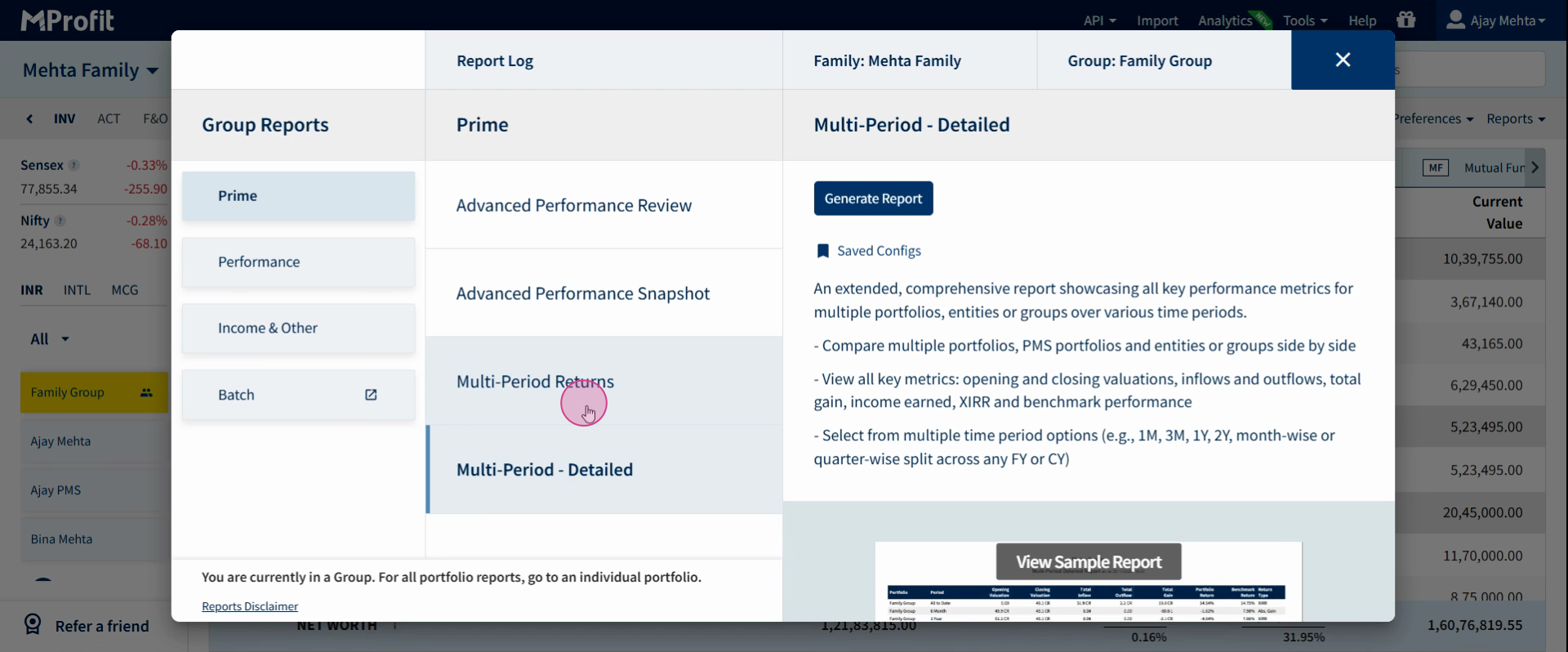
Step 3: Select the Multi Period Returns report.
Step 4: Click Generate Report.
Step 5: In the report customizations, find View Returns for.
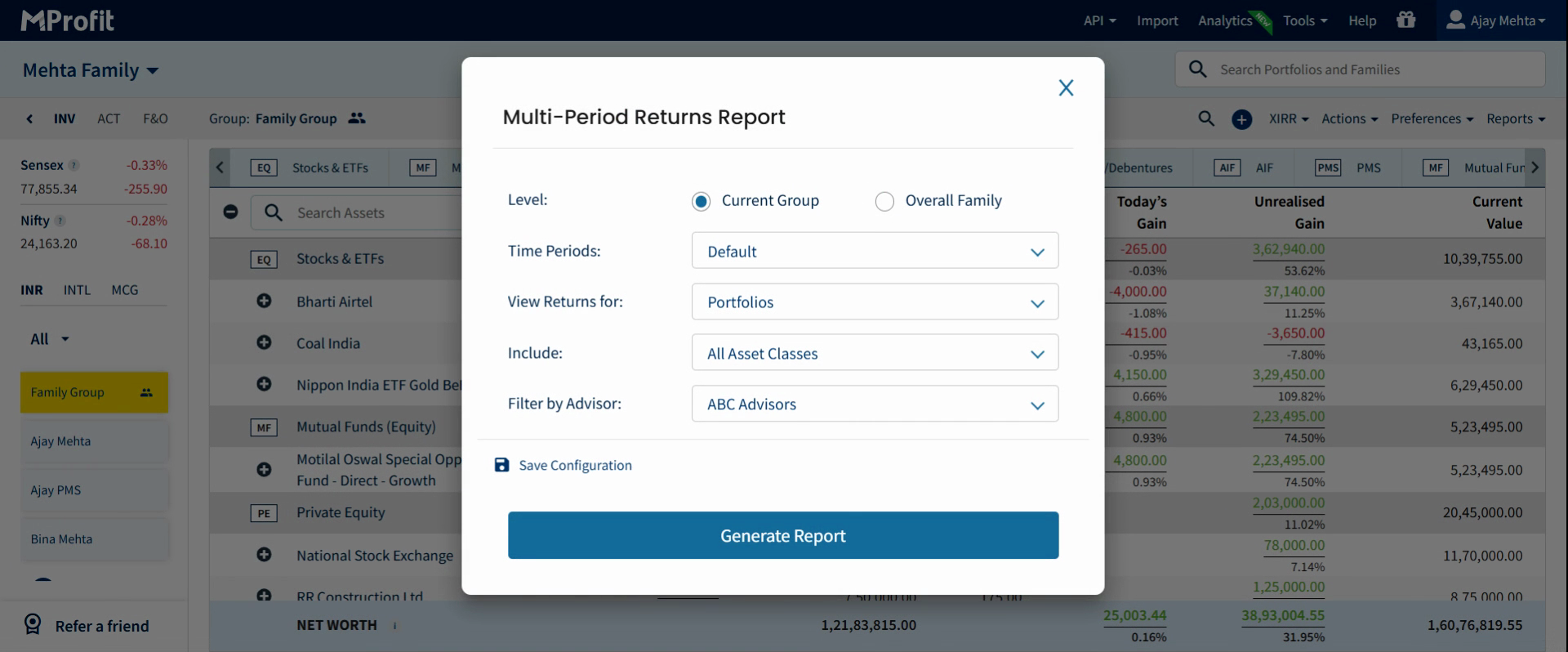
Step 6: From the dropdown, select Advisors.
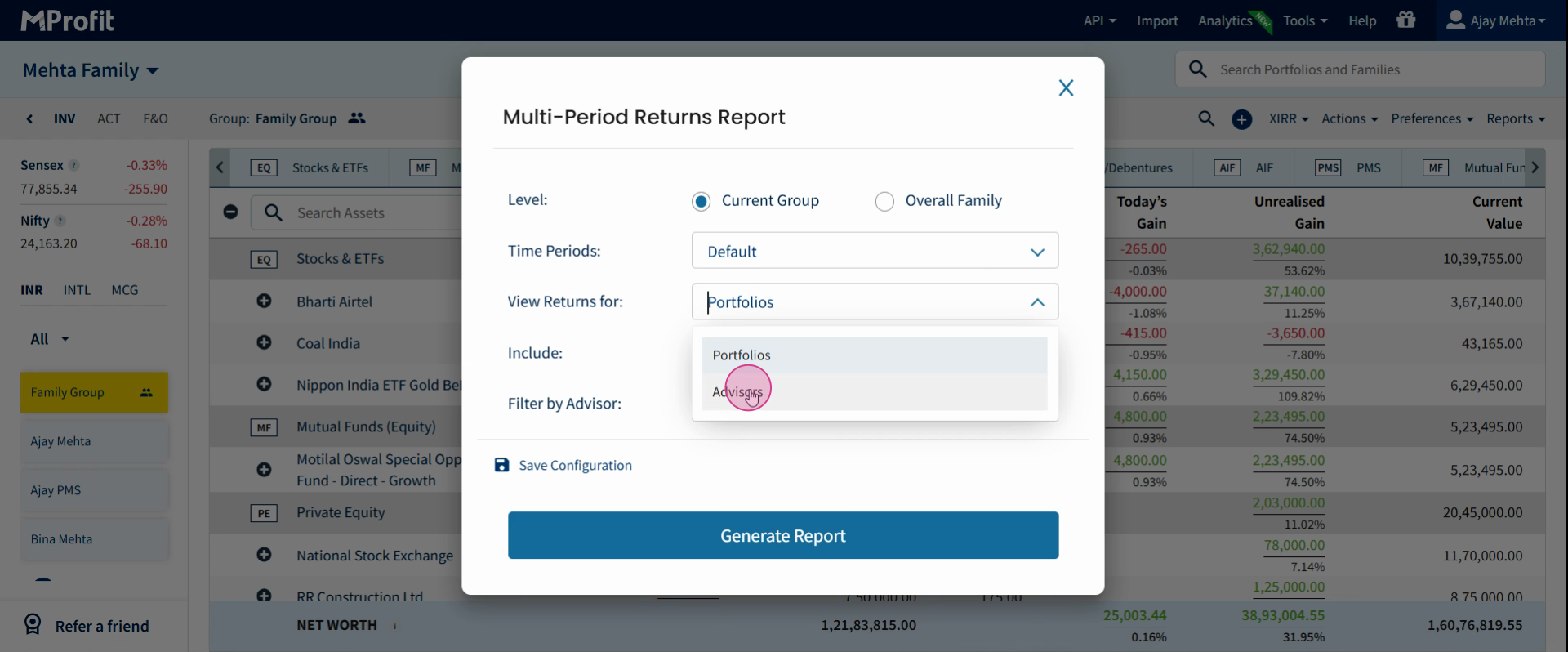
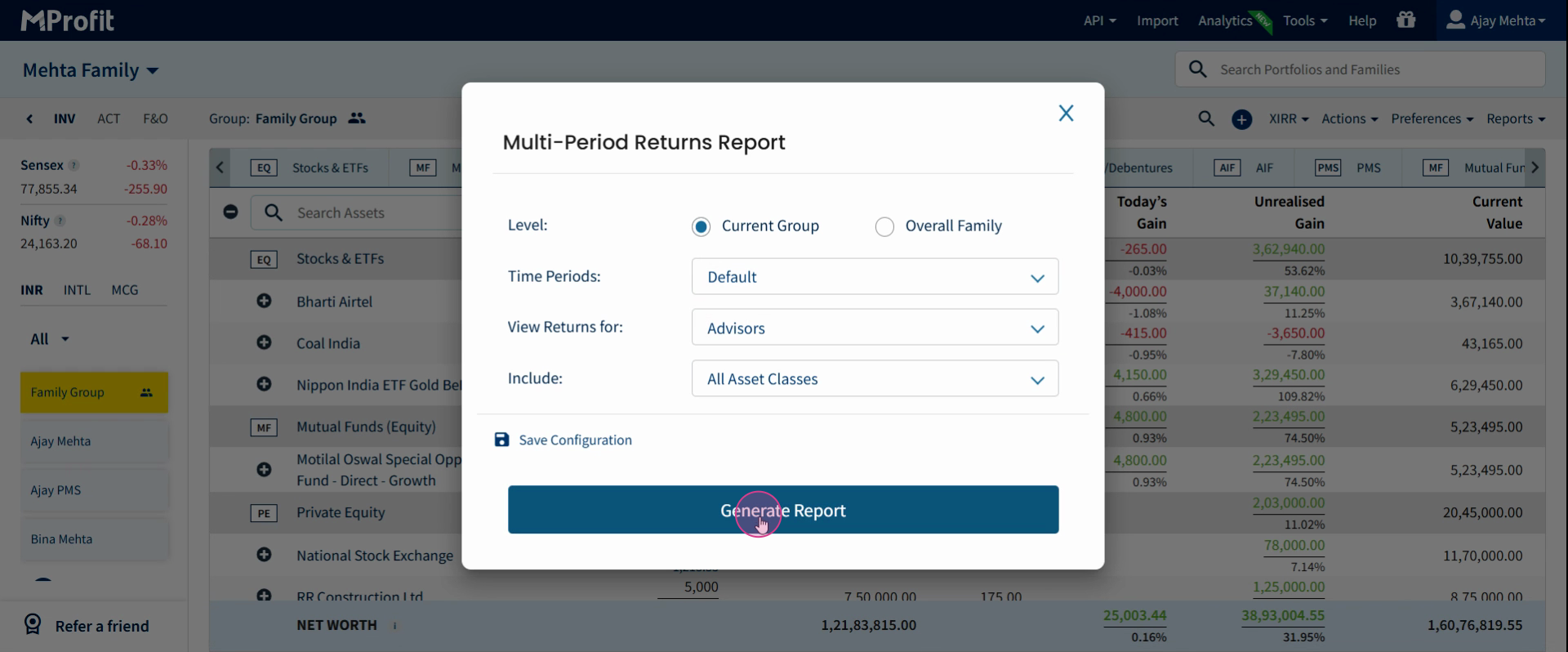
Step 7: Click Generate Report to display returns by advisor.
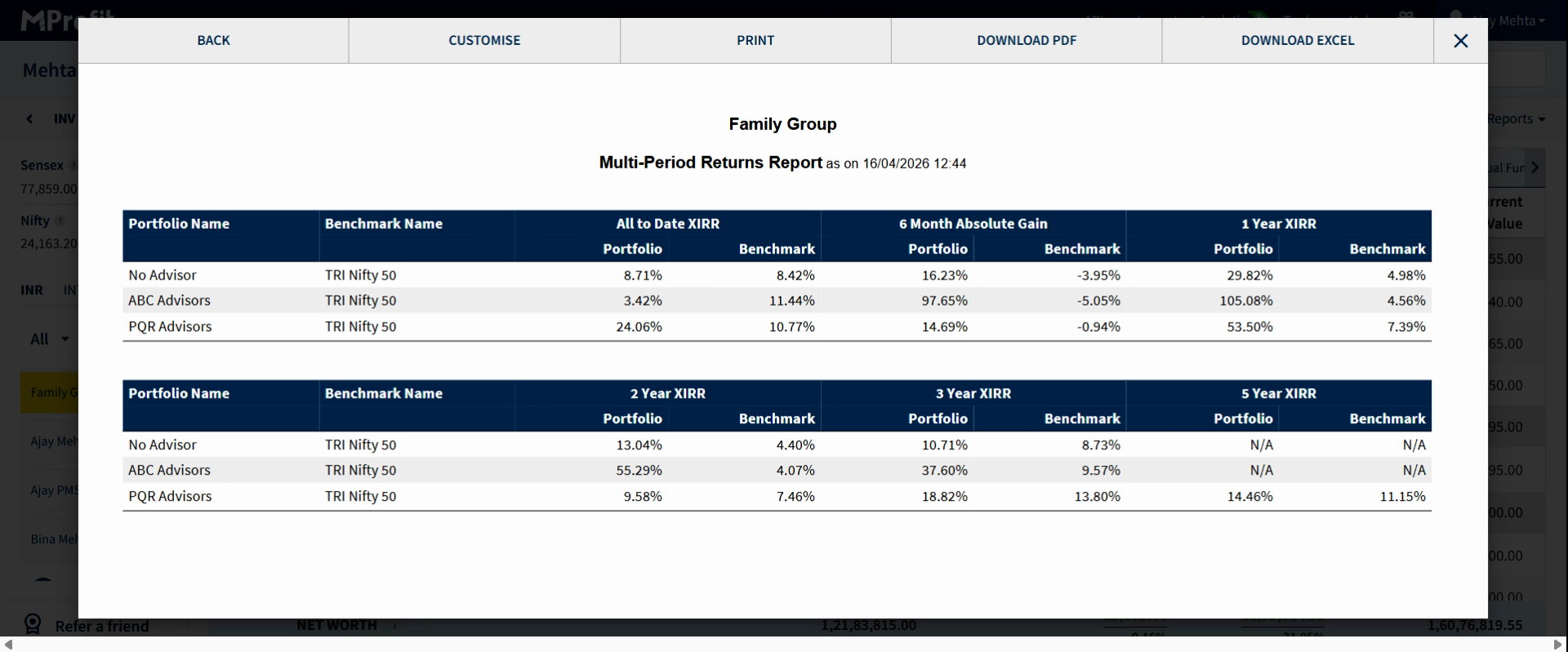
Now the report shows how each advisor has performed over different time periods, displaying clear performance comparisons. For example, you can see returns for “ABC Advisors” and “PQR Advisors,” showing gains for the last six months, one year, and more.
Step 8: To view returns from a specific advisor across portfolios, go to the Multi Period Returns report again, set View Returns for to Portfolios, and then apply the Advisors filter.
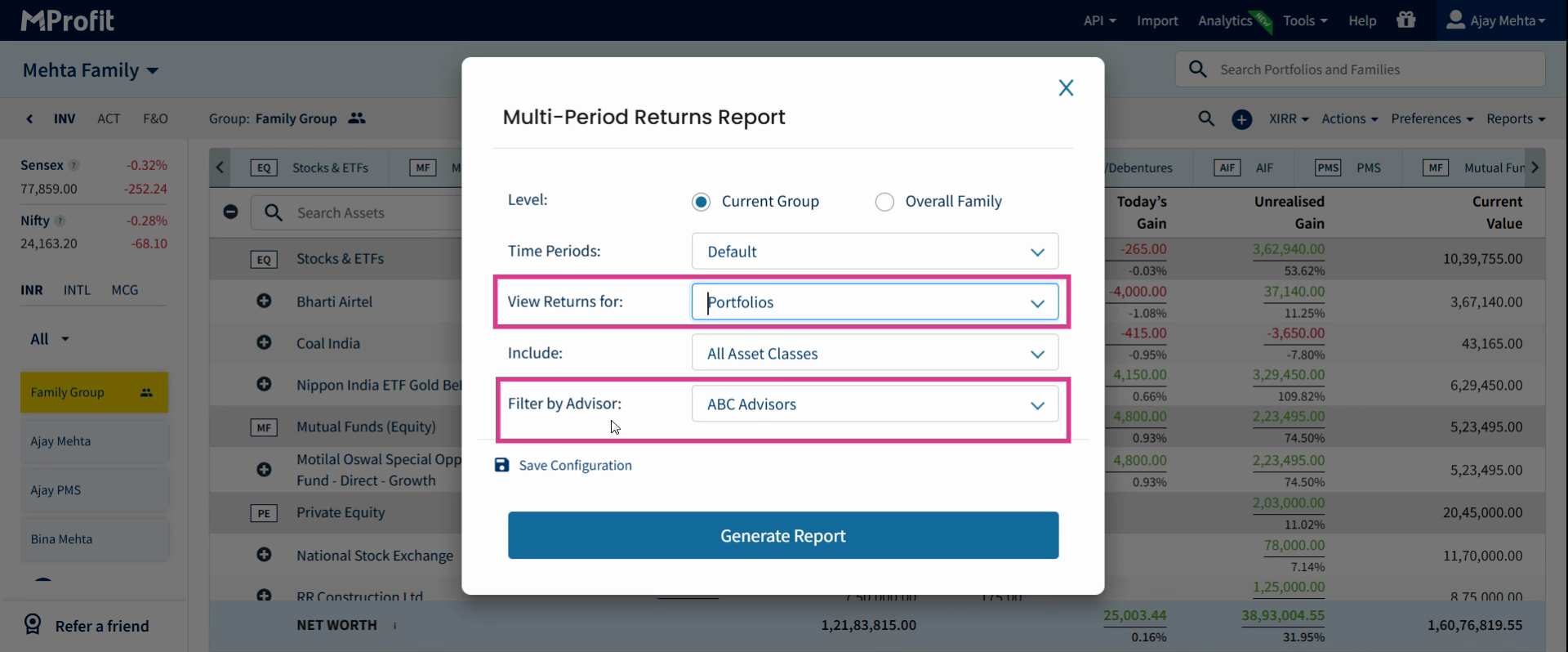
Step 9: Select the specific advisor (e.g., “ABC Advisors”) and click Generate Report.
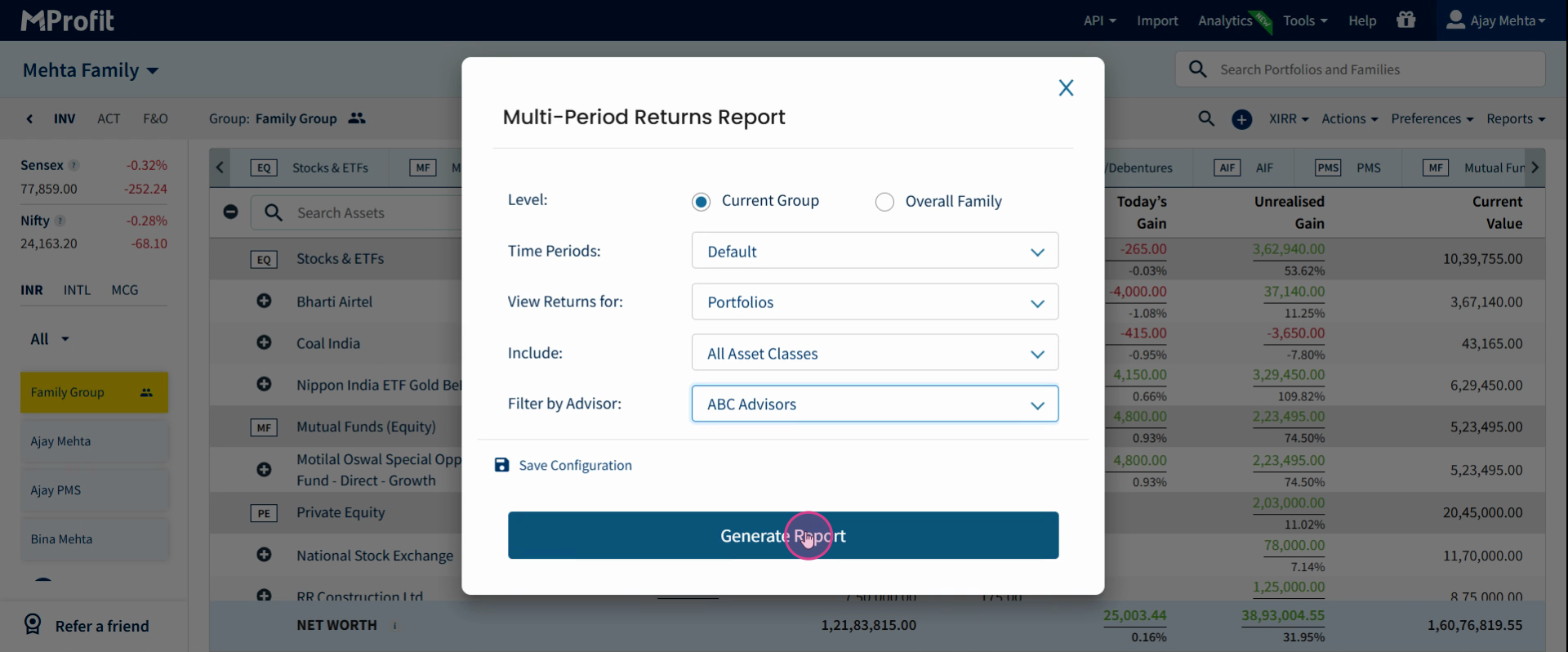
You’ll now see detailed returns for that advisor across each portfolio—making it easy to analyze individual advisor impact on multiple portfolios.
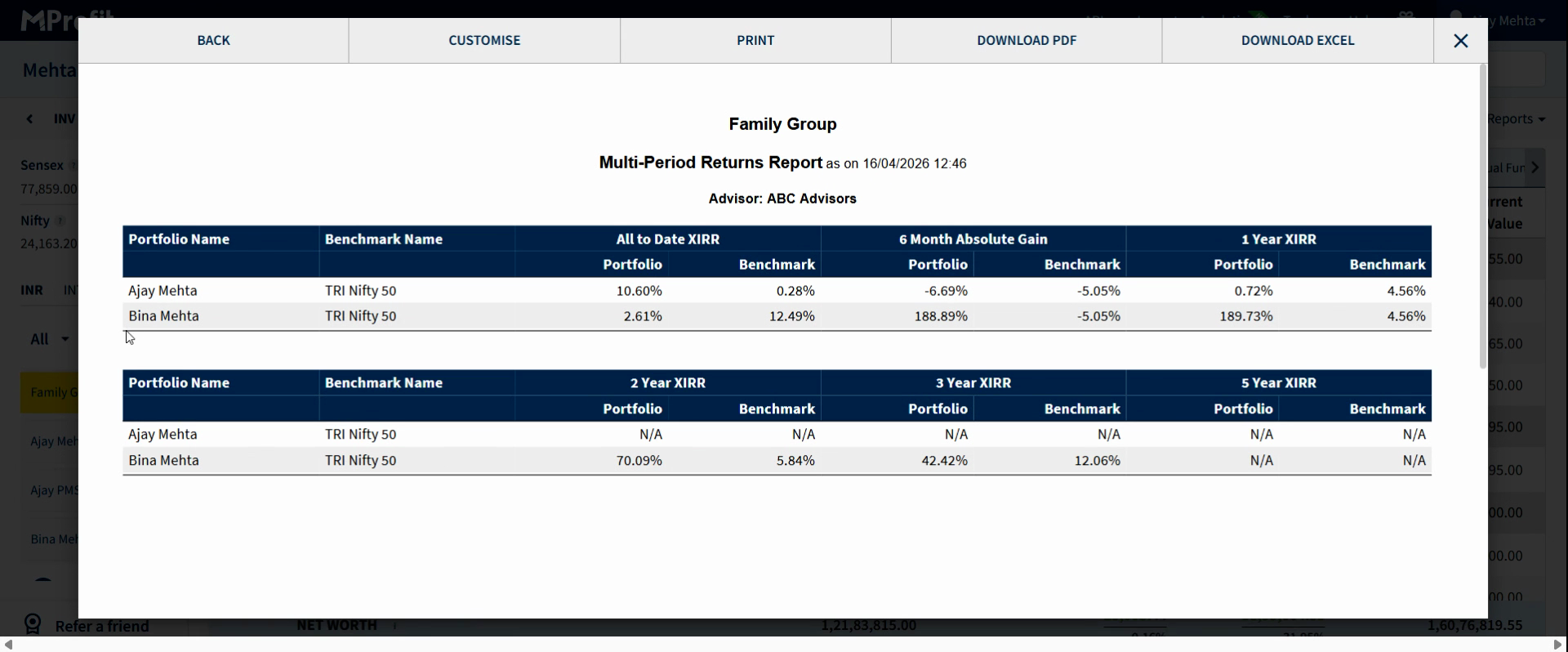
Accessing Detailed Advisor Performance with Multi Period Detailed Report
For deeper insights, use the Multi Period Details Report to drill down further into advisor returns over several periods.
Step 1: Go to the Multi Period Details Report in the Reports section.
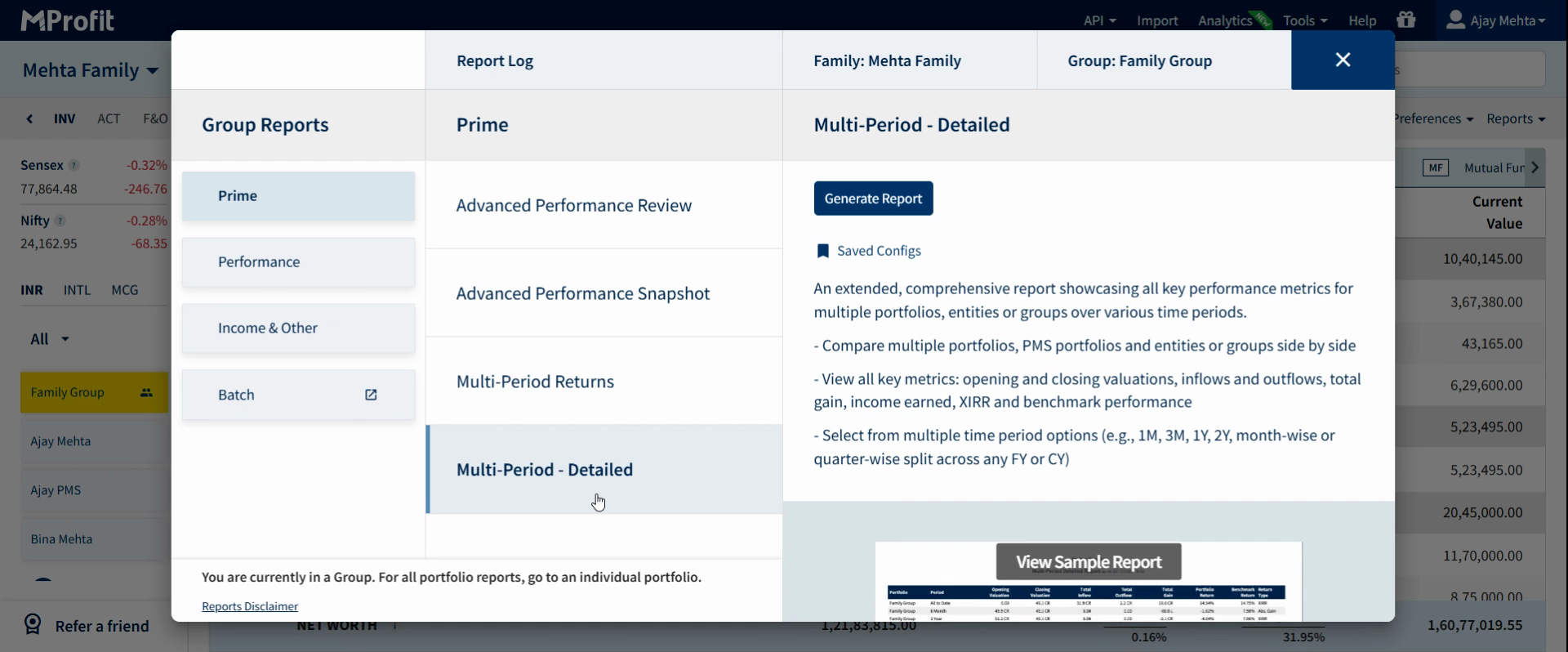
Step 2: Click Generate Reports.
Step 3: In the customization options, set View Returns for to Advisors.
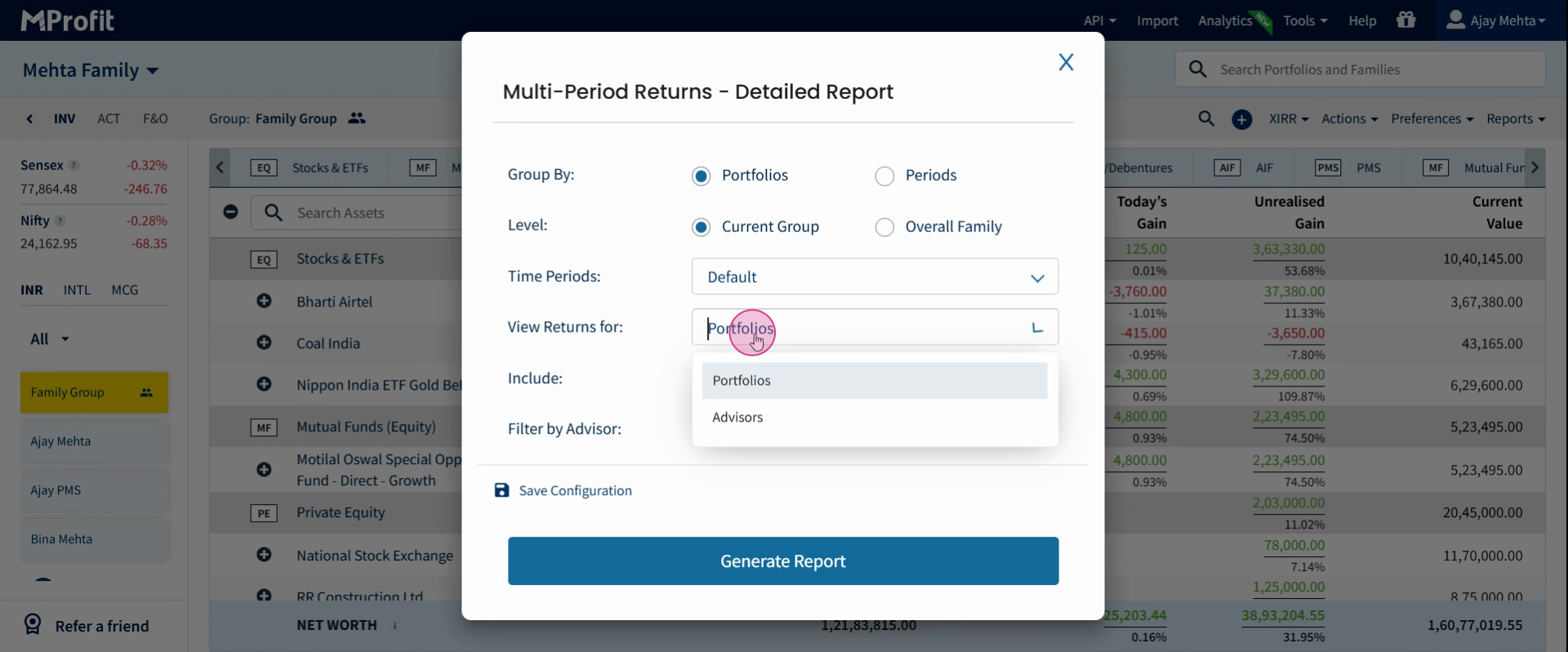
Step 4: Click Generate Report.
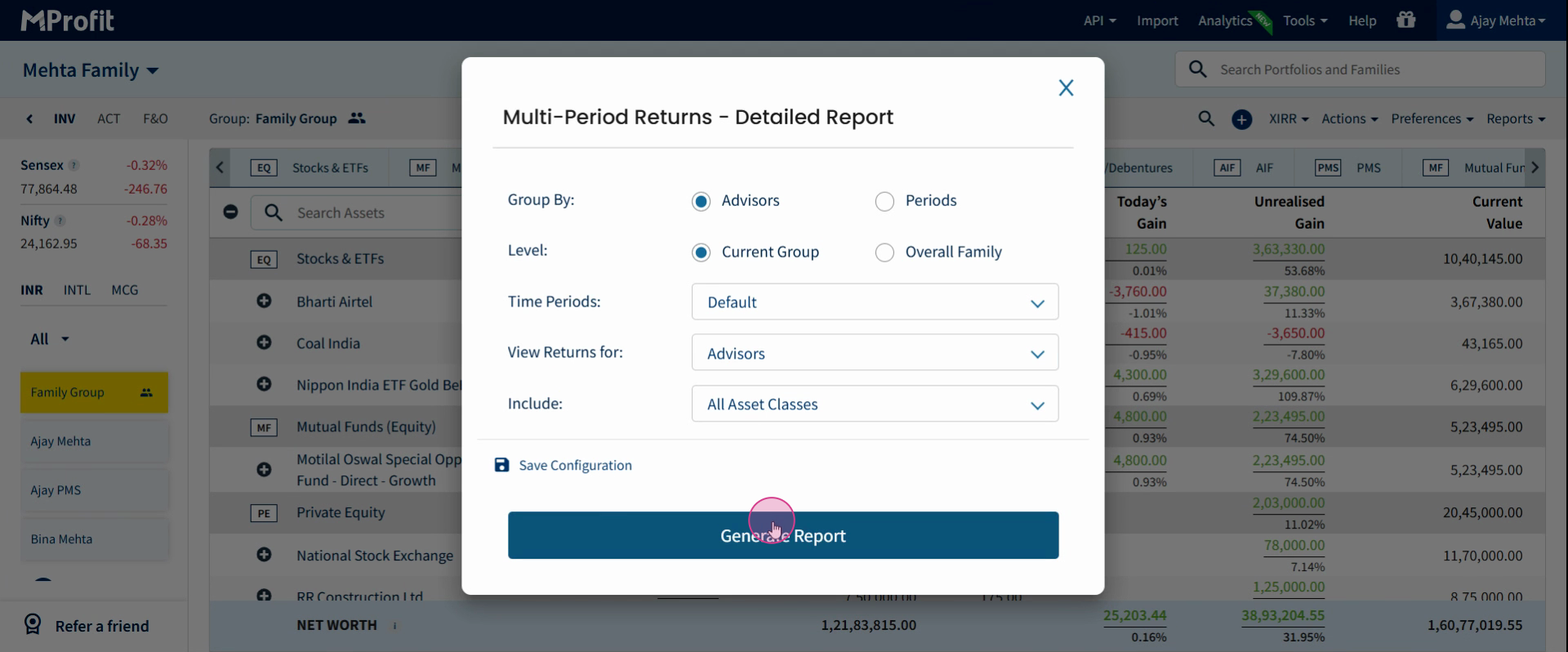
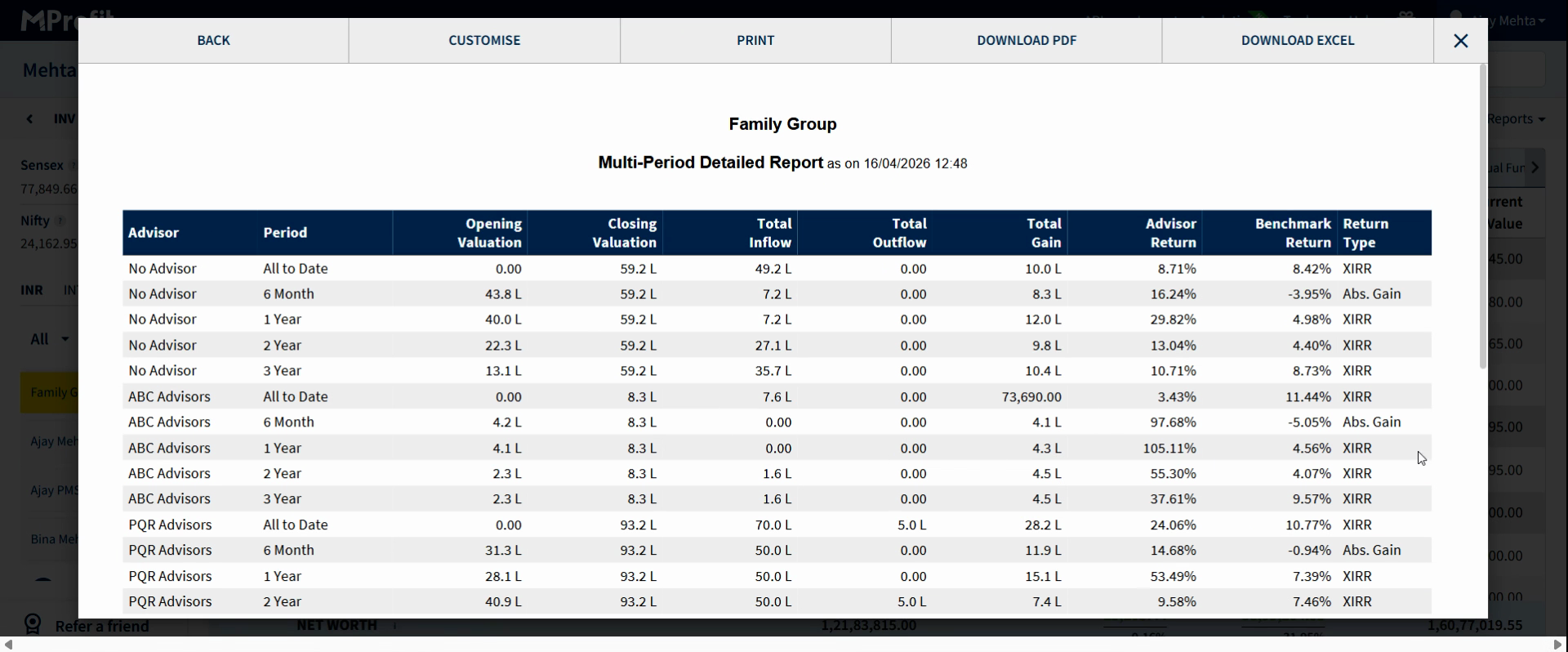
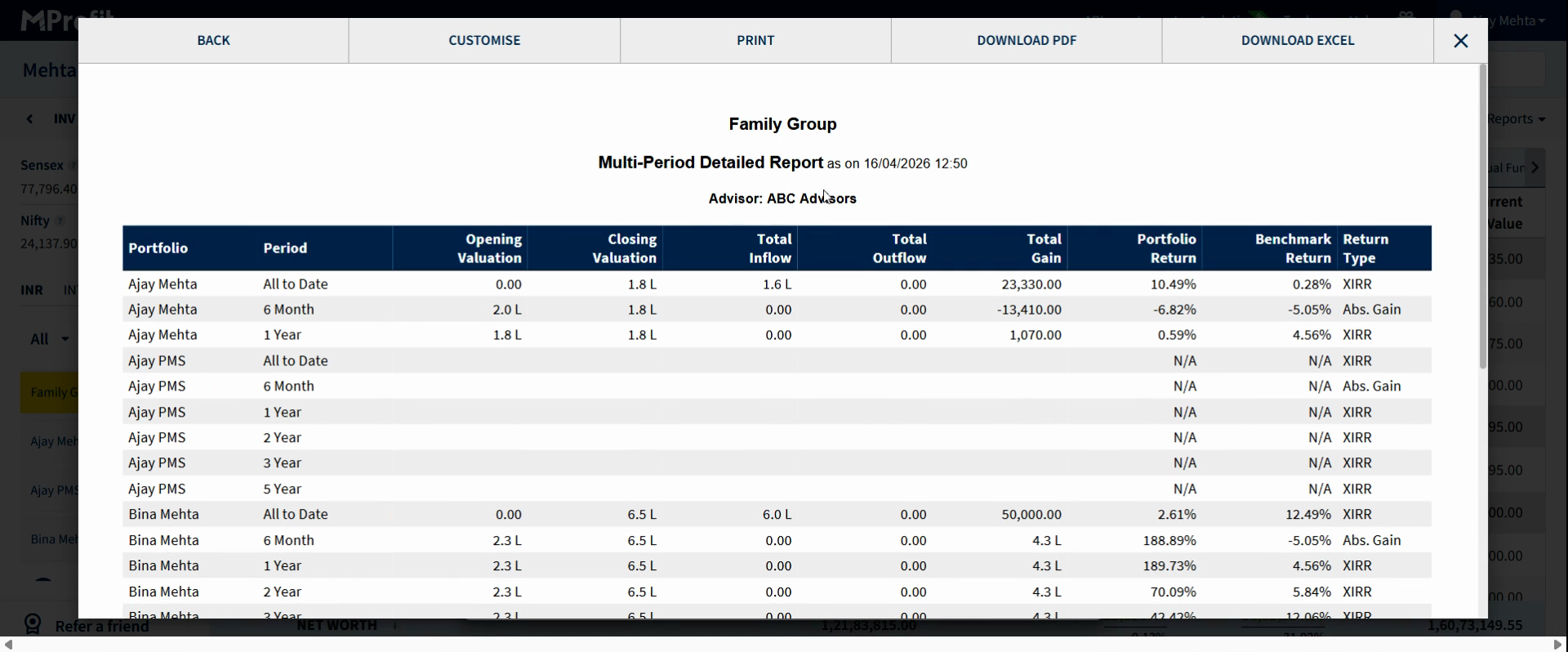
You’ll now see more granular details, including advisor-wise returns, opening and closing valuations, inflows and outflows, and both XRR and absolute gain figures for each time period.
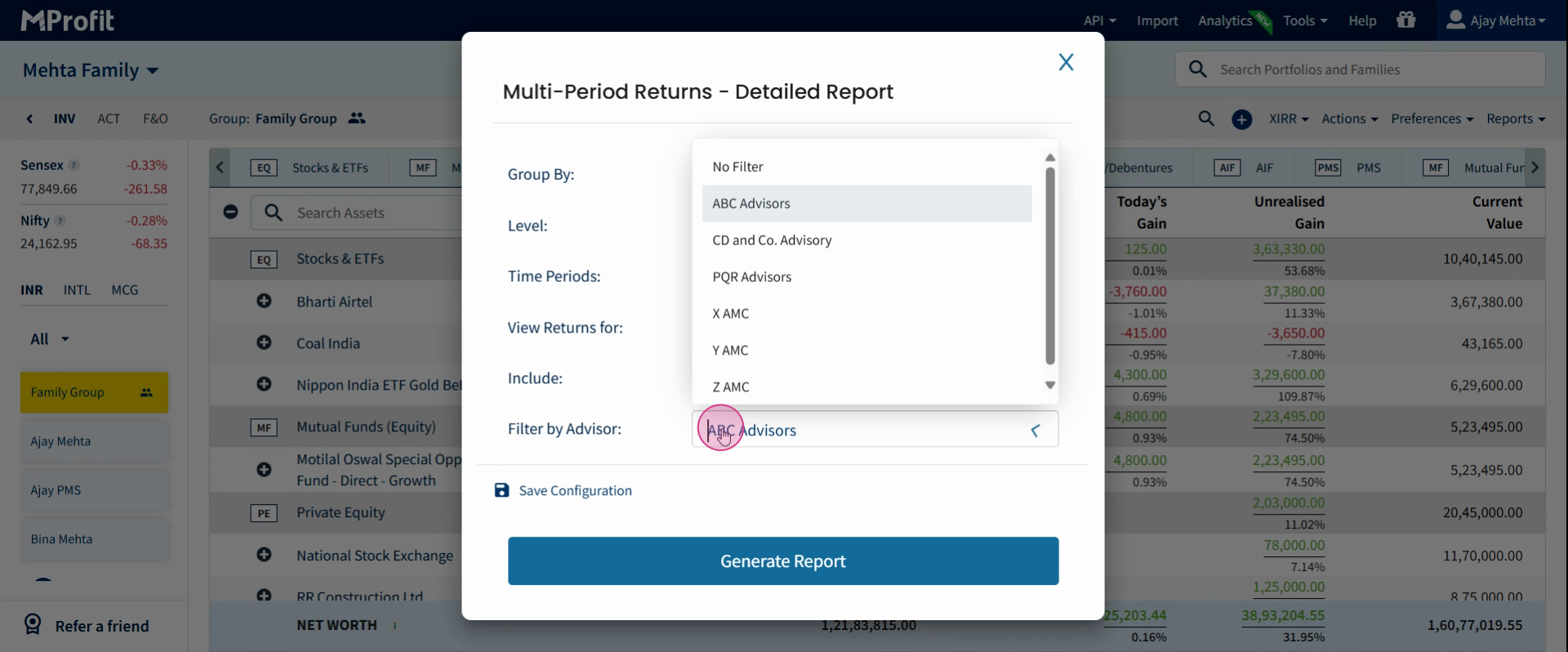
Step 5: To analyze a specific advisor across portfolios, select View Returns for as Portfolios, then use the Advisor filter to pick your desired advisor (for example, “ABC Advisors”).
Step 6: Click Generate Report.
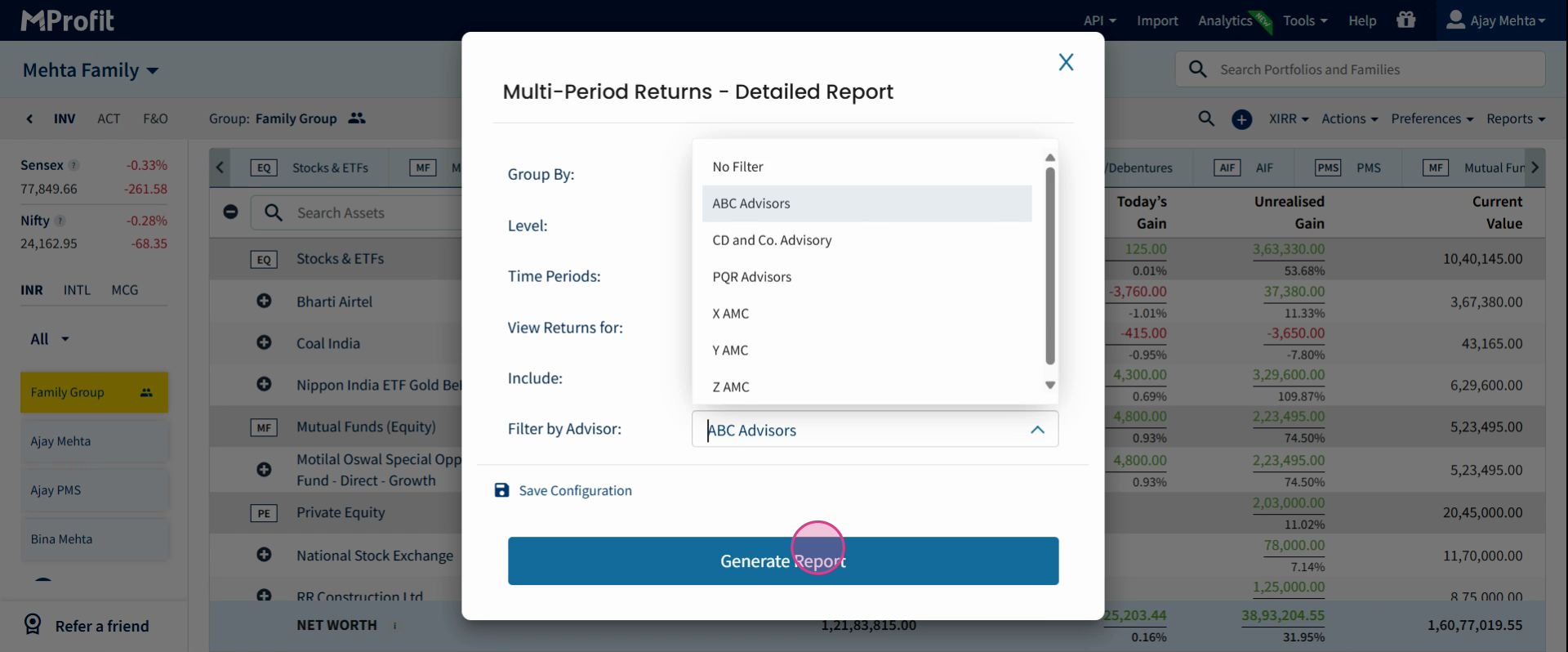
You will now get a focused view of that advisor’s returns in each portfolio—perfect for performance reviews or reporting needs.
Conclusion
Advisor tagging in Multi Period Returns reports gives you a clear, organized view of how each advisor is contributing to portfolio performance. Leverage this feature to track, compare, and evaluate advisor effectiveness across the timelines and portfolios that matter most to you.
Was this article helpful?
That’s Great!
Thank you for your feedback
Sorry! We couldn't be helpful
Thank you for your feedback
Feedback sent
We appreciate your effort and will try to fix the article