Benchmarks in MProfit let you compare your portfolios’ performance against market indices. Here’s how to assign benchmarks by category and by portfolio, so your analytics reflect the comparisons you care about most.
Step 1: Open the Analytics tab from the main dashboard.
Step 2: Click the Toolbar icon in the top-right corner.
Step 3: Select Benchmark Settings from the dropdown menu.
You’ll now see two options to assign benchmarks:
Category-wise
Portfolio-wise
Category-wise Benchmark Assignment
Step 1: In the benchmark settings window, go to the Category-wise section.
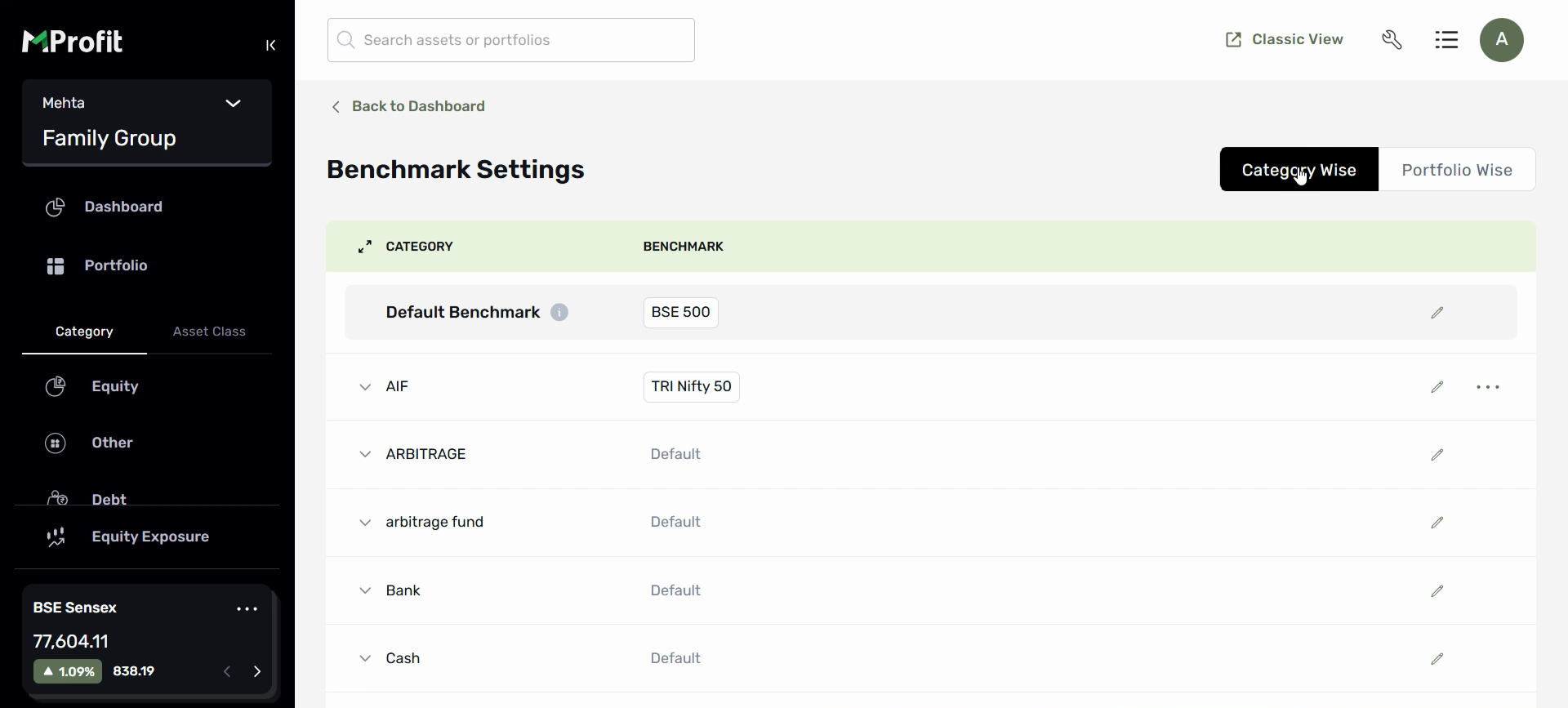
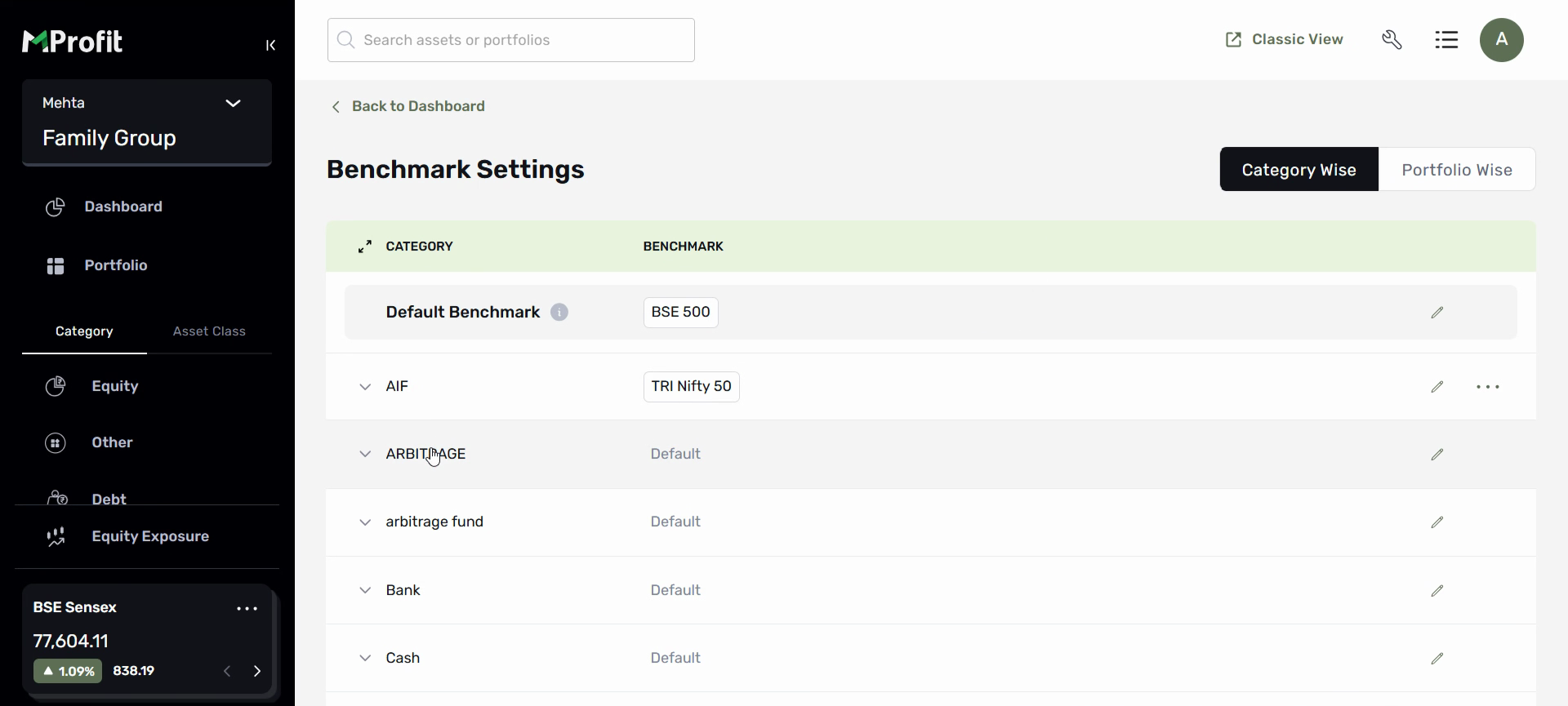
Step 2: Locate your categories and subcategories in the list.
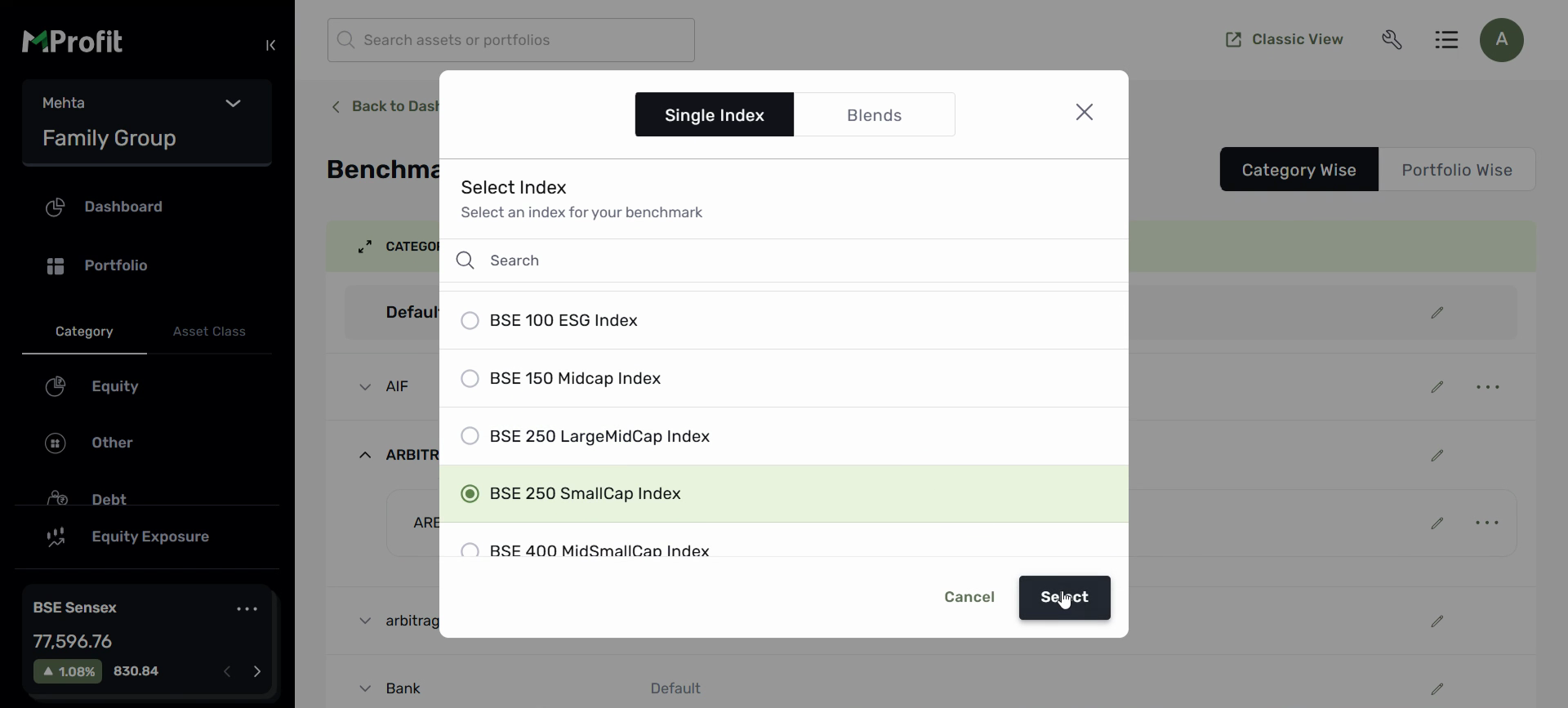
Step 3: To assign a benchmark to a subcategory, click the Edit icon next to it. Choose your preferred benchmark from the list (for example, BSE 250 SmallCap Index).
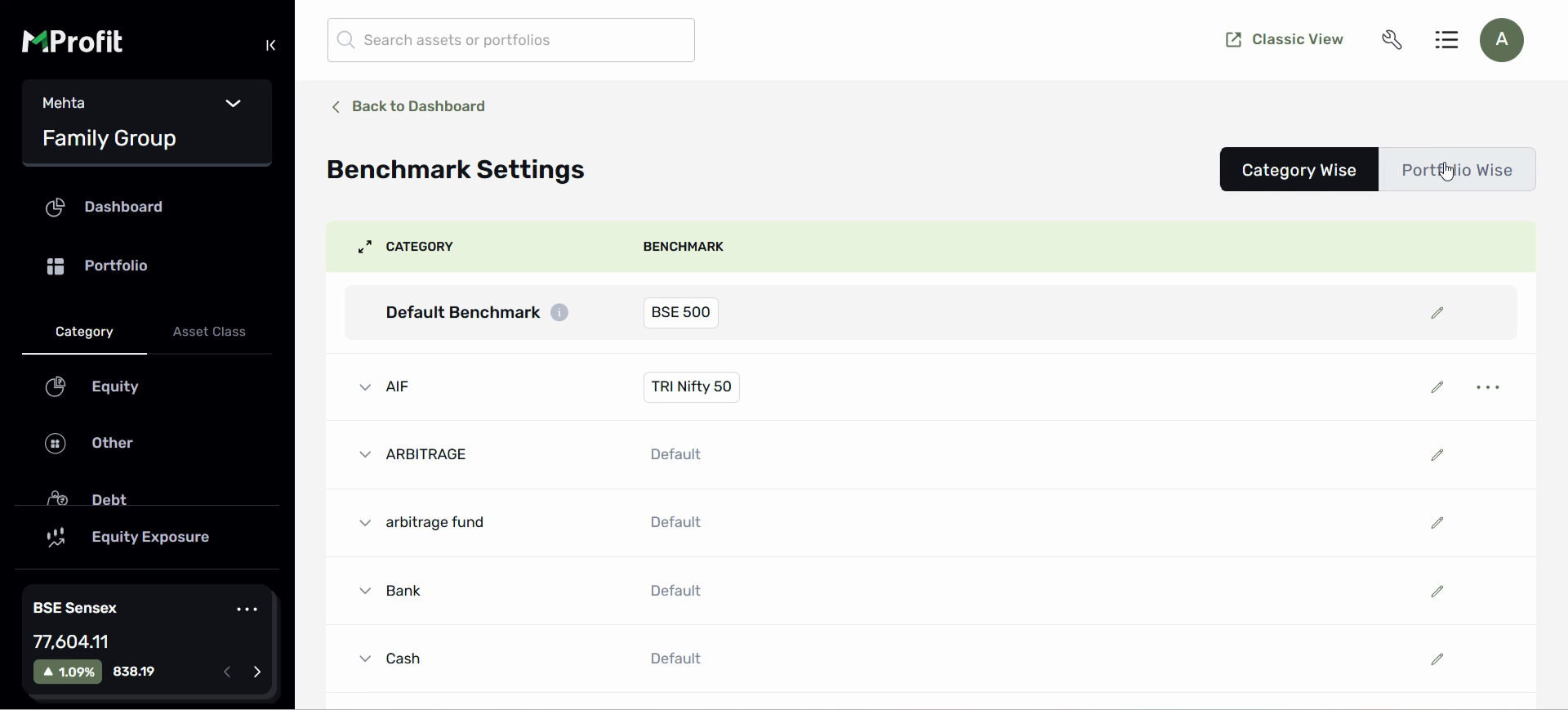
All assets under this subcategory will now use your selected benchmark.
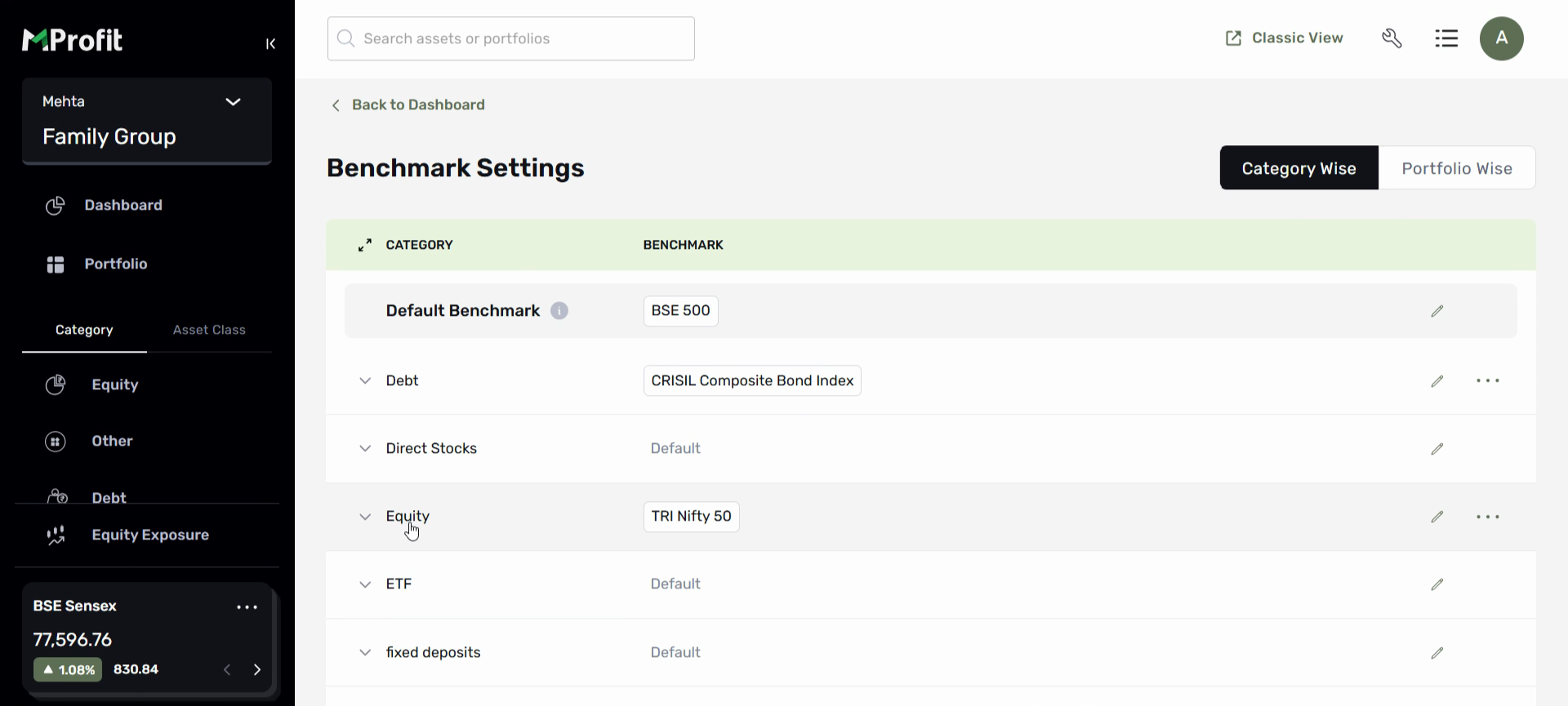
Step 4: To assign a benchmark to a category (such as Nifty 50 for Arbitrage), select the category and click the Edit icon. This will apply the benchmark at the broader category level, while any subcategories with their own benchmarks will remain unaffected.
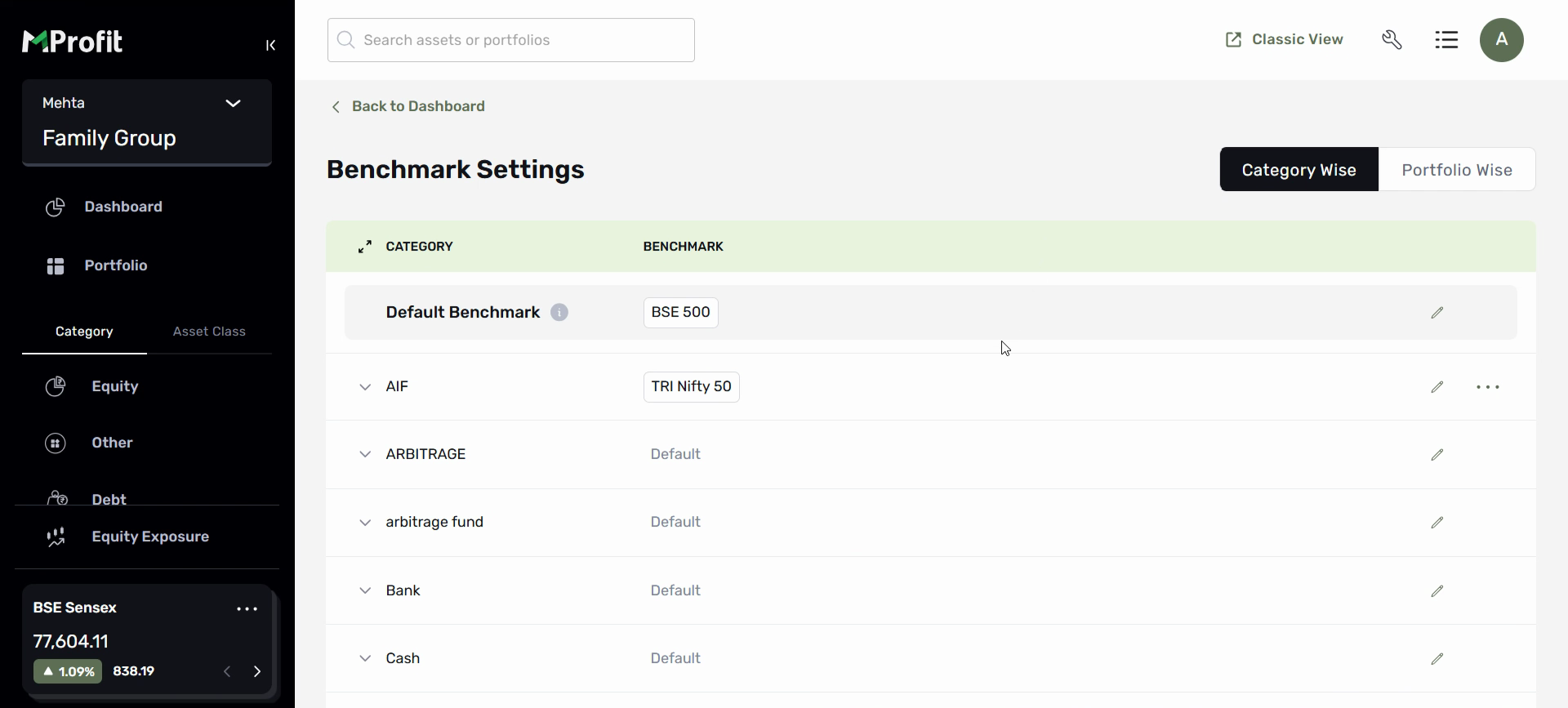
Step 5: If you don’t set a benchmark for a subcategory, it will automatically use its parent category’s benchmark.
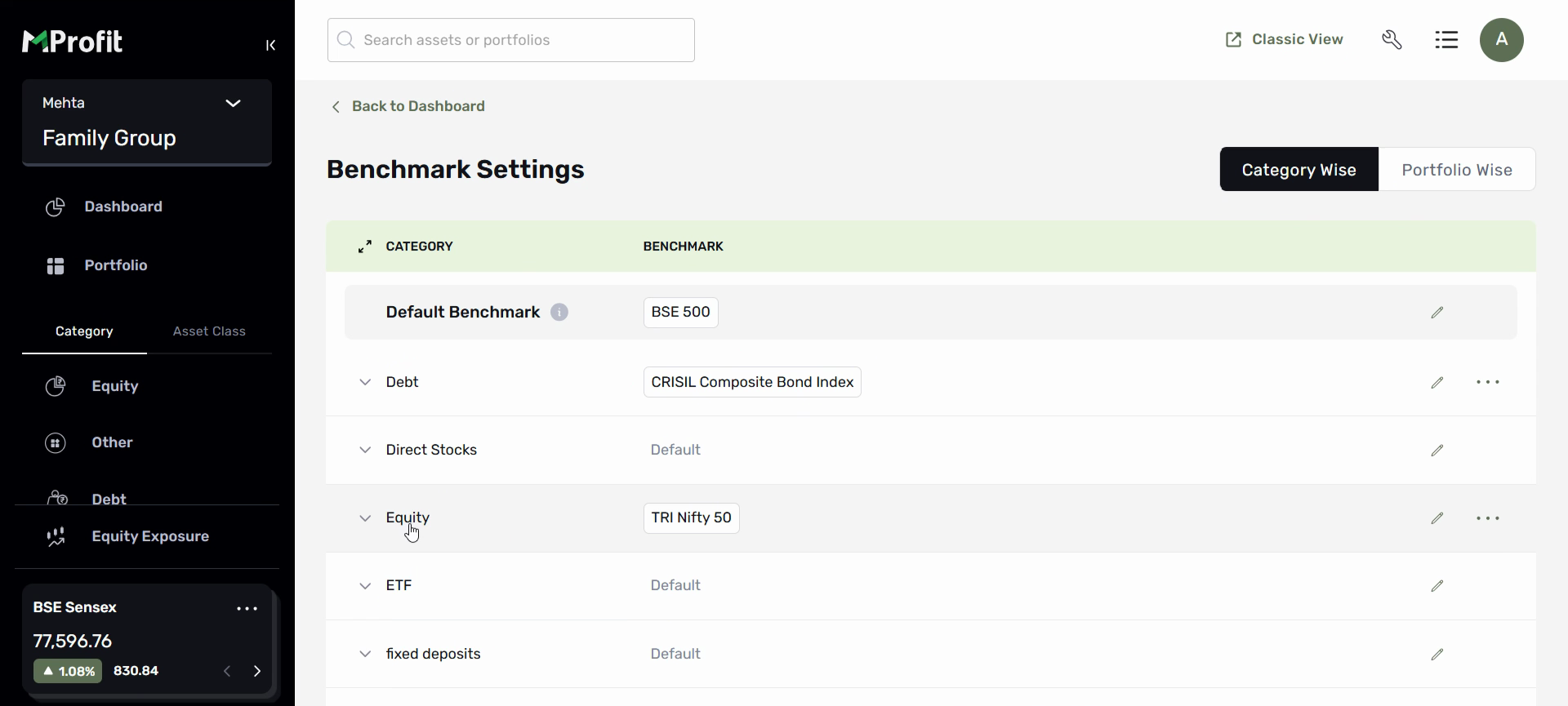
Step 6: Notice the Default Benchmark field. This applies if neither the category nor the subcategory has a custom benchmark. You can change the default benchmark any time.
Portfolio-wise Benchmark Assignment
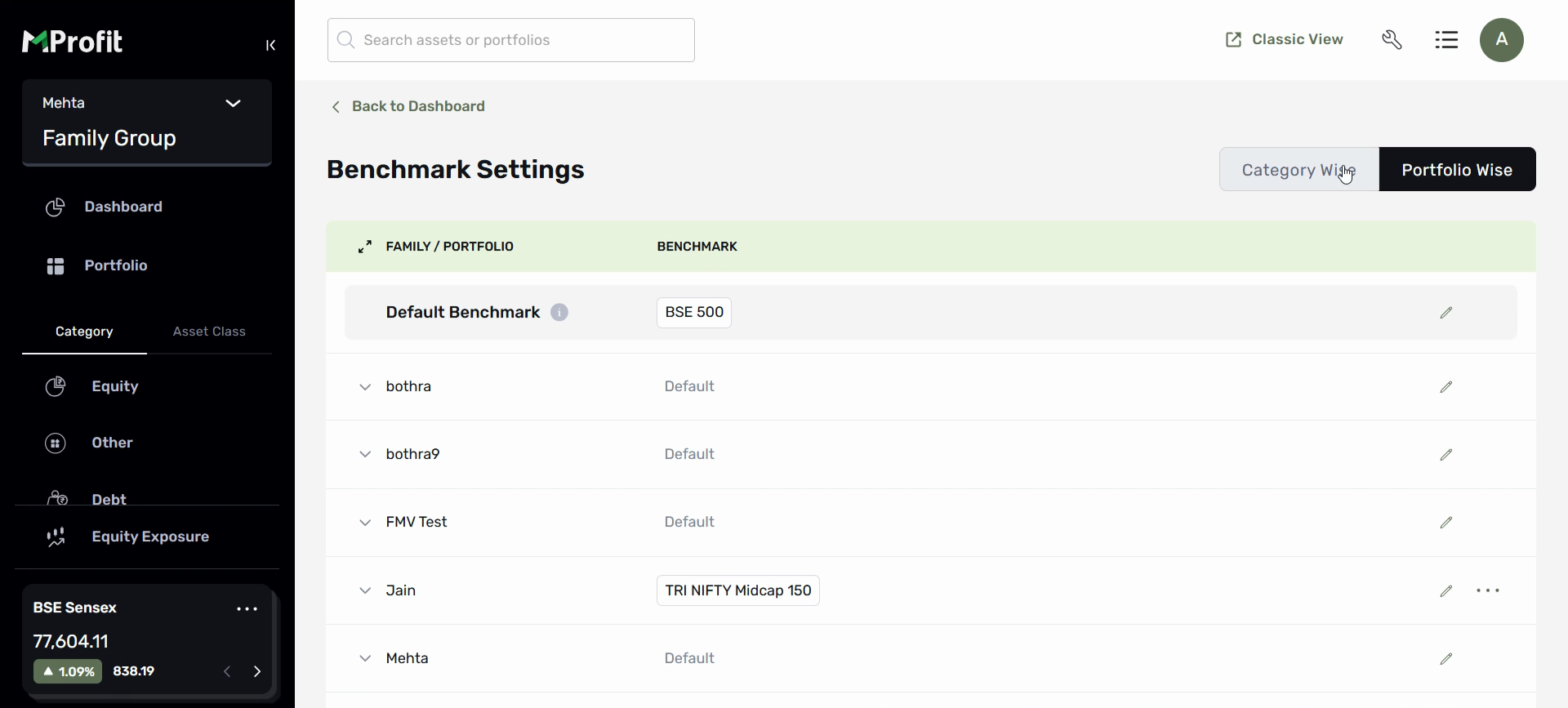
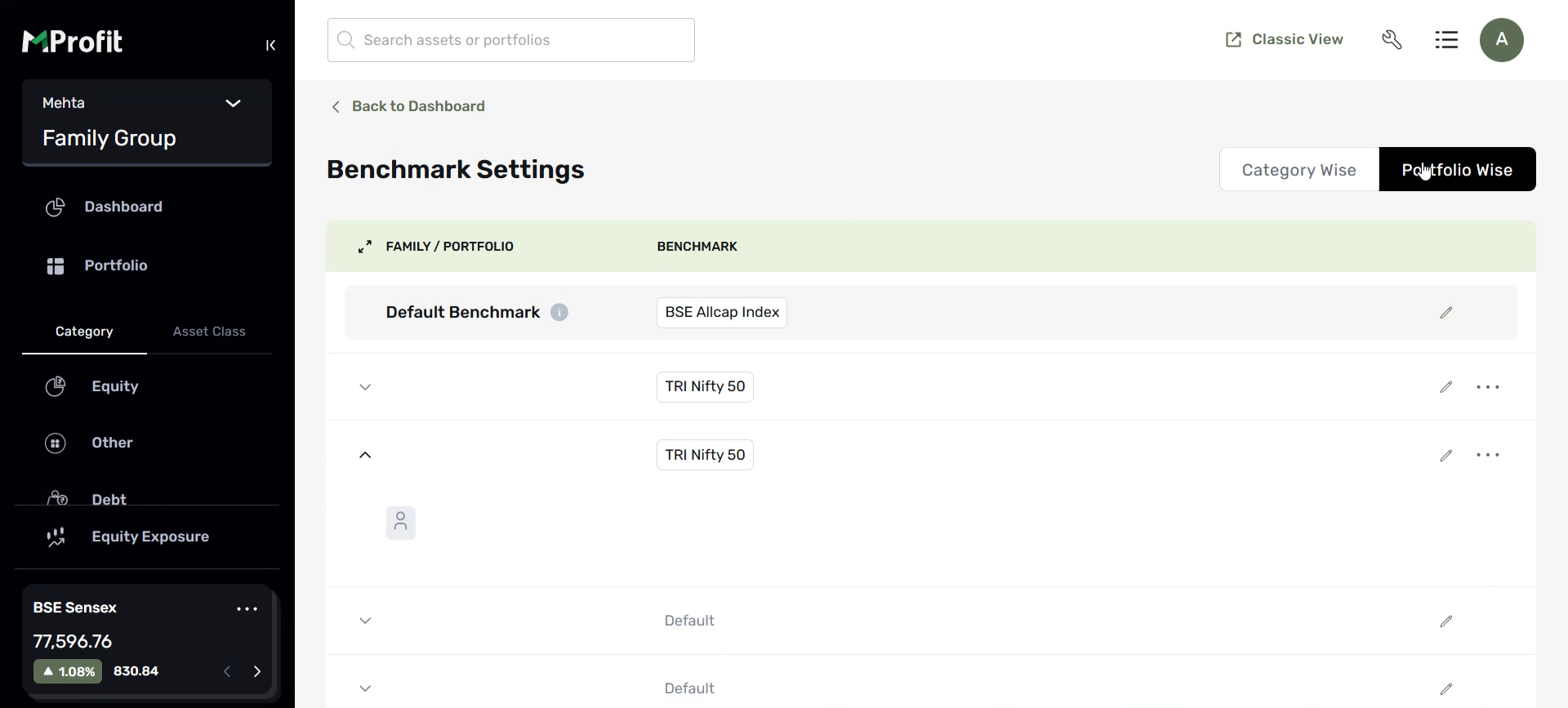
Step 1: Switch to the Portfolio-wise benchmark settings.
Step 2: You can assign benchmarks by Family, by Group, or by individual Portfolio. Navigate through the tree to select the level you want.
Step 3: To assign a benchmark to a group, click the Edit icon next to the group. Pick your desired benchmark from the list. This will set the benchmark for all portfolios within that group, unless a portfolio has its own separate benchmark.
Step 4: To assign a benchmark to a specific portfolio, click the Edit icon next to the portfolio and select its benchmark.
Step 5: If a group or portfolio doesn’t have a benchmark assigned, it will use the family-level benchmark. To update the family benchmark, click Edit at the family level.
Step 6: There’s also a Default Benchmark for portfolio-wise settings. If no custom benchmark exists at the family, group, or portfolio level, this default will be used.
Conclusion: With the right benchmarks set for your categories and portfolios, MProfit’s analytics give you accurate, meaningful comparisons. Adjust your benchmarks any time to ensure your performance reporting stays aligned with your strategy.
Was this article helpful?
That’s Great!
Thank you for your feedback
Sorry! We couldn't be helpful
Thank you for your feedback
Feedback sent
We appreciate your effort and will try to fix the article