Effortlessly organize investments in MProfit by creating entities and associating related portfolios. Entities help you manage multiple portfolios belonging to a single person or client, making reporting and analysis more streamlined.
Creating an entity:
Step 1: Click the plus icon to start creating an entity.
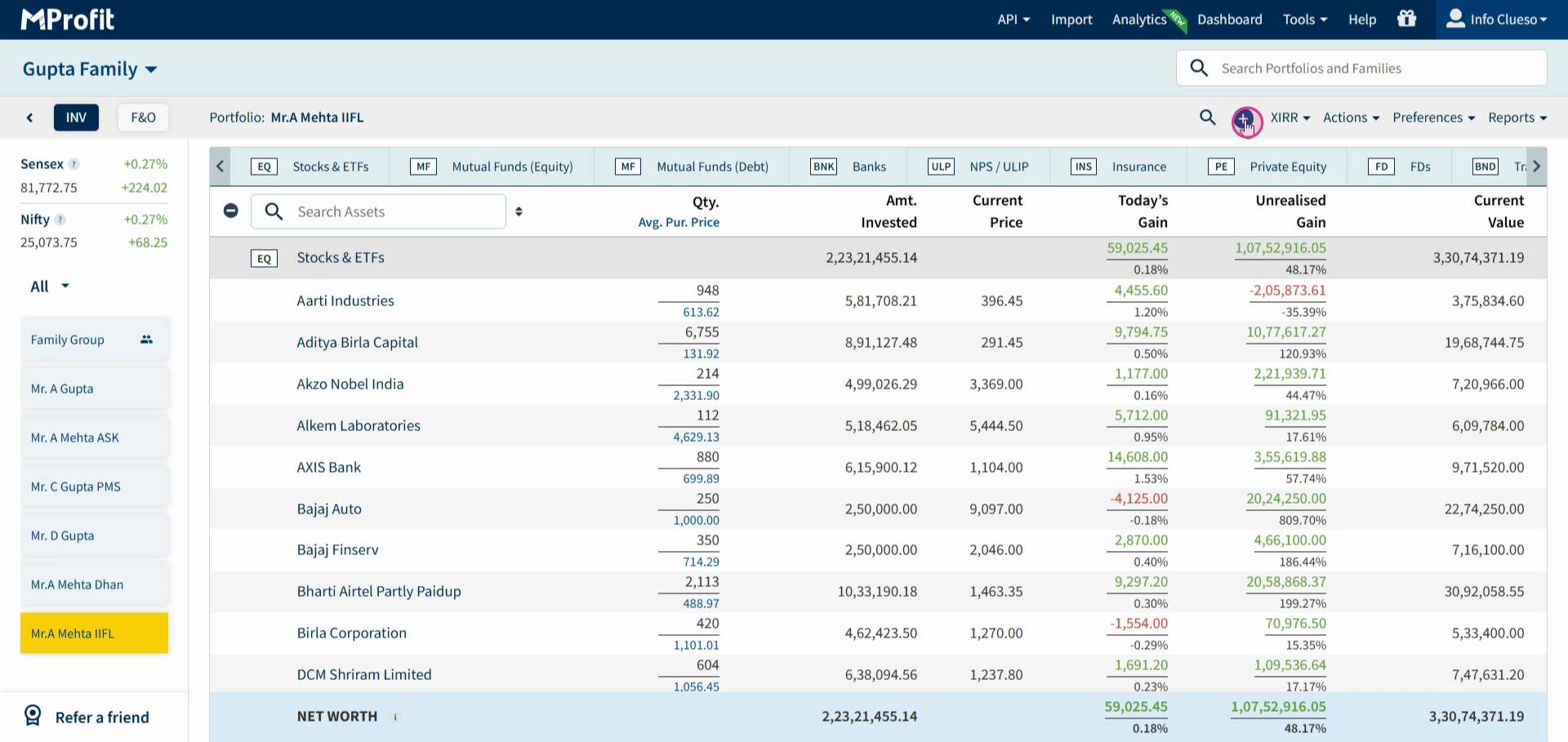
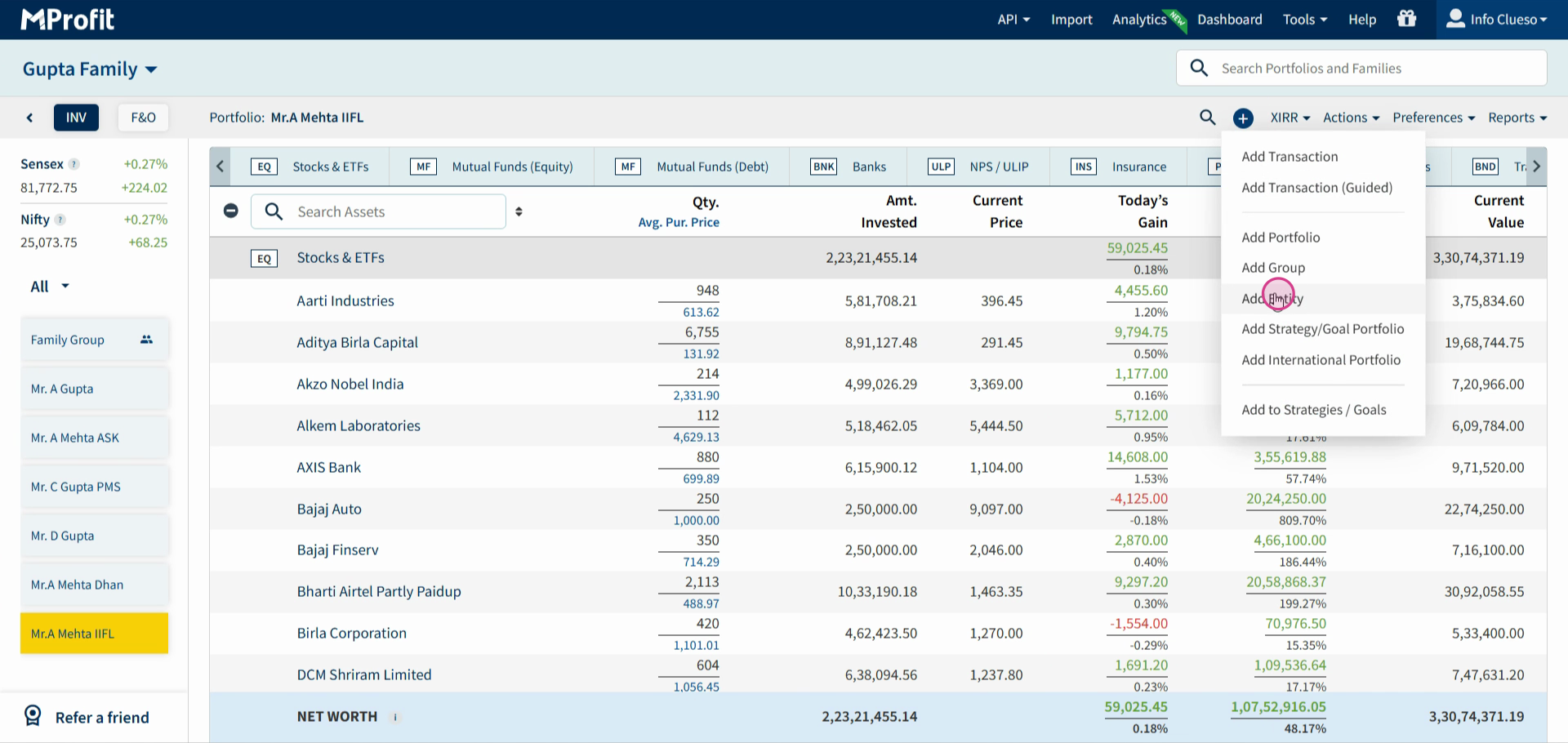
Step 2: Select Add Entity from the menu.
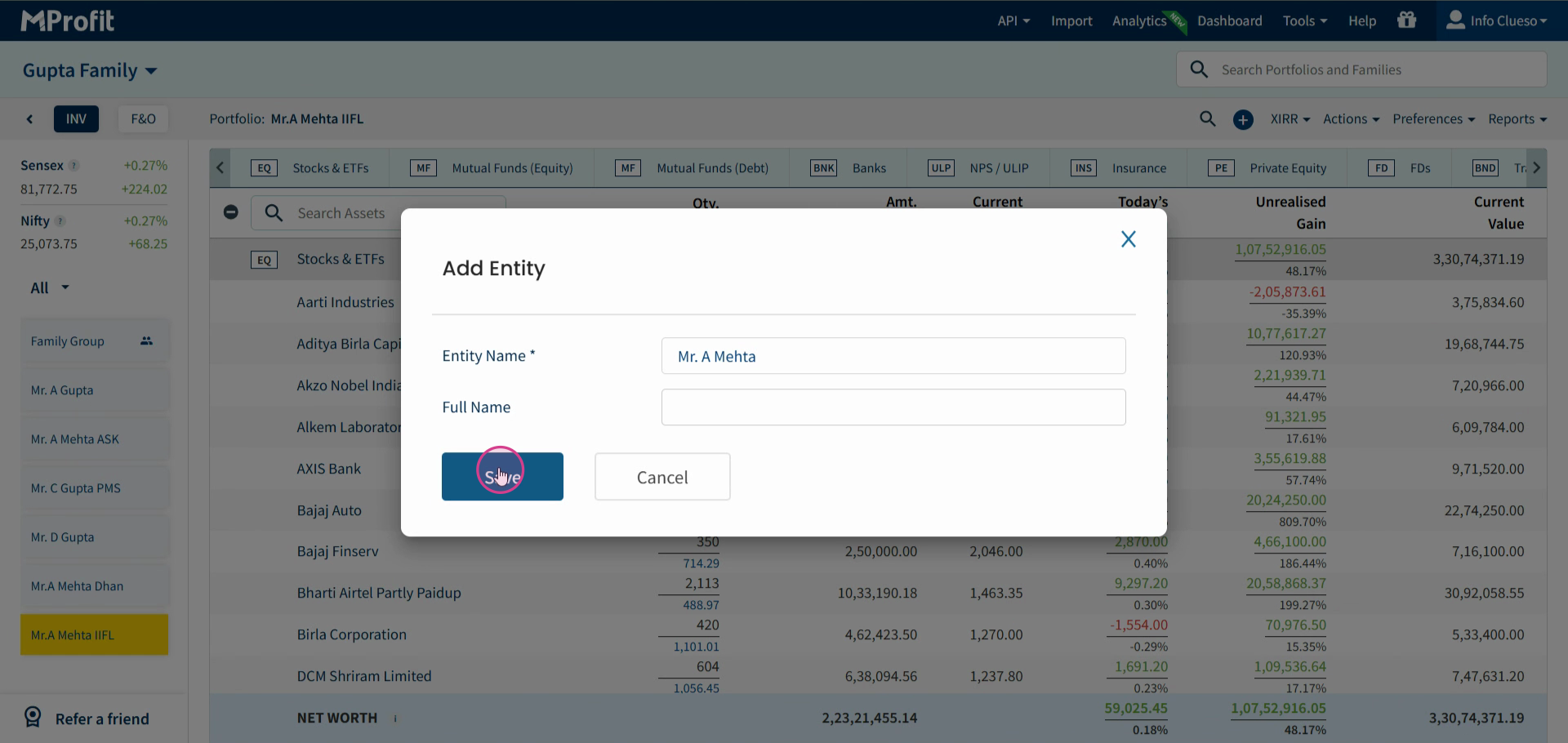
Step 3: Enter the entity’s name, then click Save.
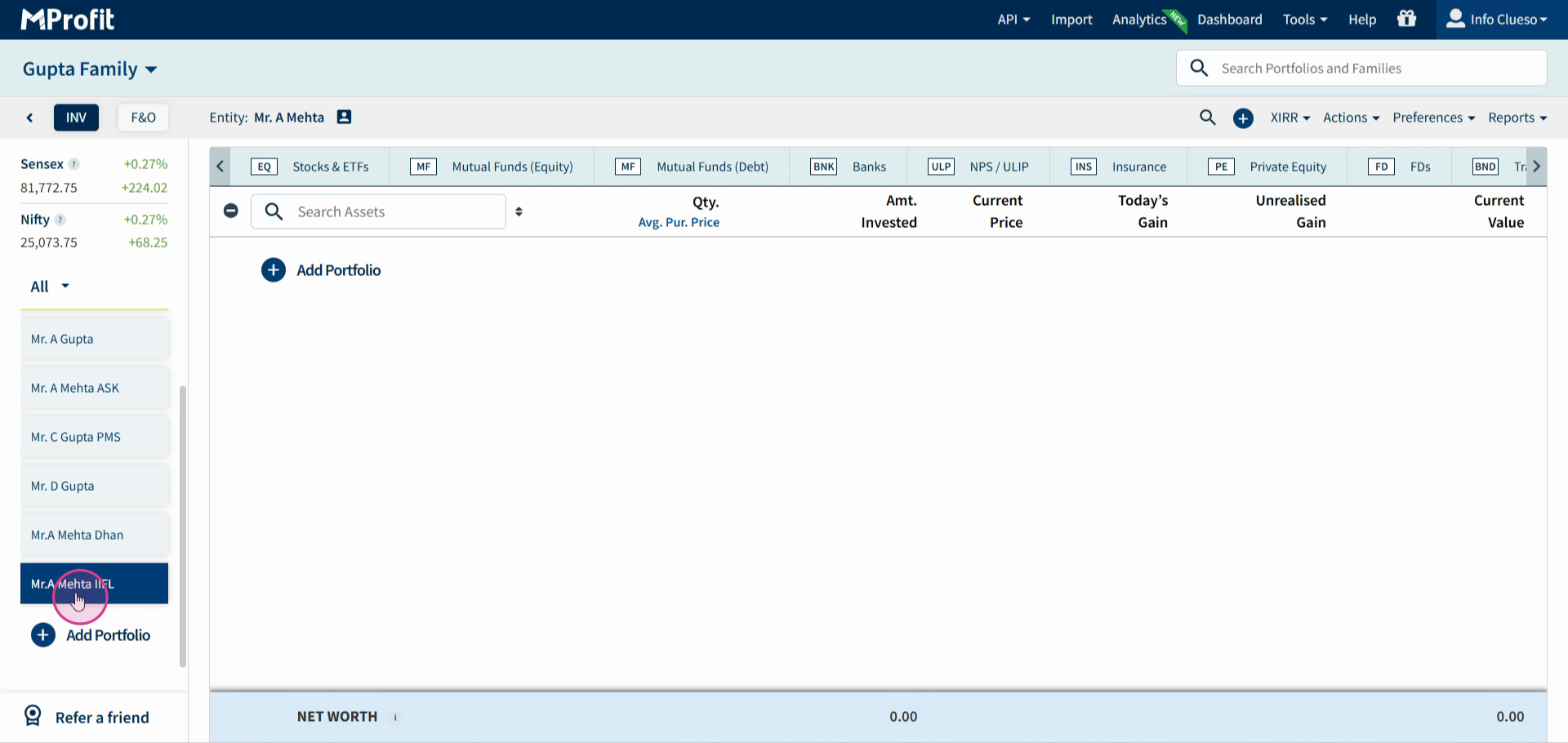
Your new entity now appears in the entities list. To add portfolios under this entity:
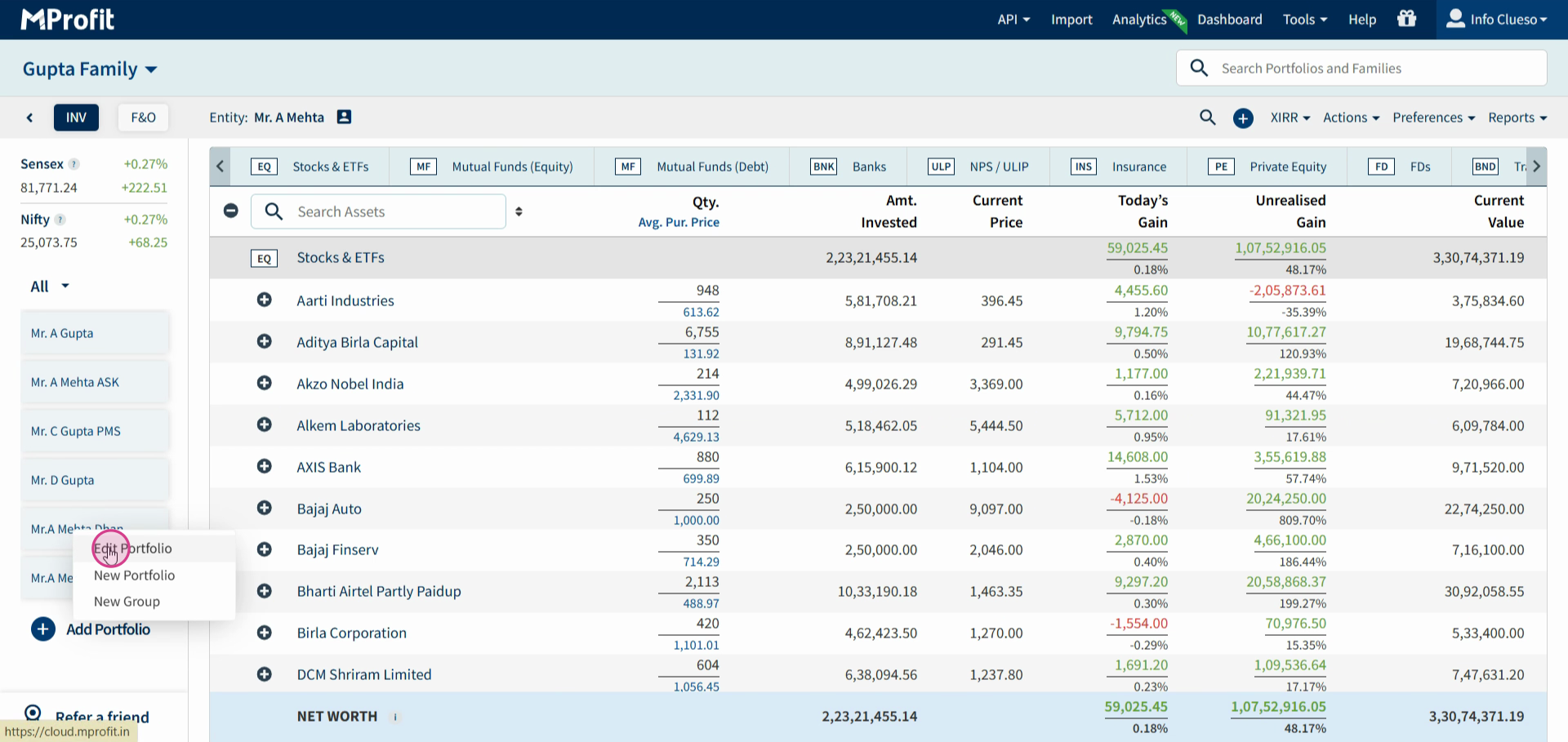
Step 4: Right-click on an existing portfolio you want to link.
Step 5: Select Edit Portfolio.
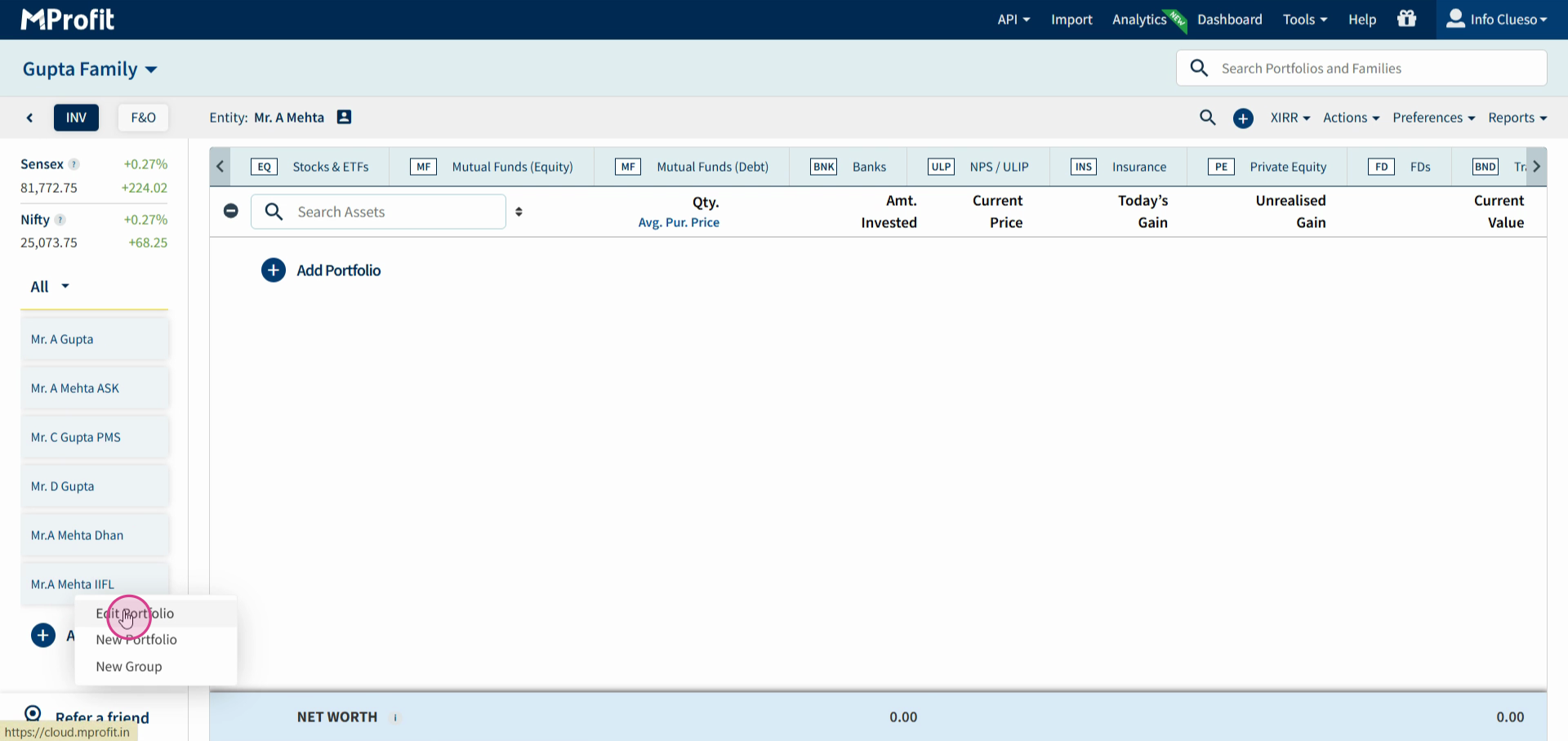
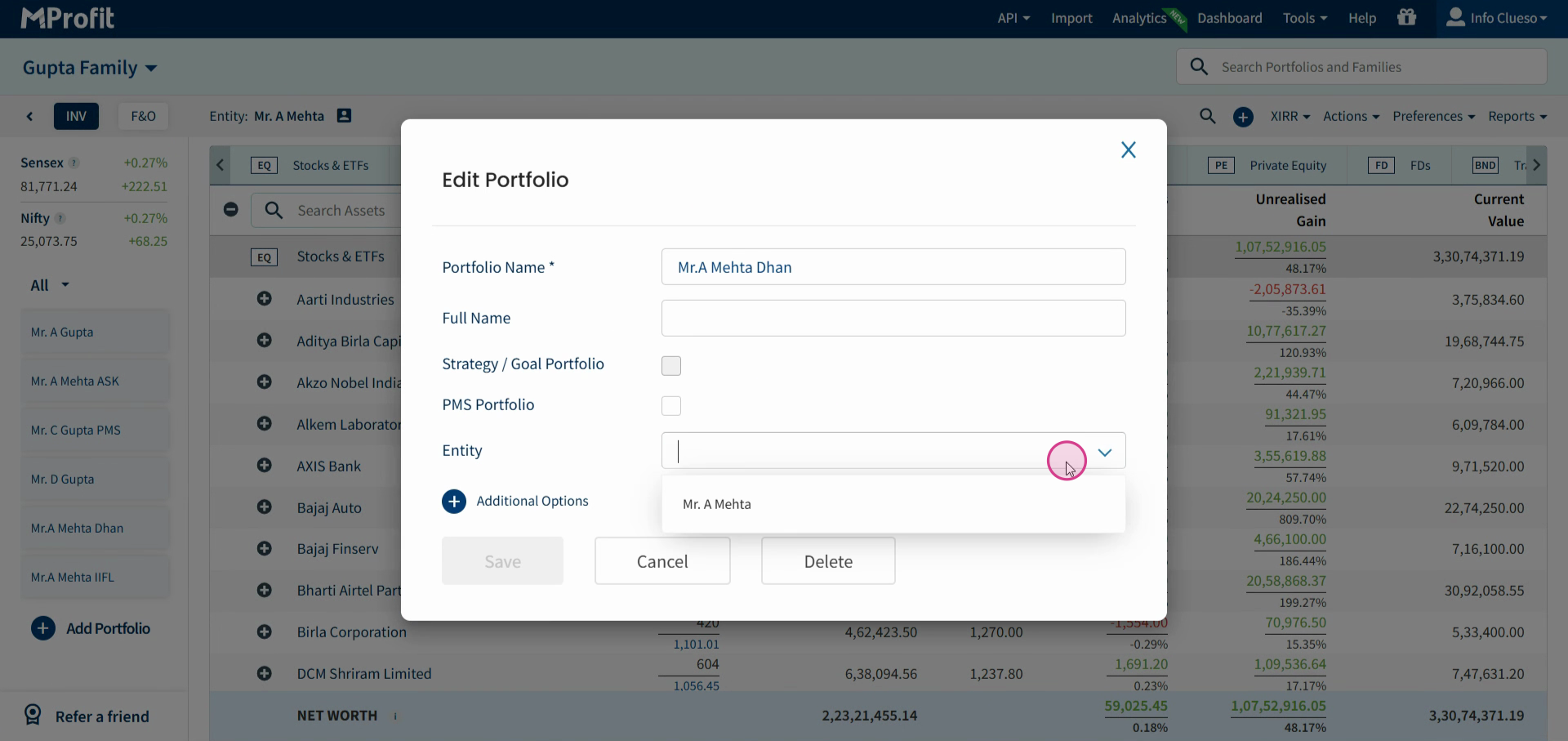
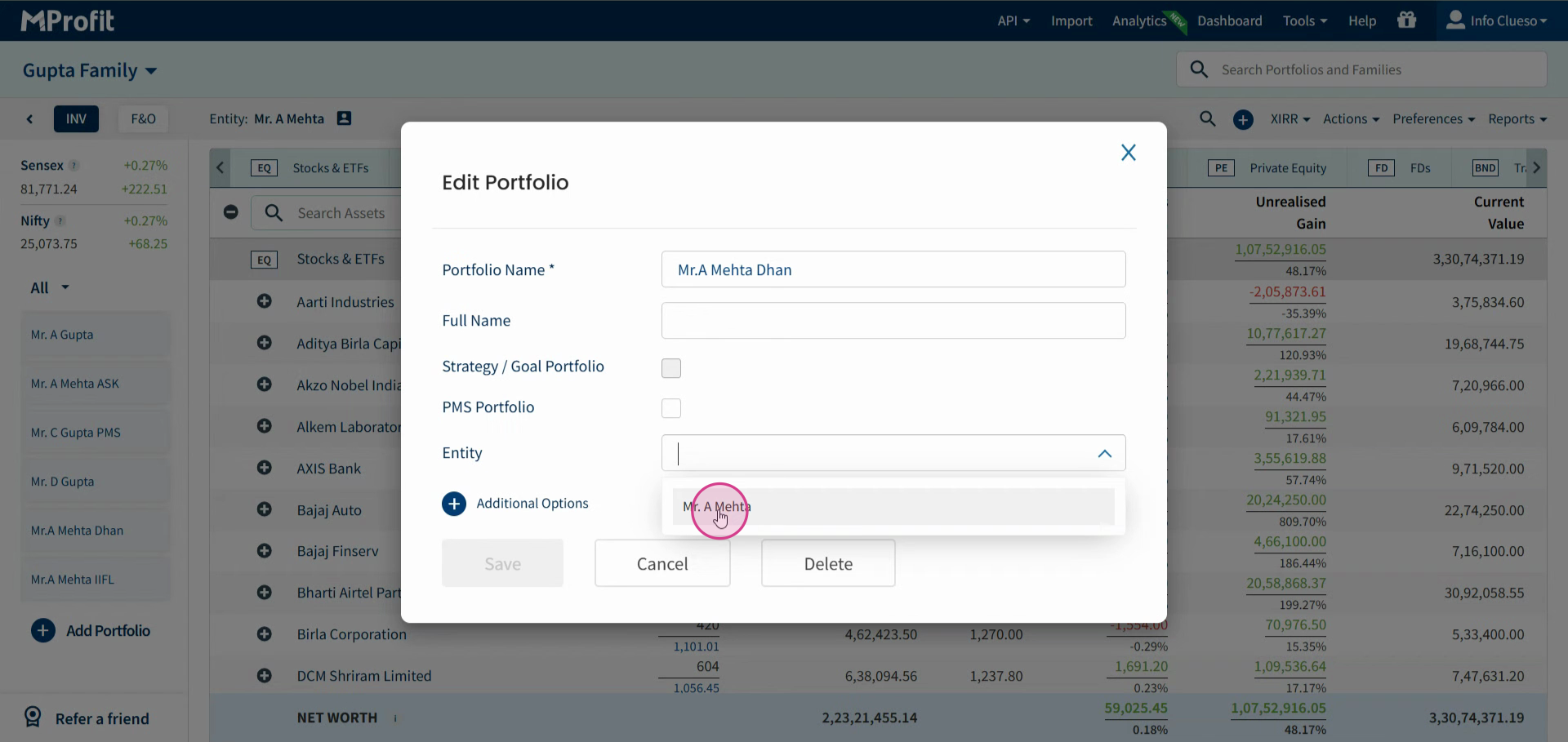
Step 6: Choose the entity from the Entity dropdown.
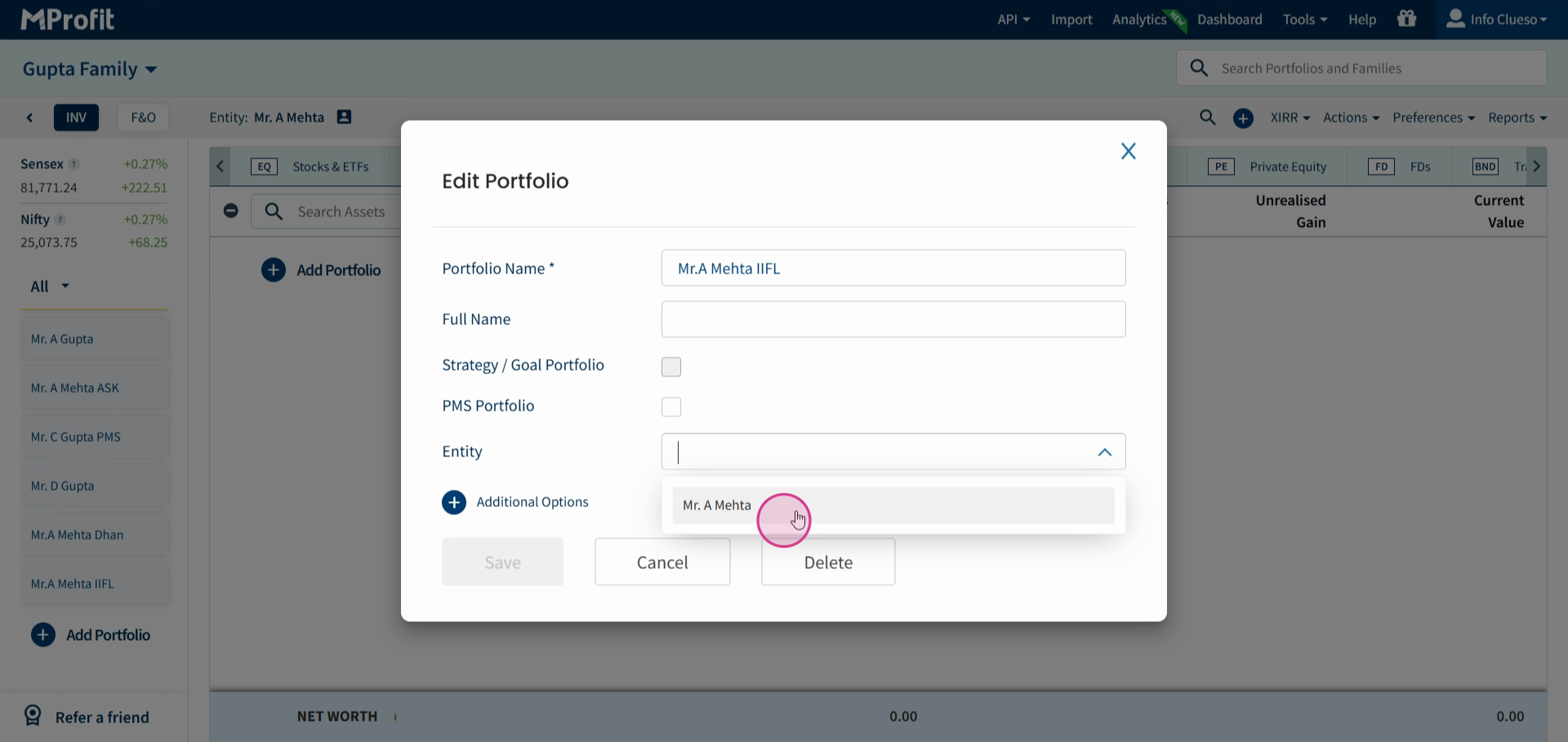
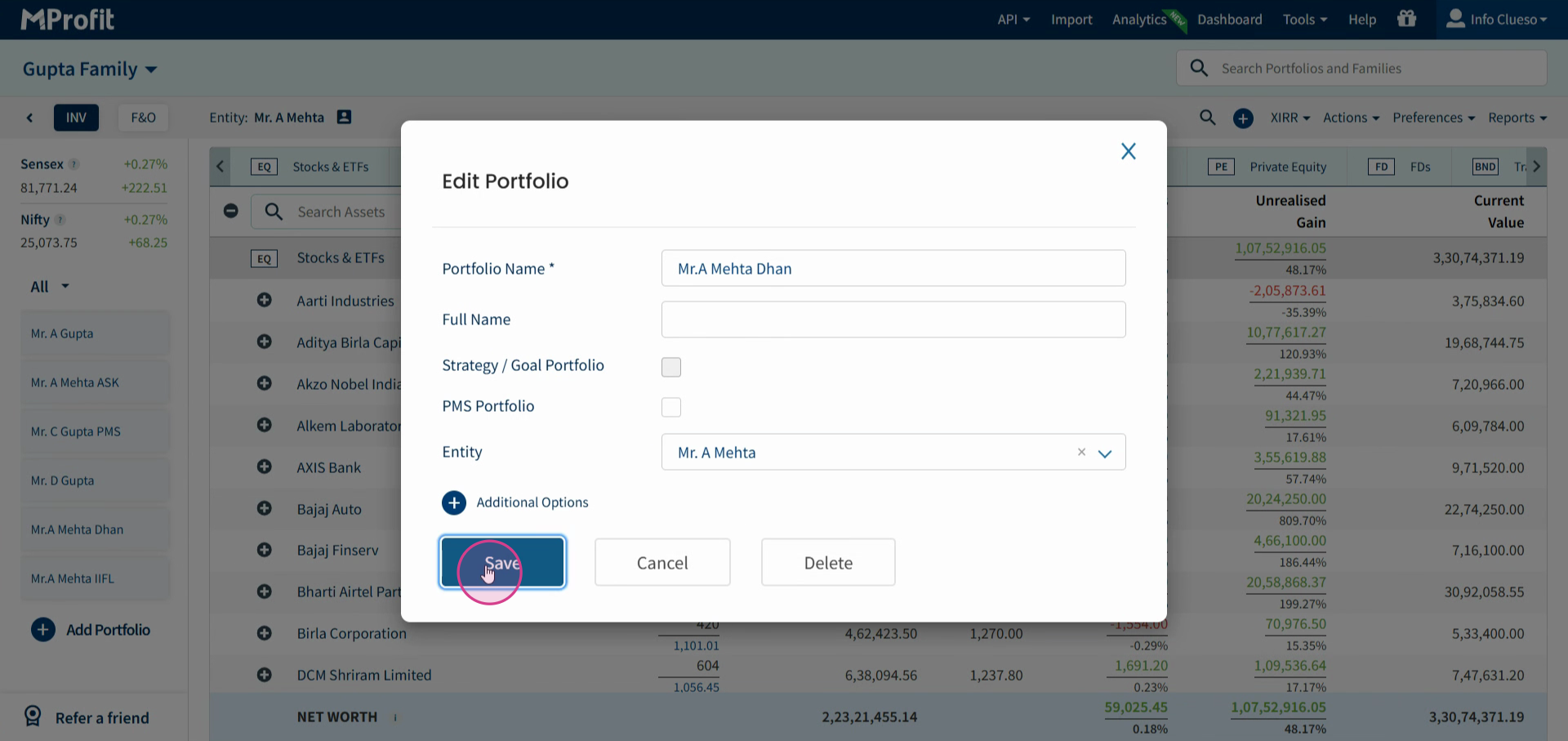
Step 7: Click Save to update the portfolio.
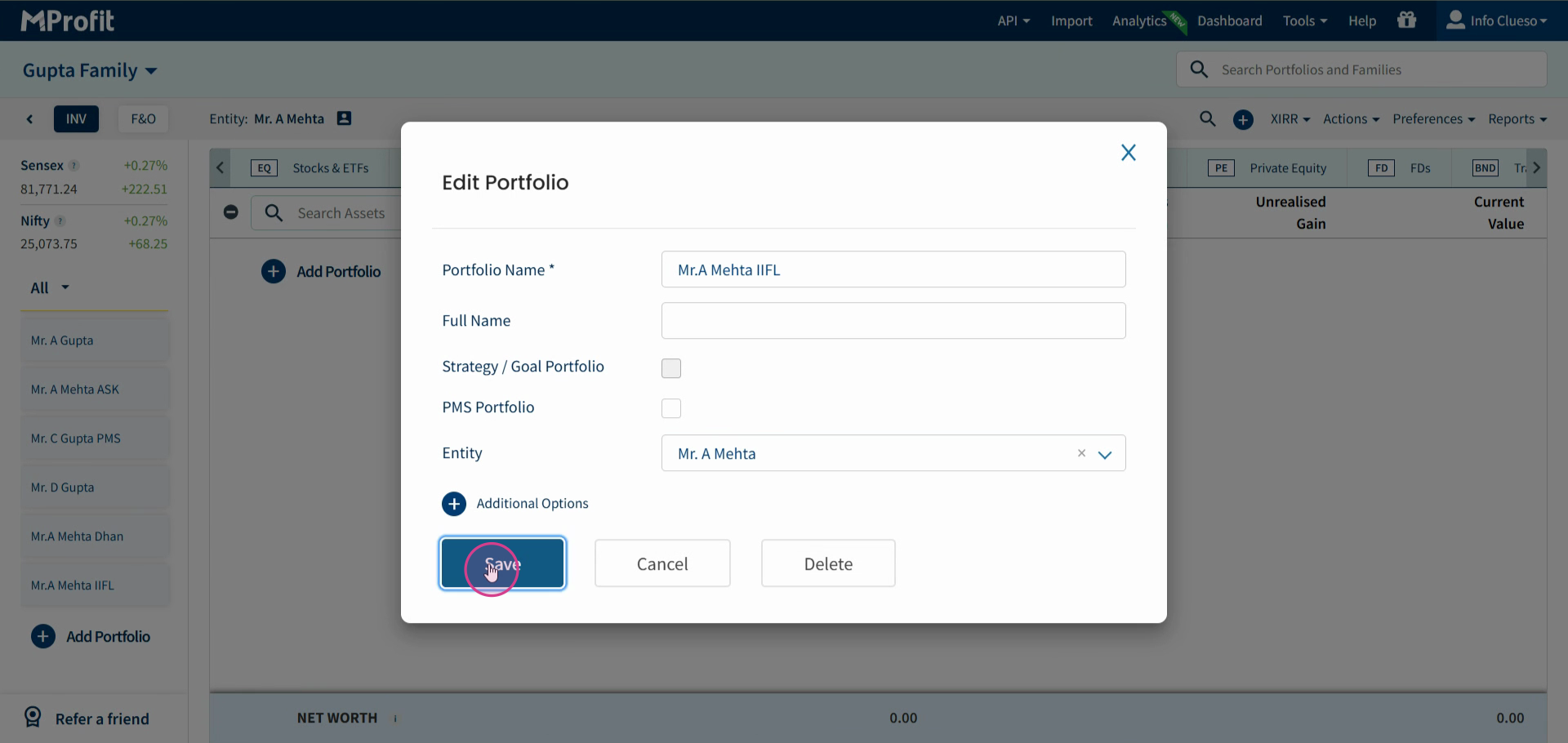
Repeat steps 4–7 for any additional portfolios you want grouped under this entity.
For example, link Mr. A. Mehta’s other portfolios by repeating the process: right-click, select Edit Portfolio, choose the entity, and save. (Below is an example of another addition)
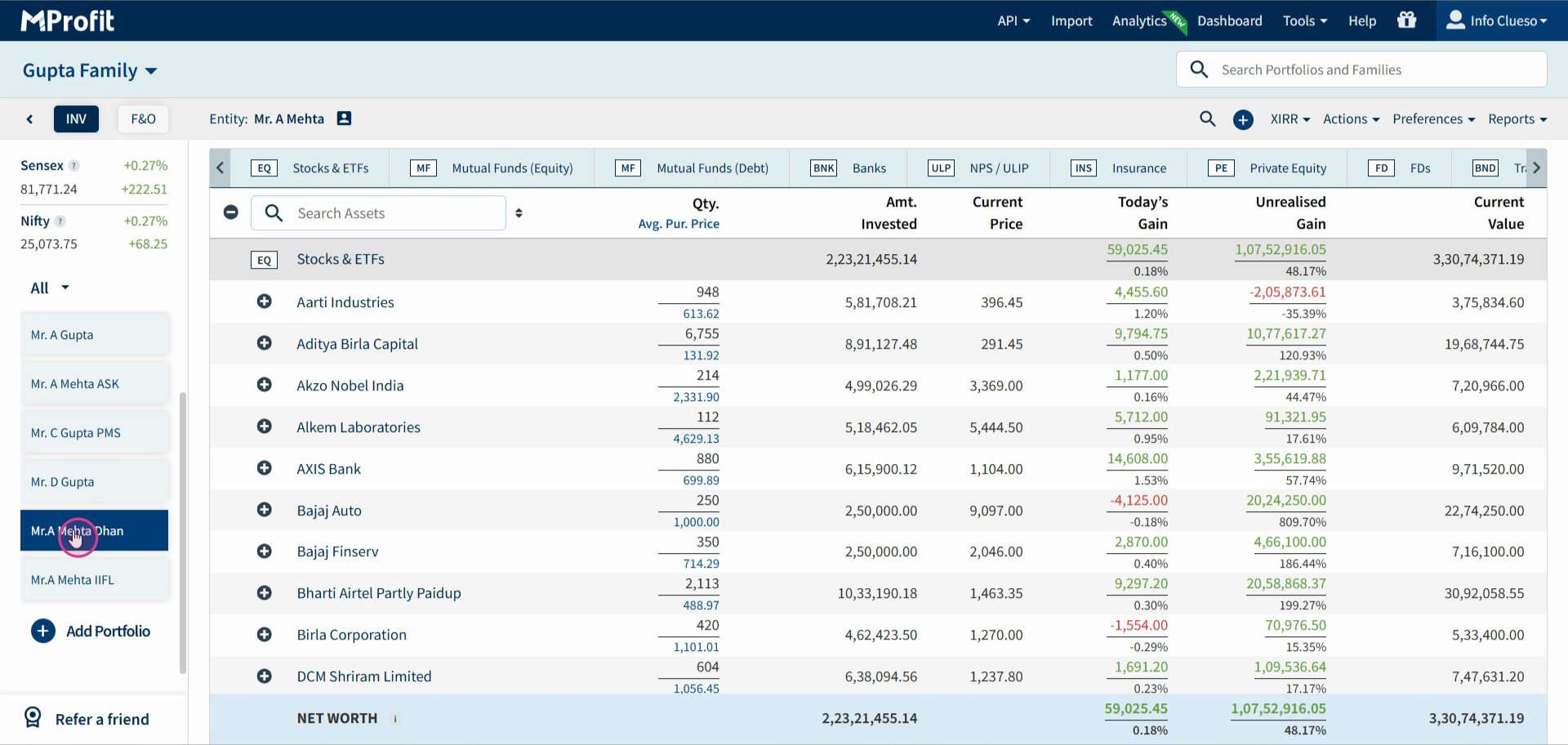
Remember, each portfolio can be linked to only one entity at a time. This differs from Group portfolios, which allow a portfolio to belong to multiple groups.
Accessing entity-specific reports and analytics:
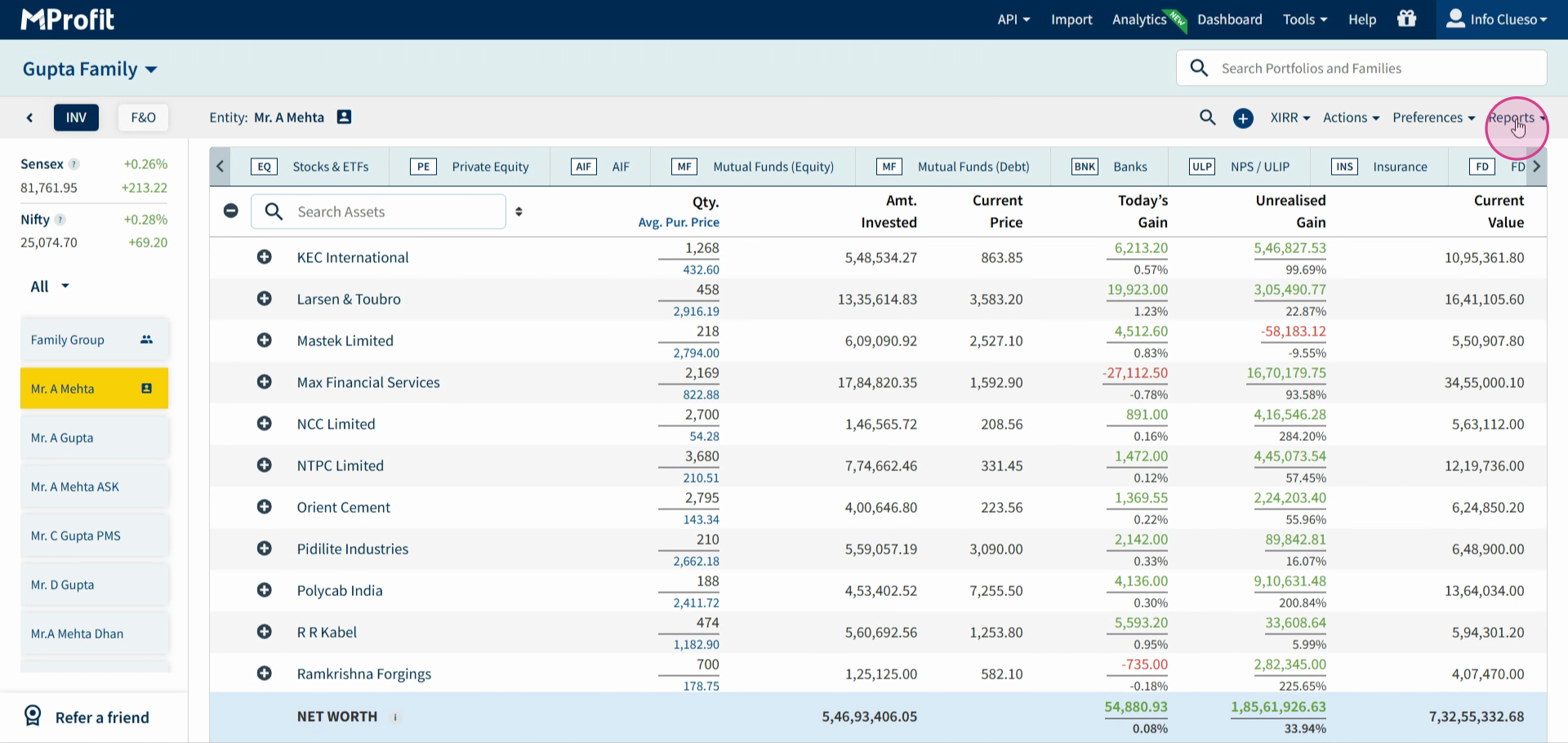
Step 1: Click Reports to open summary and performance metrics.
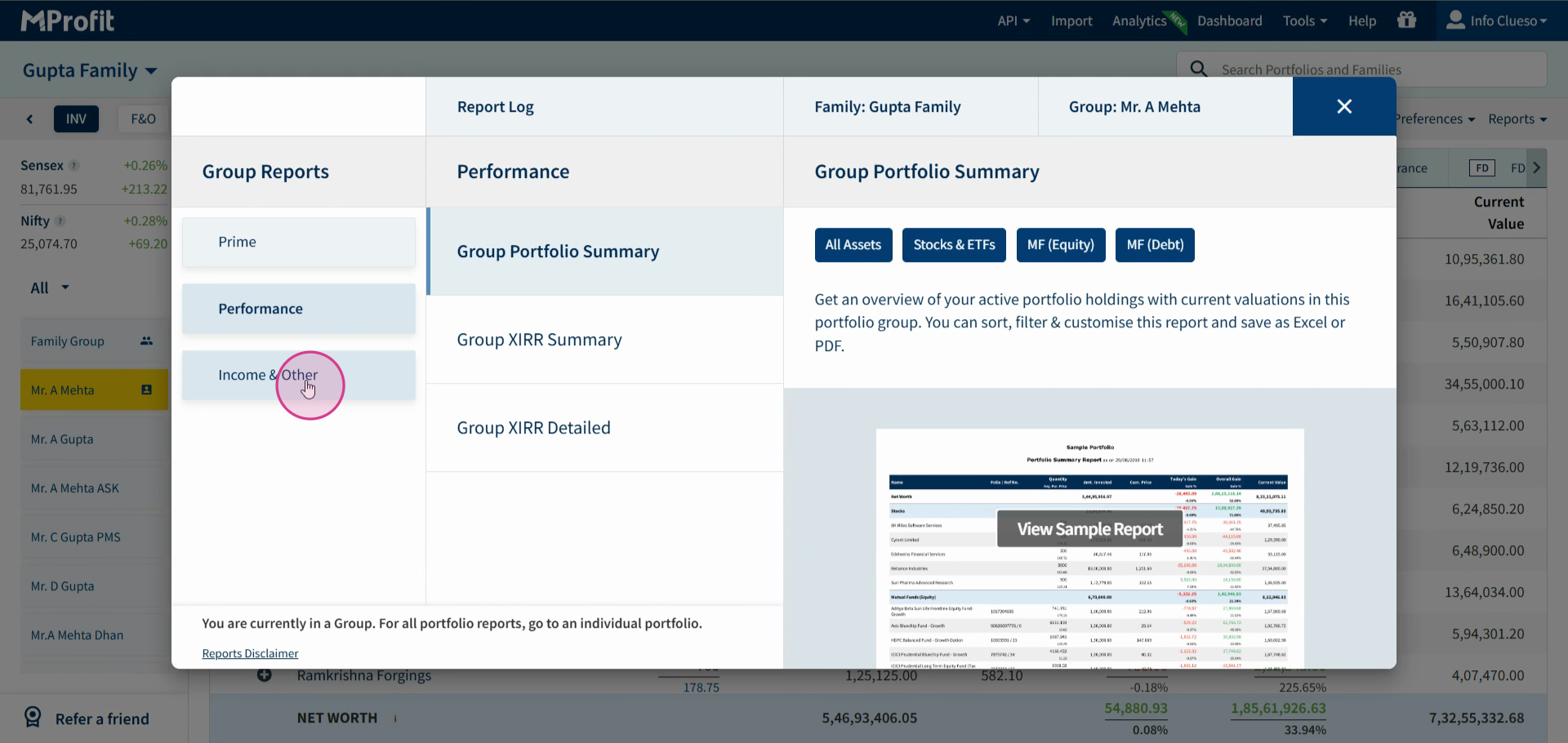
Step 2: Find detailed income reports under Income and others.
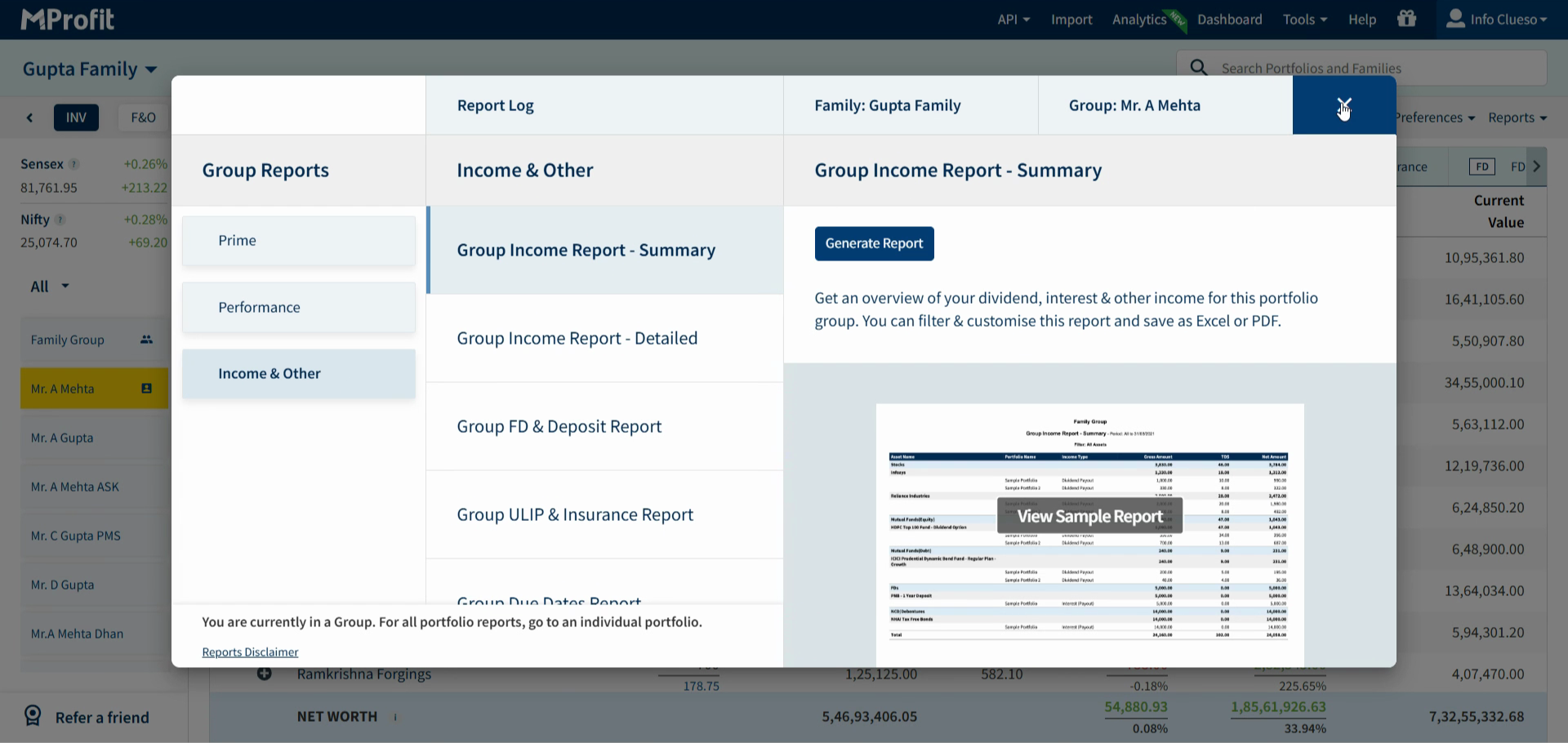
Step 3: To exit, select Cancel.
Step 4: Visit Analytics for deeper insights.
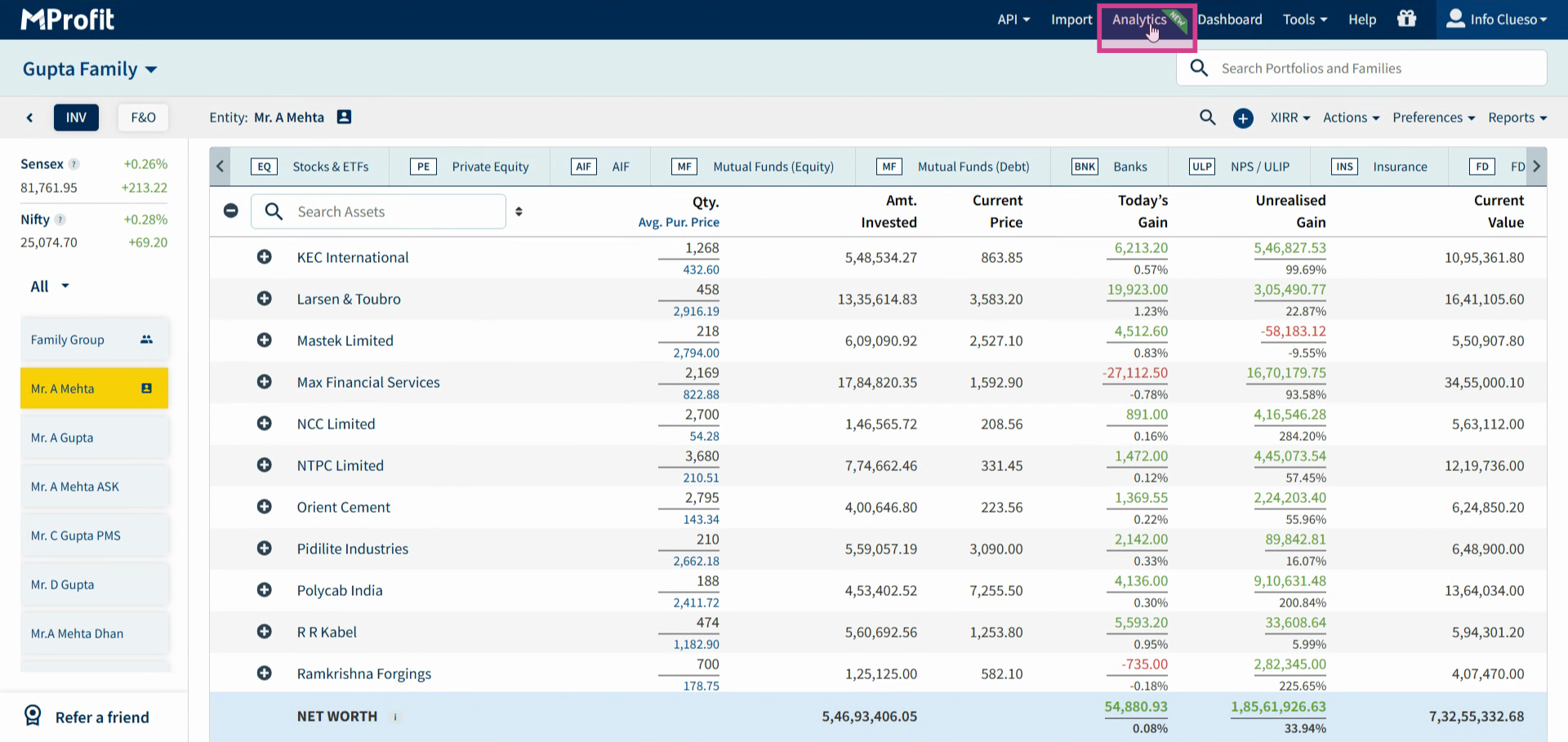
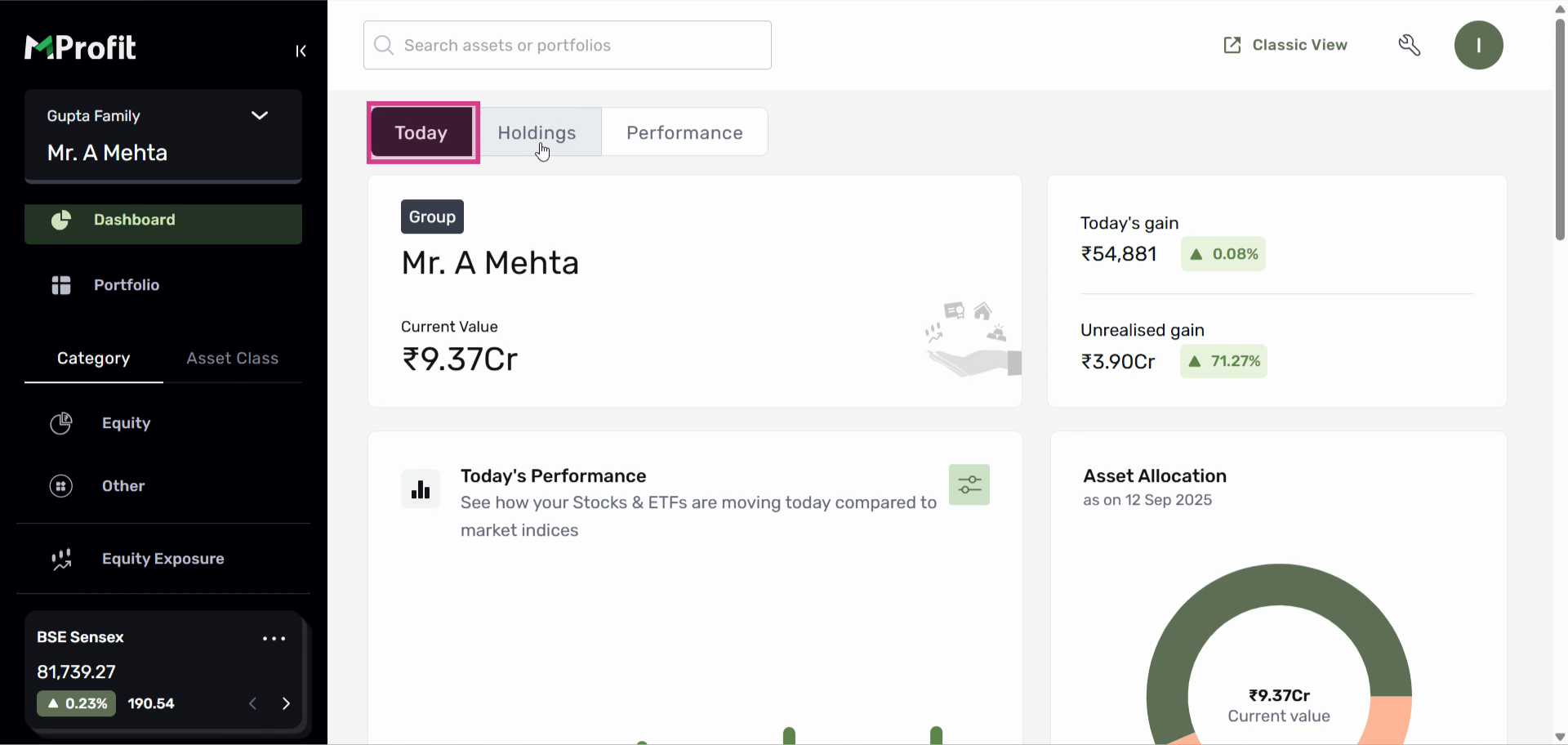
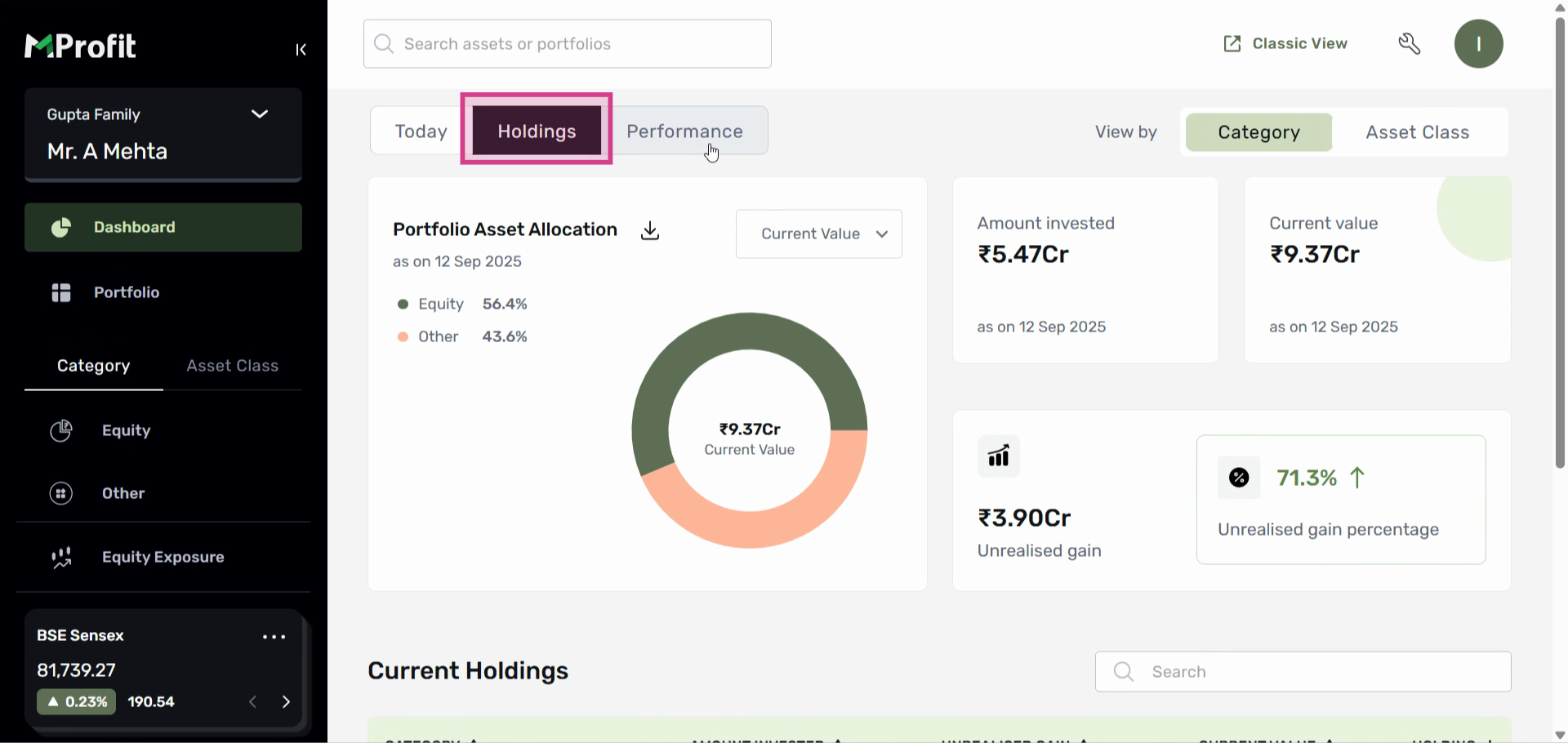
Step 5: Choose the entity to view today’s summary, holdings, and performance data.
Managing entities helps you keep investment data clear and organized, making it easier to analyze portfolio performance across clients or family members.
Was this article helpful?
That’s Great!
Thank you for your feedback
Sorry! We couldn't be helpful
Thank you for your feedback
Feedback sent
We appreciate your effort and will try to fix the article