Make your reports and analytics your own by uploading a custom logo in MProfit. Branding your workspace adds a professional touch and makes sure your identity appears in Analytics Web and all PDF reports.
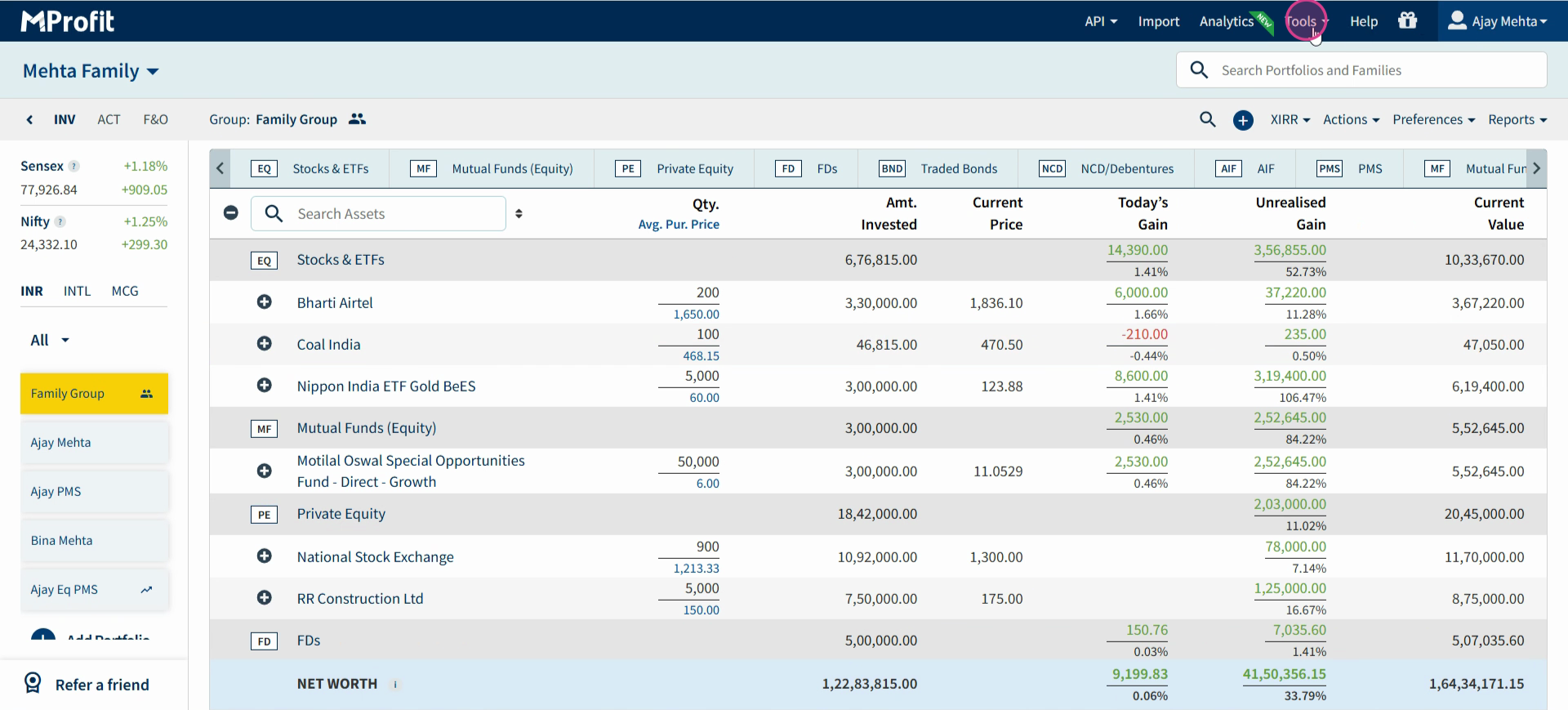
Step 1: In the Classic view, click Tools on the top menu.
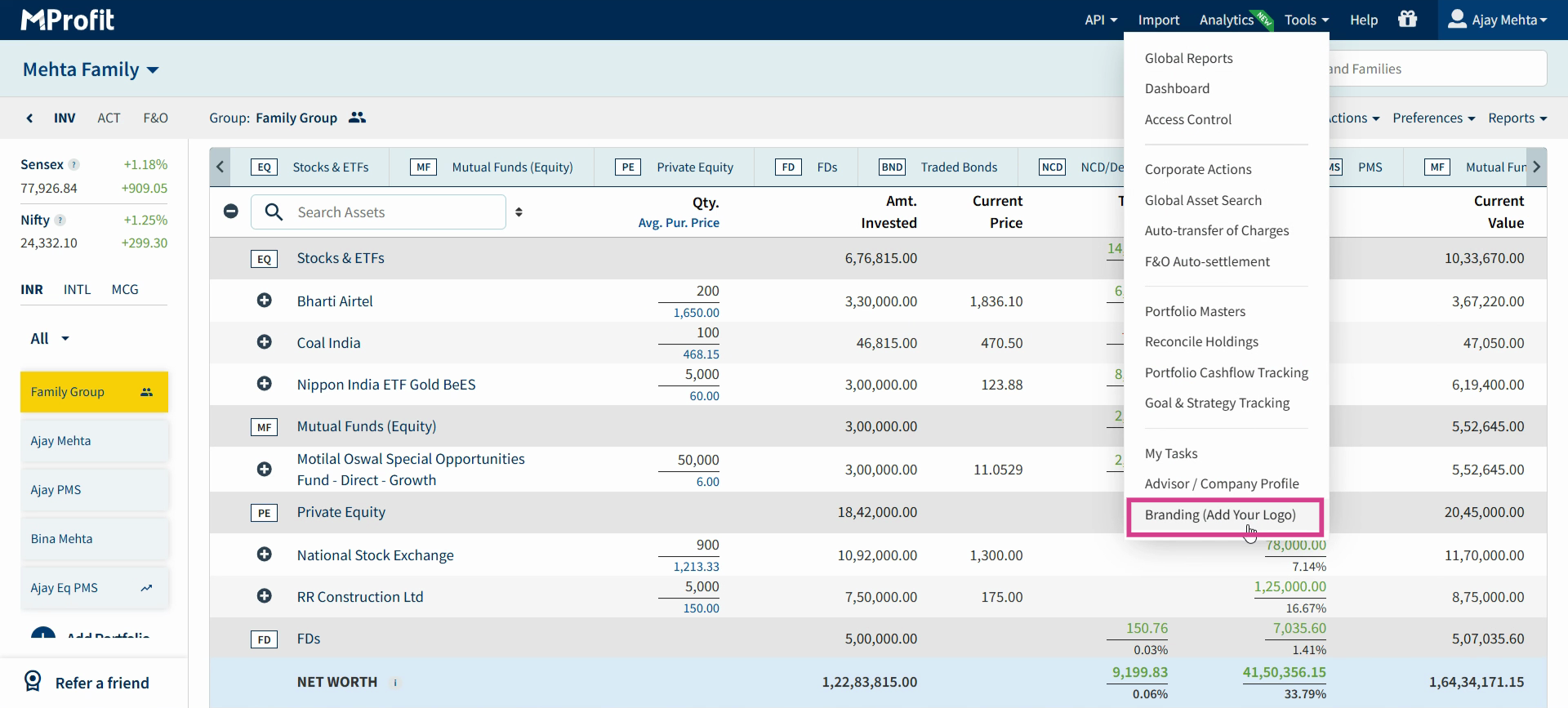
Step 2: In the drop-down menu, select Branding.
Step 3: On the Branding page, click Upload Logo.
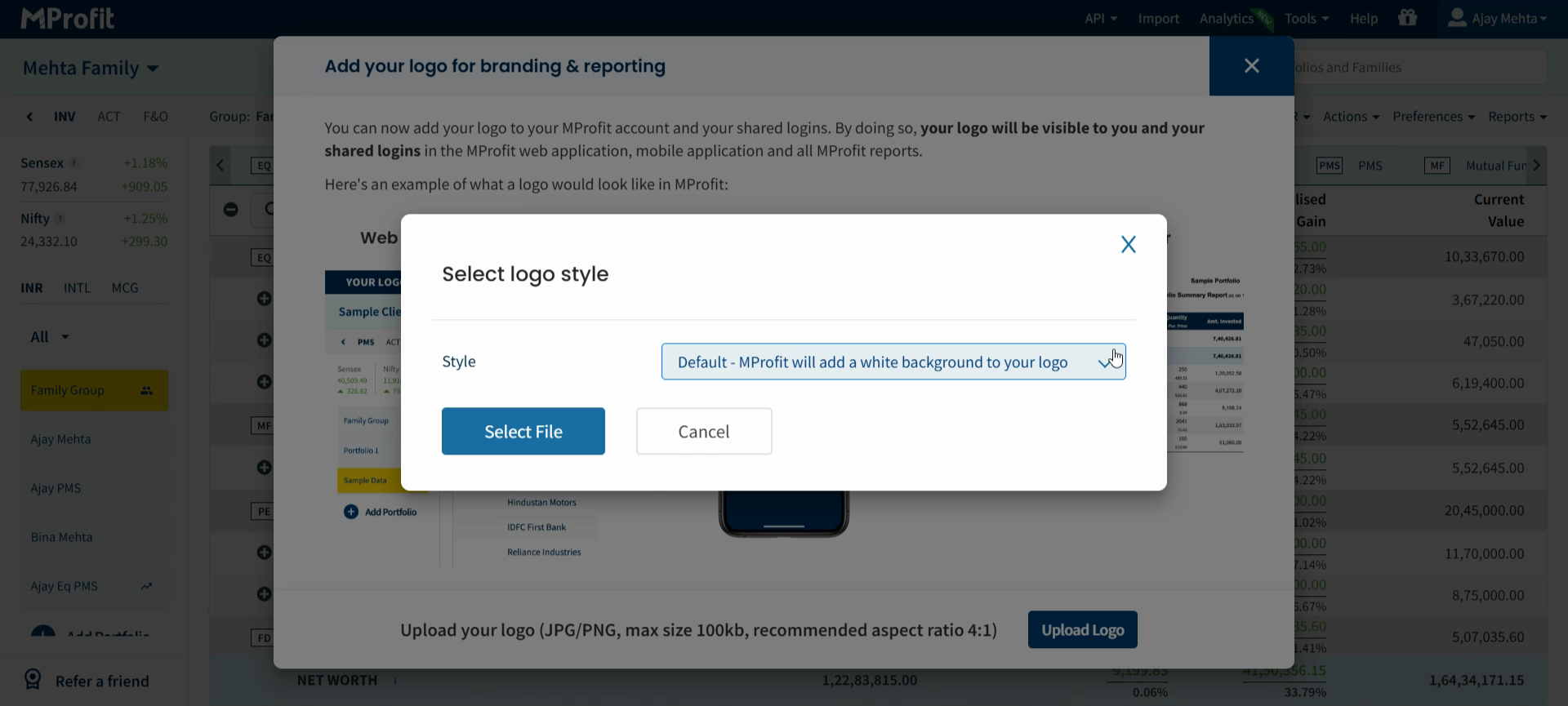
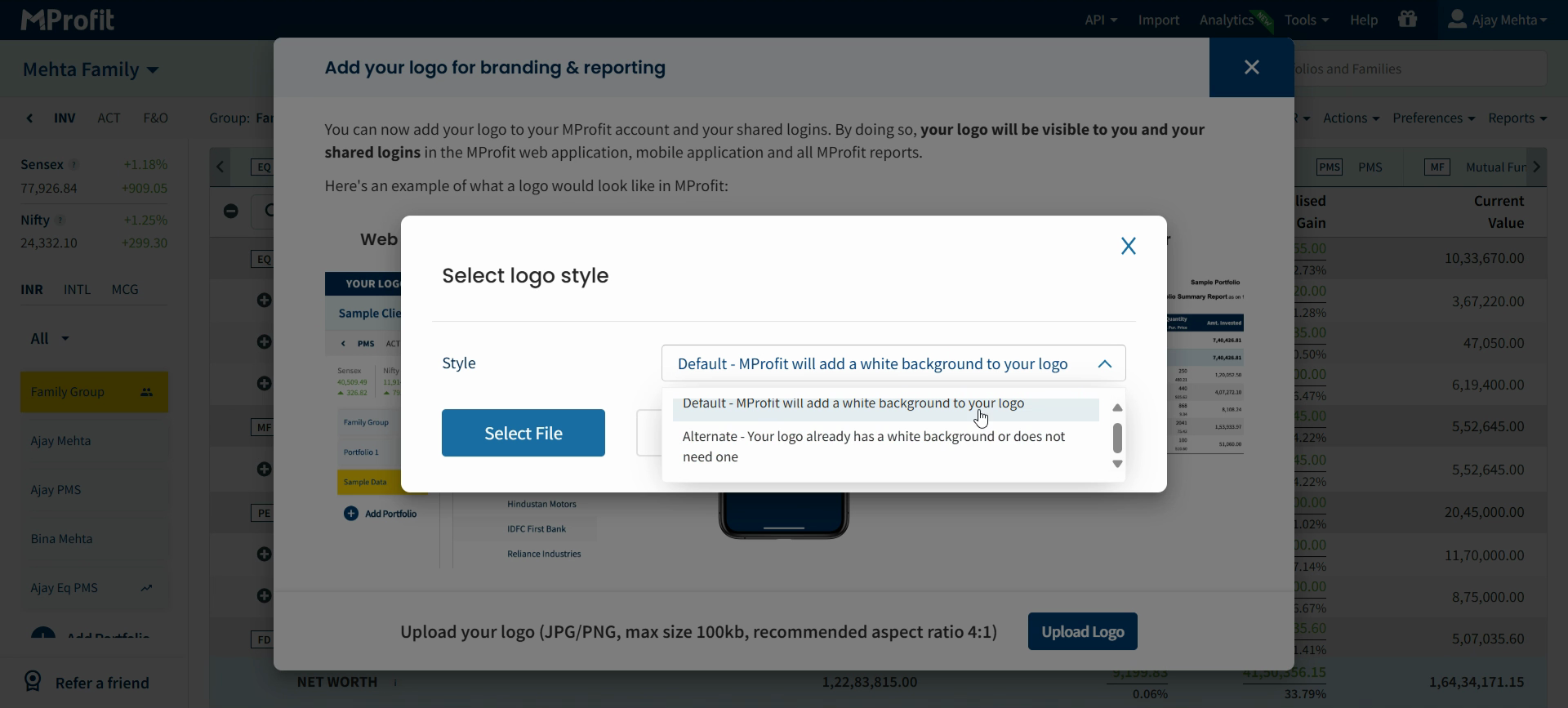
Step 4: Choose your logo style from the available options. (Note: The default adds a white background, or you can pick the alternate style if your logo already has a background you prefer.)
Step 5: Click Select File and pick your logo file from your computer.
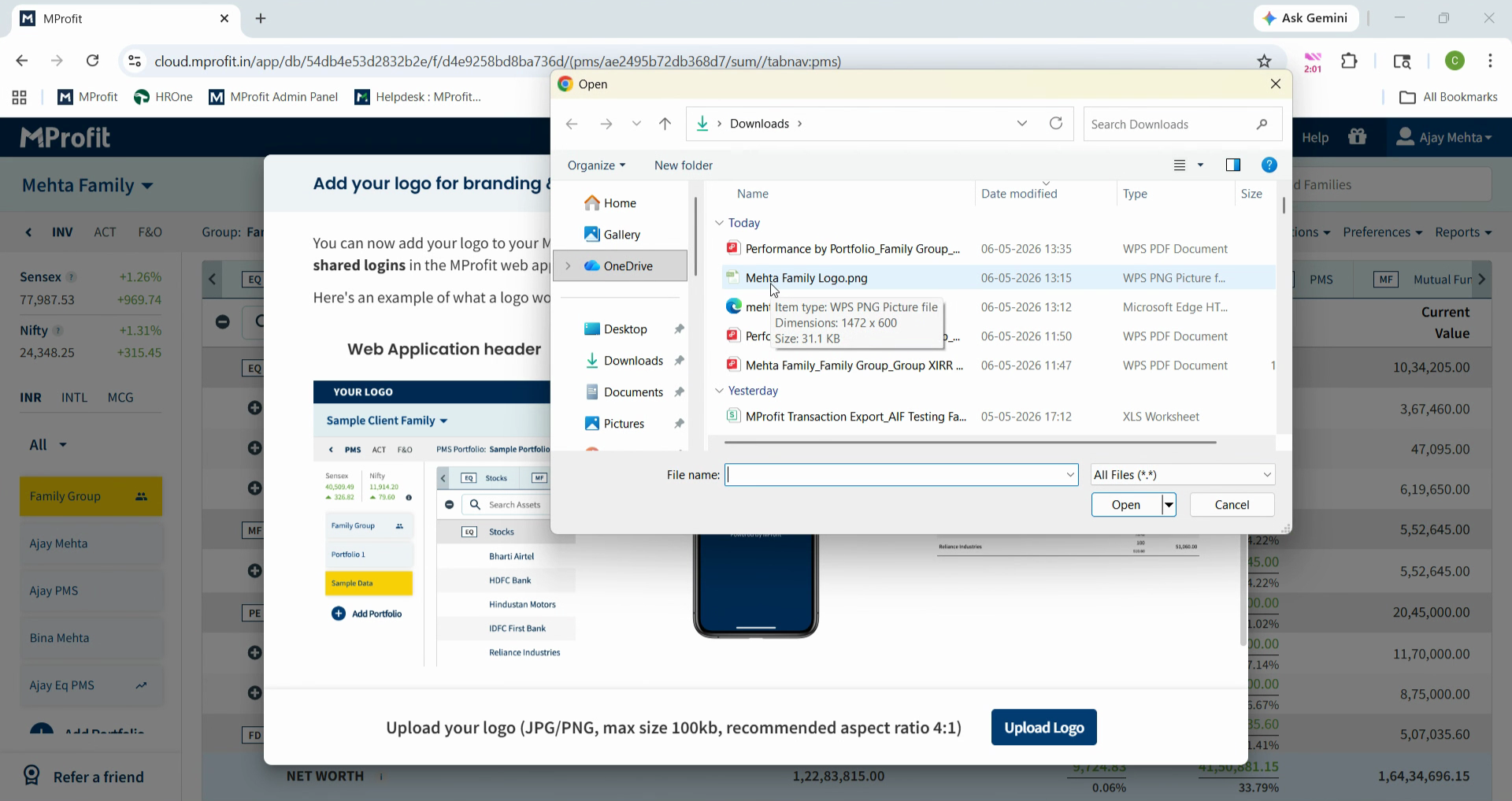
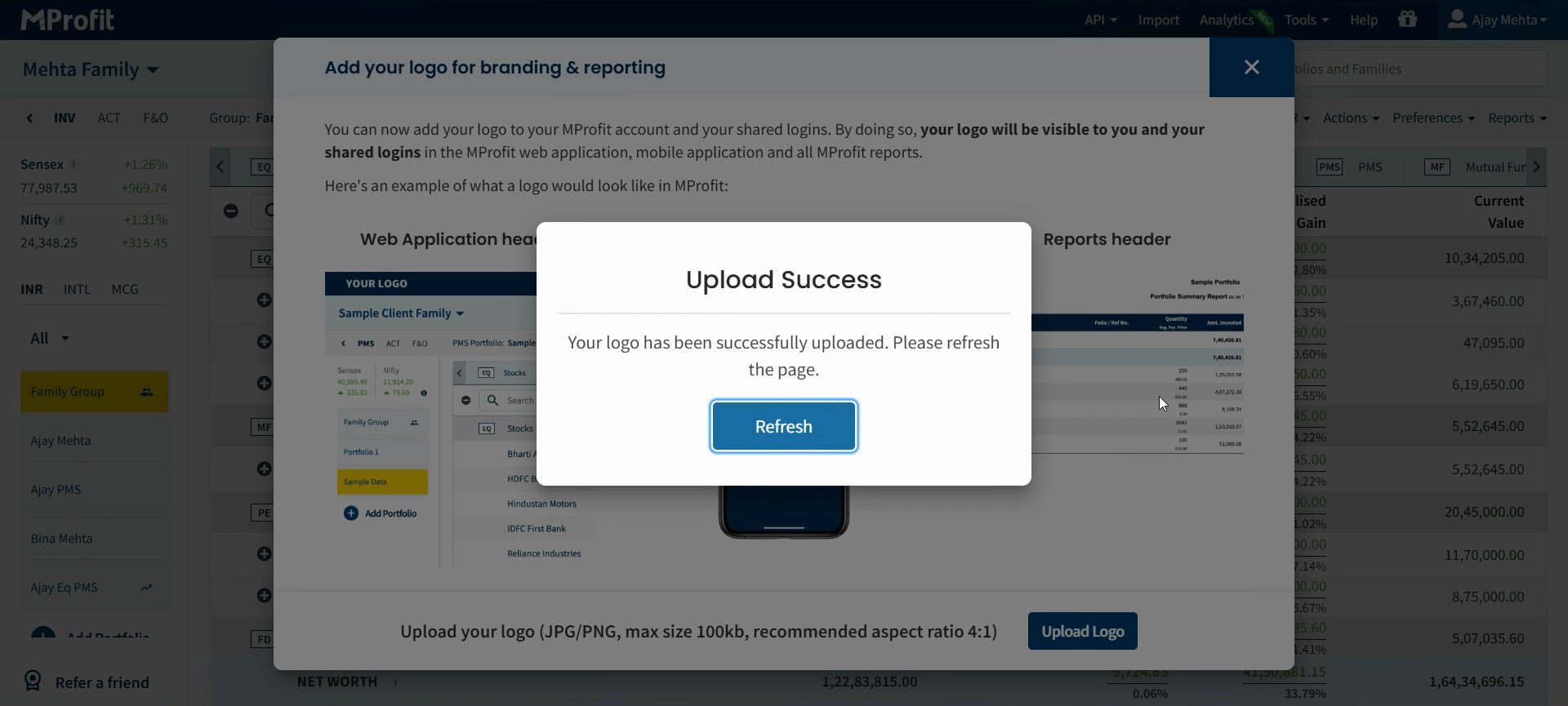
Step 6: Click Open to upload. A message will confirm your logo uploaded successfully.
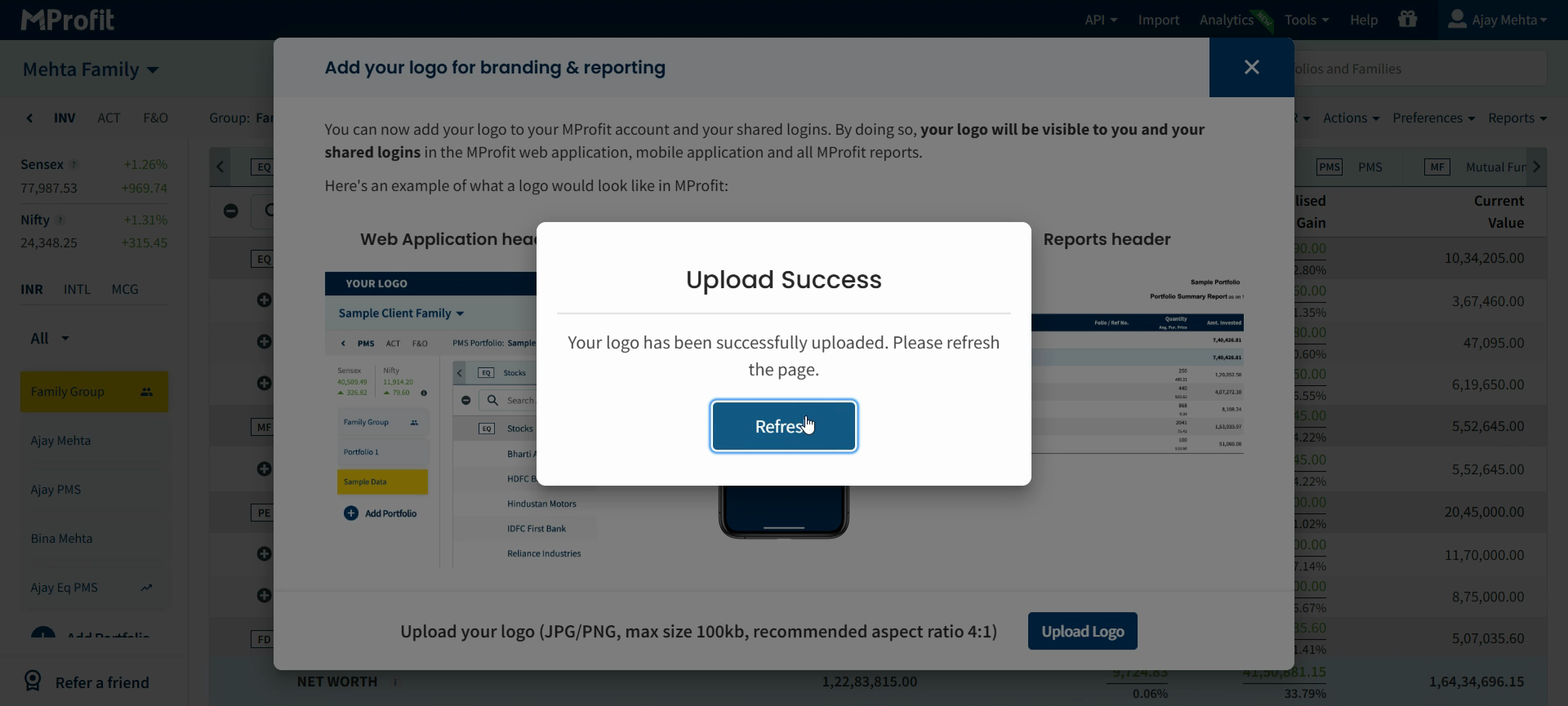
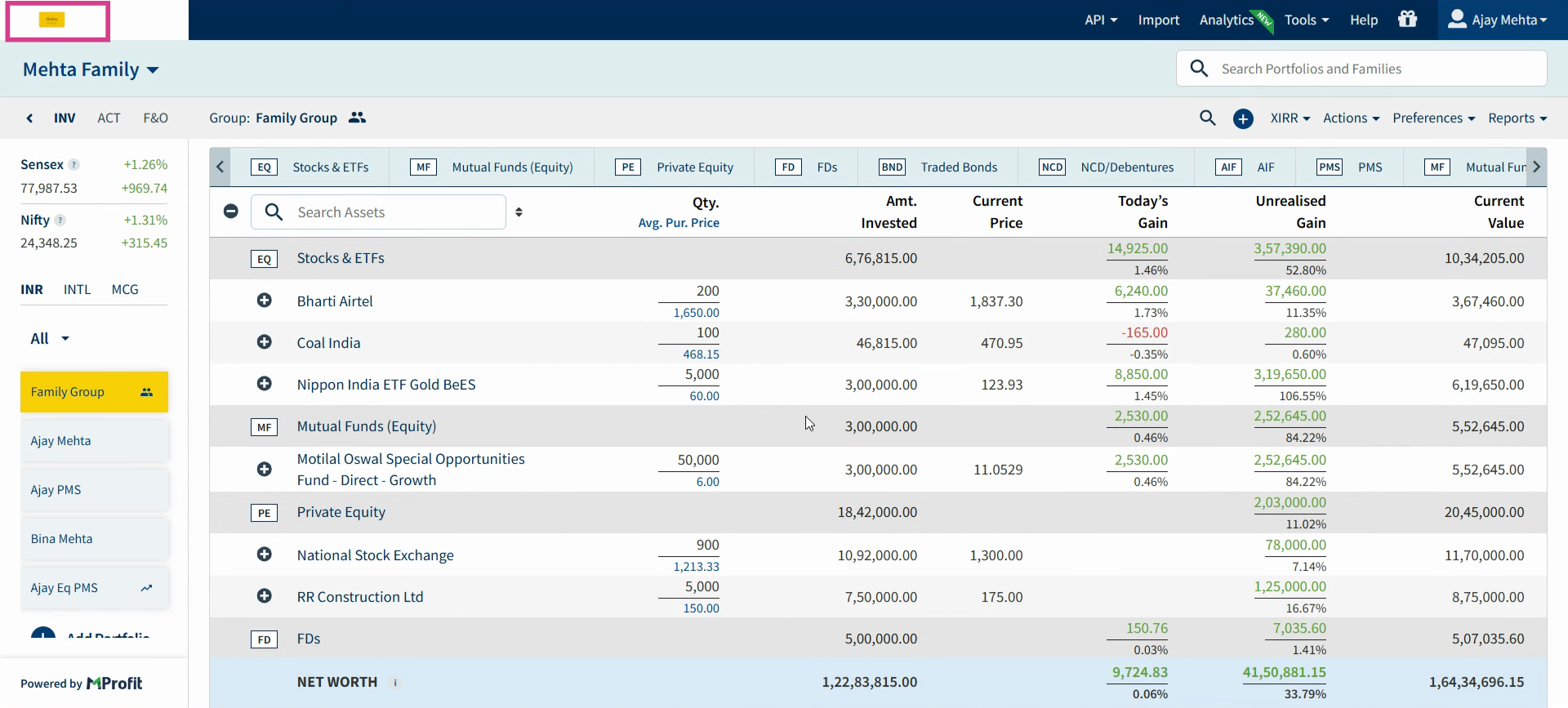
Step 7: Refresh the page. Your logo now appears in the top left corner of the Classic view.
Using Your Logo in Analytics Web and Reports
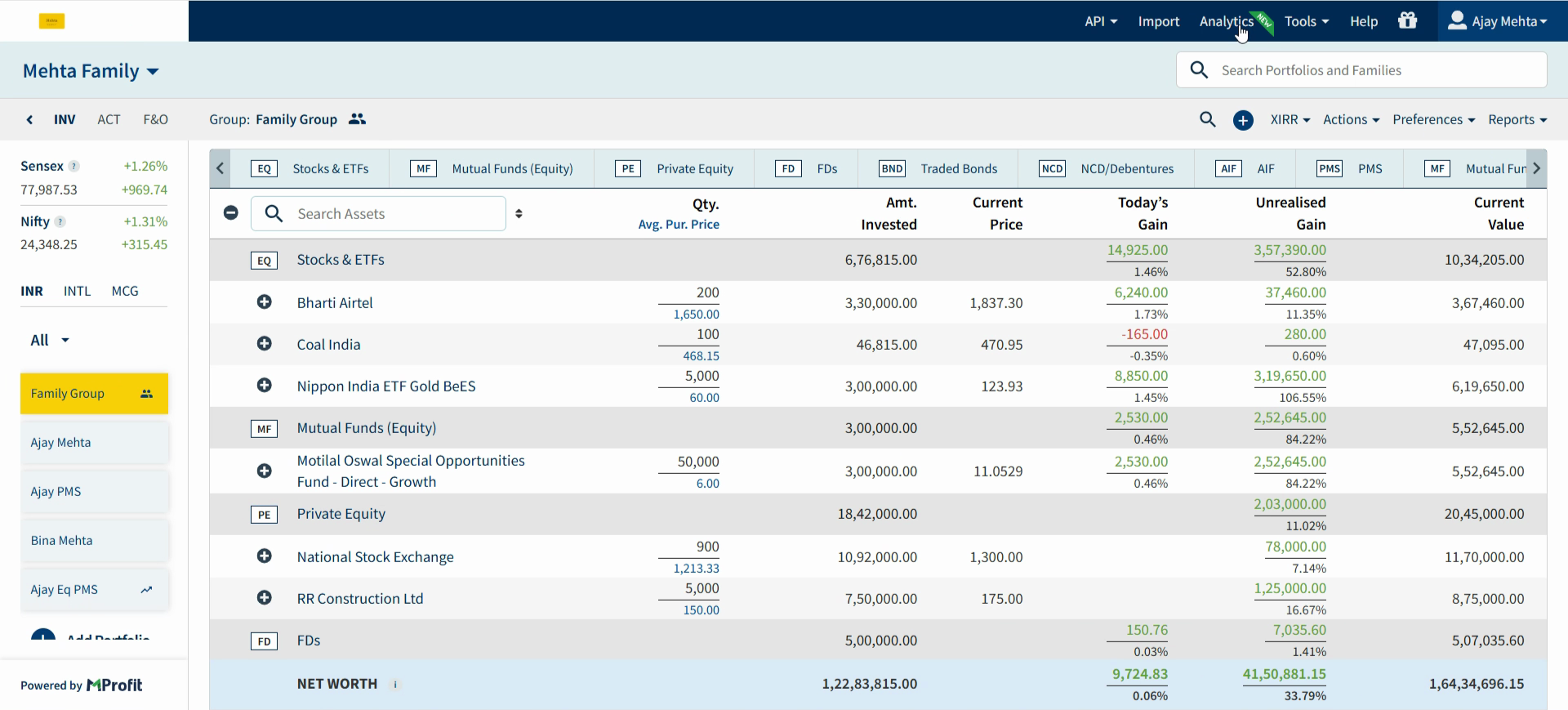
Step 1: From Classic view, go to Analytics and click Analytics to open the analytics interface in a new tab.
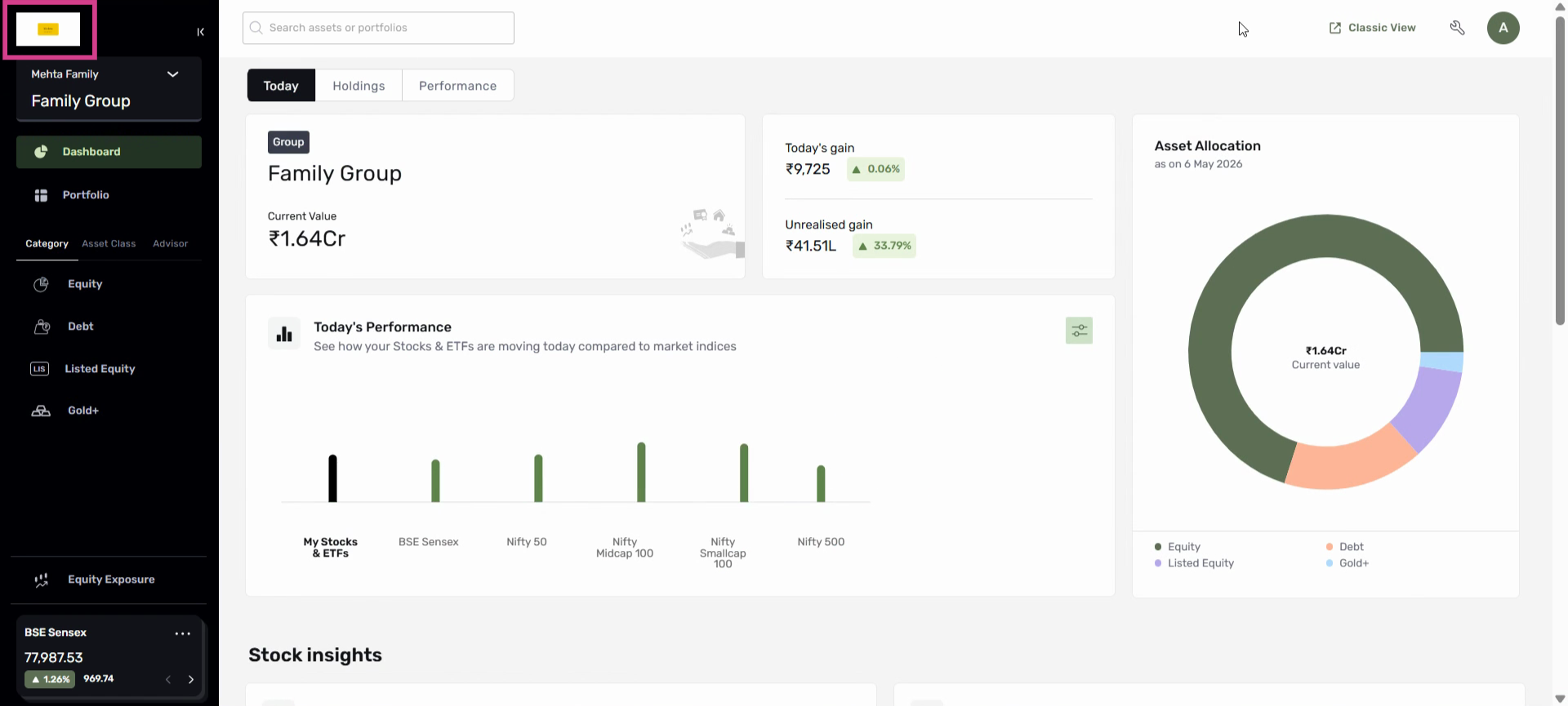
Step 2: Look for your uploaded logo at the top left of the Analytics Web interface.
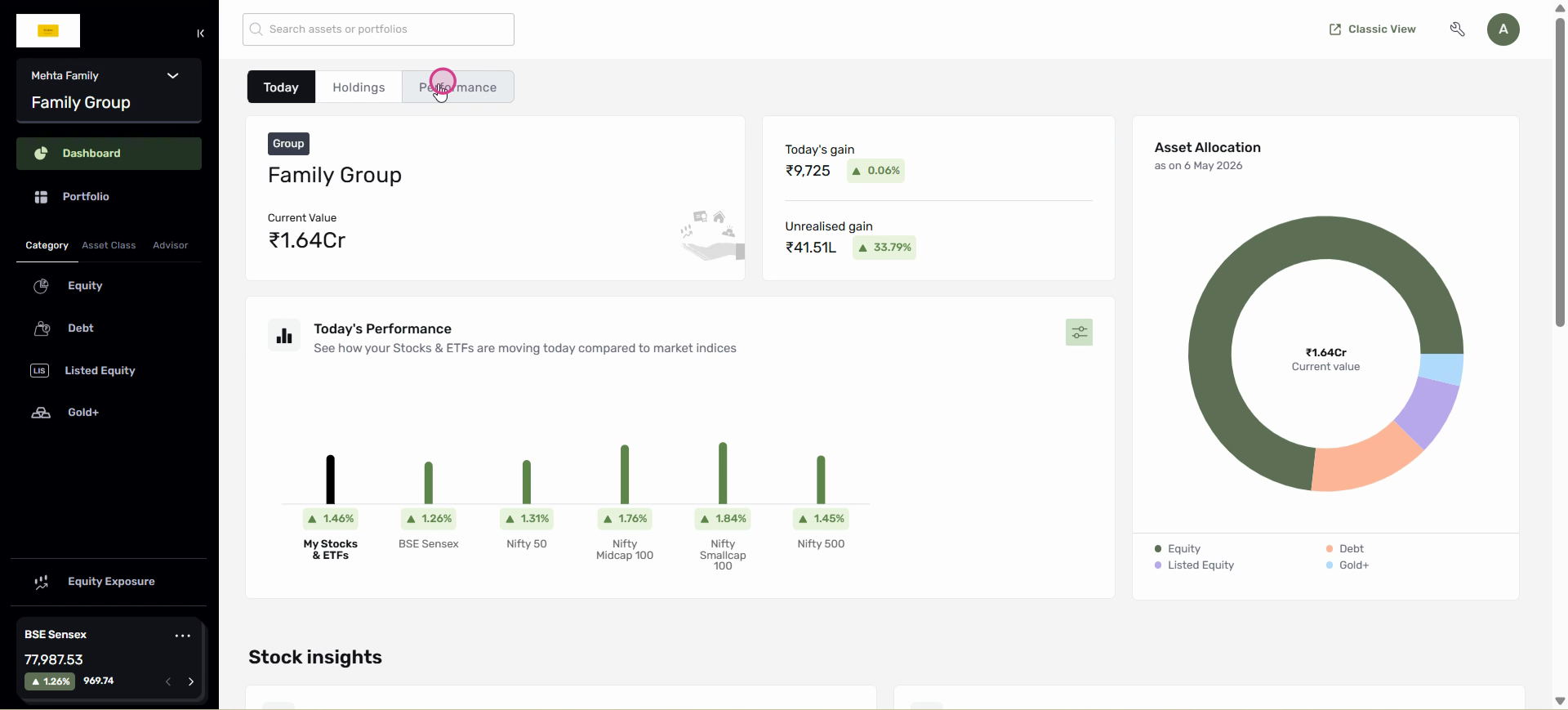
Step 3: To see your logo in PDF reports, select the Performance tab and scroll to Performance by Portfolios. Click View Table.
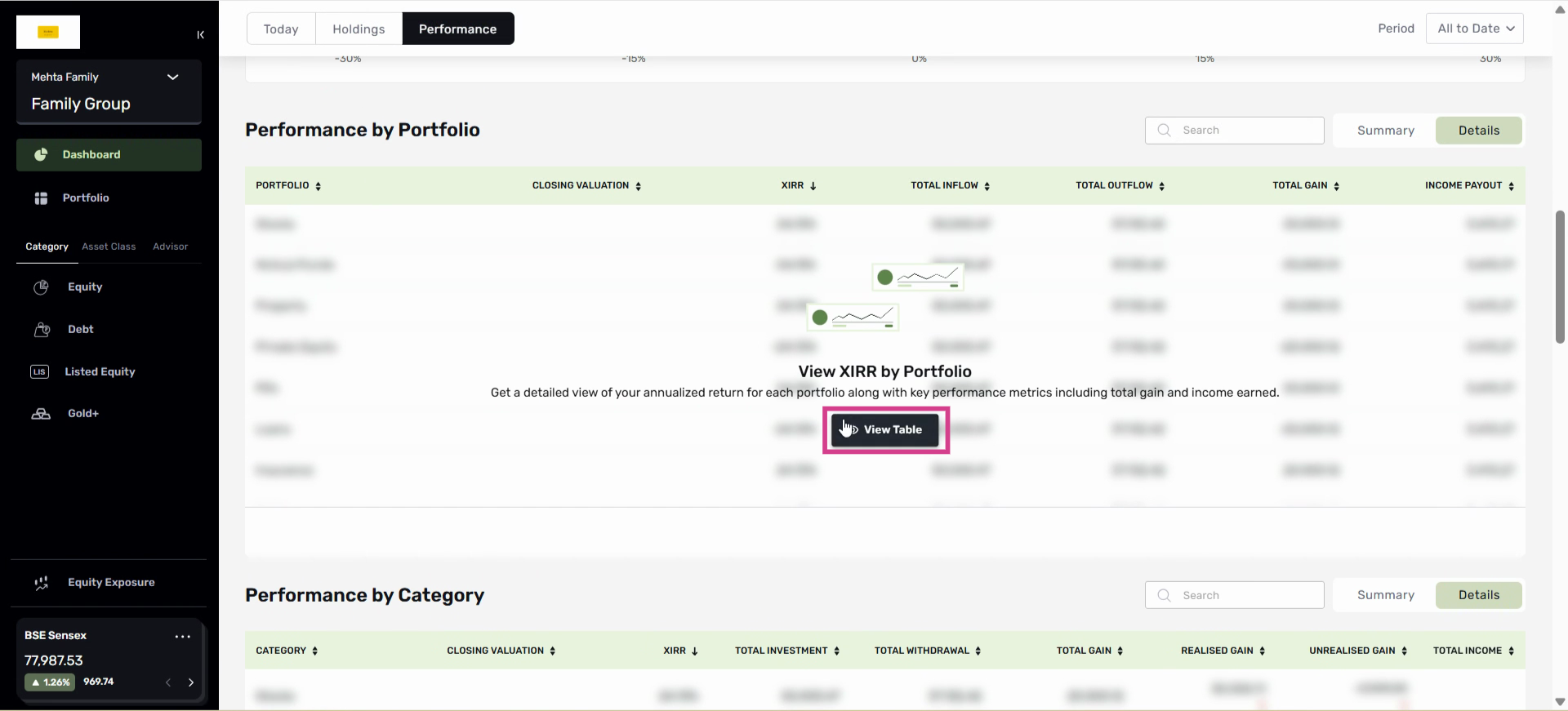
Step 4: Click the PDF download option for the table.
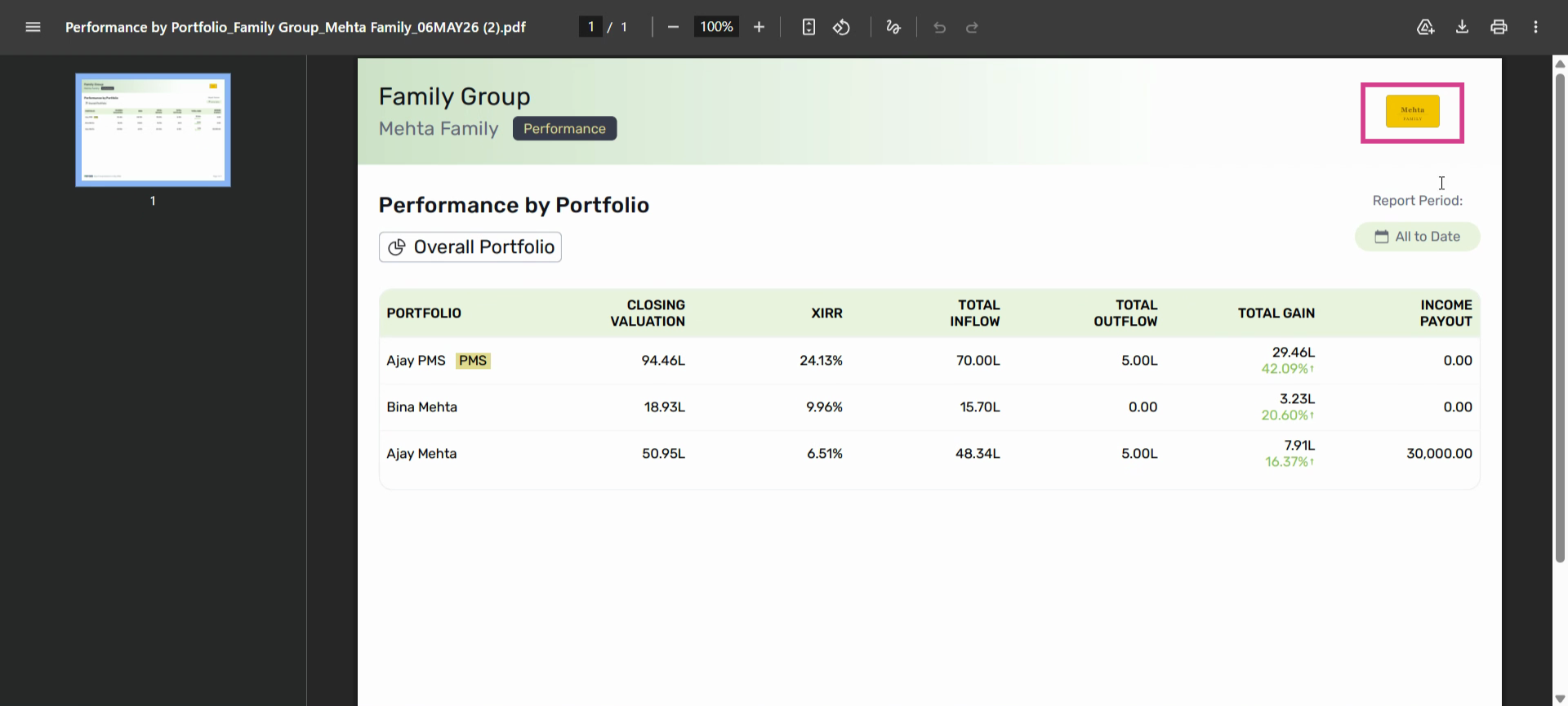
Step 5: Open the downloaded PDF. Your custom logo is displayed at the top of the report.
Seeing Your Logo in Classic View Reports
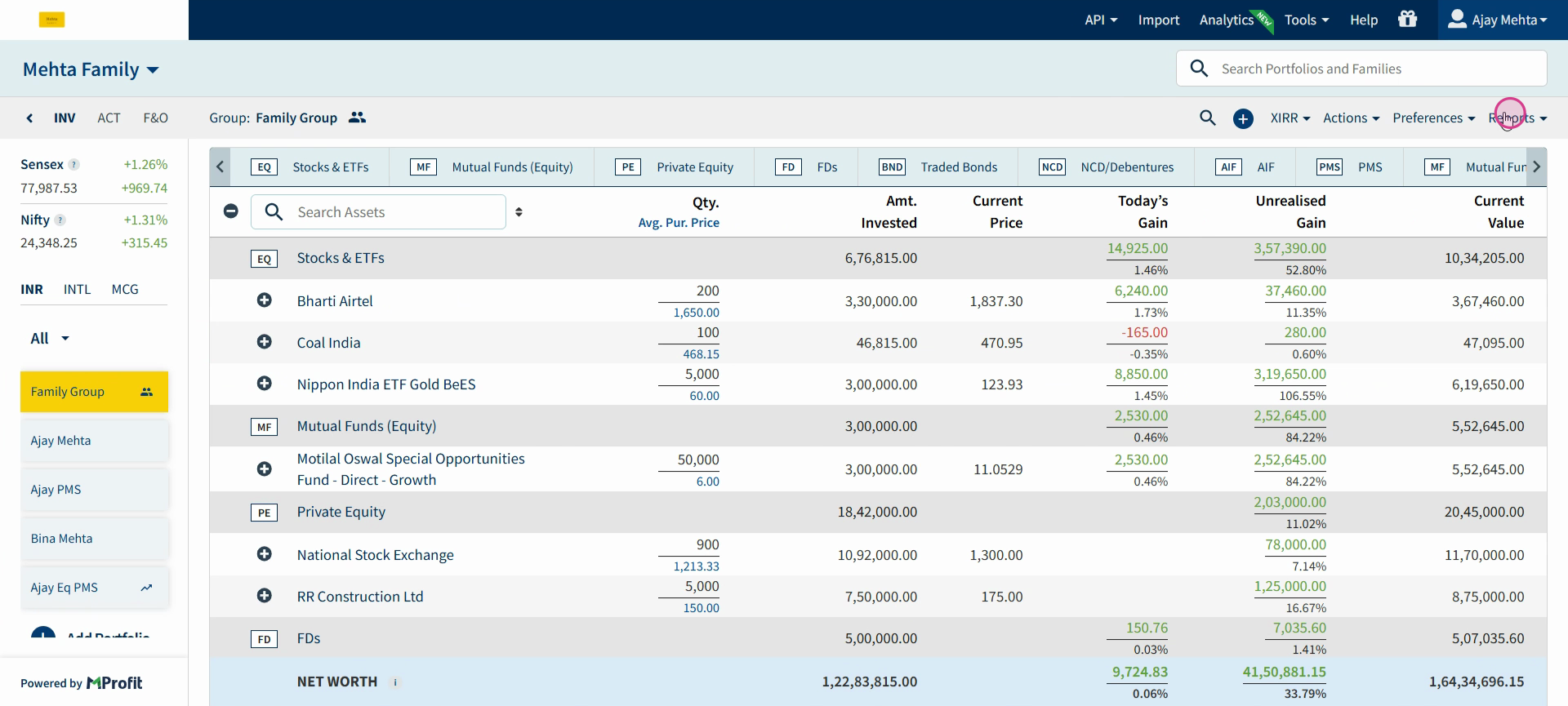
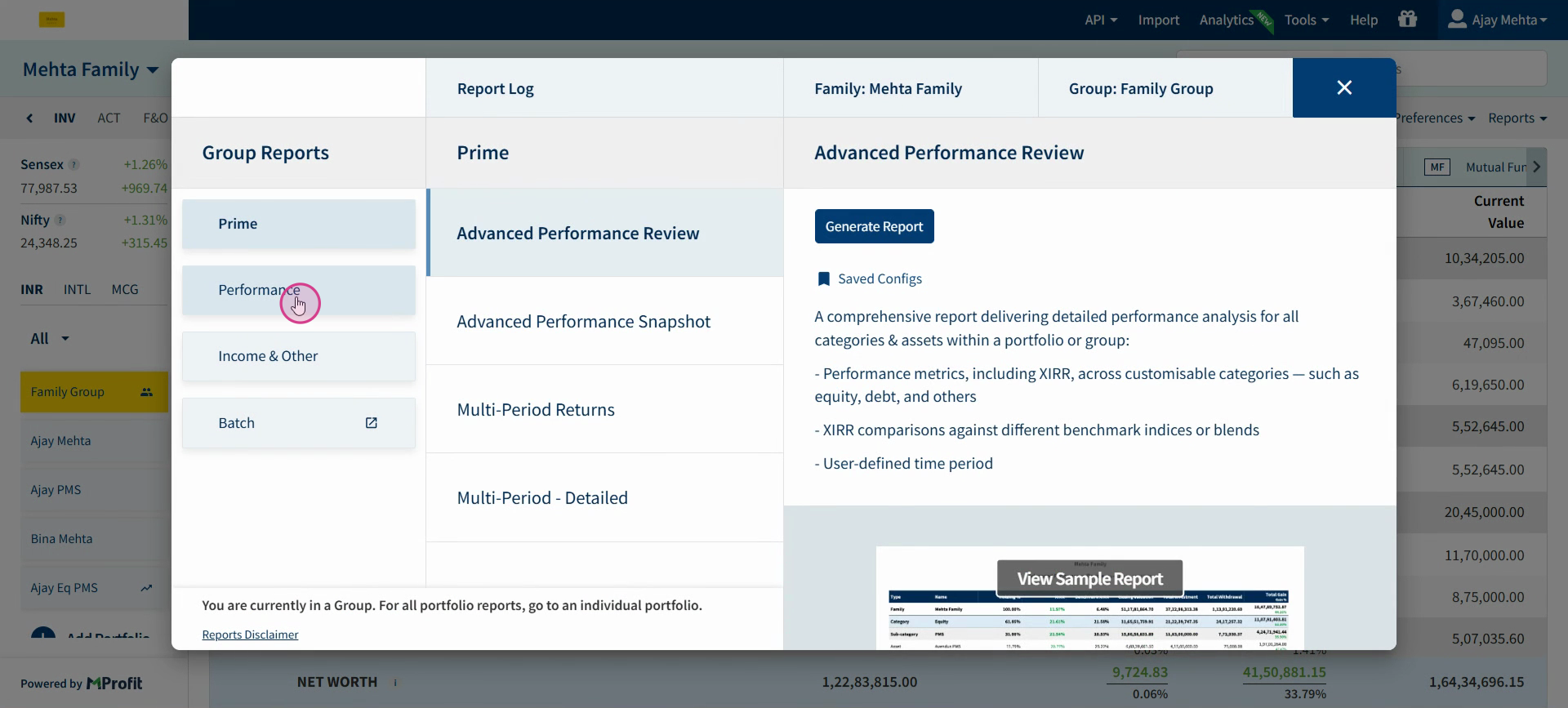
Step 1: Return to Classic view and generate any report of your choice—for example, the Group XIRR Summary across all assets.
Step 2: Click Generate Report.
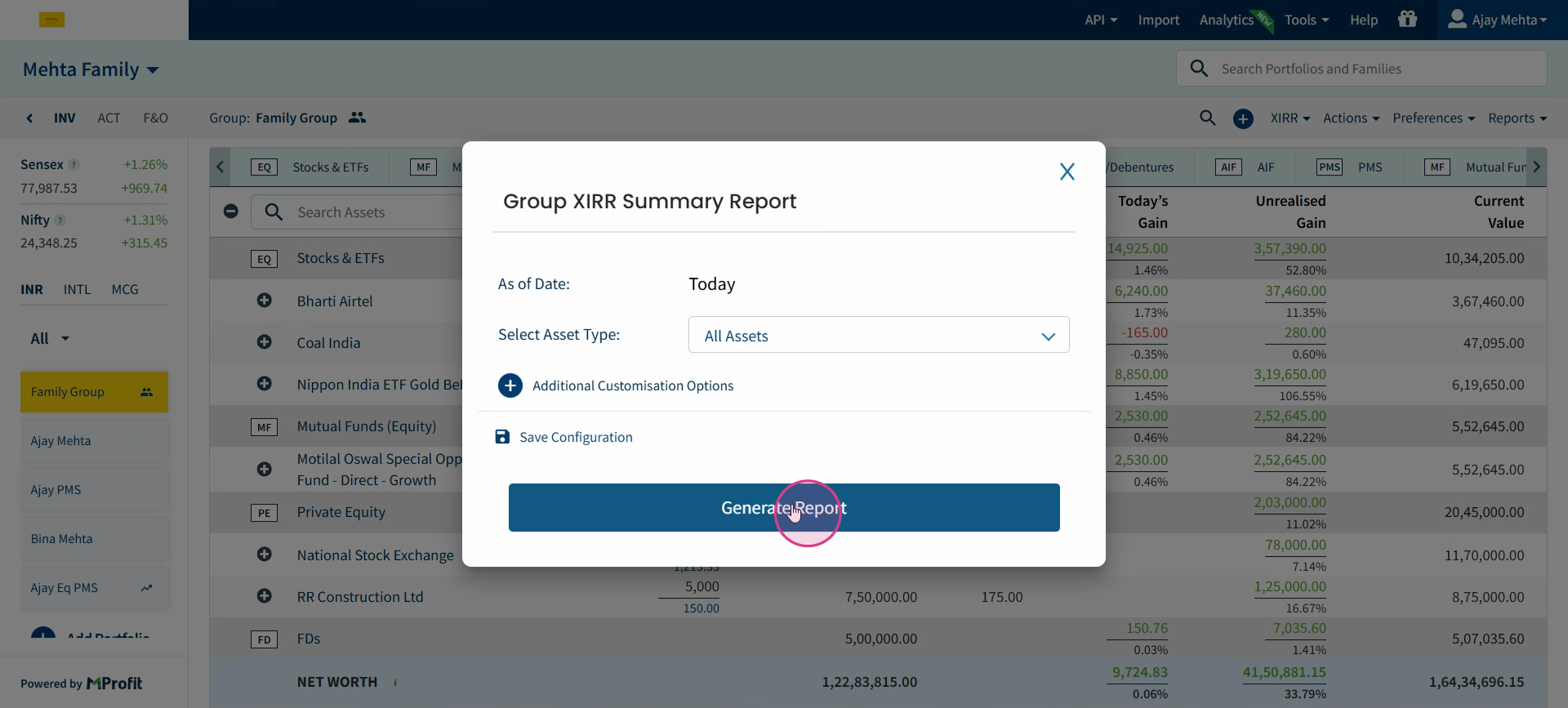
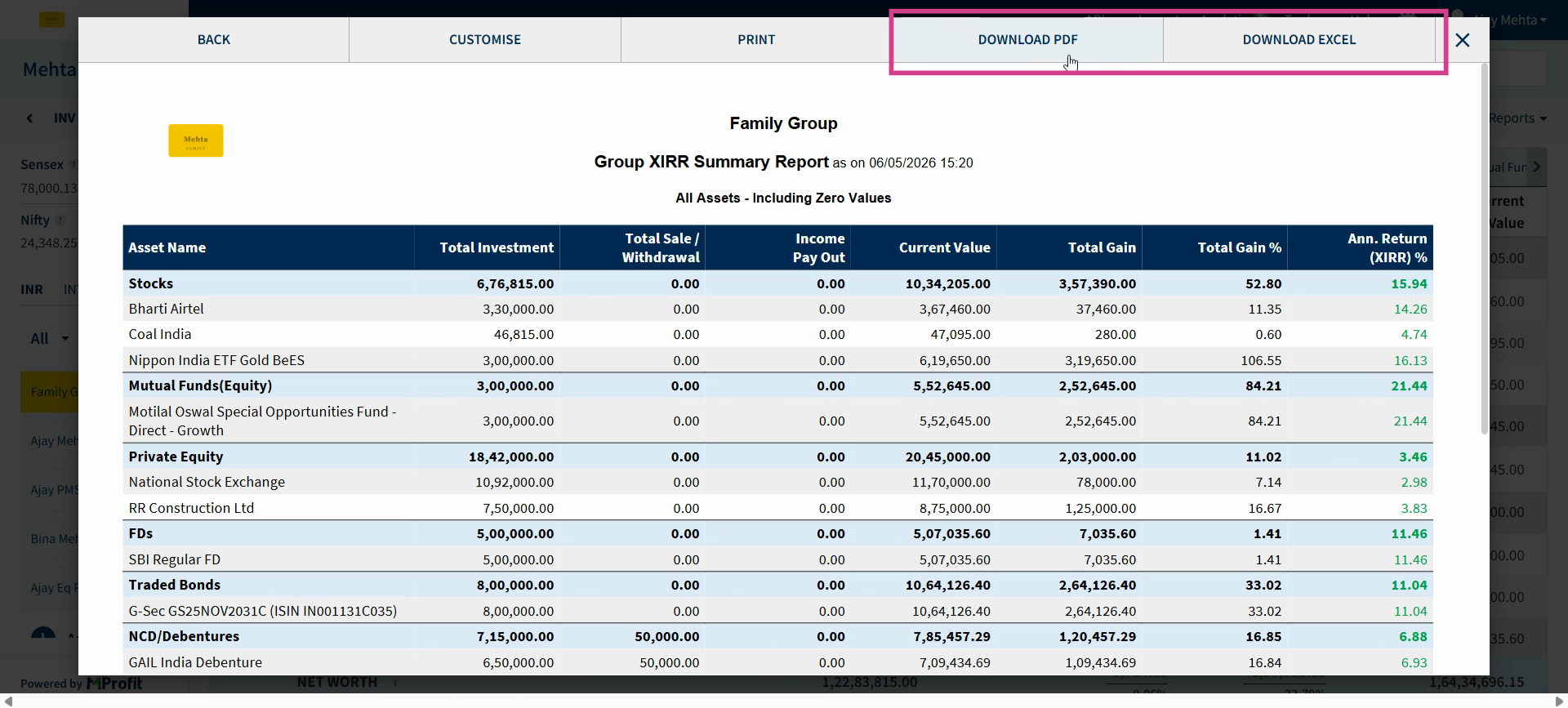
Step 3: The PDF and Excel versions of your report will feature your uploaded logo, such as the Mehta Family logo in this example.
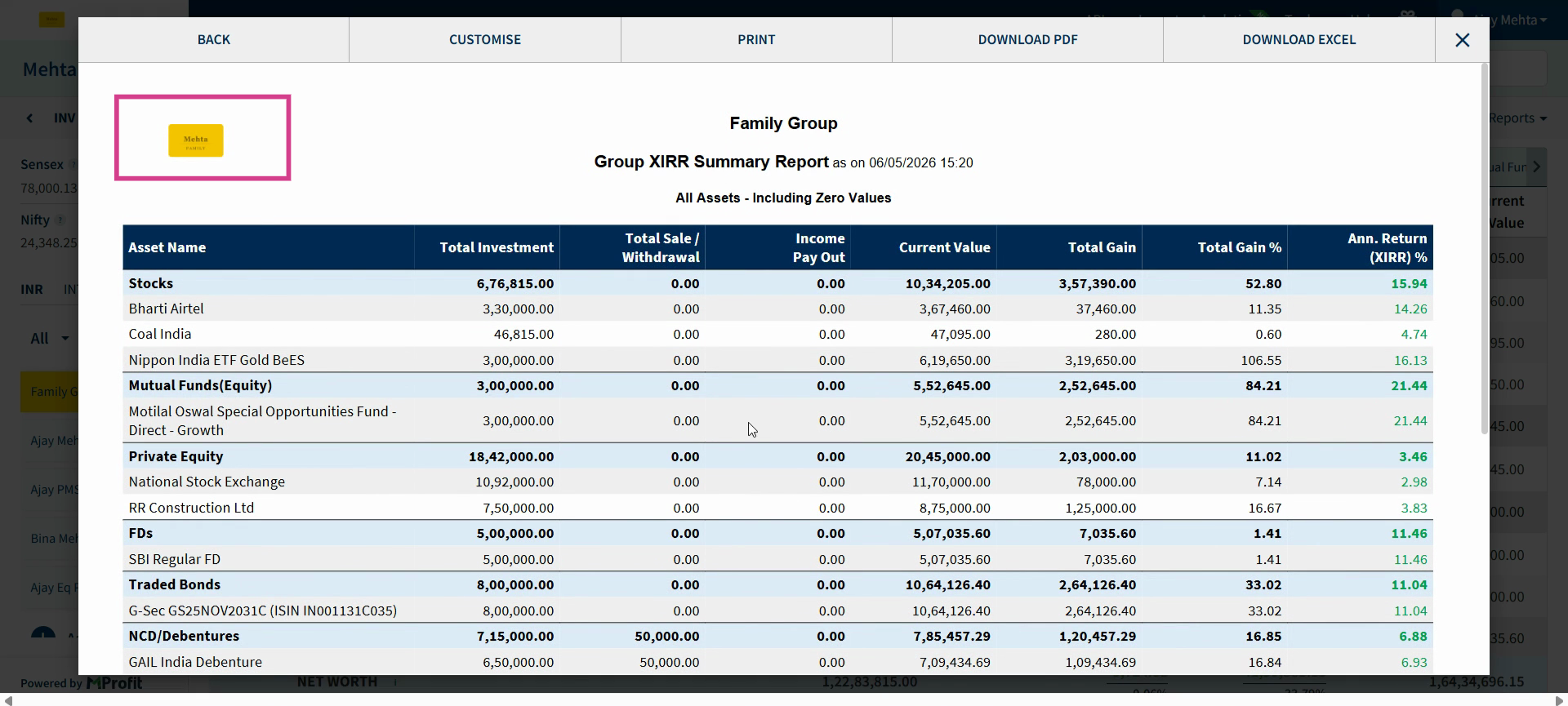
Step 4: Click Download PDF / Download Excel to obtain the report files with your logo.
Branded logos in your reports help deliver a unique and professional look in both Analytics Web and Classic view downloads. Try adding your logo to make your reports stand out!
Was this article helpful?
That’s Great!
Thank you for your feedback
Sorry! We couldn't be helpful
Thank you for your feedback
Feedback sent
We appreciate your effort and will try to fix the article