Easily import your SIF data into MProfit using the MF CAS API. This quick guide walks you through each step, so you can sync your data smoothly and securely.
Step 1: Go to the API section in your MProfit Cloud account.
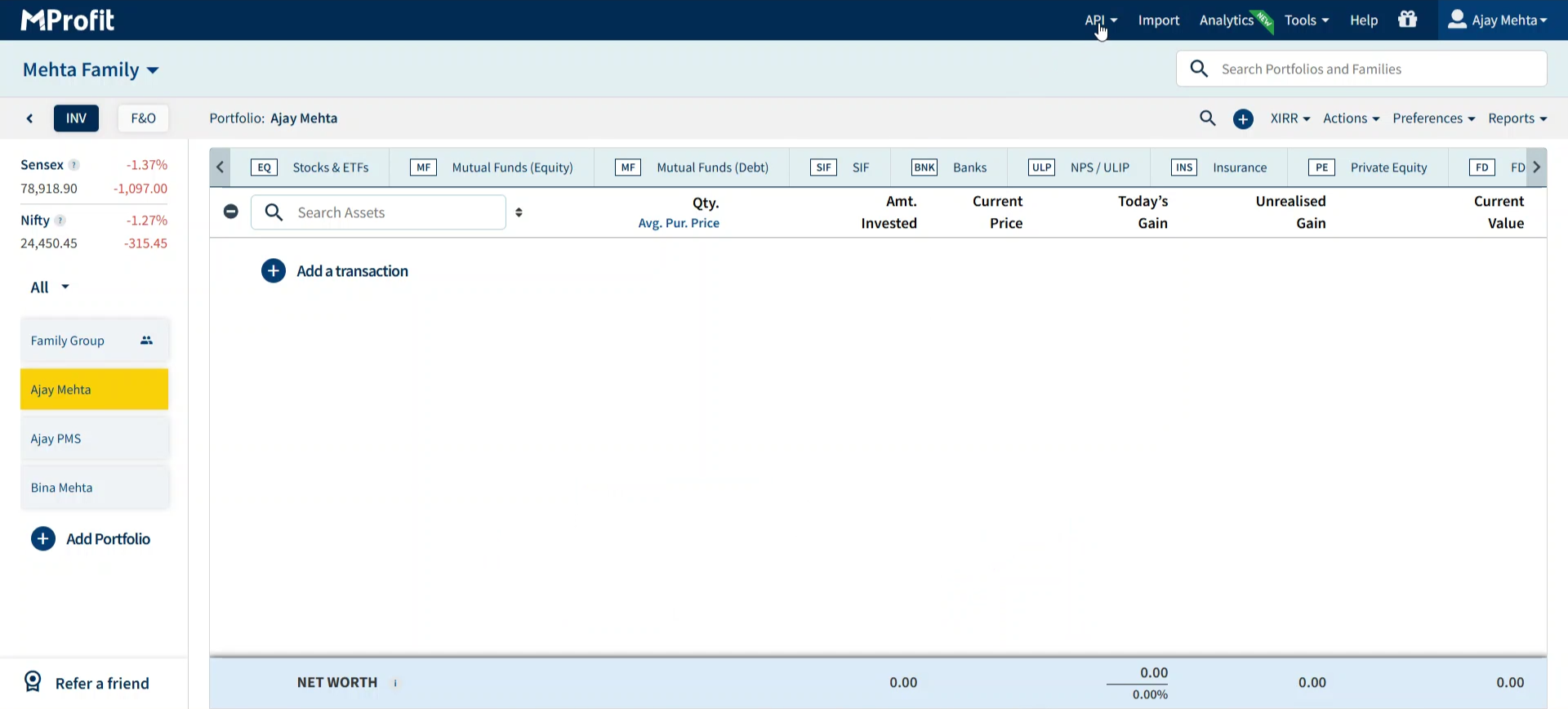
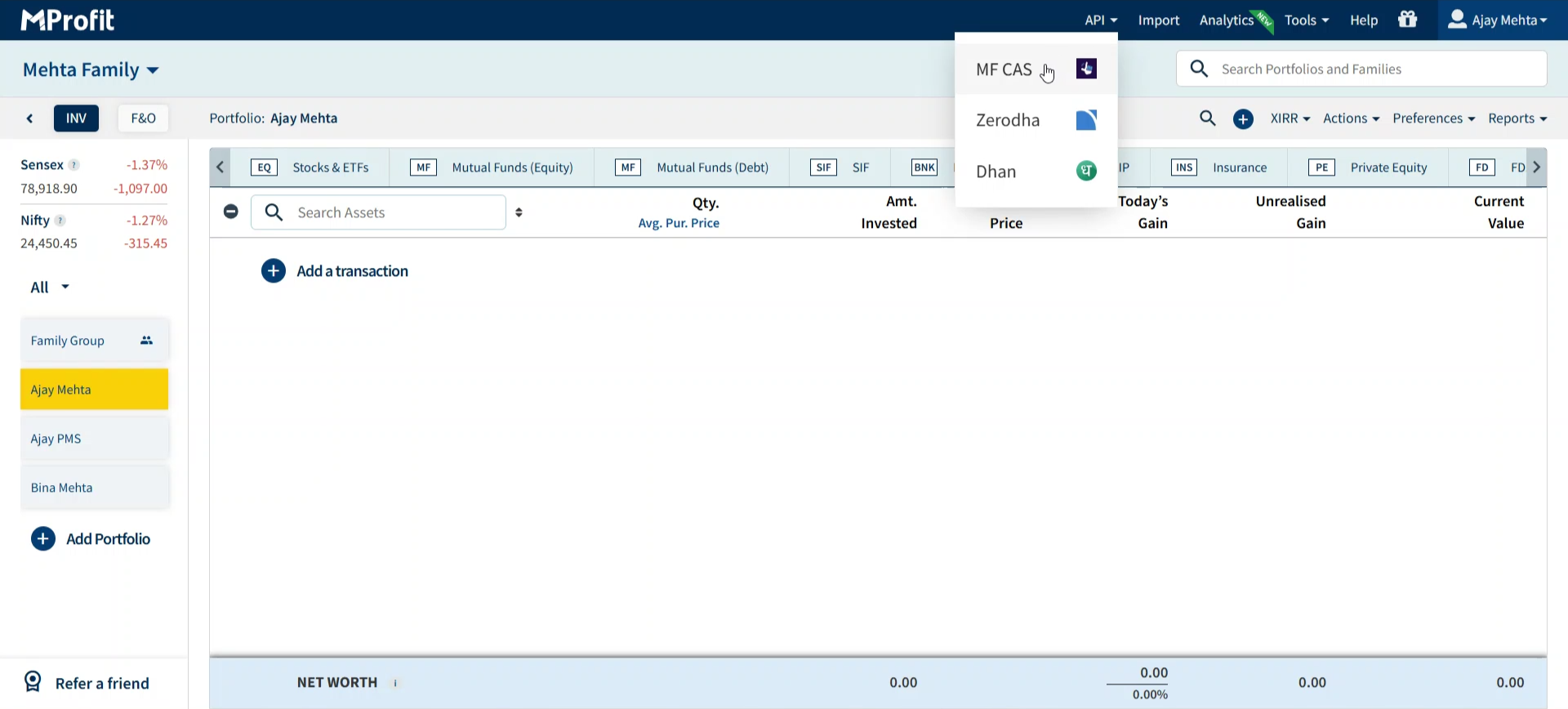
Step 2: Choose MFCas from the dropdown menu.
Step 3: Fill in your PAN number. Select whether you want to receive the OTP by mobile or email, then enter your chosen mobile number or email address. Pick the time period for your MF CAS data, add a nickname if you like, and press Continue. You'll be redirected to the MFCAS API page.
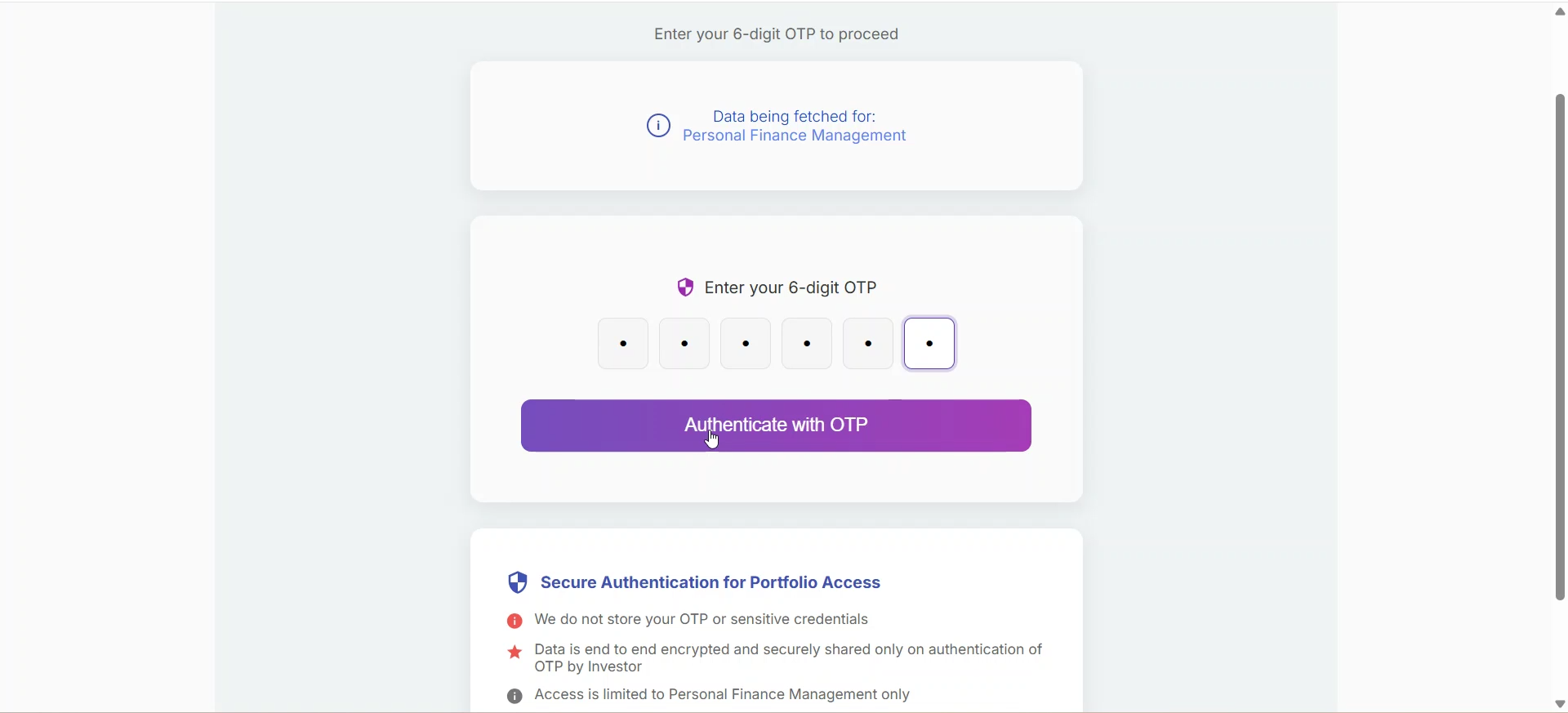
Step 4: Enter the OTP sent to your mobile or email, then click Authenticate OTP.
Step 5: Choose the type of data to share. The default is Regular plus Direct Investments.
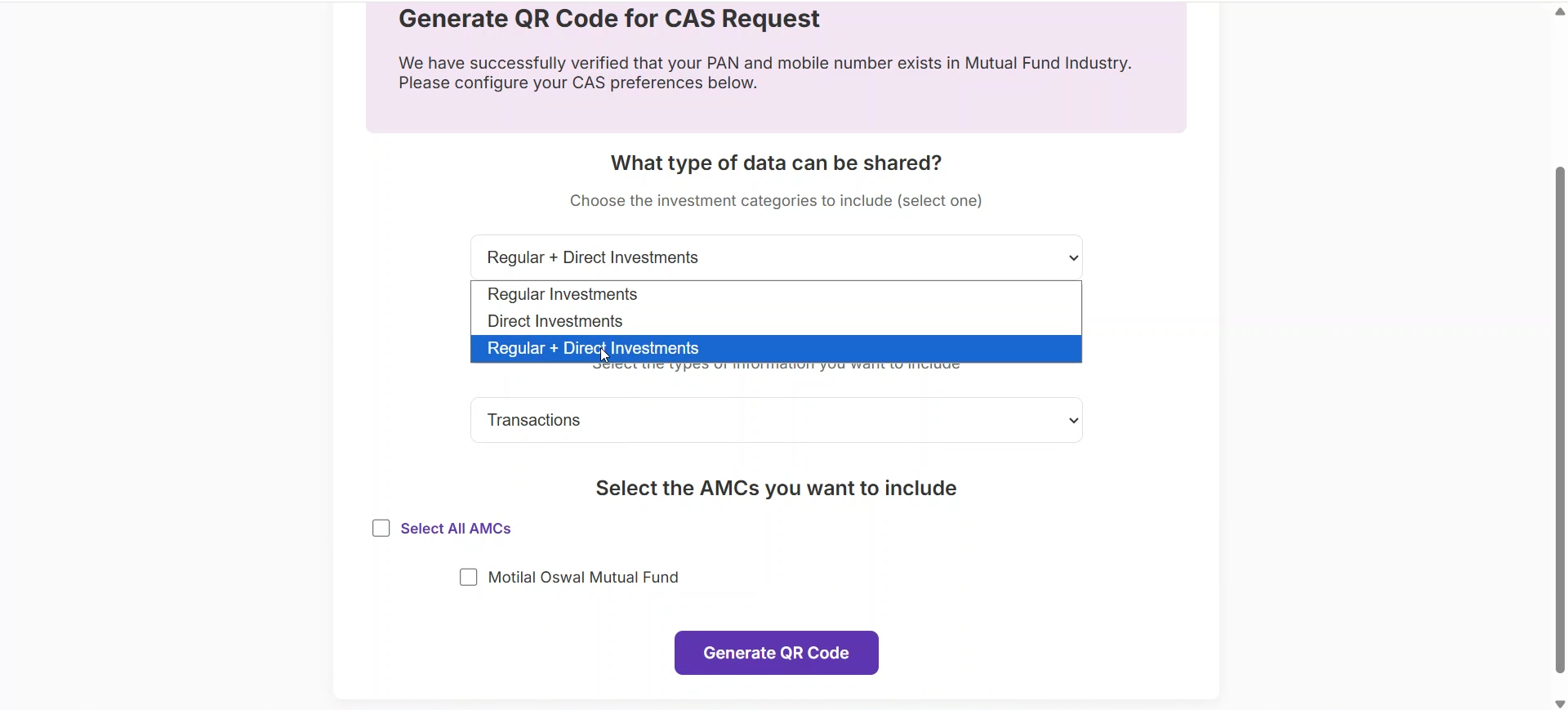
Step 6: Keep transactions as the extent of data, and select the AMCs you want to include (All AMCs is selected by default).
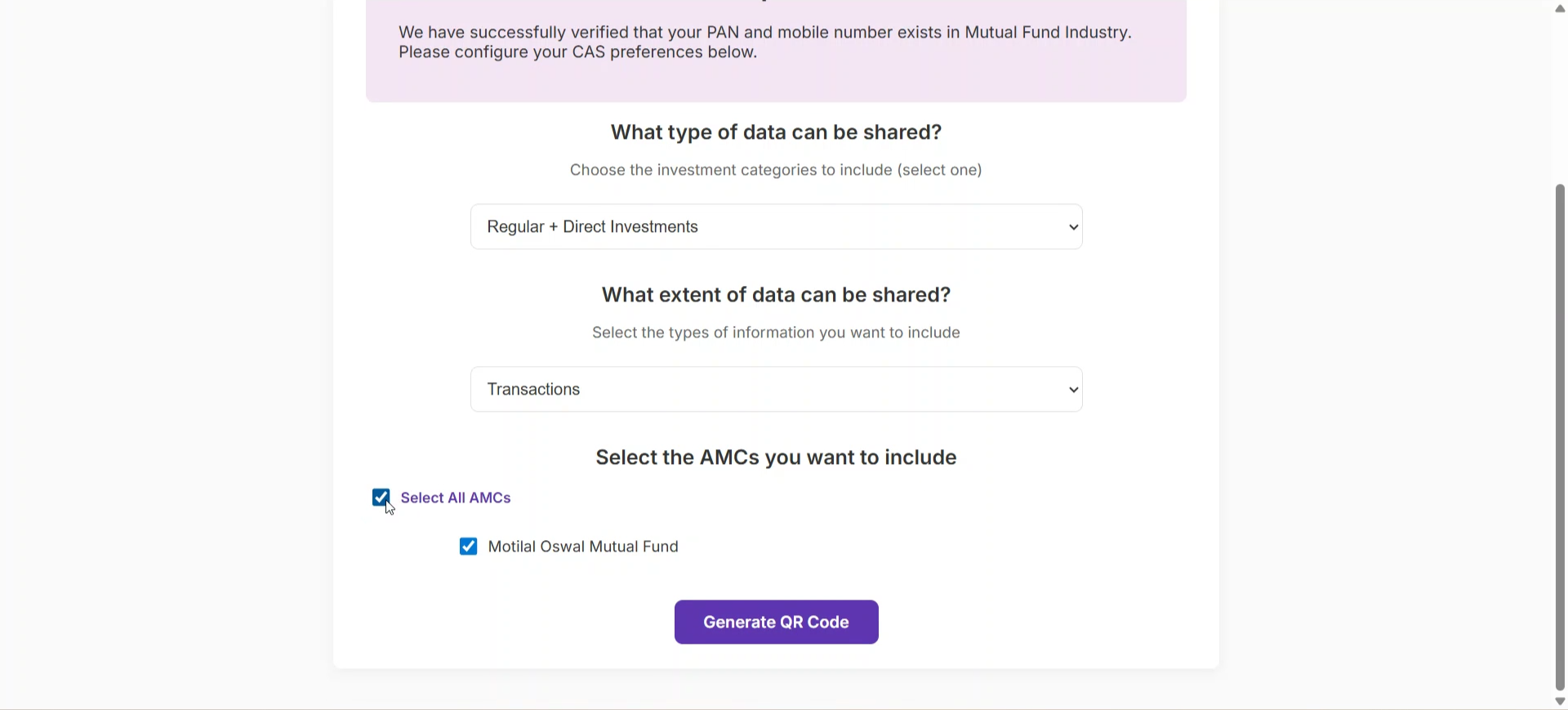
Step 7: Click Generate QR Code to create your secure QR.
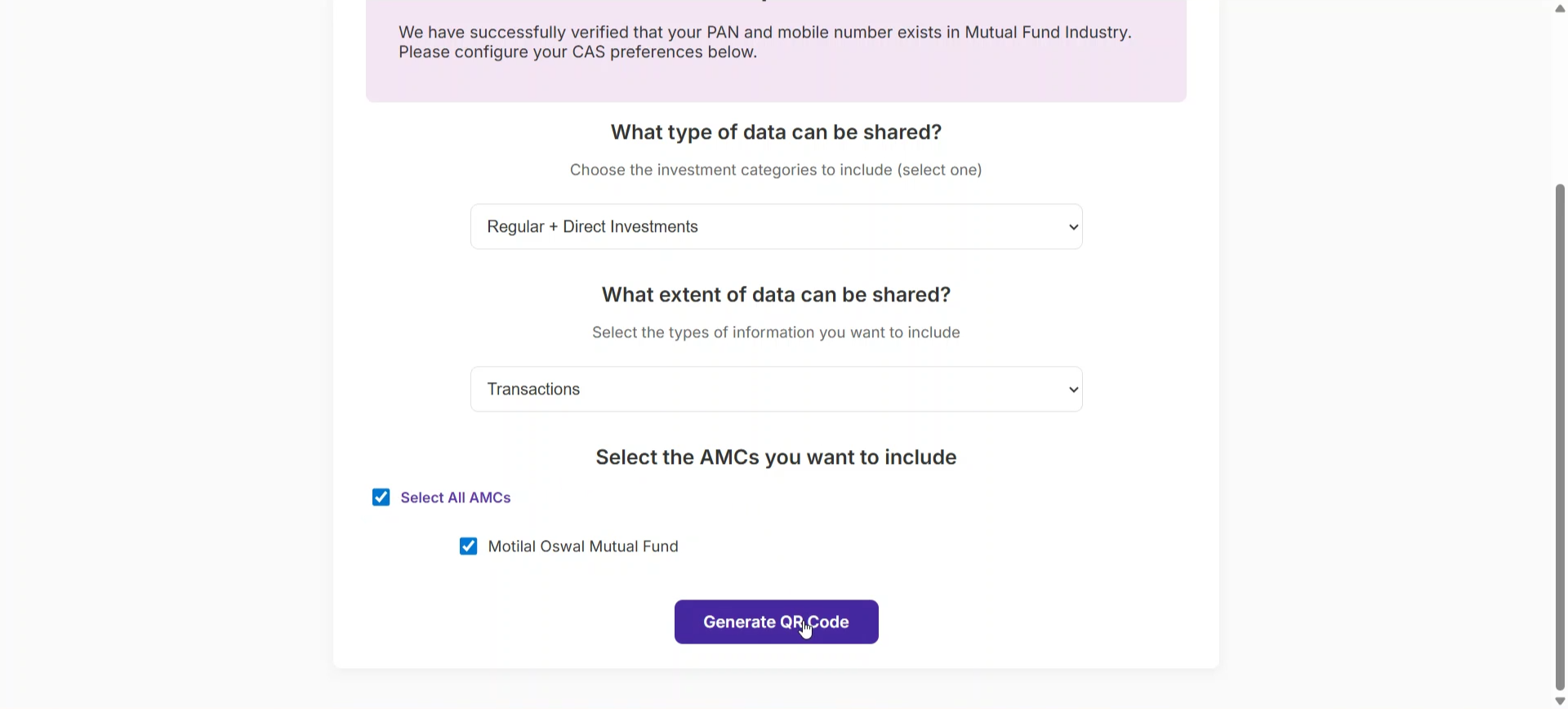
Step 8: Copy the QR code using Copy QR Code, then click Continue.
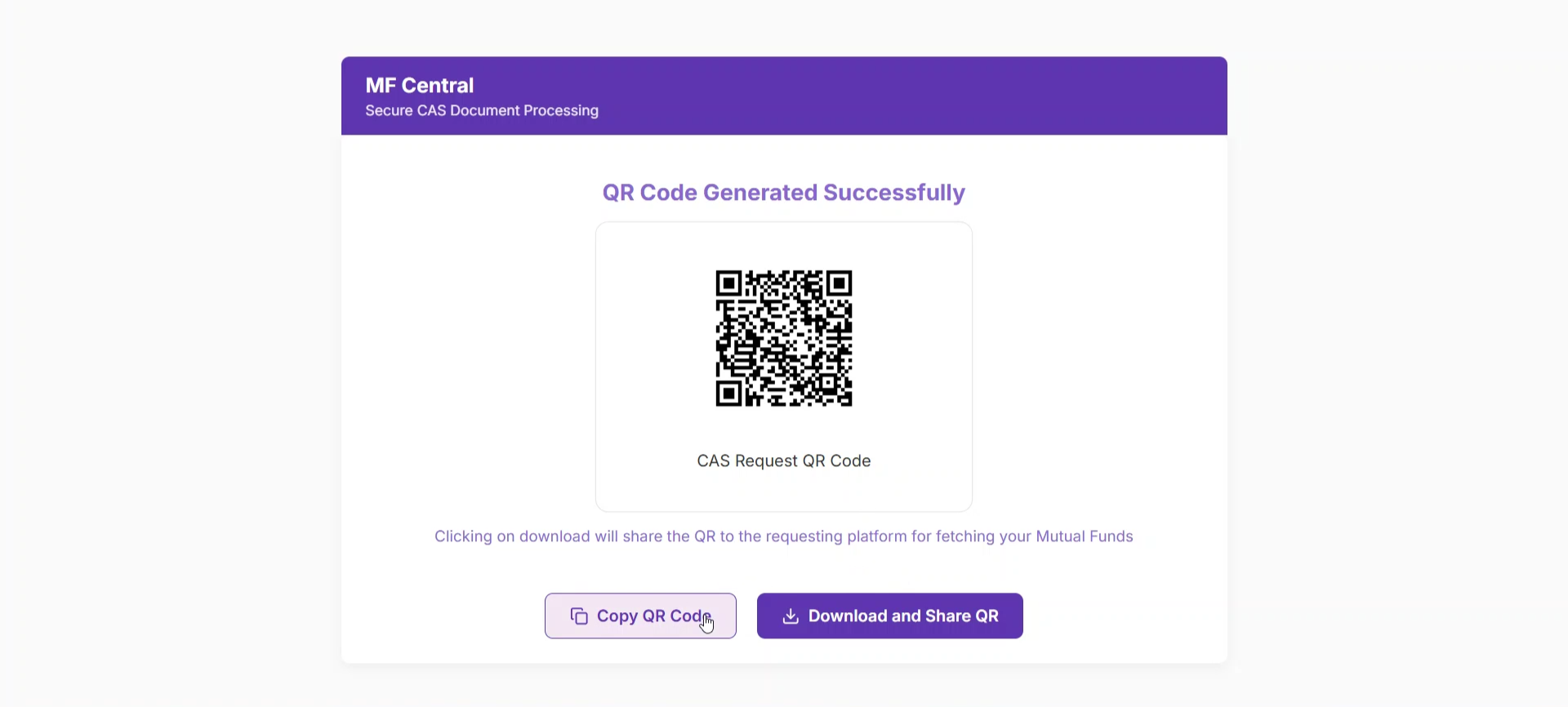
Step 9: Paste the QR code on the next screen (press Ctrl + V), then hit Sync Now.
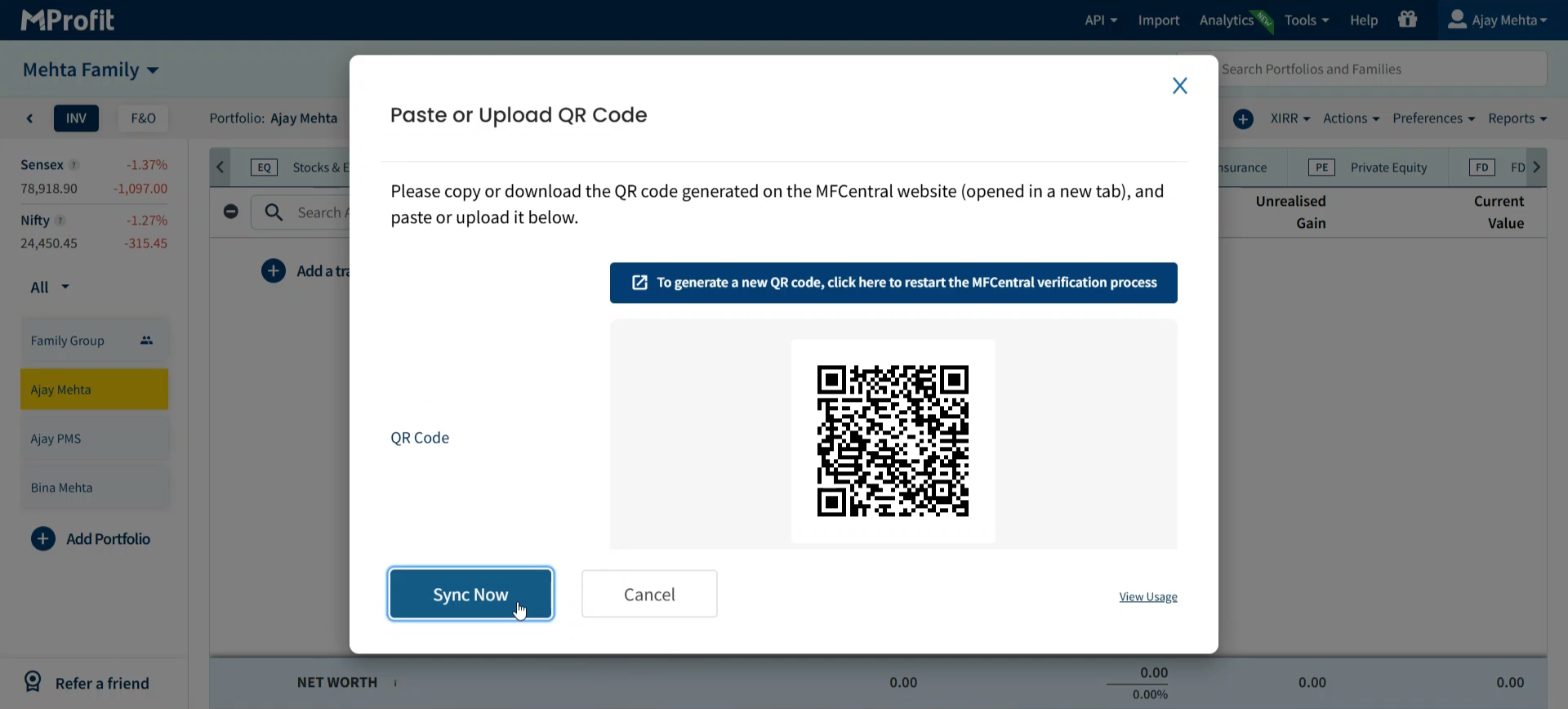
MProfit will sync your SIF data through the MF CAS API. Once finished, check your data using View Imported Data. That’s it!
Your SIF data is now in your MProfit portfolio, ready for review and management.
Was this article helpful?
That’s Great!
Thank you for your feedback
Sorry! We couldn't be helpful
Thank you for your feedback
Feedback sent
We appreciate your effort and will try to fix the article