Managing your REITs and InvITs is simple with MProfit’s Auto Corporate Actions. Automatically update your holdings with all necessary actions, saving time and reducing errors.
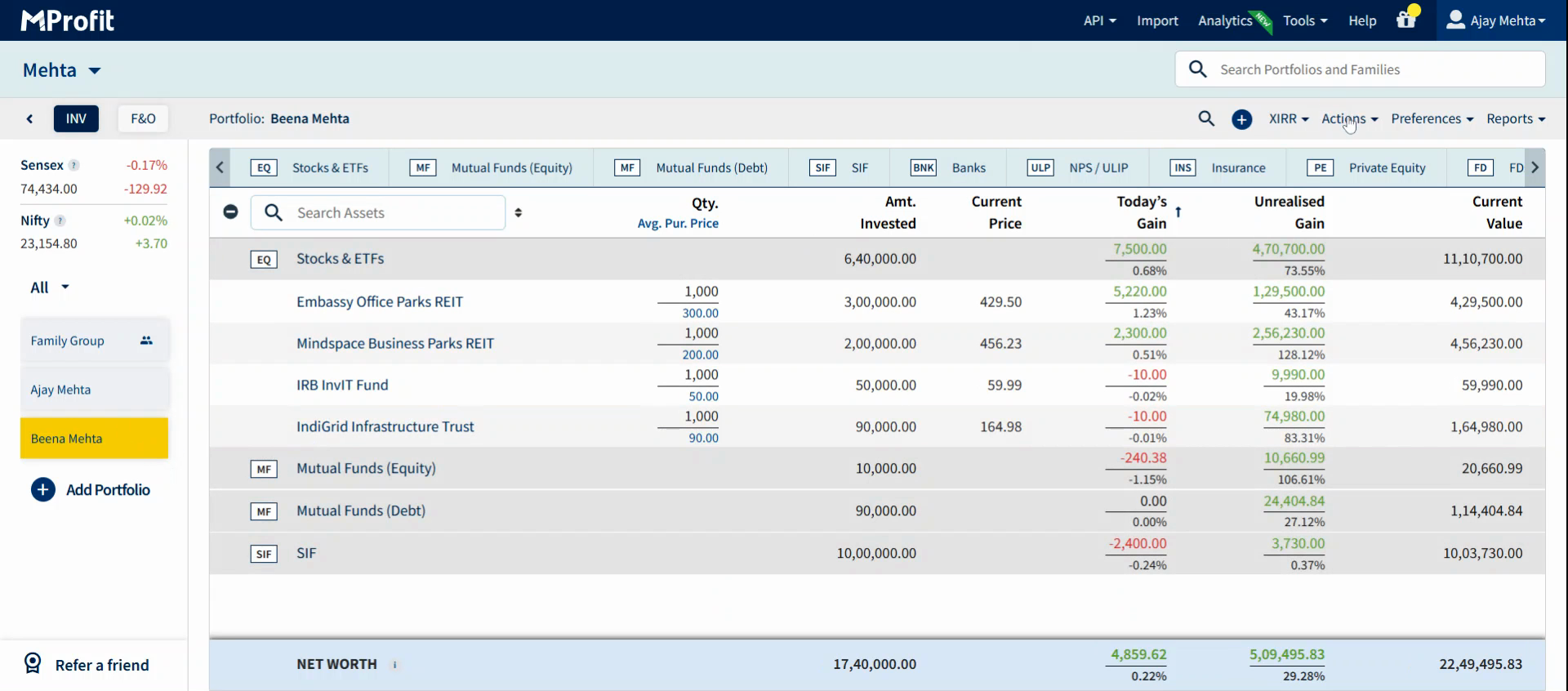
Step 1: Log in to your MProfit Cloud account and open the portfolio that holds your REITs or InvITs.
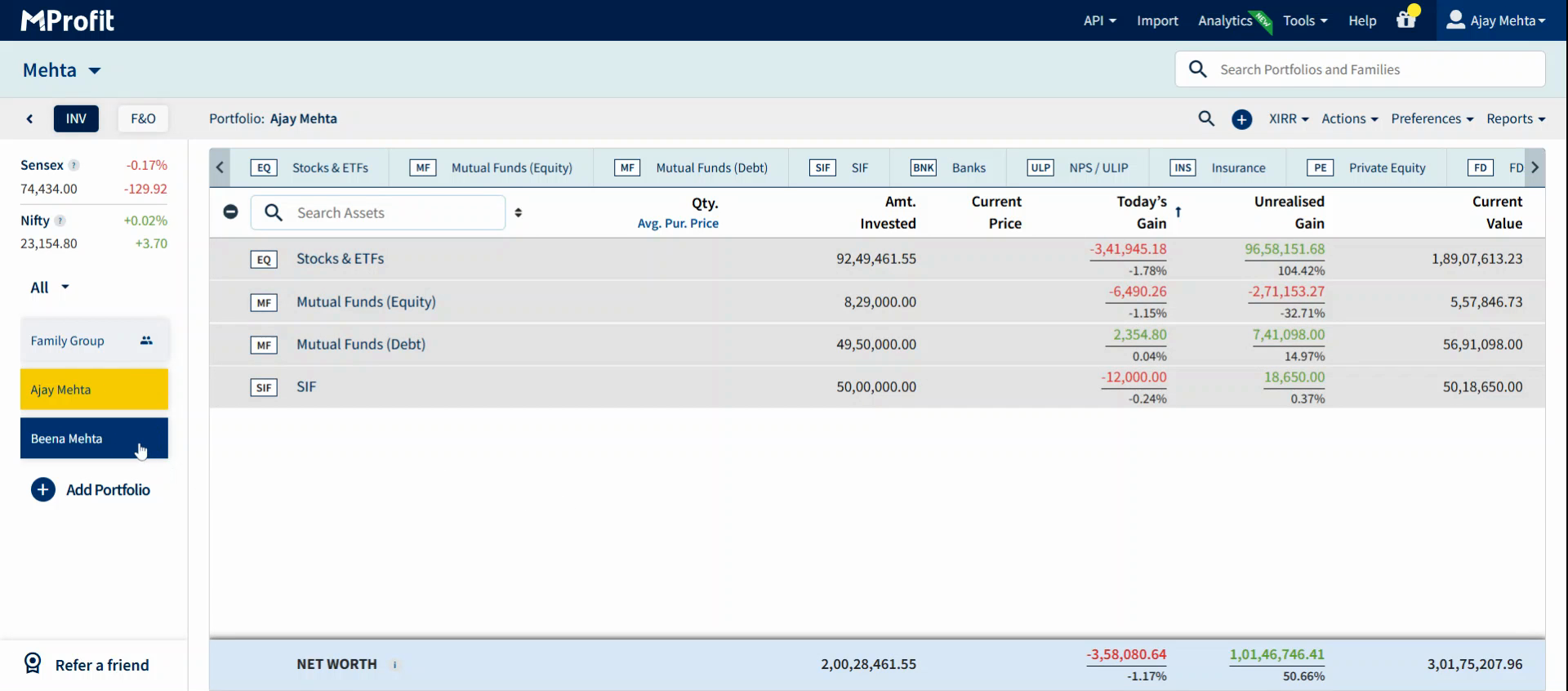
Step 2: Select the Actions tab in the top toolbar.
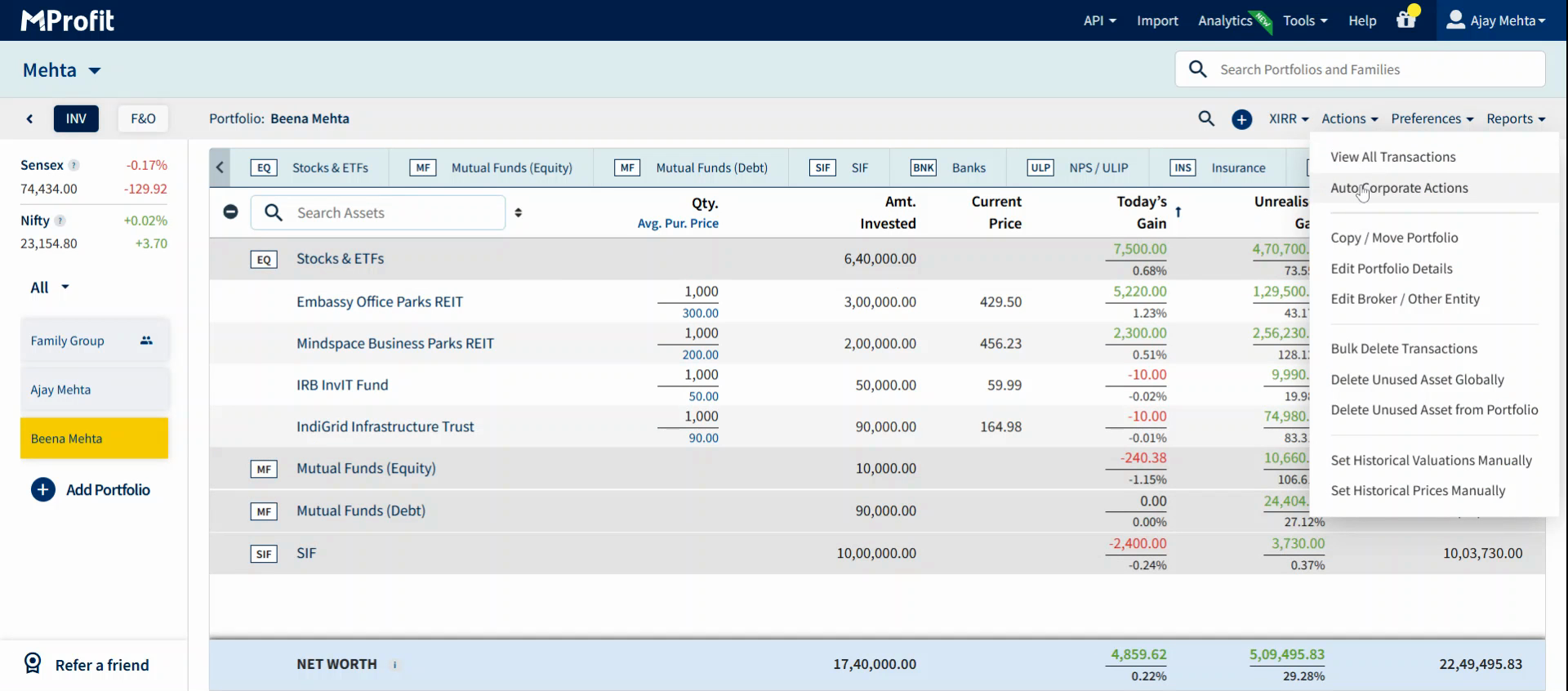
Step 3: Pick Auto Corporate Actions from the dropdown menu.
Step 4: When the Auto Corporate Actions form opens, choose the scope. Select Current Portfolio if you want to apply actions only to this portfolio.
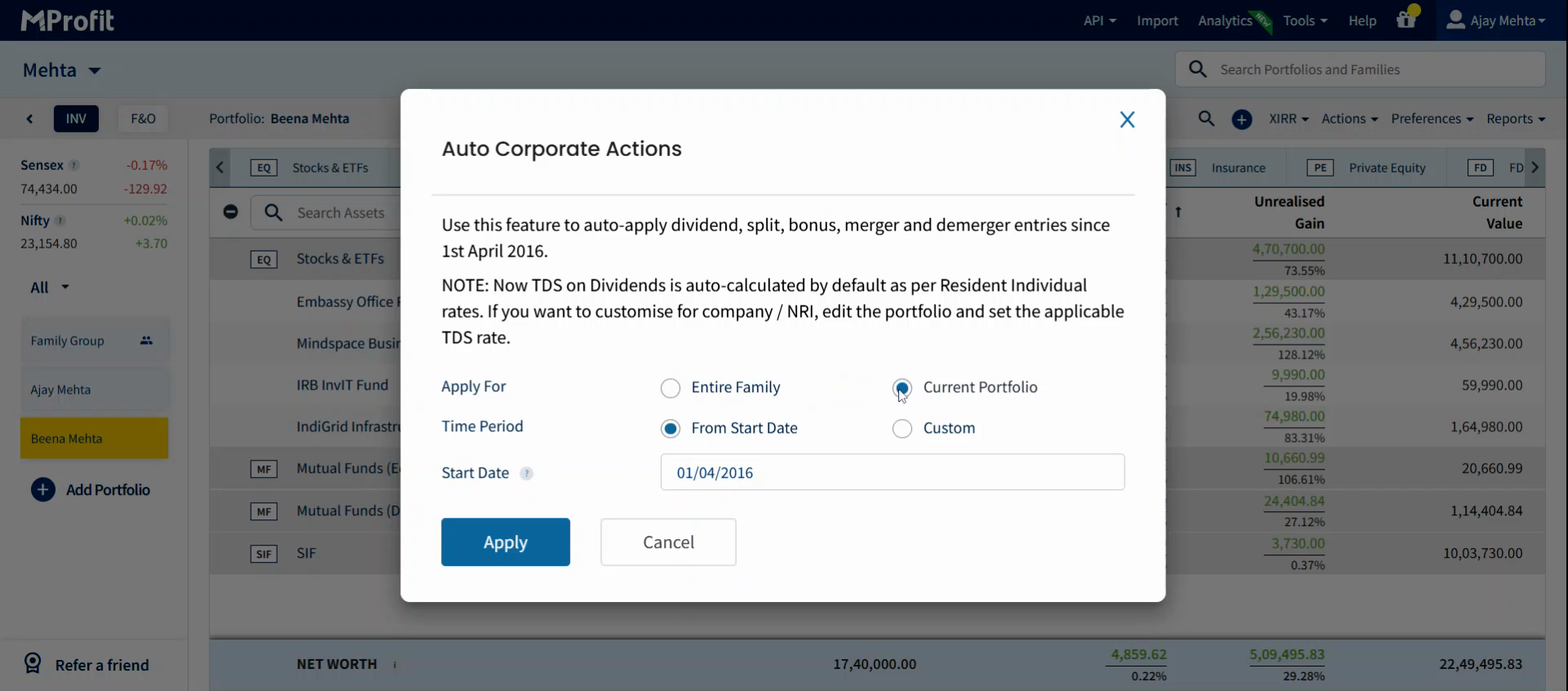
Step 5: Set the period. To process all corporate actions since the account’s beginning, choose From Start Date. You can also pick a custom time period if needed.
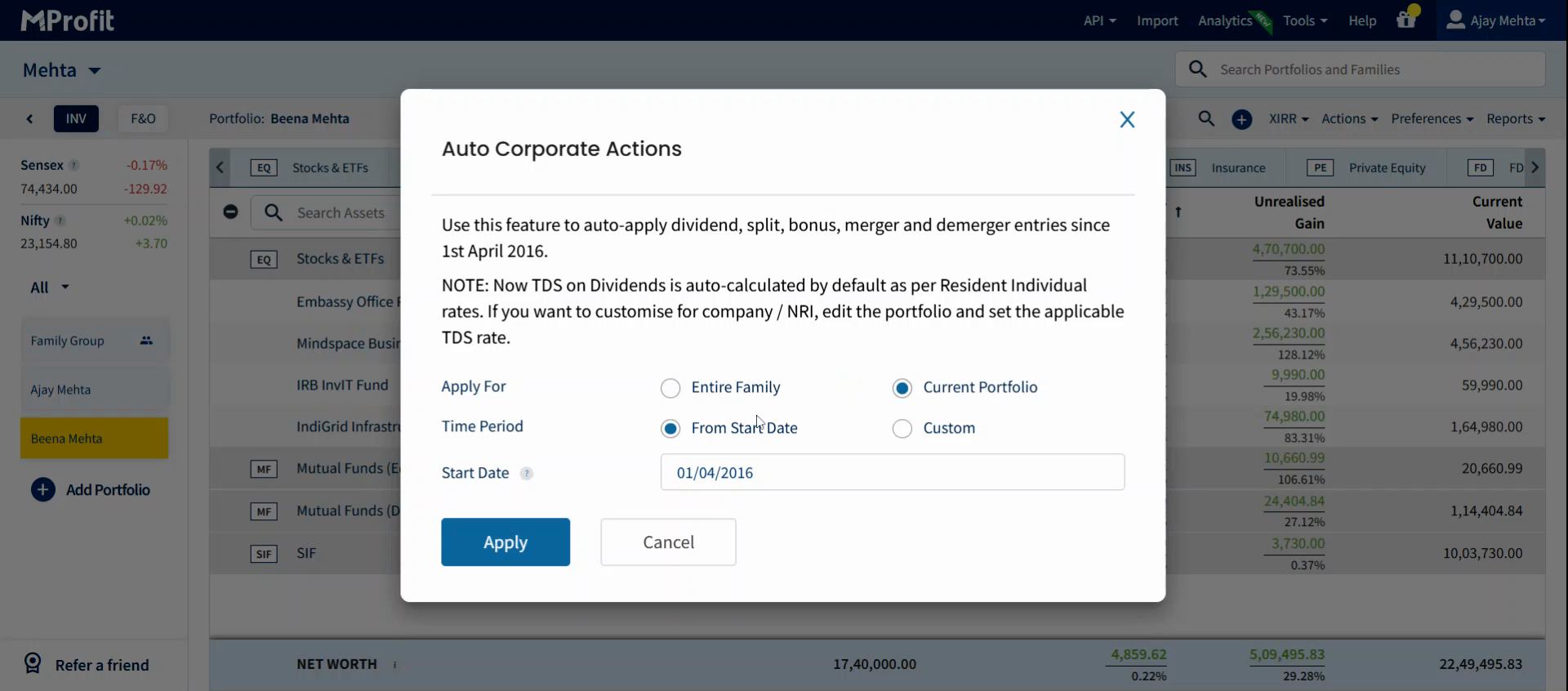
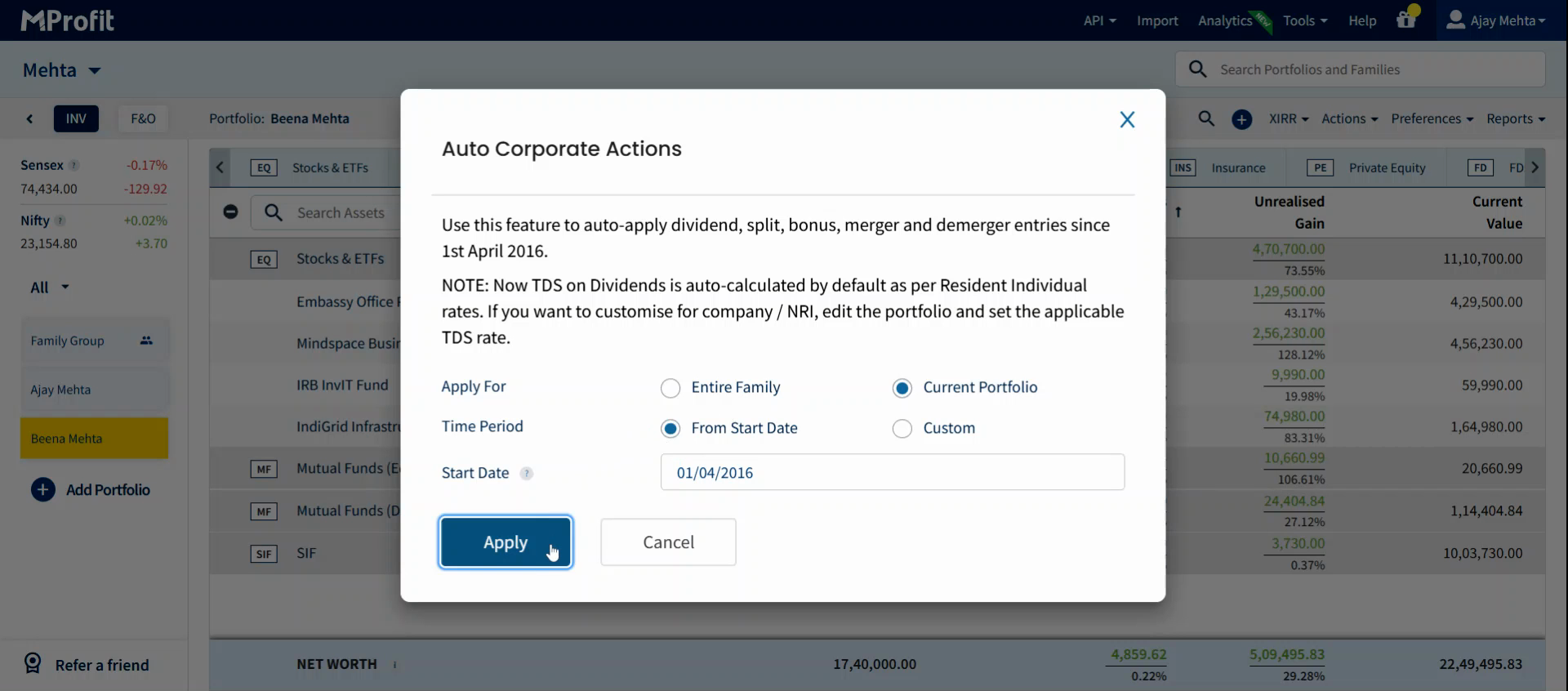
Step 6: Click Apply to start the process.
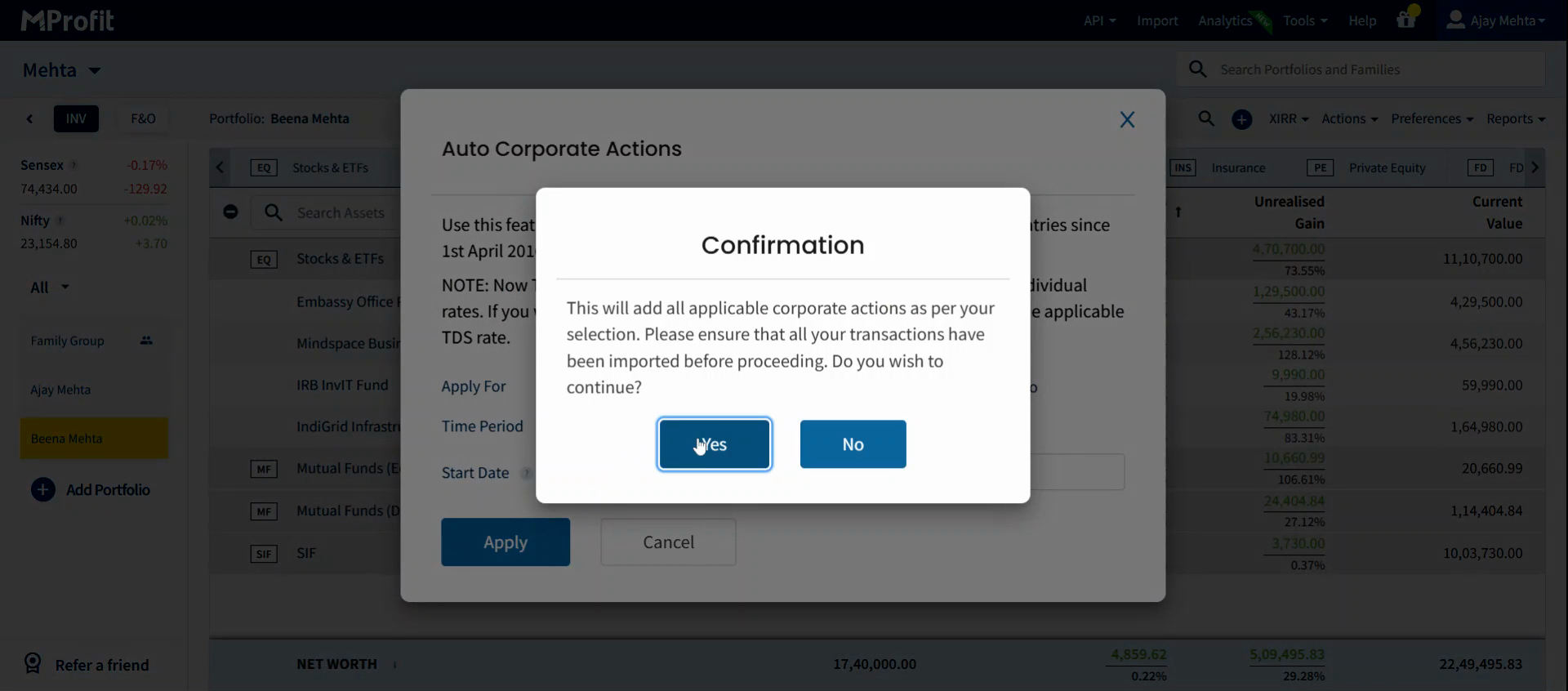
Step 7: When prompted, click Yes to confirm and proceed.
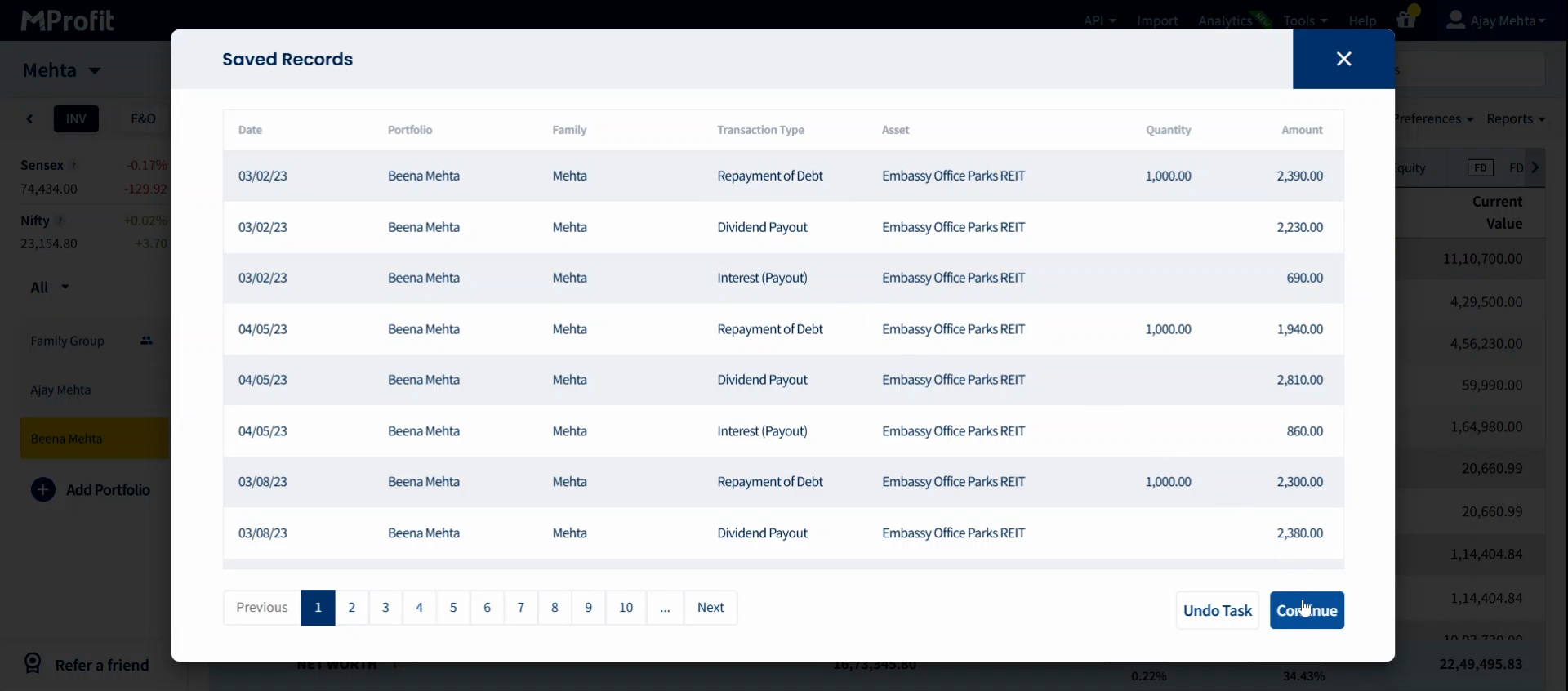
You’ll see a progress bar while actions are applied to your holdings. Once finished, a list displays all corporate actions added to your REIT and InvIT holdings.
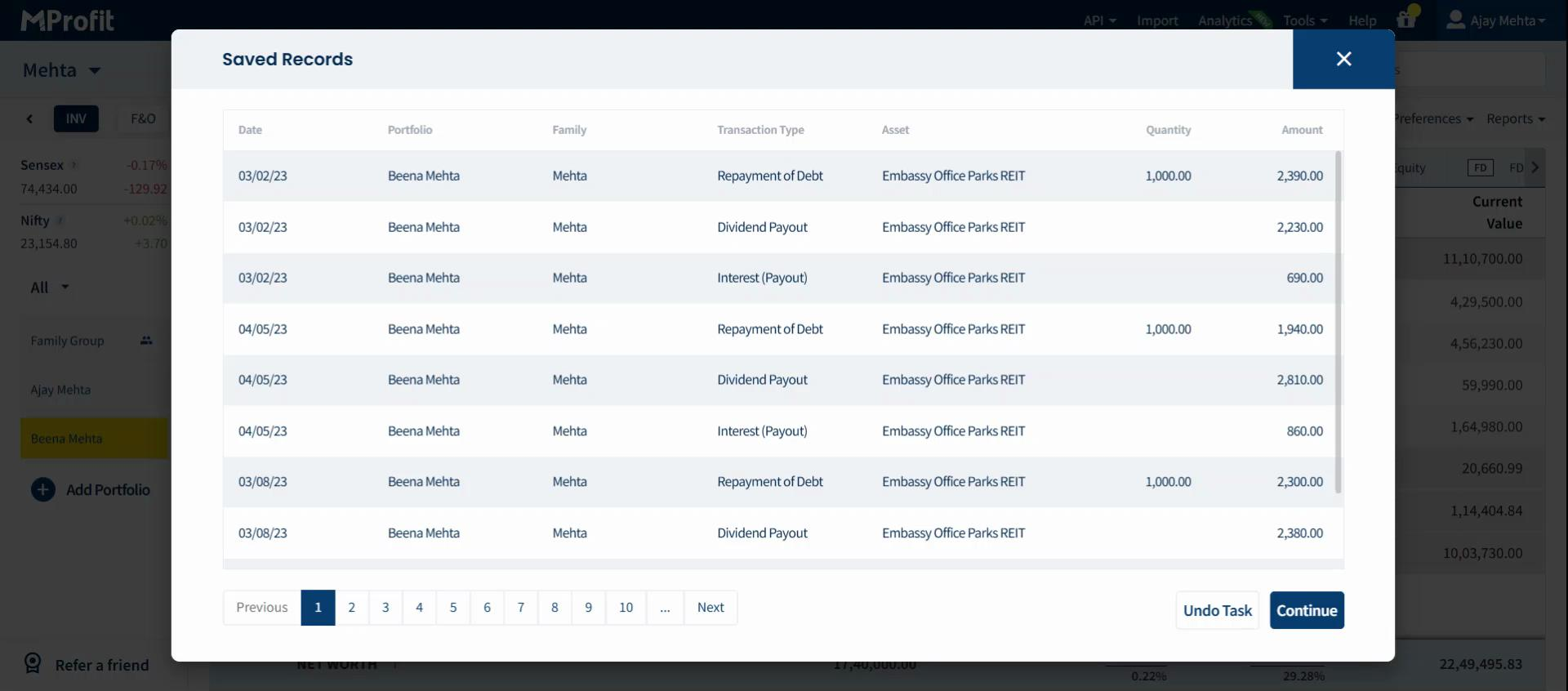
Step 8: Click Continue to move forward.
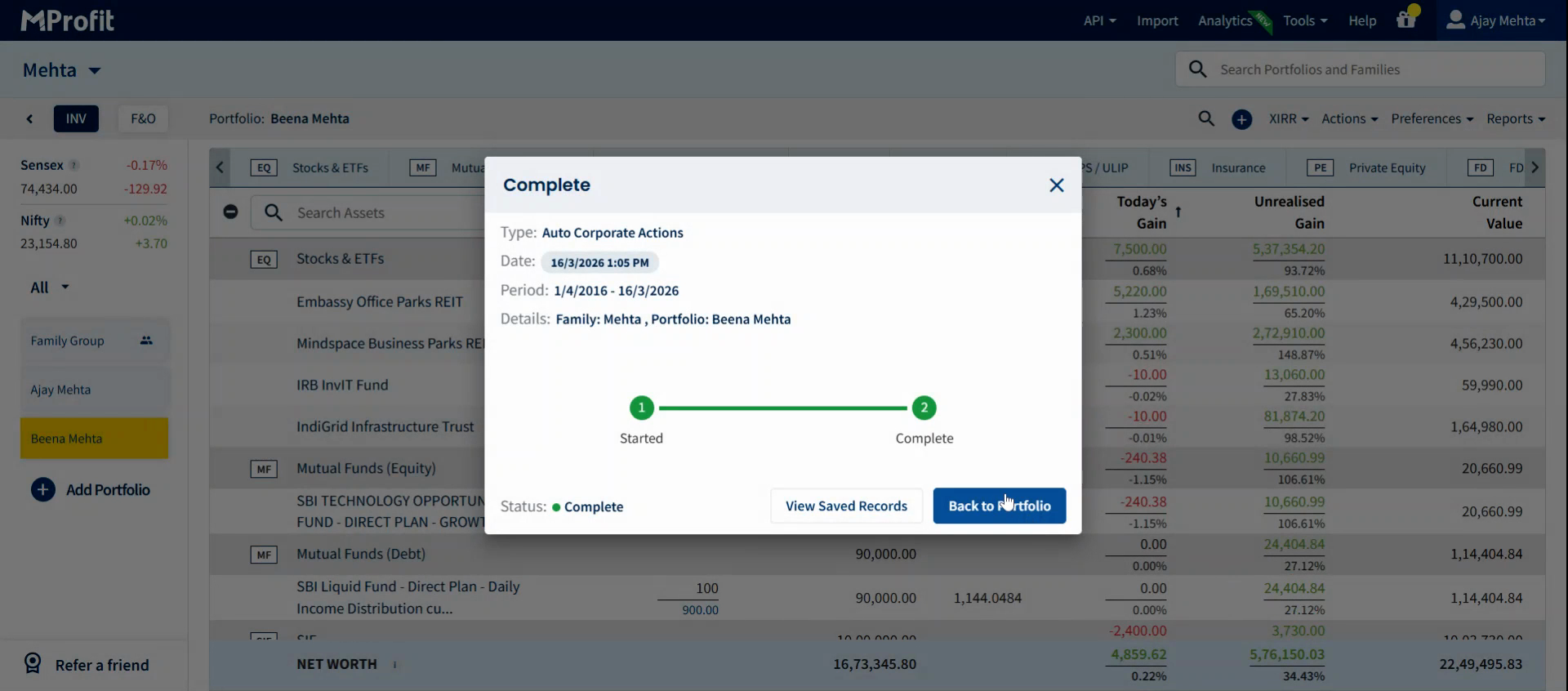
A confirmation displays - your portfolio is now updated with all relevant corporate actions.
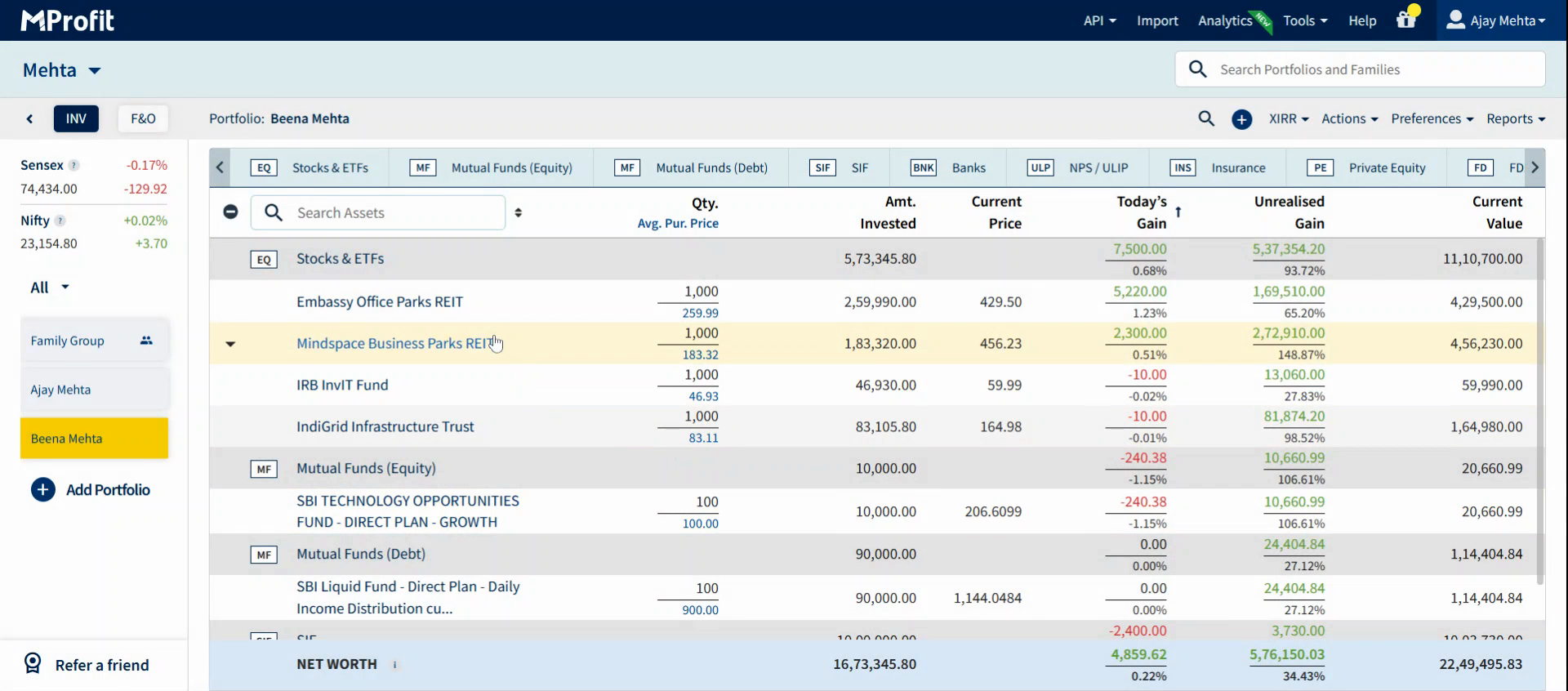
Automating corporate actions for your REITs and InvITs keeps your portfolio accurate and up-to-date with less effort. Try this feature to streamline your portfolio management with MProfit.
Was this article helpful?
That’s Great!
Thank you for your feedback
Sorry! We couldn't be helpful
Thank you for your feedback
Feedback sent
We appreciate your effort and will try to fix the article