This tutorial will guide you on how to generate batch reports for all portfolios in a single zip file using MProfit.
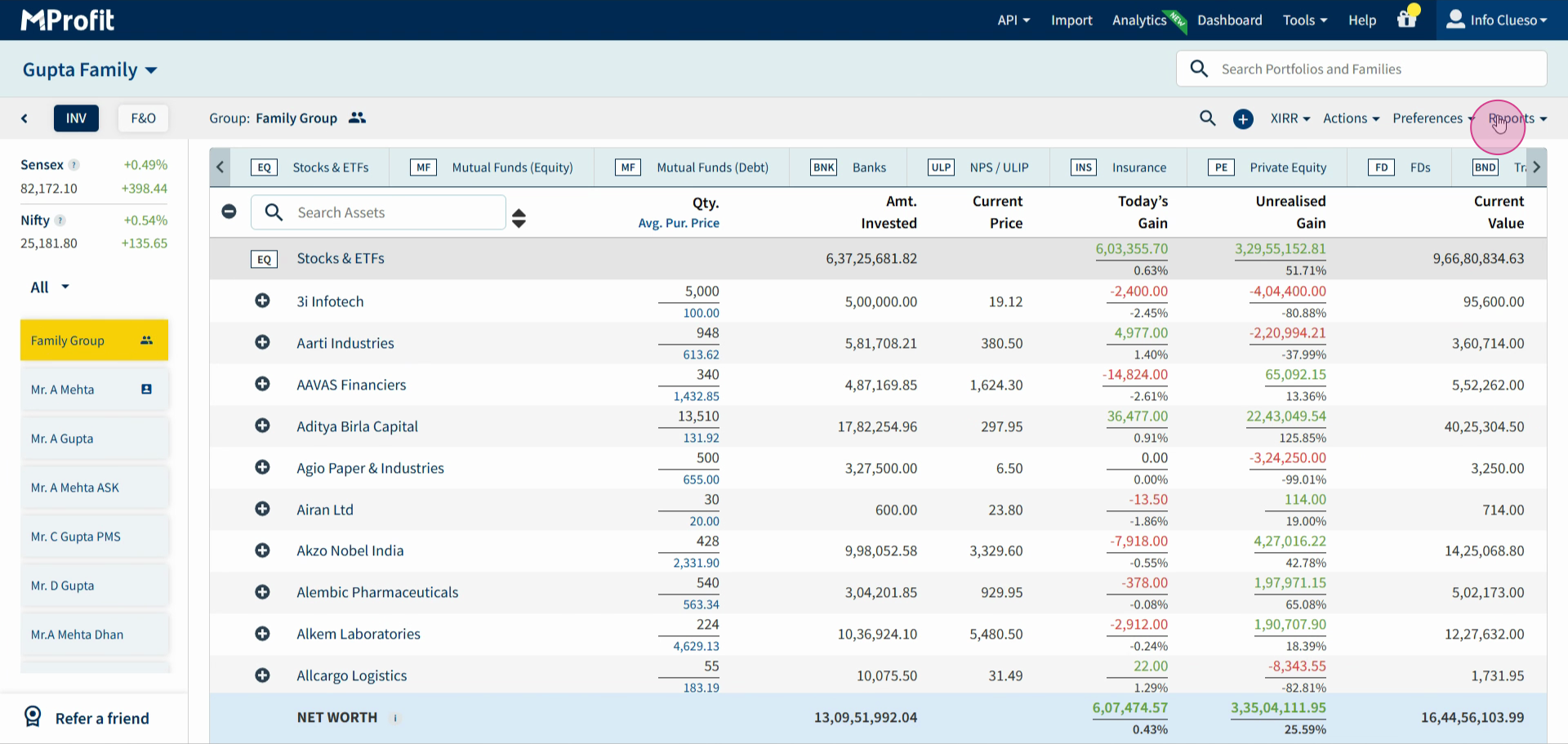
Step 1: Select the family group for which you want to generate the report. Click on the Reports button.
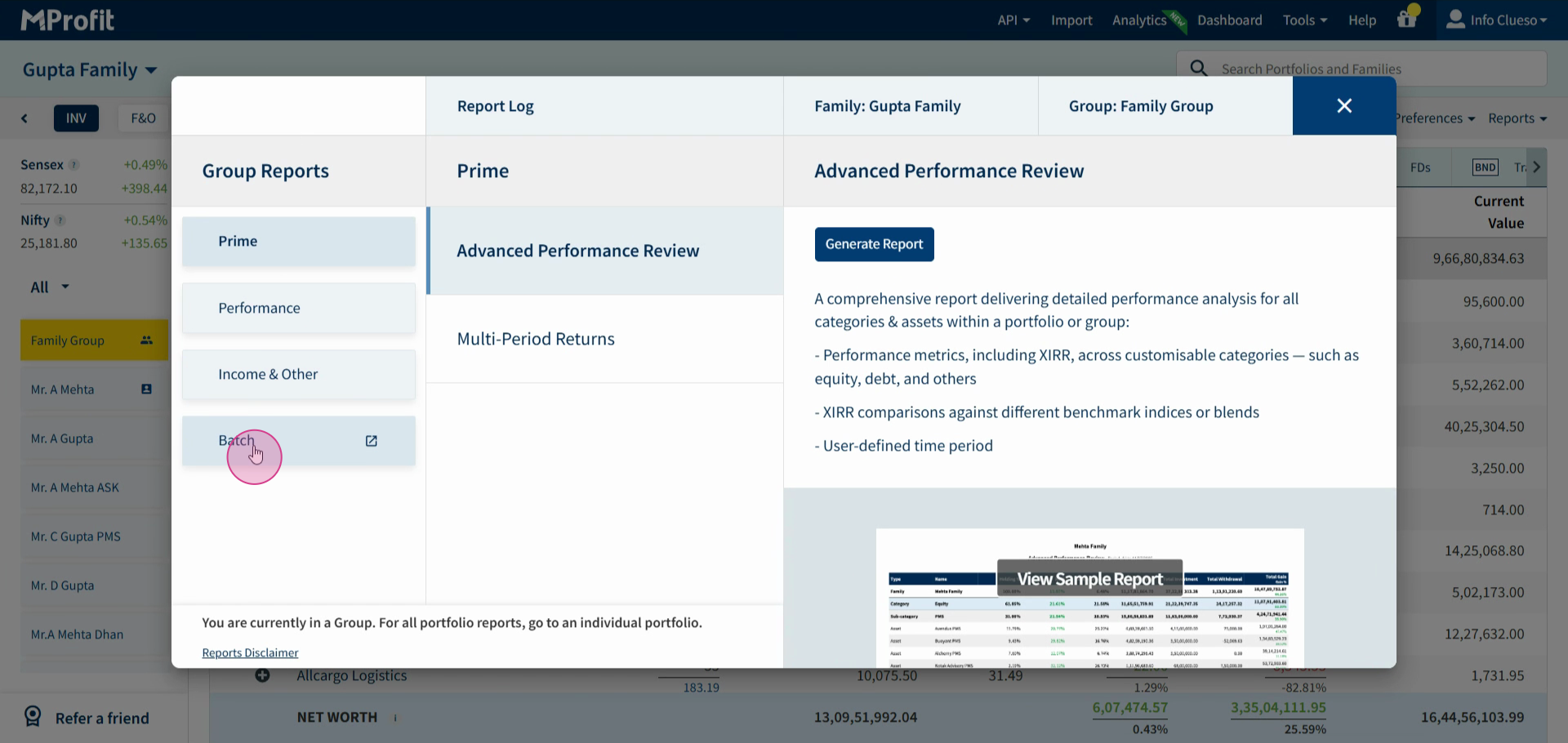
Step 2: Look for the Group Reports option and click on Batch.
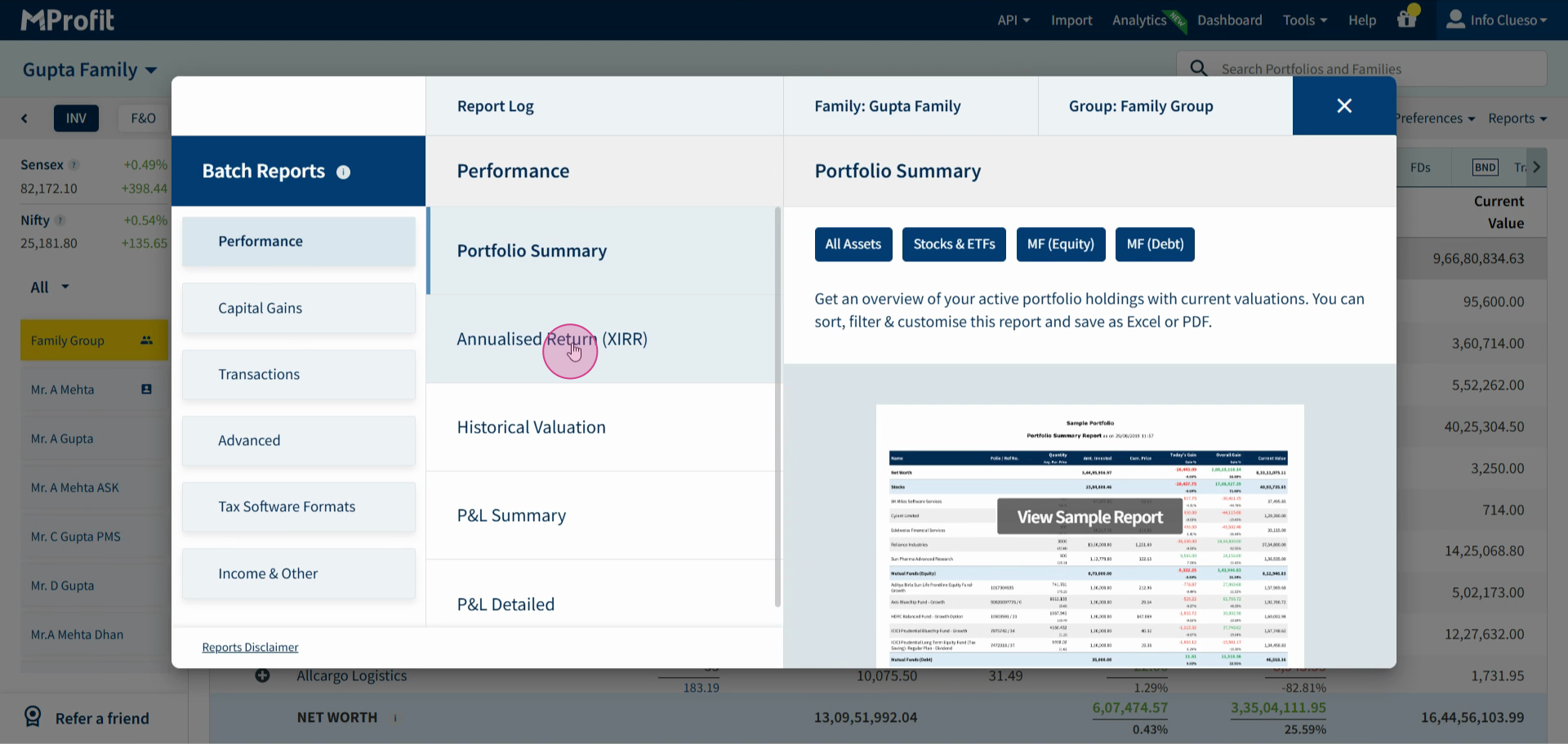
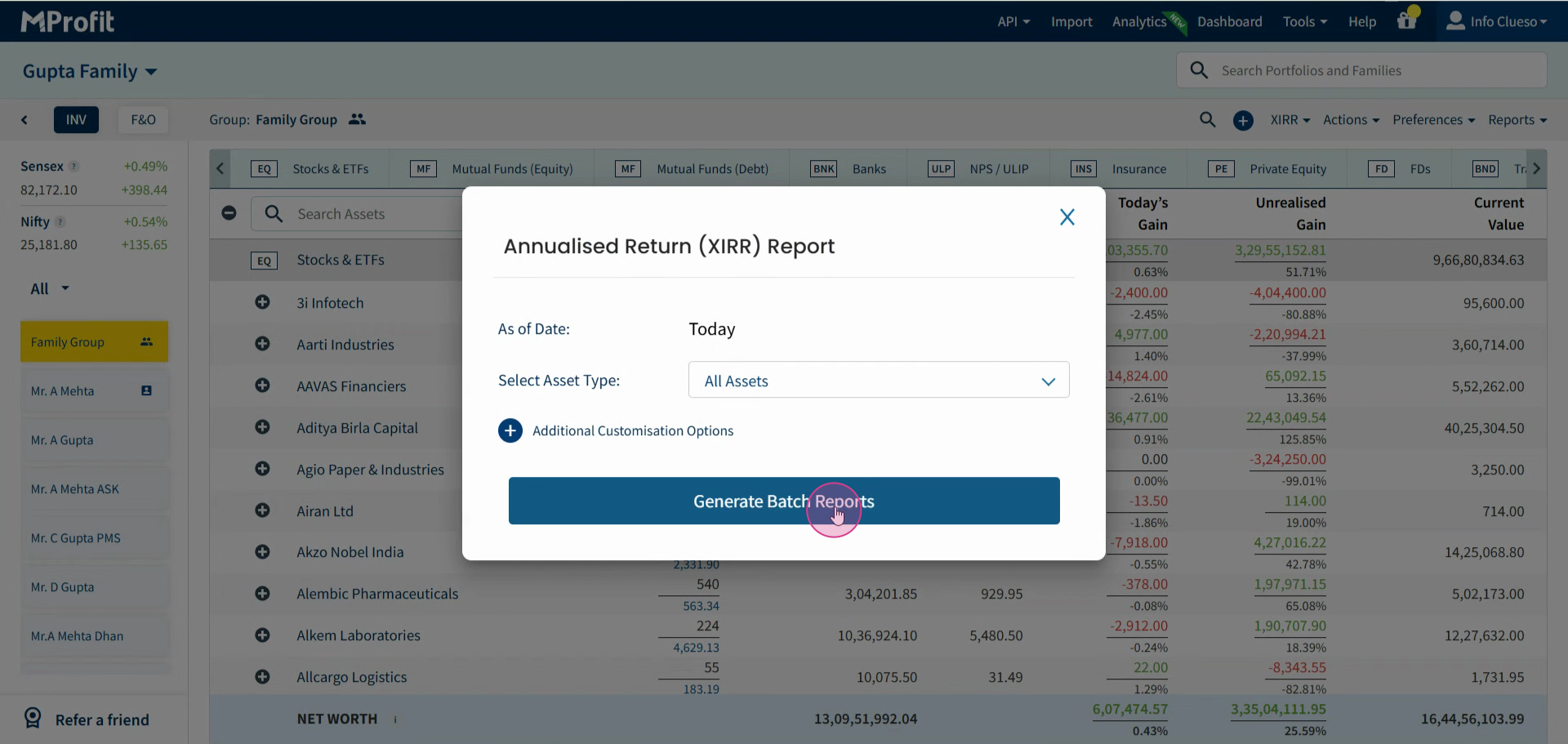
Step 3: Choose the type of report you want to generate. For this tutorial, we're selecting XIRR.
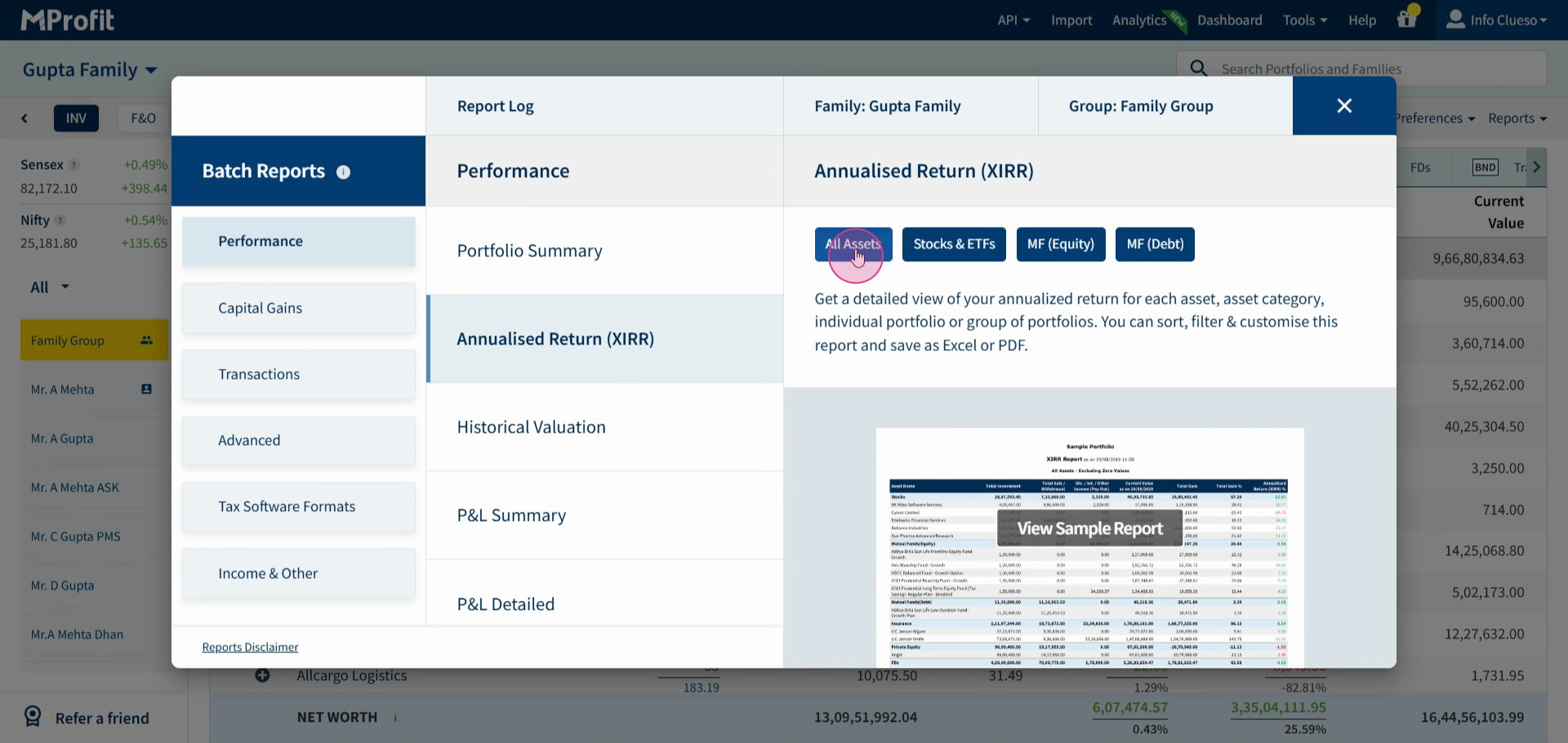
Step 4: Select All Assets.
Step 5: Click on Generate Batch Reports.
Step 6: To download the report, click on the Click here option.
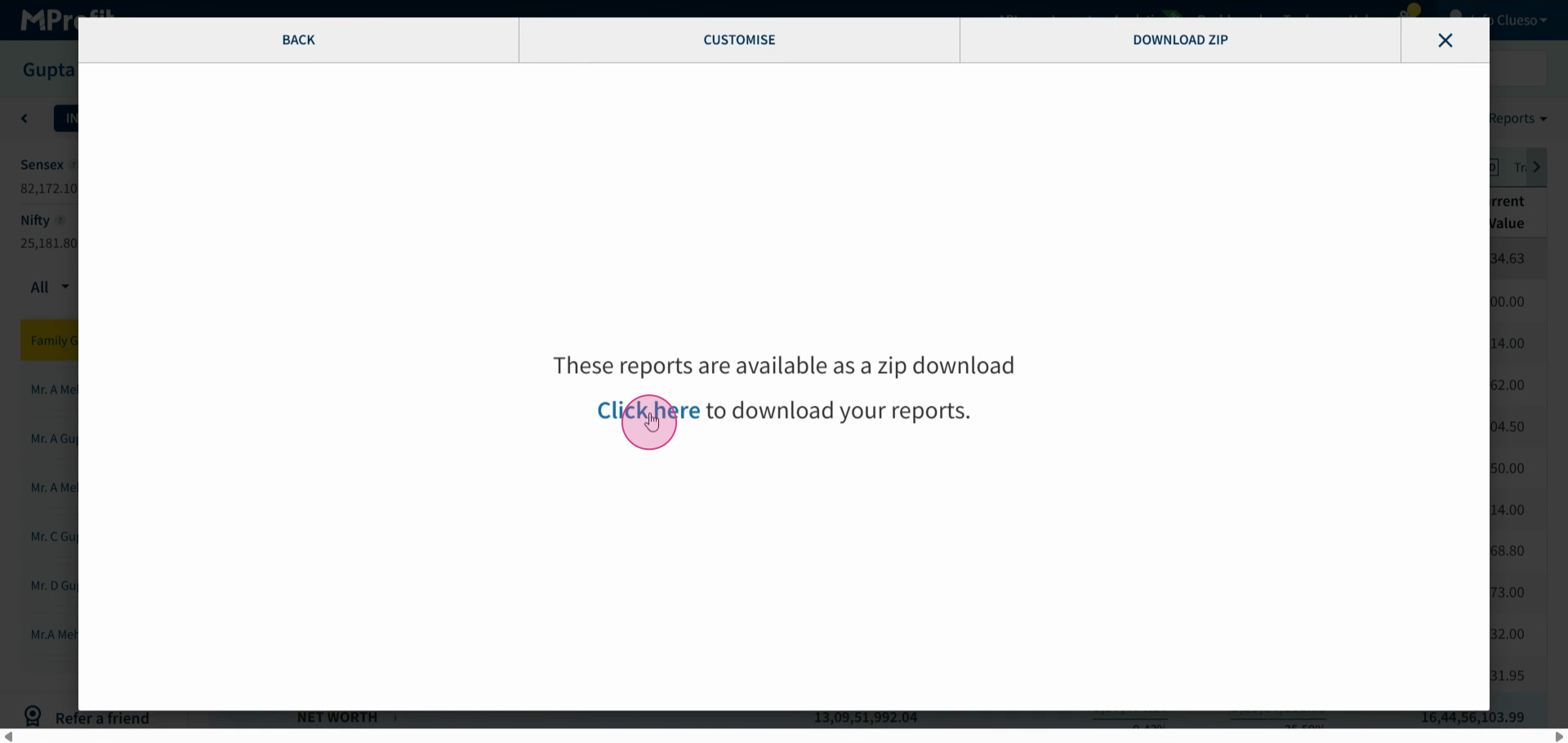
After downloading, you'll find a zip file containing the XIRR report in both PDF and Excel formats for all the portfolios in your selected family group.
That's all there is to it! Thank you for following along.
Was this article helpful?
That’s Great!
Thank you for your feedback
Sorry! We couldn't be helpful
Thank you for your feedback
Feedback sent
We appreciate your effort and will try to fix the article