The F&O Charges Report in MProfit helps you break down all charges related to Futures and Options transactions. Here’s how to generate and interpret this report so you always know where your trading costs come from.
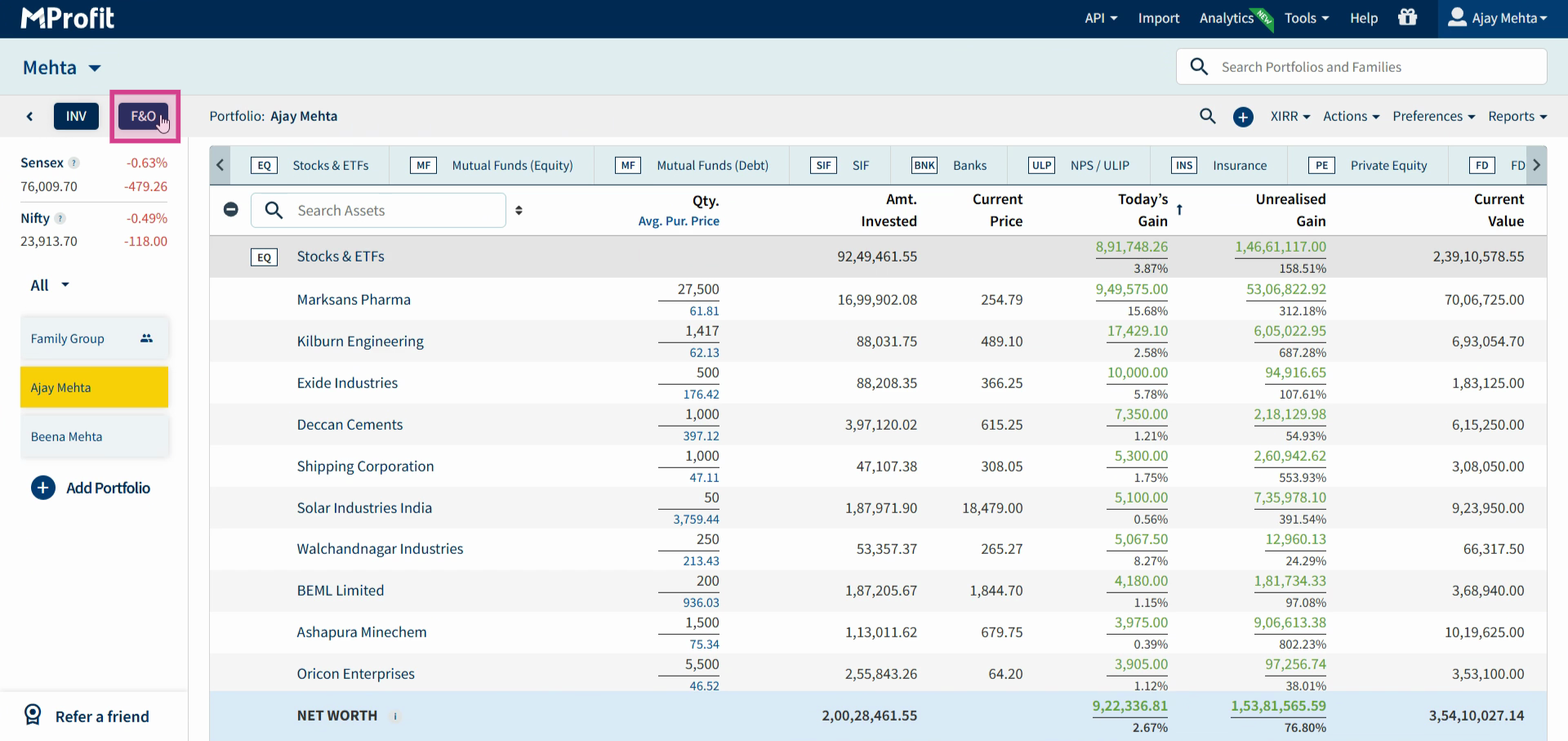
Step 1: Go to the F&O section on the left sidebar.
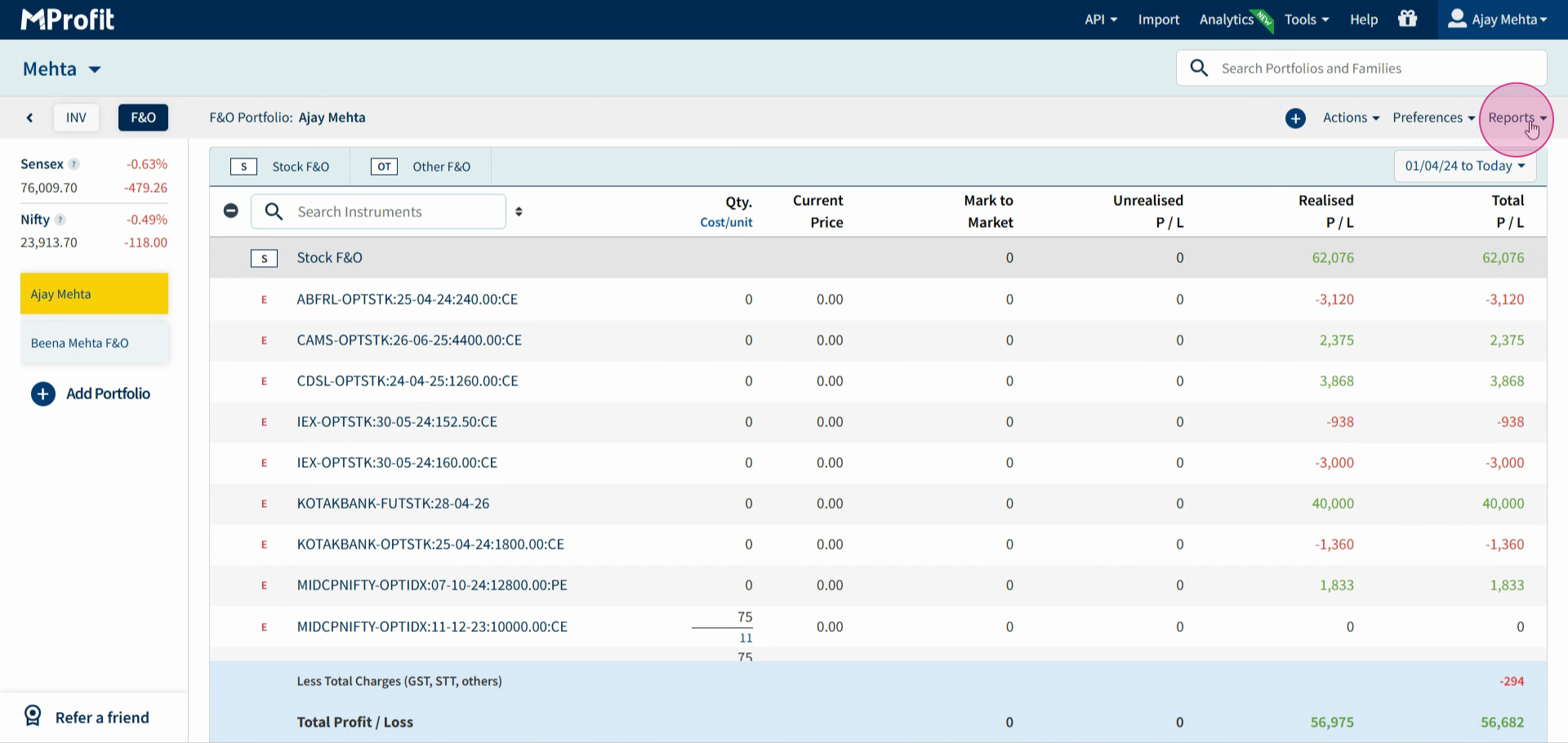
Step 2: Select the Report section.
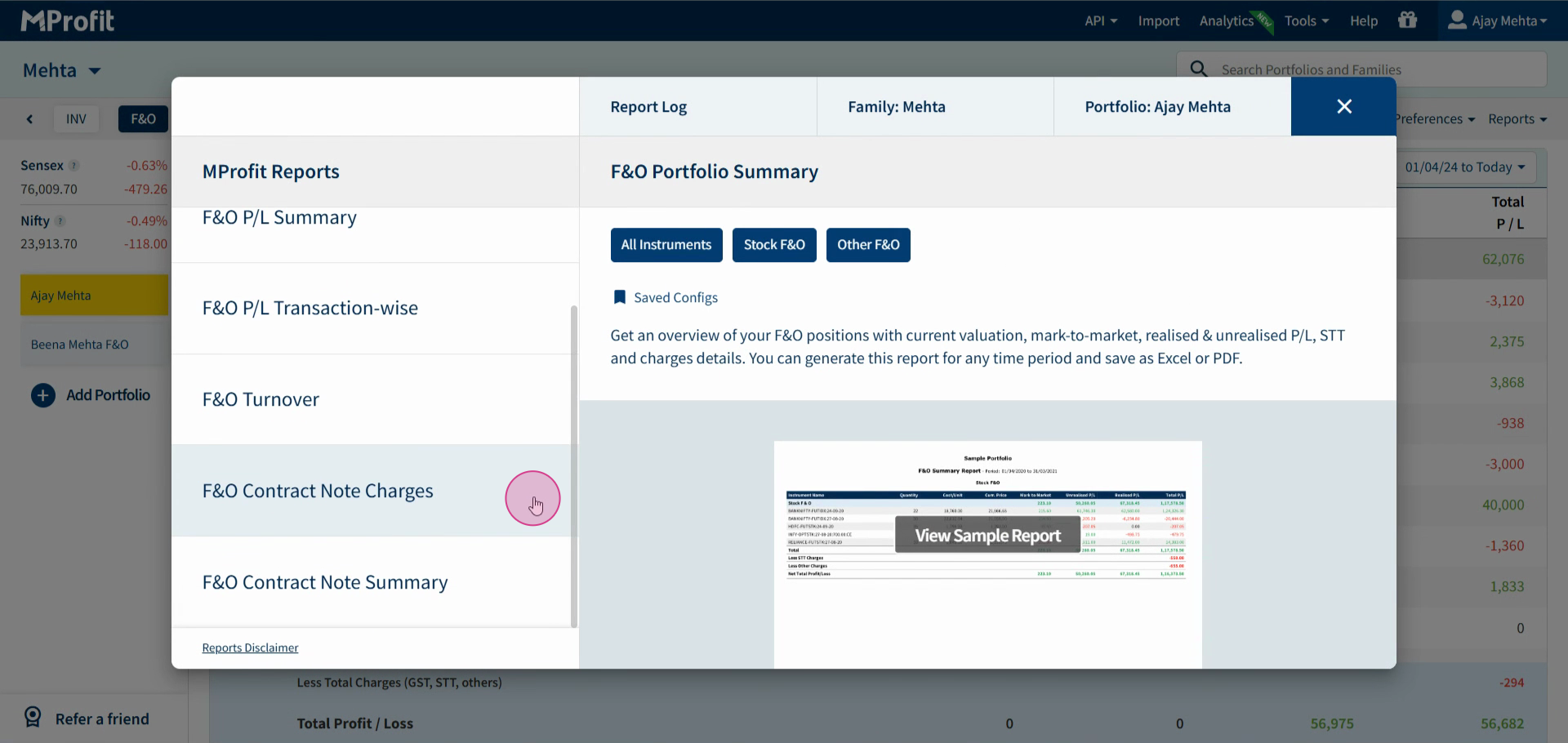
Step 3: Click on F&O Contract Note Charts.
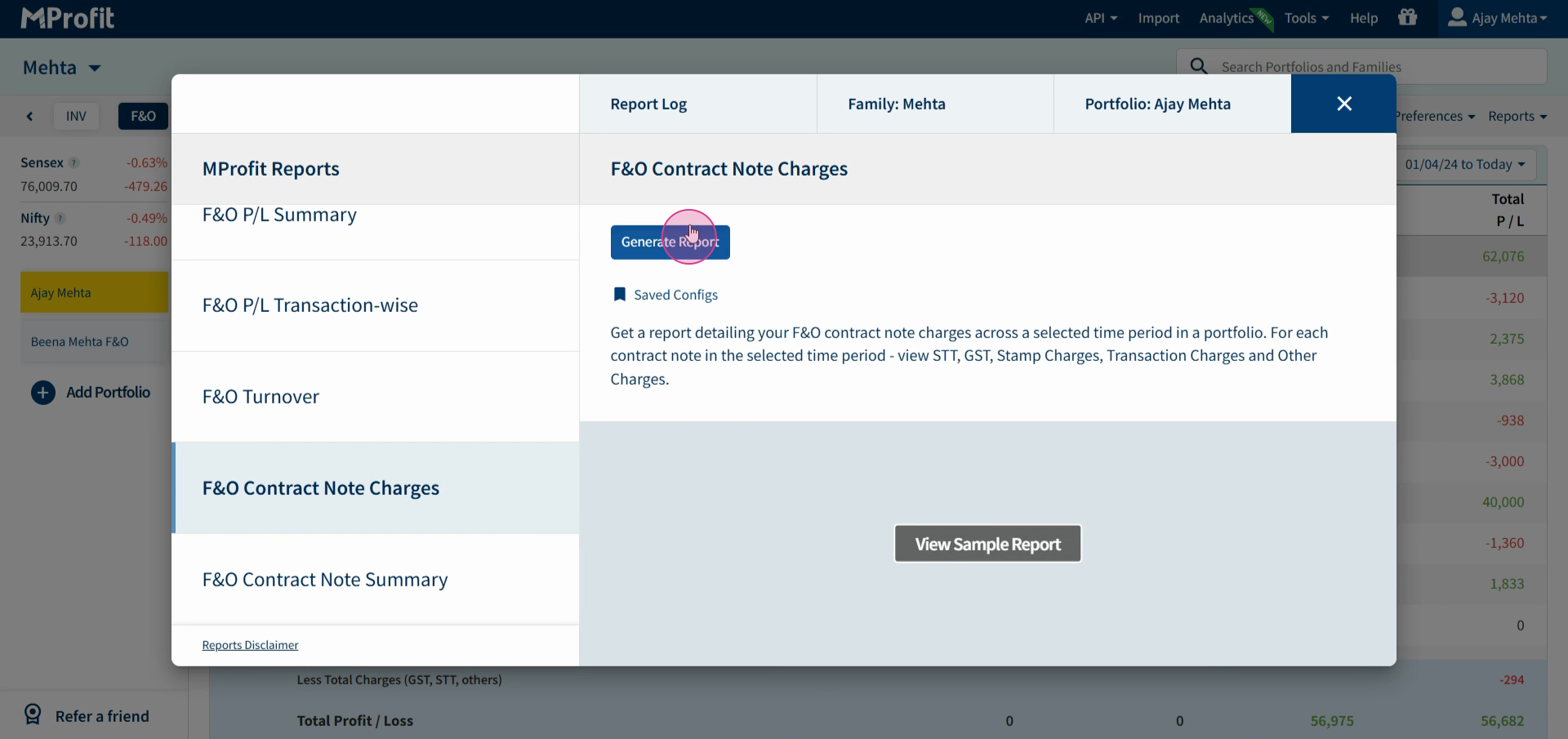
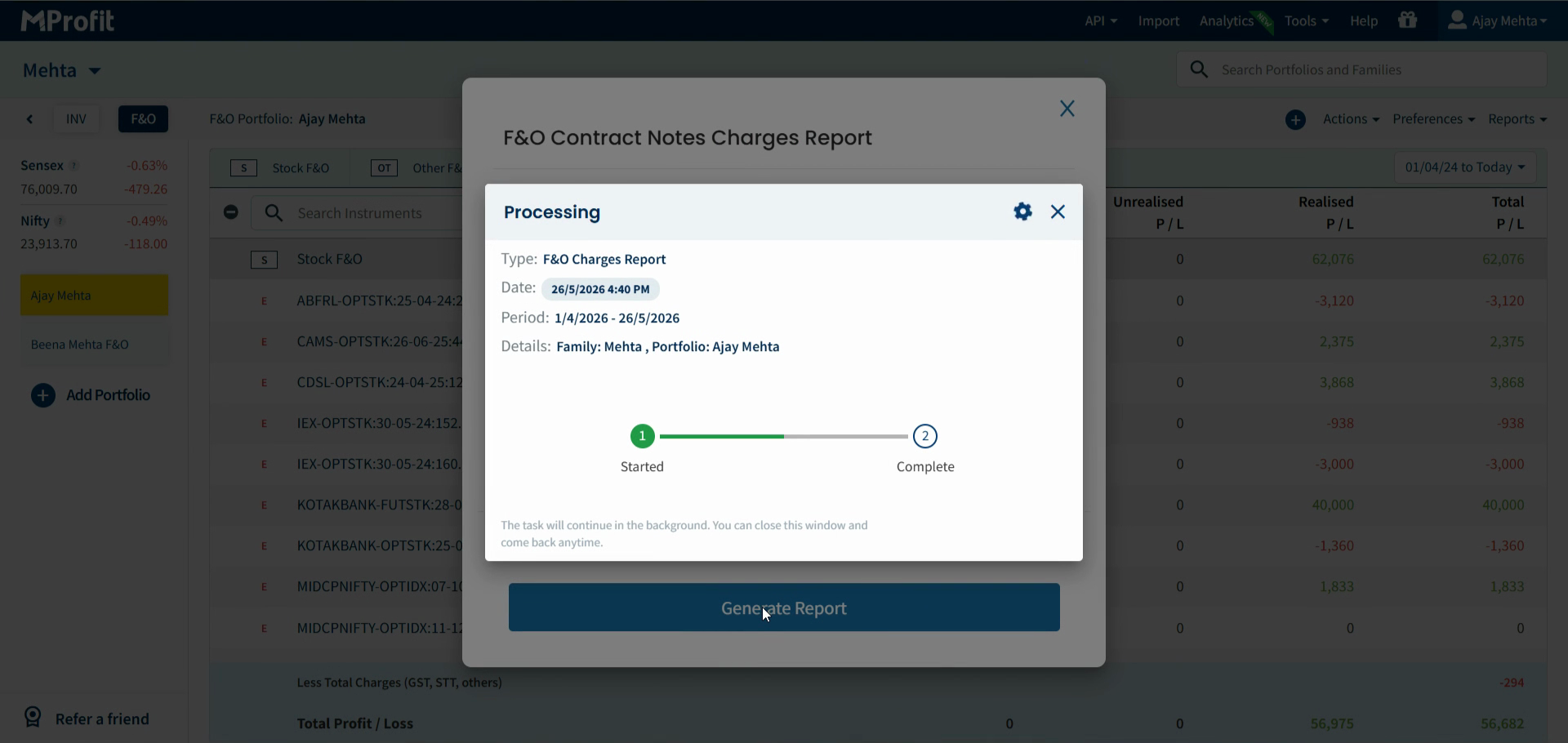
Step 4: Click Generate Report.
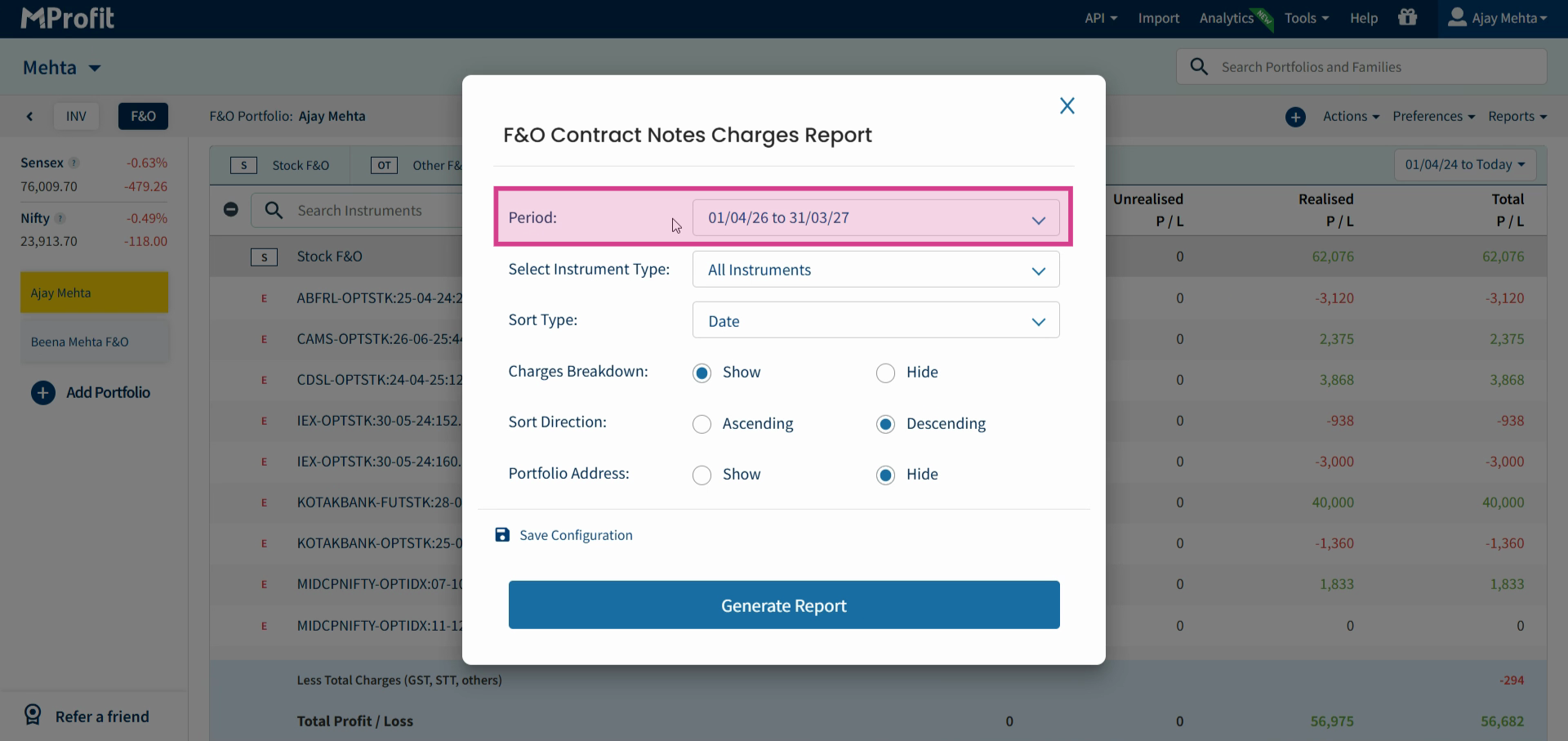
Step 5: Customize your report settings:
Set the Period for the report.
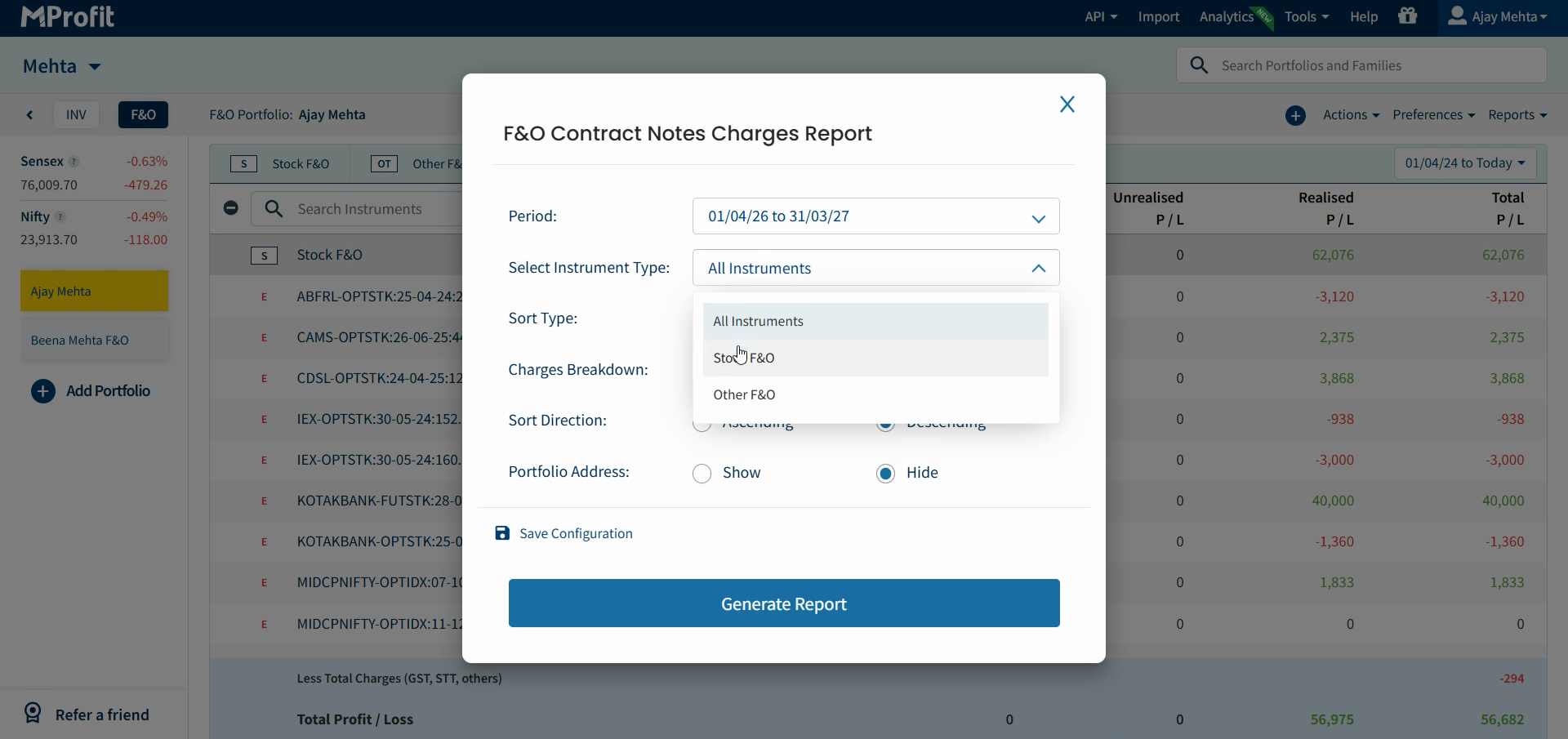
Choose Instrument Types – filter by Stock F&O or other F&O products.
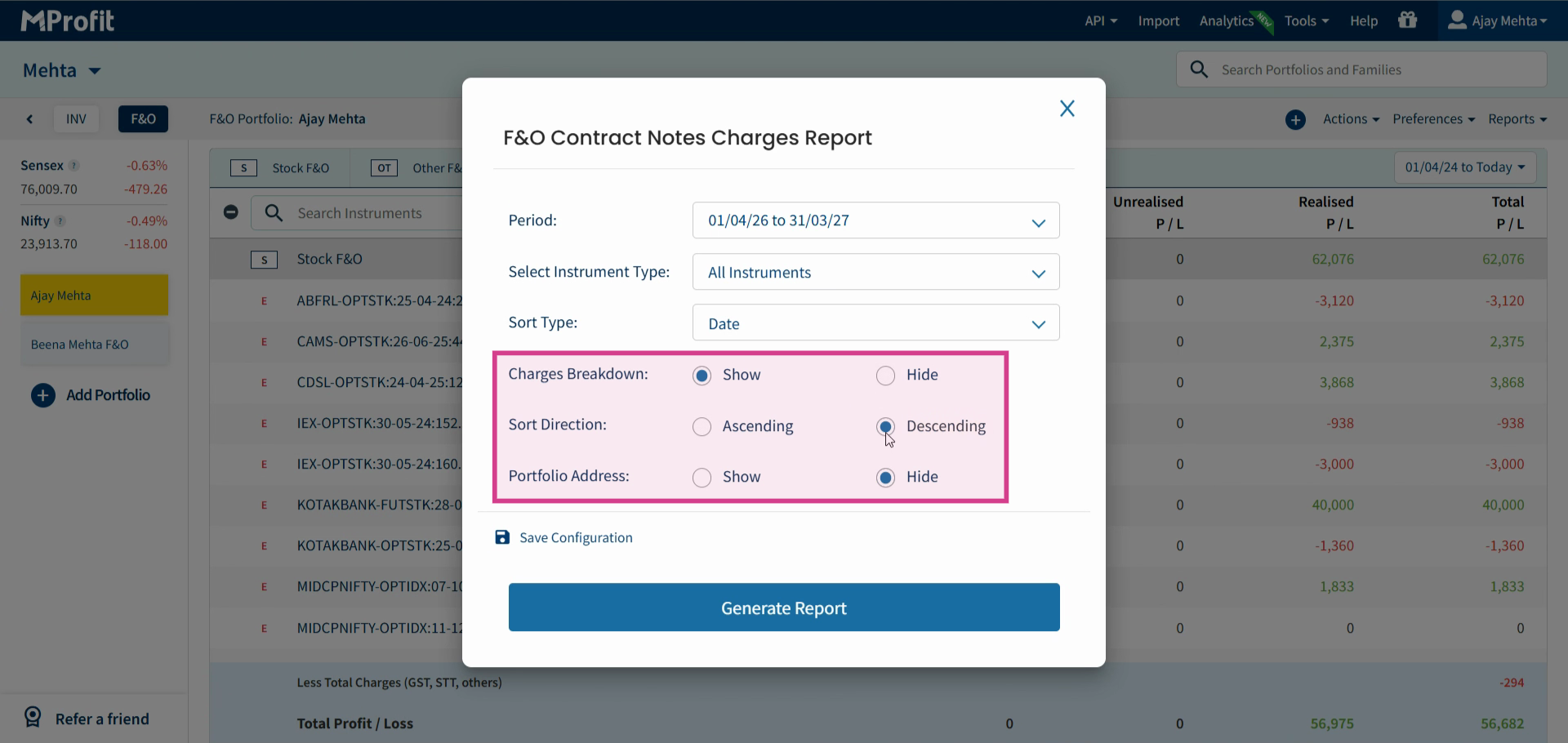
Decide if you want the Charges Breakdown shown or hidden.
Sort the results in Ascending or Descending Order.
Show or hide the Portfolio Address as needed.
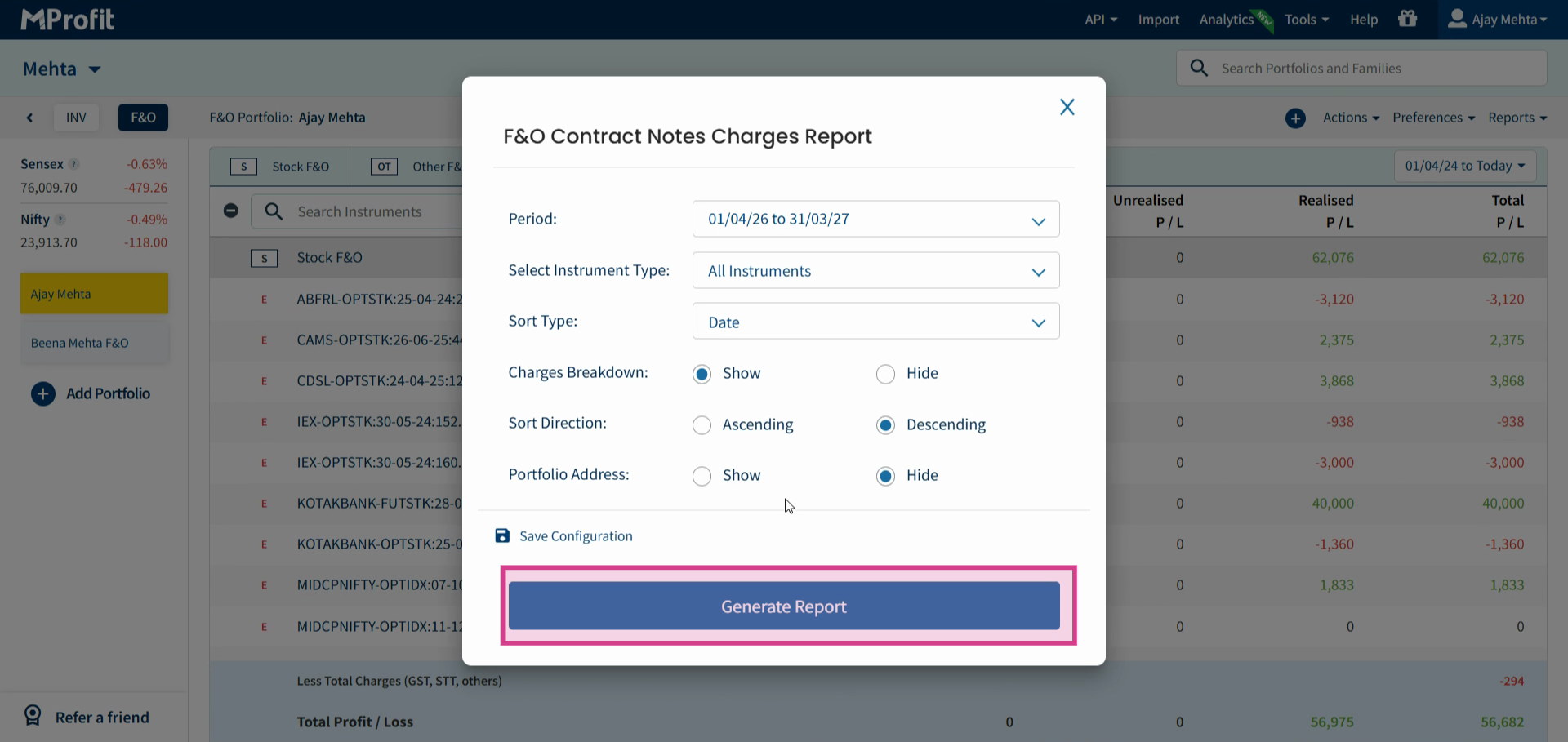
Step 6: When ready, click Generate Report again.
Step 7: Wait for your report to generate, then click Download Report.
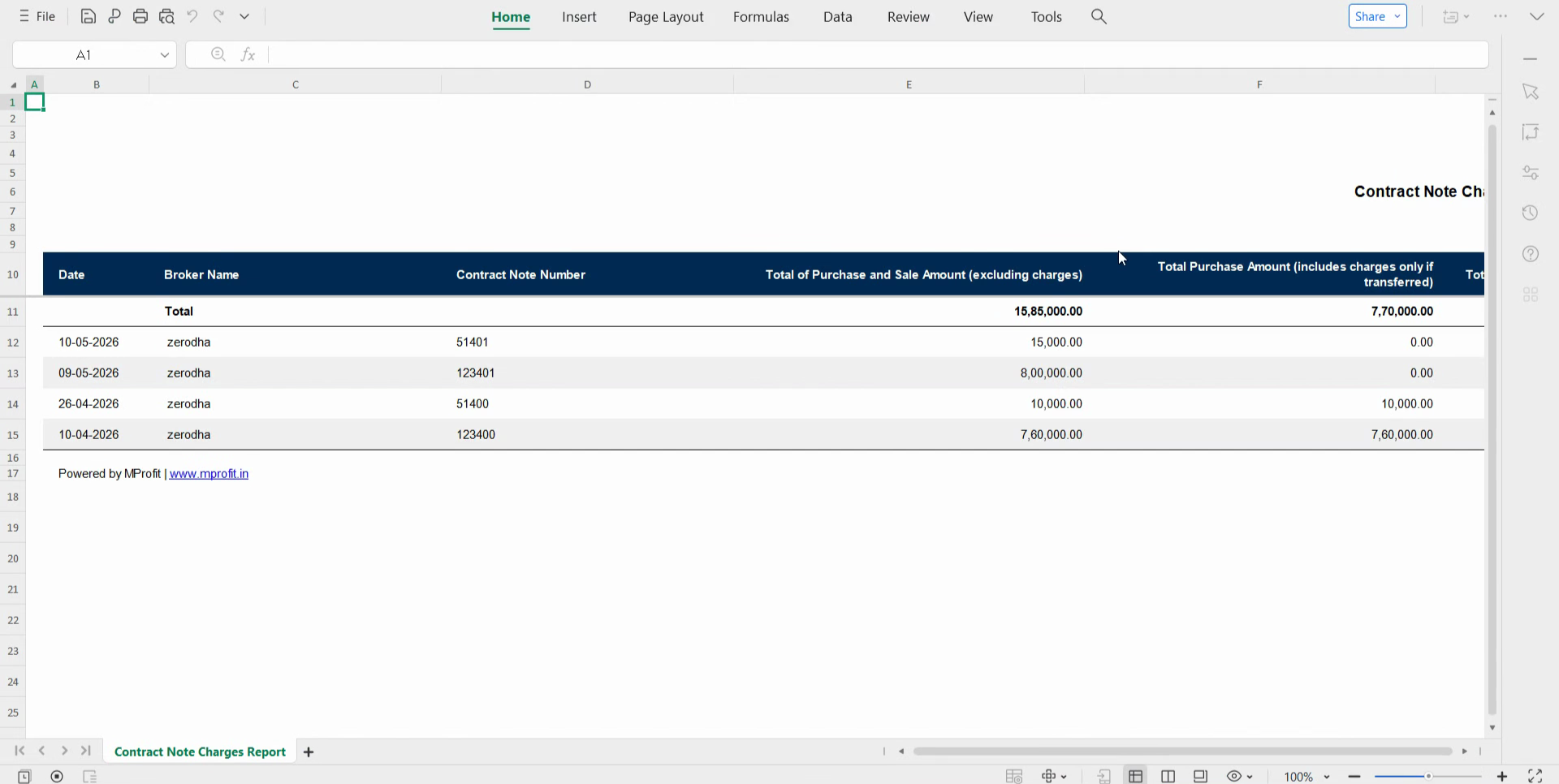
Once you download your F&O Charges Report, you’ll see detailed columns that include broker name, contract mode number, purchase amount, total charges, and more.
You’ll also find breakdowns for STP, GST, Stamp Duty, Transaction Charges, other charges, and the total charges – plus a column showing charges as a percentage of your total amount.
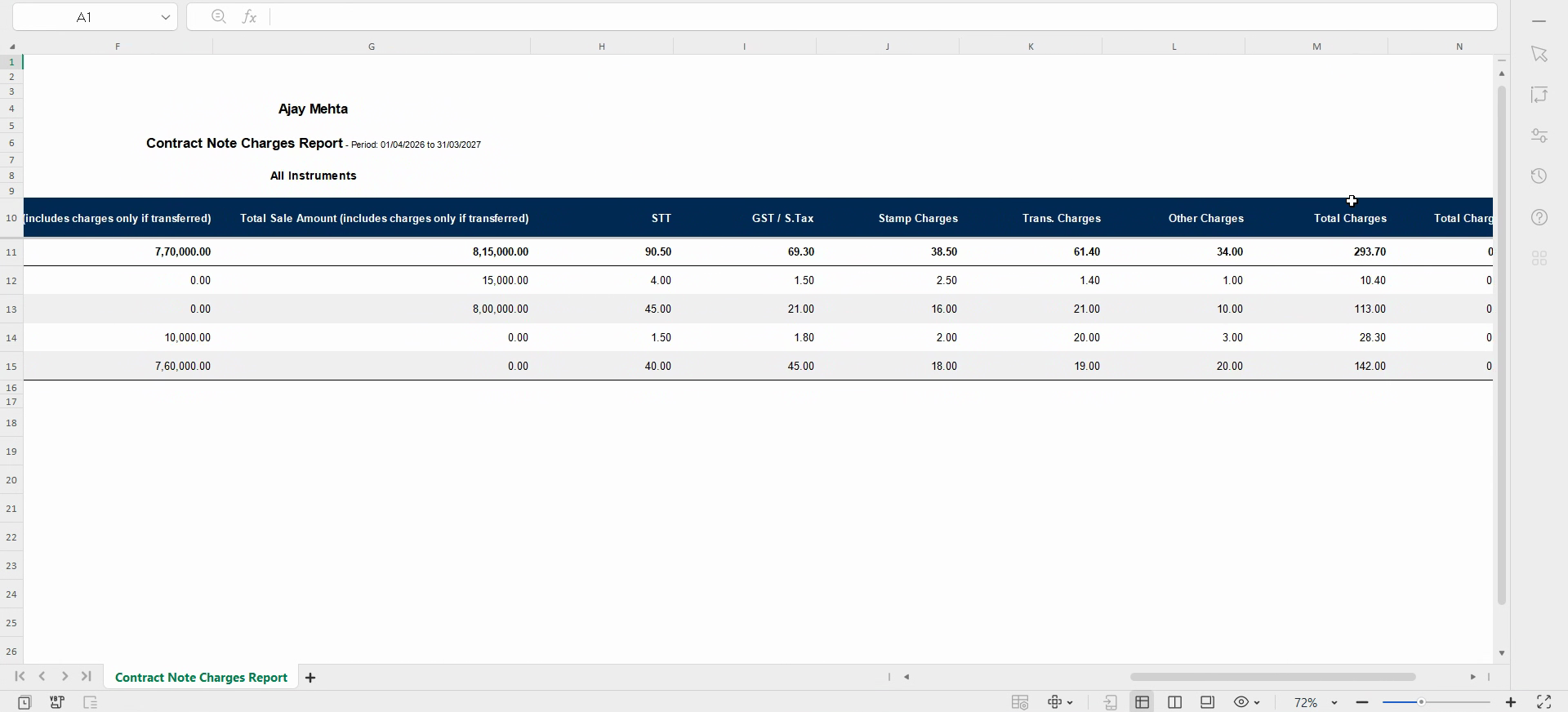
Review these details to fully understand your F&O trading costs.
Generating the F&O Charges Report ensures full transparency in your trading expenses. Use these insights to manage costs, compare brokers, and optimize your trading strategies.
Was this article helpful?
That’s Great!
Thank you for your feedback
Sorry! We couldn't be helpful
Thank you for your feedback
Feedback sent
We appreciate your effort and will try to fix the article